

What it is
An annotation label is a reusable template that defines what feedback annotators provide. Labels are organization-scoped — once created, any queue in your workspace can use them. This keeps annotation criteria consistent across teams and projects.Label types
FutureAGI supports five label types. Each type determines the UI control annotators see and the value format stored in the resulting score.| Type | Description | Settings | Example Use Case | Value Format |
|---|---|---|---|---|
| Categorical | Predefined list of options. Supports single-choice or multi-choice selection. Can be used for auto-annotation. | options (list of strings), multi_choice (boolean) | Sentiment analysis: Positive, Negative, Neutral | string (single) or string[] (multi) |
| Numeric | A number within a defined range. Annotators enter or slide to a value. | min, max, step_size | Relevance score from 1 to 10 | number |
| Text | Free-form text input for open-ended feedback. | min_length, max_length, placeholder | Grammar corrections or rewrite suggestions | string |
| Star Rating | Visual star selector for quick quality ratings. | no_of_stars (1-10) | Overall response quality | number (1 to N) |
| Thumbs Up/Down | Binary pass/fail toggle. The fastest annotation type. | None | Helpfulness check: was this answer useful? | boolean |
Allow Notes
Every label type supports an optional Allow Notes toggle. When enabled, annotators can attach free-text notes alongside their primary annotation. This is useful for capturing context that a structured label cannot express — for example, explaining why a response was rated as Negative. Notes are stored in thenotes field of the resulting score and are available in exports and the API.
Scope and reuse
Labels belong to the organization, not to individual queues or projects. This means:- A label created by one team member is available to all queues in the workspace.
- Updating a label’s name or description applies everywhere it is referenced.
- Deleting a label does not remove existing scores that were created with it — historical data is preserved.
Which type should I use?
Use the decision guide below to pick the right label type for your scenario.| Scenario | Recommended Type | Why |
|---|---|---|
| Classify responses into fixed categories (e.g. topic, intent, sentiment) | Categorical | Predefined options ensure consistency and enable aggregation. |
| Rate quality on a fine-grained scale | Numeric | Continuous range captures nuance that categories miss. |
| Collect corrections, rewrites, or explanations | Text | Free-form input gives annotators maximum flexibility. |
| Quick quality gut-check (1-5 stars) | Star Rating | Visual stars are fast and intuitive for subjective quality. |
| Binary accept/reject decisions | Thumbs Up/Down | Fastest annotation type — one click per item. |
| Multiple dimensions per item (e.g. relevance AND toxicity) | Combine multiple labels in one queue | Attach several labels to a single queue for multi-dimensional annotation. |
Creating a label
Open the Labels tab
Navigate to Annotations in the left sidebar and select the Labels tab. Click Create Label.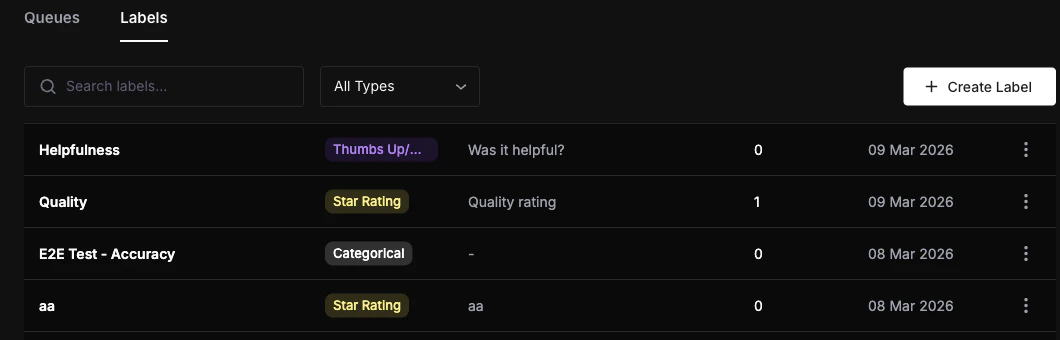
Configure the label
Fill in the label name, select a type, and configure the type-specific settings described in the table above. Toggle Allow Notes if you want annotators to provide written context.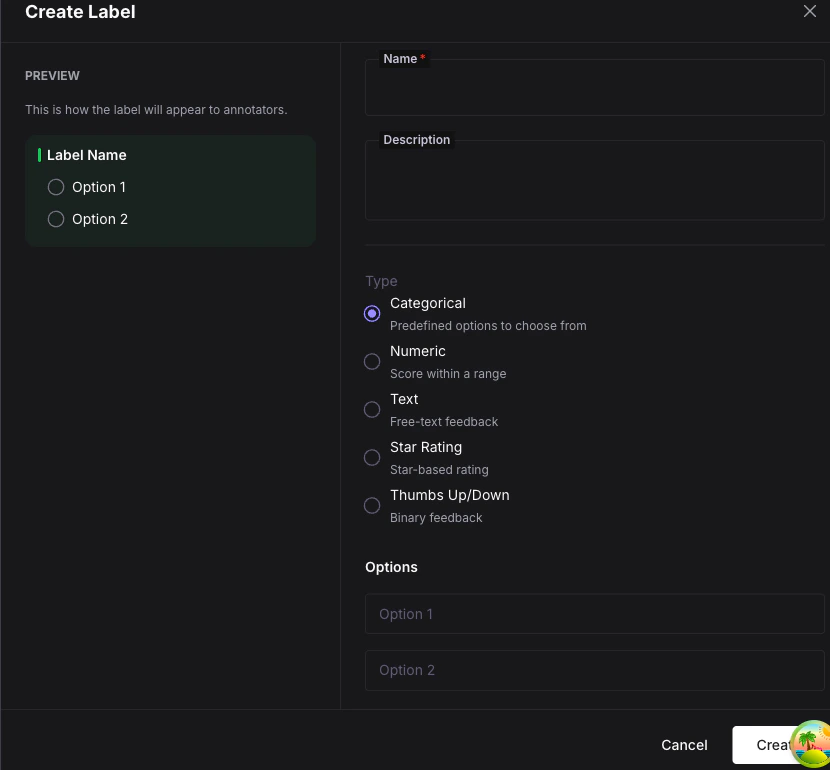
UI appearance by type
Each label type renders a different control in the annotation workspace:| Type | Annotator UI |
|---|---|
| Categorical (single) | Radio buttons for each option |
| Categorical (multi) | Checkboxes for each option |
| Numeric | Number input with stepper or slider |
| Text | Multi-line text area |
| Star Rating | Clickable star icons |
| Thumbs Up/Down | Thumb up and thumb down buttons |
What you can do next
Queues & Workflow
Attach labels to a queue and configure how annotation work is distributed.
Scores
See how label values are stored as scores and queried via the API.