

What it is
An annotation queue is a managed campaign that groups items to annotate, assigns them to annotators, tracks progress, and enforces quality controls. Queues sit between labels (what to measure) and scores (the resulting data), providing the operational layer that turns annotation from an ad-hoc activity into a structured workflow.Queue lifecycle
A queue moves through a defined set of statuses:| Transition | Description |
|---|---|
| Draft → Active | Start accepting annotations. Annotators can begin work. |
| Active → Paused | Temporarily stop annotation. No new items can be picked up, but in-progress items are preserved. |
| Paused → Active | Resume annotation. |
| Active / Paused → Completed | All items are done, or you manually close the queue. |
| Completed → Active | Re-open the queue if new items are added or you need additional annotations. |
Item statuses
Each item in a queue has its own status:| Status | Meaning |
|---|---|
| Pending | Waiting for an annotator to pick it up. |
| In Progress | An annotator has opened the item and is actively annotating. |
| Completed | All required annotations have been submitted. |
| Skipped | An annotator chose to skip this item. It remains available for others. |
| Pending Review | Annotations are done but the item is awaiting reviewer approval (when review workflow is enabled). |
Assignment strategies
Assignment strategies control how items are distributed to annotators when they click Start Annotating.| Strategy | Behavior | Best For |
|---|---|---|
| Manual | Annotators browse and pick items themselves from the queue list. | Small queues or exploratory annotation where annotators need context to choose. |
| Round Robin | Items are distributed cyclically across annotators in order. Each annotator gets the next available item in rotation. | Even distribution when annotators work at similar speeds. |
| Load Balanced | Items are distributed based on each annotator’s current workload. Annotators with fewer in-progress items get the next item. | Teams with varying availability or part-time annotators. |
Reservation system
When an annotator opens an item, the system reserves it for a configurable timeout period. This prevents two annotators from working on the same item simultaneously.- Default timeout: 1 hour.
- Configurable range: 15 minutes to 4 hours.
- Expiry behavior: If the annotator does not submit or skip within the timeout, the reservation expires and the item returns to Pending status for another annotator to pick up.
Multi-annotator support
For tasks that benefit from agreement between multiple reviewers, set the Annotations Required field (1-10) when creating or editing a queue.- Each item must receive the configured number of complete annotations before it transitions to Completed.
- Different annotators independently annotate the same item — they do not see each other’s responses.
- The queue analytics tab shows inter-annotator agreement metrics once multiple annotators have scored the same items.
An item is considered fully annotated by a single annotator only when all labels attached to the queue have been scored. Partial submissions are saved but do not count toward the required annotation count.
Review workflow
Enable Requires Review on a queue to add a review step after annotation:Annotation
Annotators complete their work as usual. When all required annotations are submitted, the item moves to Pending Review instead of Completed.
Guidelines
Each queue supports a Guidelines field — a markdown-formatted instruction document shown to annotators when they open the annotation workspace. Use guidelines to:- Define the annotation criteria and edge cases.
- Provide examples of correct and incorrect annotations.
- Specify when to skip an item.
- Link to external reference material.
Auto-completion
Items auto-complete when the following conditions are met:- All labels attached to the queue have been scored for the item.
- The required number of annotators (set by Annotations Required) have each fully annotated the item.
- If Requires Review is enabled, the reviewer has approved the item.
Creating a queue
Open the Queues tab
Navigate to Annotations in the left sidebar and select the Queues tab. Click Create Queue.
Configure the queue
Fill in the queue settings:
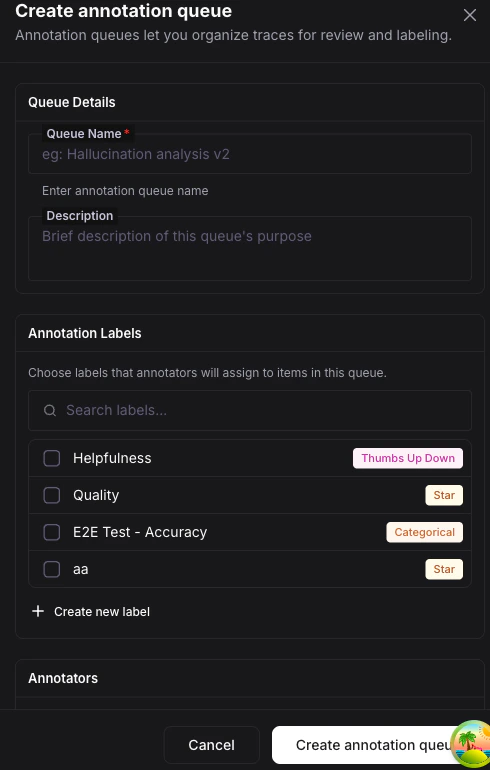
| Field | Description |
|---|---|
| Name | A descriptive name for the campaign. |
| Labels | Select one or more labels that annotators will apply. |
| Assignment Strategy | Manual, Round Robin, or Load Balanced. |
| Annotators | Add team members who will annotate. |
| Annotations Required | Number of independent annotators per item (1-10). |
| Reservation Timeout | How long an item stays reserved for one annotator. |
| Requires Review | Whether completed items need reviewer approval. |
| Guidelines | Markdown instructions for annotators. |
What you can do next
Annotation Labels
Learn about the five label types you can attach to queues.
Scores
Understand the data model behind every annotation.
Quickstart
Walk through the full annotation flow end to end in 5 minutes.