

Defining Success Metric
Before setting up evals on the platform, decide what “success” looks like for your agent. This could be how accurately it answers customer’s questions, how quickly it responds, or how reliably it completes a task. Depending on these parameters, you can either select Future AGI’s builtin evals or if your use-case is very specific and cannot be satisfied by the builtin evals, then create a custom evals. (We will dive deep into both methods in detail).Using Future AGI’s Builtin Evals (Recommended)
Below are the builtin evals Future AGI offers that are purposefully built specifically to evaluate simulations. You can use them depending on your use-case:customer_agent_context_retention: Evaluates if the agent remembers context from earlier in the conversation.customer_agent_interruption_handling: Evaluates whether the bot talks over the customer. Uses barge-in detection logs to confirm the agent waits for customer to finish speaking before responding.customer_agent_language_handling: Evaluate if the agent correctly detects the language/dialect and responds appropriately, including mid-call language switching if supported.customer_agent_clarification_seeking: Evaluates if the agent seeks clarification when needed rather than guessing.customer_agent_conversation_quality: Evaluates overall conversation quality between agent and customer.customer_agent_human_escalation: Evaluates if the AI agent escalates to a human agent appropriately based on customer’s frustration, complexity of queries, or specific keywords.customer_agent_loop_detection: Evaluates if the agent gets stuck asking the same question repeatedly or circling back in loops.customer_agent_objection_handling: Evaluates the agent’s ability to handle customer’s objections effectively.customer_agent_query_handling: Evaluates if the agent correctly interprets customer queries and gives relevant answers.customer_agent_termination_handling: Tracks occurrences of agent freezing, hanging up abruptly, crashes, or early cut-offs.
-
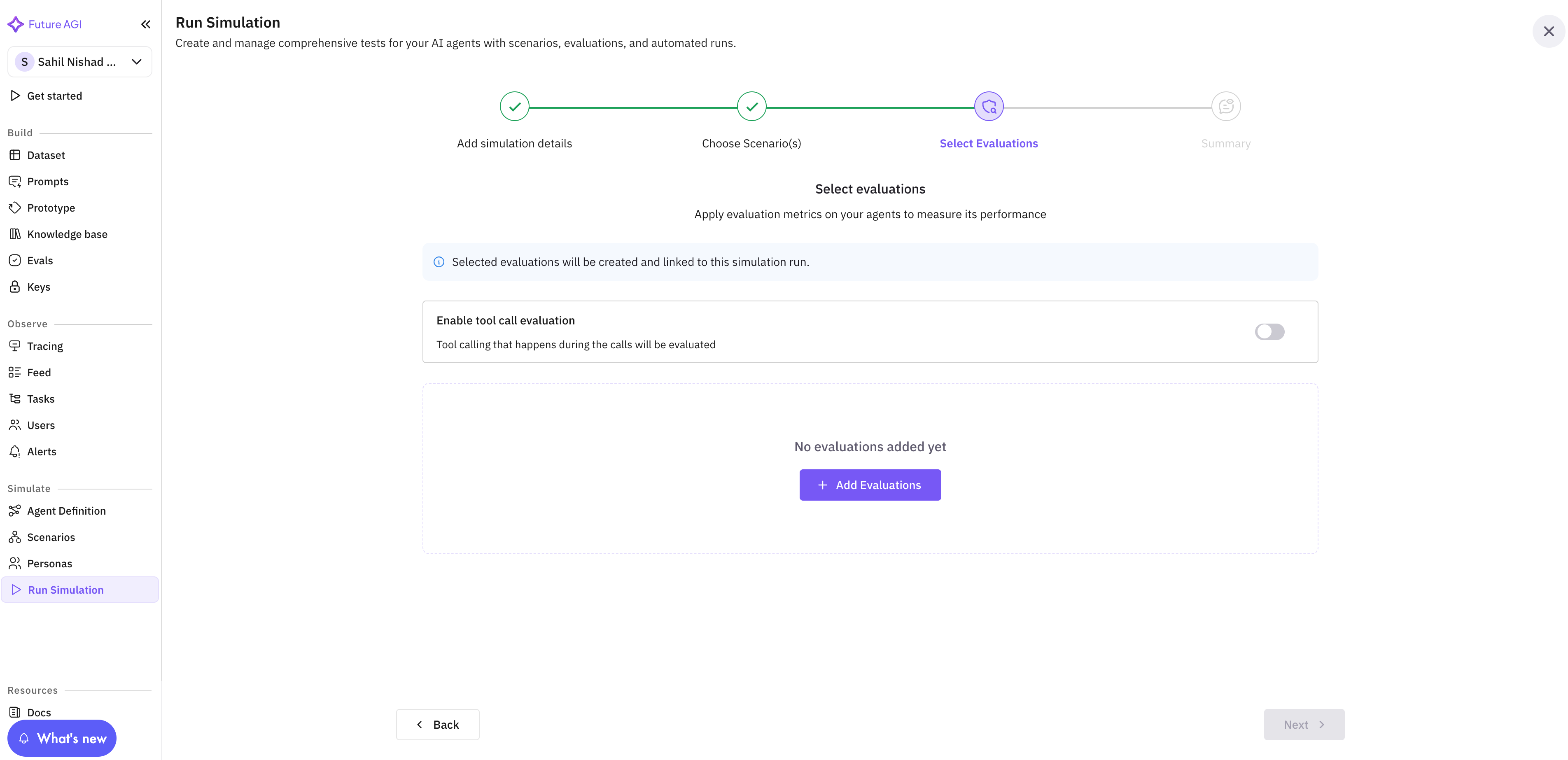
You can select these evals from your “Run Simulation” dashboard, as shown in Fig 1 below.
-
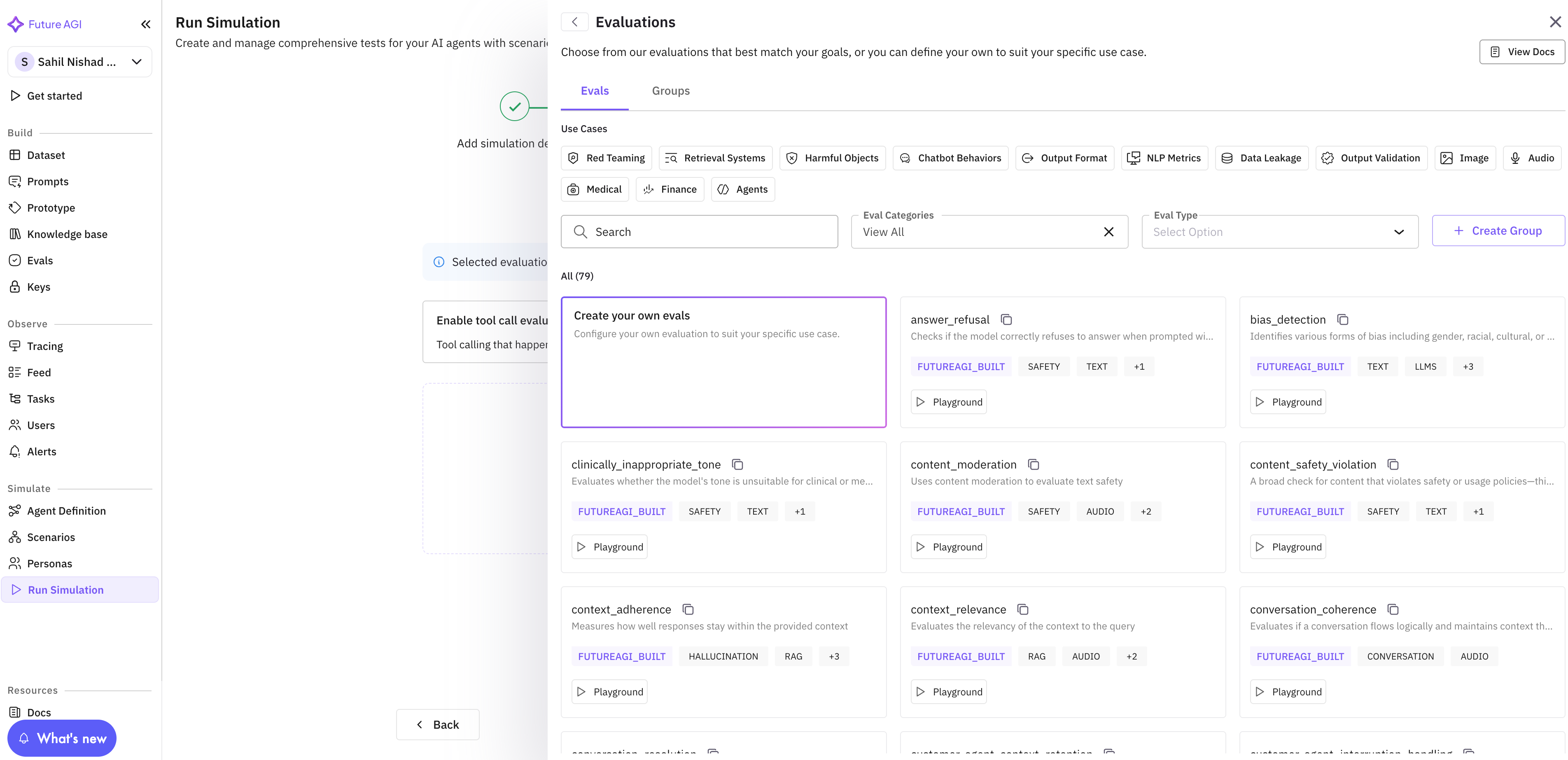
Click on “Add Evaluation” and click on the eval you want to use.
-
After choosing one of the eval from the list. A new drawer will open, where you can map configure the eval.
(For example, let say we chose
customer_agent_interruption_handlingeval)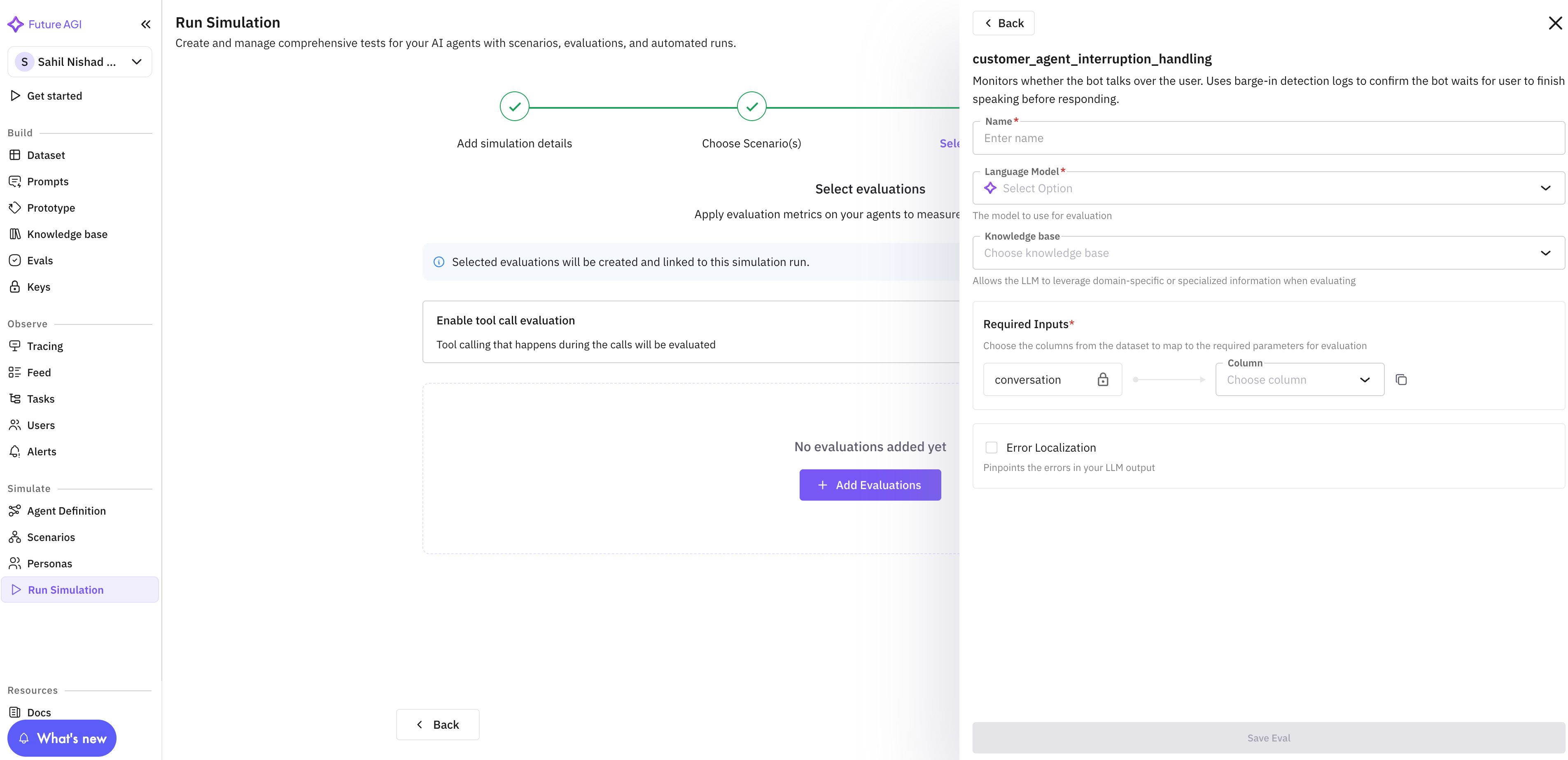
-
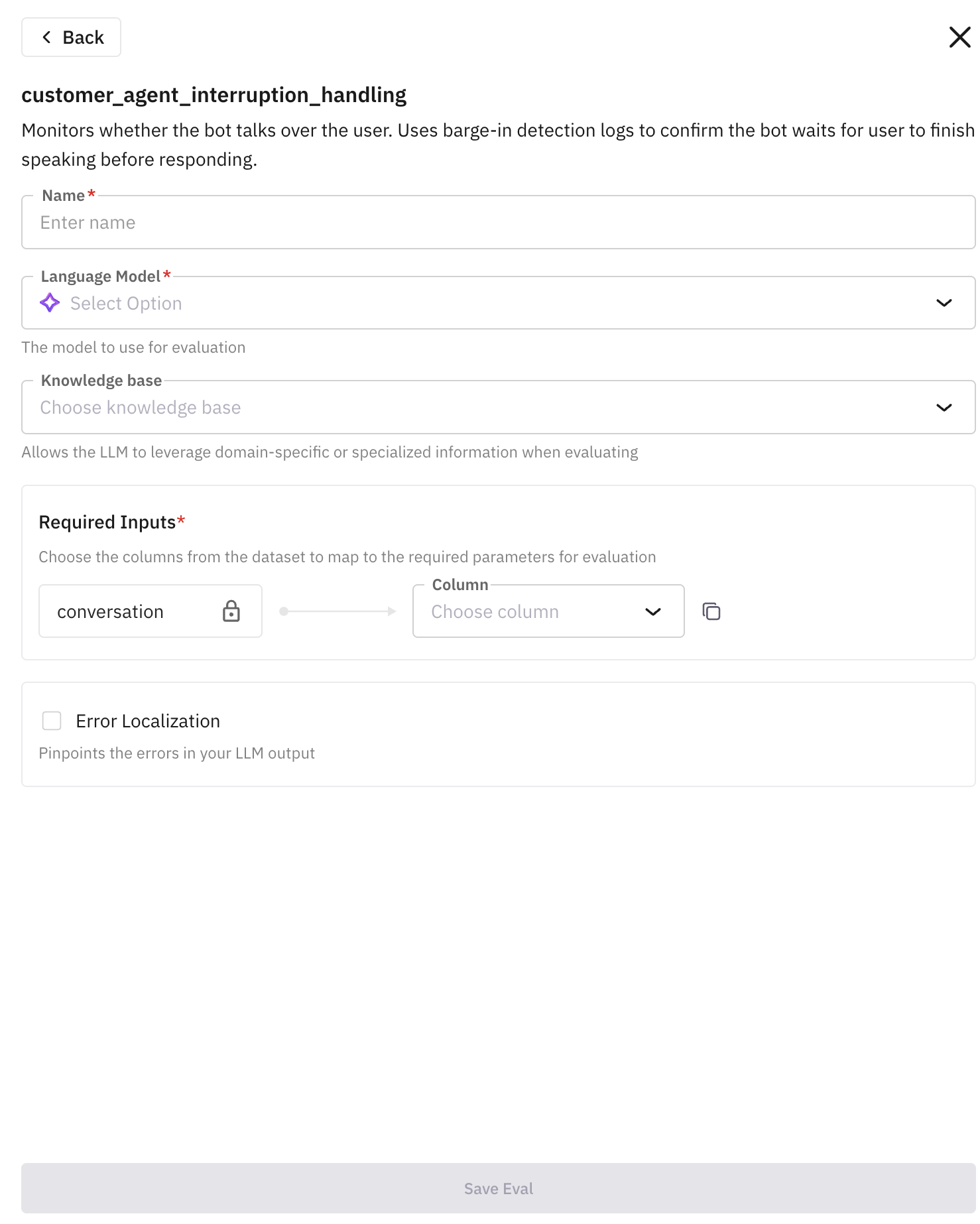
Provide details to configure evals. Each eval has its own set of specific fields, where some are common and some are specific to certain evals. Follow below table to provide these details properly:
Field Name (Required) Description Name This is the name that is going to appear in your simulation dashboard after running the call. Language Model Select which Future AGI model you want to use for evaluation. Recommended TURING_LARGE. Click here to learn more about them.Required Inputs These are the input(s) taken by the evaluator and running evaluations on it. Each evals has different set of the inputs. For the eval we are showing in this example takes only “conversation” as key for the required input. This can either be transcript or the recording of the conversation between agent and customer. Read below to follow the best practices for choosing which column to choose based on the keys. Below are the best practices for choosing appropriate columns based on the common key names present in the builtin evals:Field Name (Optional) Description Knowledge Base Use knowledge base only if you want the evaluators to run as per your business use-case, Click here to learn how to create knowledge base. Recommended: First try to run the evals without them, inspect the result, if you do not find it satisfactory then proceed with creating knowledge base. Error Localization Enable this if you want to pinpoint the error caught during evaluation. Below are the explanation of each column:Key Name Appropriate Column To Choose conversationMono Voice RecordingorStereo RecordinginputpersonorsituationoutputMono Voice RecordingorStereo RecordingoroutcomeorAssistant Recordingcontextpersonaorsituation^ Visible only if you have generated scenario using workflow builder. Click here to learn more. Note: If you had generated scenario using dataset, you will see those column names in place of “outcome”, “situation” and “persona”.Column Name Explanation Transcript Complete text transcription of the entire conversation happened during simulation between agent and customer Mono Voice Recording Voice recording of both agent and customer but in mono channel Stereo Recording Voice recording of both agent and customer but in stereo channel Assistant Recording Voice recording of agent only Customer Recording Voice recording of the simulated customer only Agent Prompt Prompt provided when creating agent definition outcome^ Outcome column of the generated scenario situation^ Situation column of the generated scenario persona^ Persona column of the generated scenario -
After filling the details, click on “Save Eval”.
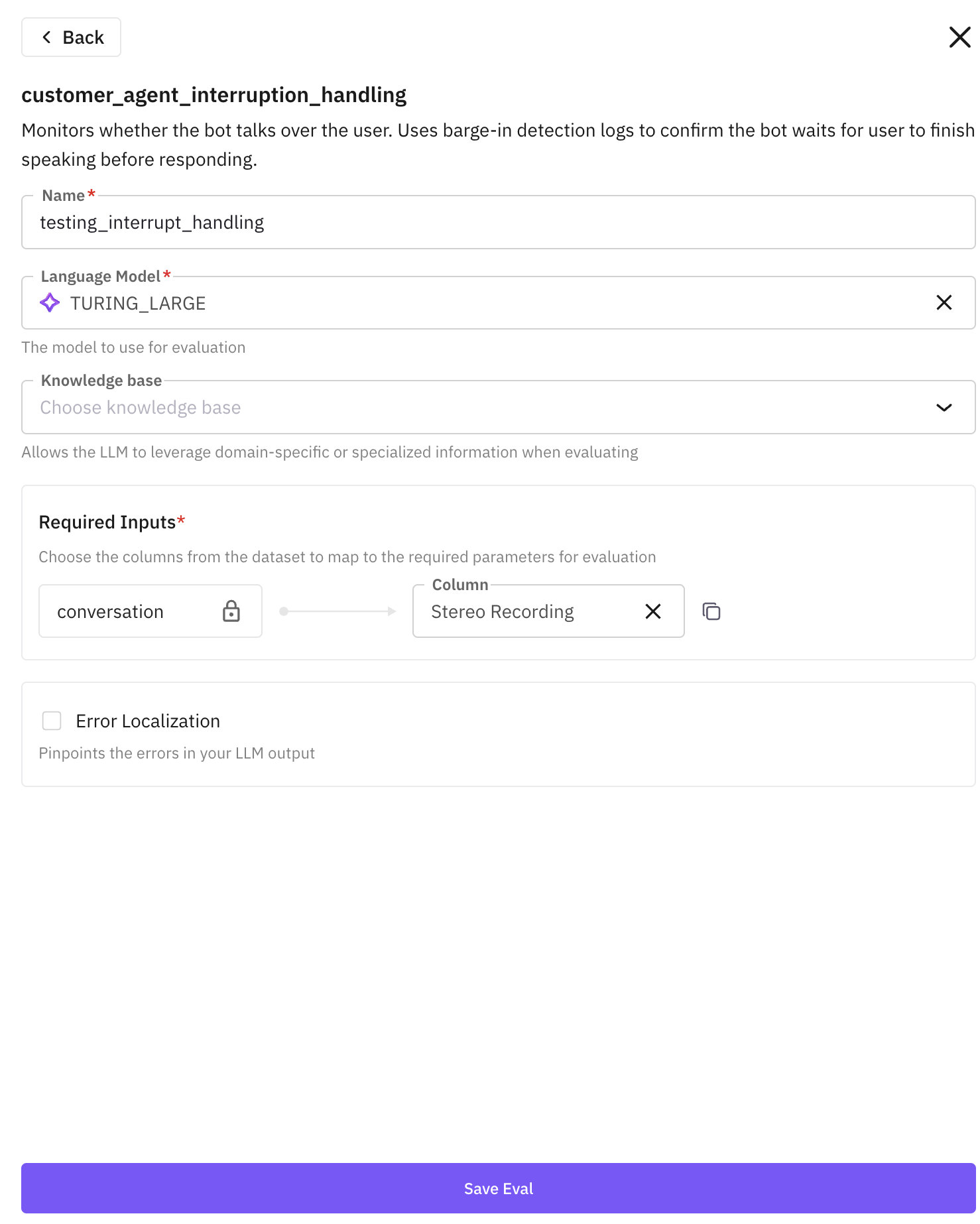
-
This eval will now be visible under the “Selected Evaluations” section.
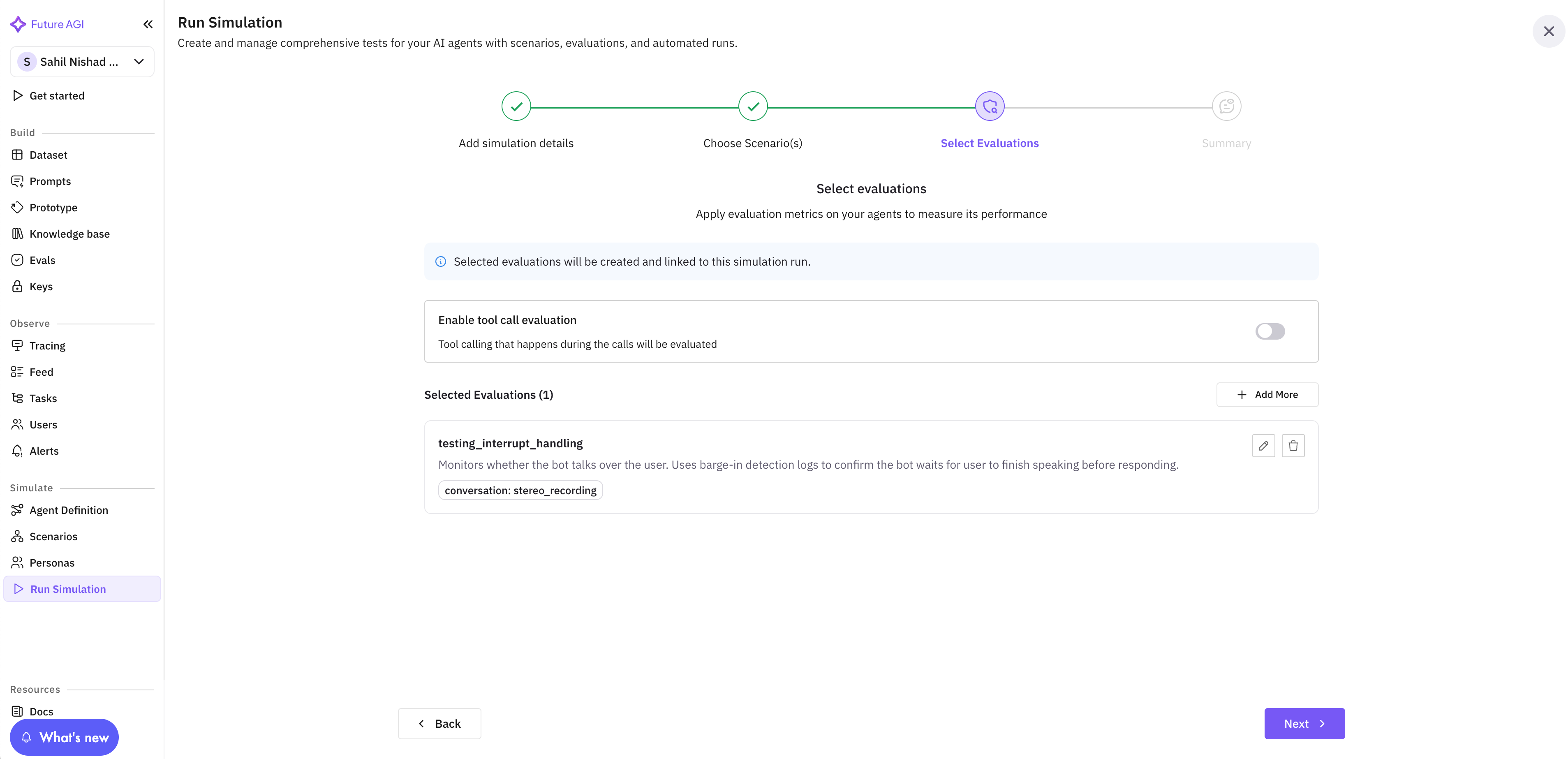
Using Custom Evals (For Advanced Users)
-
Click on “Create your own evals” to create a custom eval
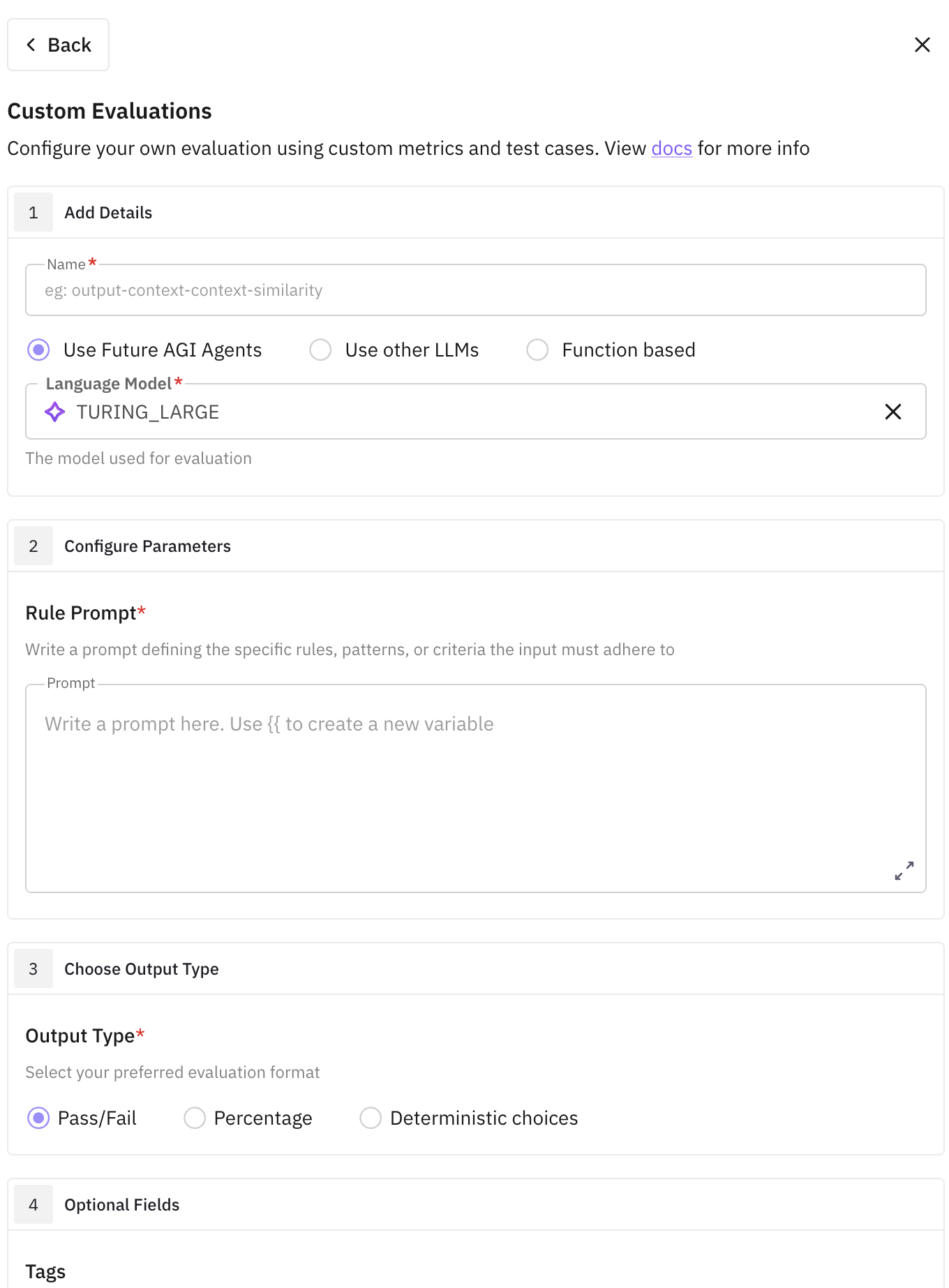
-
Provide a unique name to it. This is the name that is going to appear in your eval dashboard under “User Built” category.
- Then select which model do you want to use for evaluation. You can select from variety of options ranging from popular LLMs to Future AGI’s (Click here to learn more about them). You can even bring your own custom model (Click here to learn how you can create custom model).
-
After selecting the model, you now have to provide the evaluation criteria in a form of rule prompt. Provide the input as a variable for the eval inside two-curly braces
{{ }}.- A good rule prompt for a custom eval consists of unambiguous language, clear definition and declaration of input parameters, along with the proper interpretation and significance of the output result. If it is a score type eval, then what does high numeric score means to you, if it is a categorical eval then what does each output category means to you. You have to specify each of these in details for the eval to work optimally.
- Use
{{conversation}}as a single variable in the rule prompt and choose either Mono Voice Recording or Stereo Recording when mapping them. - Example rule prompt: Given
{{conversation}}, evaluate if agent is able to convince the customer to purchase insurance
-
After the rule prompt, you have explicitly specify the output type:
- if it is a pass/fail type
- or percentage (you have to specify what does 0% signifies, meaning if it is a pass or fail),
- or even a categorical deterministic choices, where you have to provide all the labels you want the eval to give output in. It is possible that the eval logic is such that it can give more than 1 output label, then choose “Multi choice” option to enable it.
- (optional) To have better readability and documentation, you can assign a tag and description to this eval.
- Click on “Create Evaluation” and this will save this custom eval as a template. This will be available as an “User Built” eval in your evals dashboard.
-
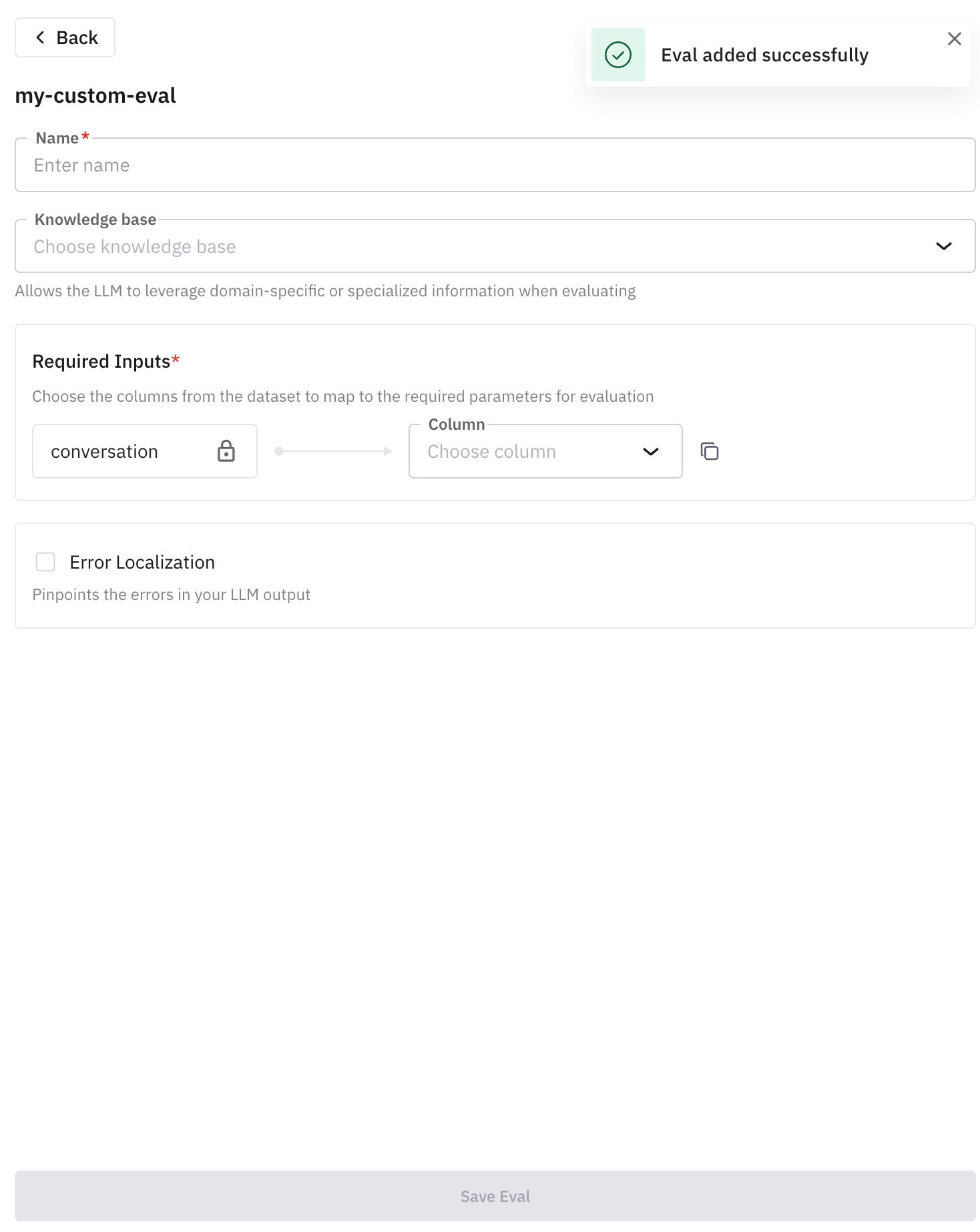
You have now successfully created a custom prompt template. You can now start using it.
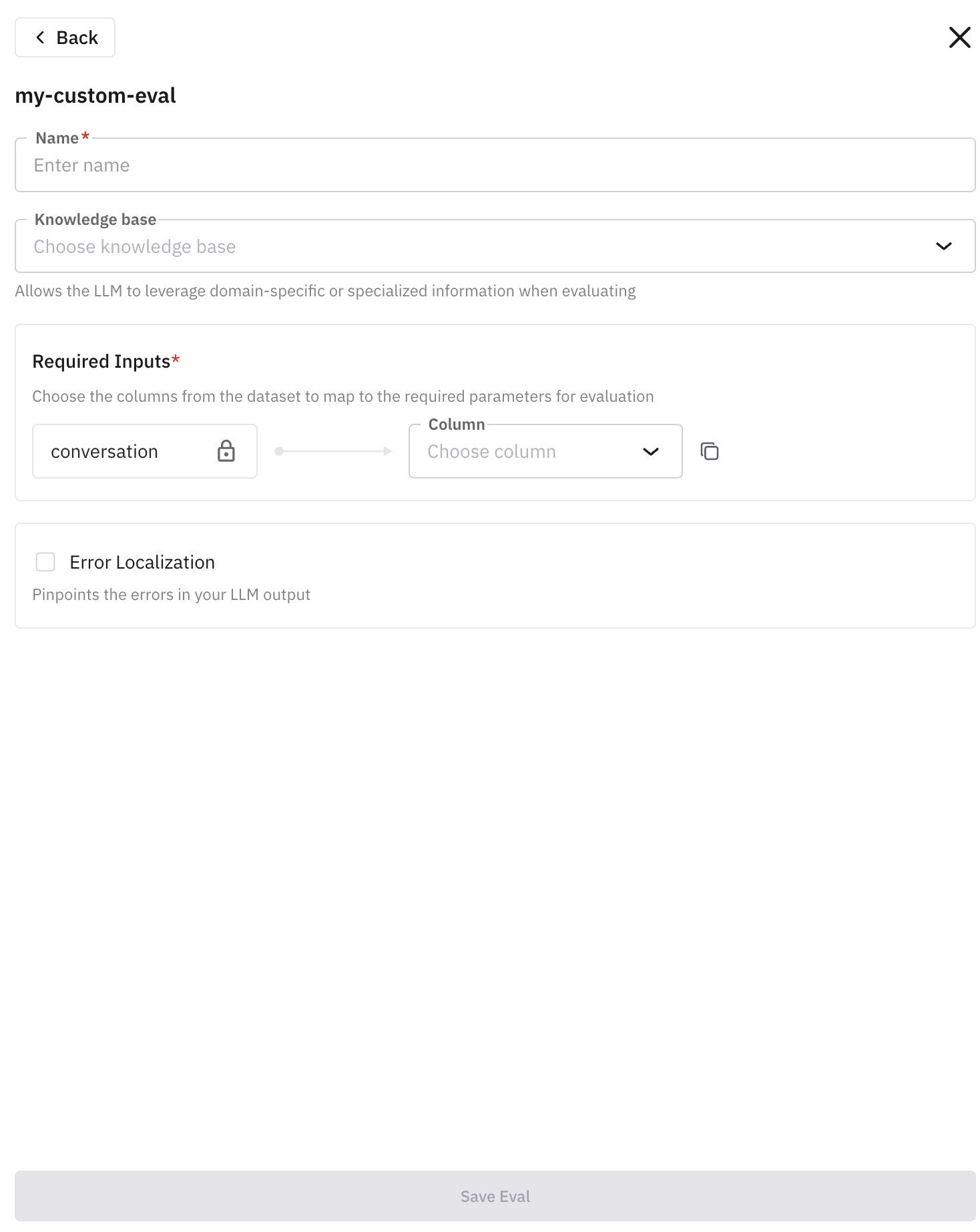
- Proceed with naming the eval. This is the name that is going to appear in your simulation dashboard after running the call.
-
Now choose the column required for the custom eval. (Choose either
Mono Voice RecordingorStereo Recordingsince our rule prompt for custom eval was defined in such a way) - Click on “Save Eval” and similarly you can keep adding more evals in a single run to test the agent more broadly. Once you have added evals you want to use, click on “Next” and then run the evaluation.