

What it is
Items are the bridge between your data and your annotation workflow. Each item links a source — a trace, span, session, dataset row, prototype run, or simulation call — to a queue. When you add items to a queue, annotators can review the source content and apply the queue’s labels.Supported source types
| Source Type | Where to find | Description |
|---|---|---|
| Trace | Observe > Traces | Full LLM trace with input, output, metadata, latency, tokens, and cost |
| Observation Span | Observe > Trace detail > specific span | An individual span within a trace |
| Session | Observe > Sessions | A conversation session (group of related traces) |
| Dataset Row | Datasets > select dataset | An individual row in a dataset |
| Prototype Run | Prototype > execution history | A prototype experiment run |
| Simulation Call | Simulation > call logs | A simulated voice or text call execution |
How to add items from Observe
Click Add to Queue
Click the Add to Queue button in the toolbar. A dialog opens where you can search for and select the target queue.
How to add from other sources
The flow is the same across all source types:- Datasets — Navigate to a dataset, select rows using checkboxes, and click Add to Queue.
- Sessions — Open Observe > Sessions, select sessions, and click Add to Queue.
- Prototyping — Open a prototype’s execution history, select runs, and click Add to Queue.
- Simulation — Open simulation call logs, select calls, and click Add to Queue.
Managing items in a queue
Open a queue’s detail page and go to the Items tab to see all items and their statuses.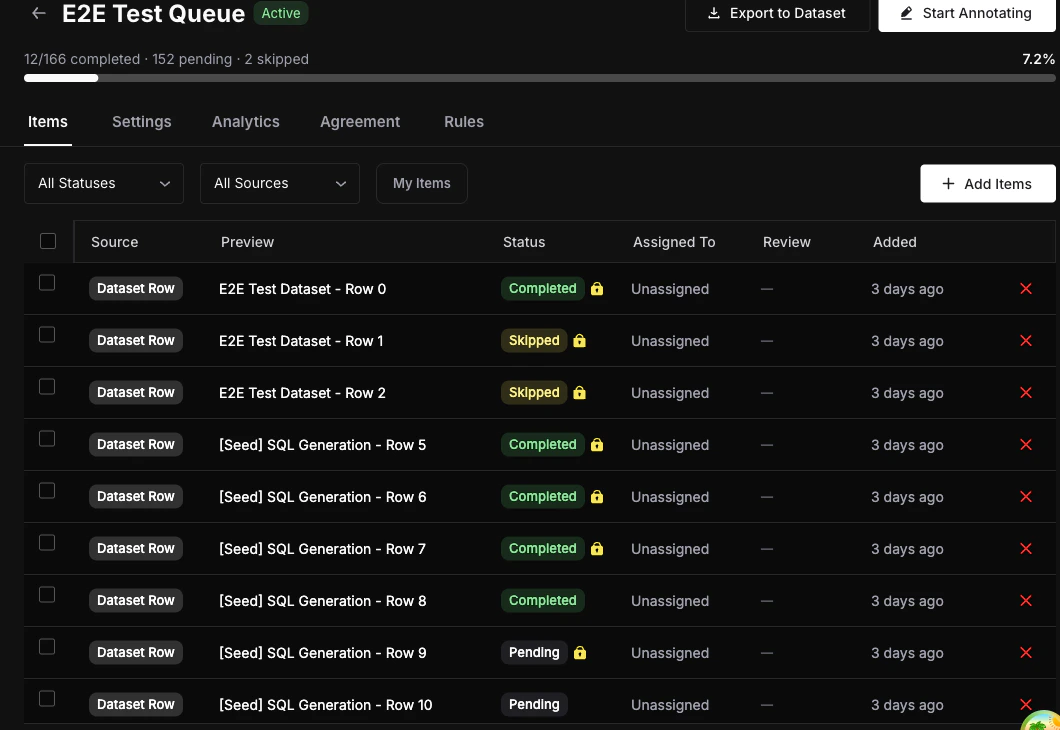
Filtering items
- By status — Filter by Pending, In Progress, Completed, or Skipped.
- By source type — Show only items from a specific source (e.g., traces only).
- My Items — Toggle to see only items assigned to you.
Removing items
- Select one or more items using checkboxes and click Remove Selected.
- Or click the
xbutton on an individual row to remove a single item.
Bulk operations
Use the select-all checkbox to select all visible items, then apply bulk actions like remove.Duplicate items are silently skipped. If a source is already in the queue, adding it again has no effect. The response shows how many items were added versus how many were duplicates.
Next steps
Annotate Items
Start annotating items in the annotation workspace.
Queues Concept
Understand how queue items flow through statuses and assignment.
Items API
Add items programmatically via the REST API.