

What it is
Labels are reusable annotation templates that define what you measure. Each label has a type (categorical, numeric, text, star, or thumbs up/down) and type-specific settings. Labels are shared across your entire organization — any queue can use any label.How to create a label
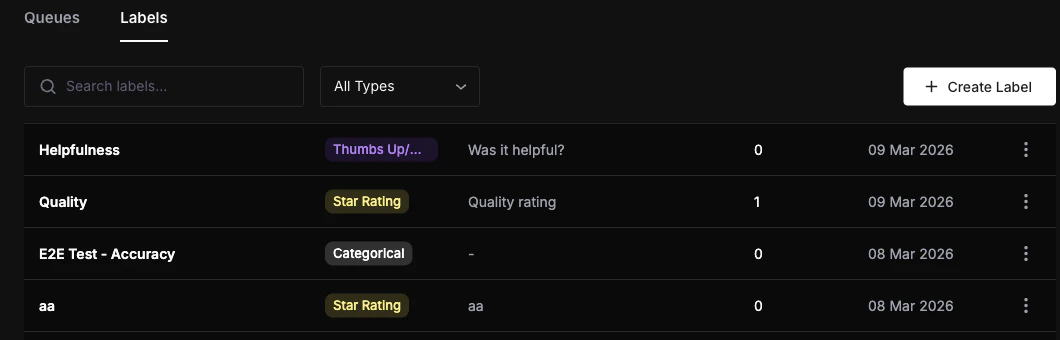
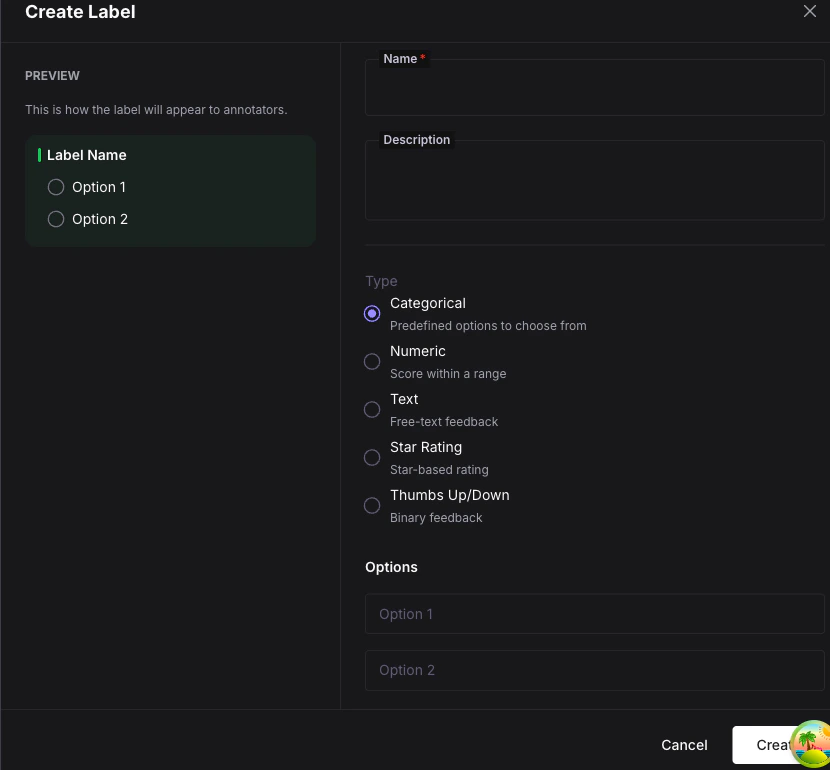
Enter name and description
Fill in the Name field (required) and an optional Description to help annotators understand the label’s purpose.
Configure type-specific settings
Each type has its own configuration options:
- Categorical — Add at least two options. Toggle Allow multiple selection if annotators should be able to pick more than one option.
- Numeric — Set Min, Max, and Step size values. Choose the display format: Slider or Buttons.
- Text — Set Placeholder text, Min character length, and Max character length.
- Star — Set the Number of stars (1—10, default 5).
-
Thumbs Up/Down — No additional settings needed.
Enable optional notes
Toggle Allow Notes if you want annotators to add free-text commentary alongside their label value.
Managing labels
- Edit — Click a label row or use the
⋮menu and select Edit. You can change the name, description, and type-specific settings, but the type itself is immutable. - Duplicate — Use the
⋮menu and select Duplicate. This creates a copy with the original name prefixed by “Copy of” that you can customize. - Archive — Use the
⋮menu and select Archive. This soft-deletes the label. Archived labels can be restored. - Search — Use the search bar at the top to filter labels by name.
- Filter by type — Use the type dropdown to show only labels of a specific type.
Label type settings reference
| Type | Settings | Default |
|---|---|---|
| Categorical | options (list), multi_choice (bool) | multi_choice: false |
| Numeric | min, max, step_size | 0, 10, 1 |
| Text | placeholder, min_length, max_length | empty string, 0, 5000 |
| Star | no_of_stars | 5 |
| Thumbs Up/Down | none | none |
Labels are shared across your entire organization. Any queue can use any label, and changes to a label’s settings apply everywhere the label is used.
Next steps
Create & Manage Queues
Set up annotation queues that use your labels.
Annotate Items
Learn how to use labels in the annotation workspace.
Labels Concept
Understand the five label types and when to use each one.