

What it is
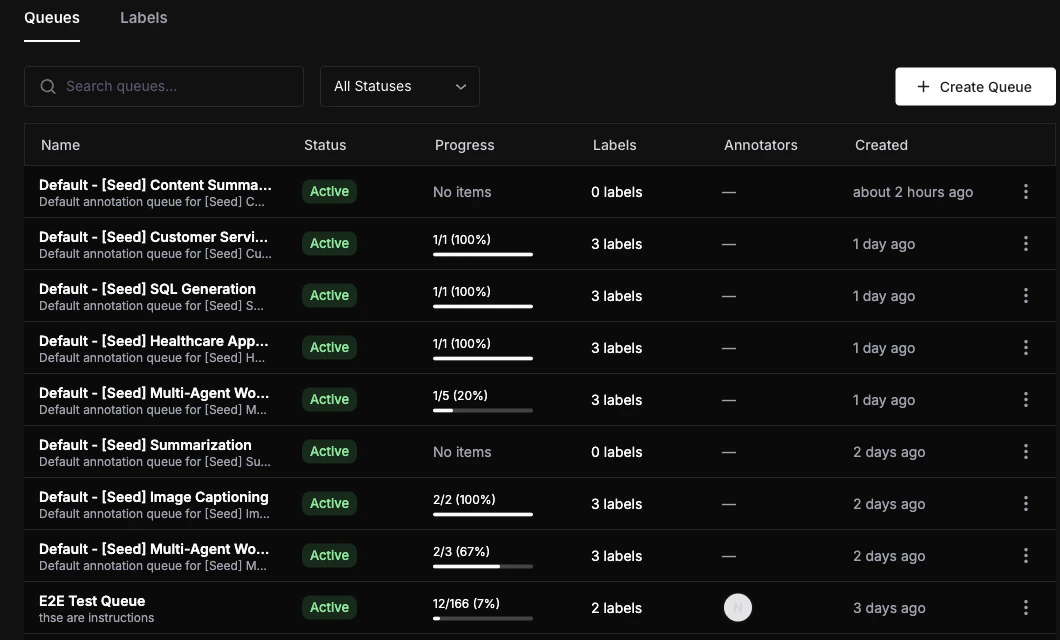
Queues are managed annotation campaigns. They bundle a set of labels, a group of annotators, and a collection of items into a single workflow. Queues track progress, handle assignment, enforce review requirements, and provide analytics.How to create a queue
Enter name and description
Fill in the Name field (required) and an optional Description to help your team understand the queue’s purpose.
Add labels
Select which annotation labels annotators will use when reviewing items in this queue. You can add as many labels as needed.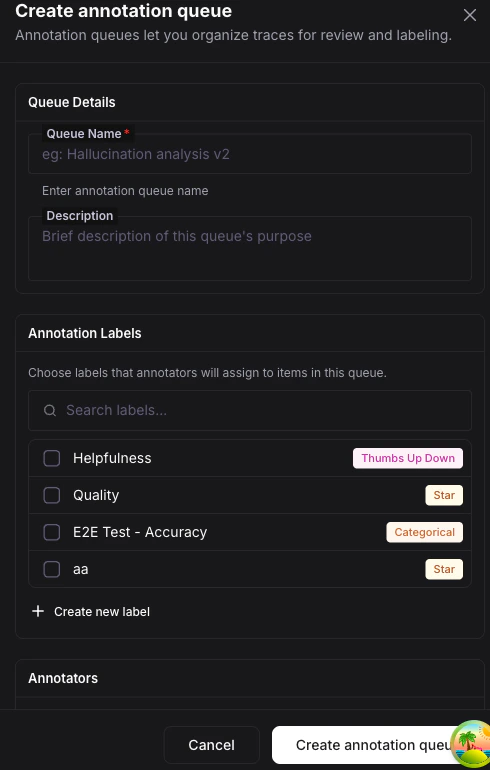
Add annotators
Select workspace members who will annotate items. Only selected members can access and annotate items in this queue.
Configure workflow settings
Expand the Workflow Settings section to fine-tune how annotations are handled:
| Setting | Options | Default |
|---|---|---|
| Annotations Required | 1—10 annotators per item | 1 |
| Assignment Strategy | Manual, Round Robin, Load Balanced | Manual |
| Reservation Timeout | 15 min, 30 min, 1 hour, 4 hours | 30 min |
| Require Review | On / Off | Off |
- Manual — Annotators pick items themselves on a first-come, first-served basis.
- Round Robin — Items are assigned to annotators in rotation.
- Load Balanced — Items are assigned to the annotator with the fewest in-progress items.
- Reservation Timeout — How long an item is locked to an annotator before it becomes available to others.
- Require Review — When enabled, completed annotations are routed to a reviewer before being finalized.
Add instructions (optional)
Write markdown-formatted guidelines for annotators. These instructions are shown in a collapsible panel within the annotation workspace, giving annotators context and criteria for their work.
Activating a queue
A newly created queue starts in Draft status. To begin accepting annotations:- From the queue list, use the
⋮menu and select Activate. - Or open the queue detail page, go to the Settings tab, and change the status to Active.
Managing queues
- Edit — Click a queue row to open its detail page, then use the Settings tab to modify name, description, labels, annotators, or workflow settings.
- Duplicate — Use the
⋮menu and select Duplicate. Creates a copy in Draft status with the same configuration. - Archive — Use the
⋮menu and select Archive. Soft-deletes the queue. - Search and filter — Use the search bar to filter by name and the status dropdown to show only queues with a specific status (All, Draft, Active, Paused, Completed).
Queue status reference
| Status | Description | Can transition to |
|---|---|---|
| Draft | Queue is being set up, not yet accepting annotations | Active |
| Active | Annotators can annotate items | Paused, Completed |
| Paused | Temporarily stopped, no new annotations allowed | Active, Completed |
| Completed | All items done or manually completed | Active (re-open) |
When a completed queue receives new items, it automatically transitions back to Active status so annotators can continue their work.
Next steps
Add Items to Queues
Learn how to populate your queue with traces, sessions, dataset rows, and more.
Annotate Items
Walk through the annotation workspace and keyboard shortcuts.
Queues Concept
Understand assignment strategies and review workflows in depth.