

What it is
The annotation workspace is where annotators provide feedback on queue items. It presents the source content alongside the queue’s labels in a focused, distraction-free view designed for fast, consistent annotation.How to start annotating
Open the annotation workspace
Navigate to a queue and click the Start Annotating button. You can also go to the queue’s Items tab and click on any individual item.The workspace opens in a dedicated view.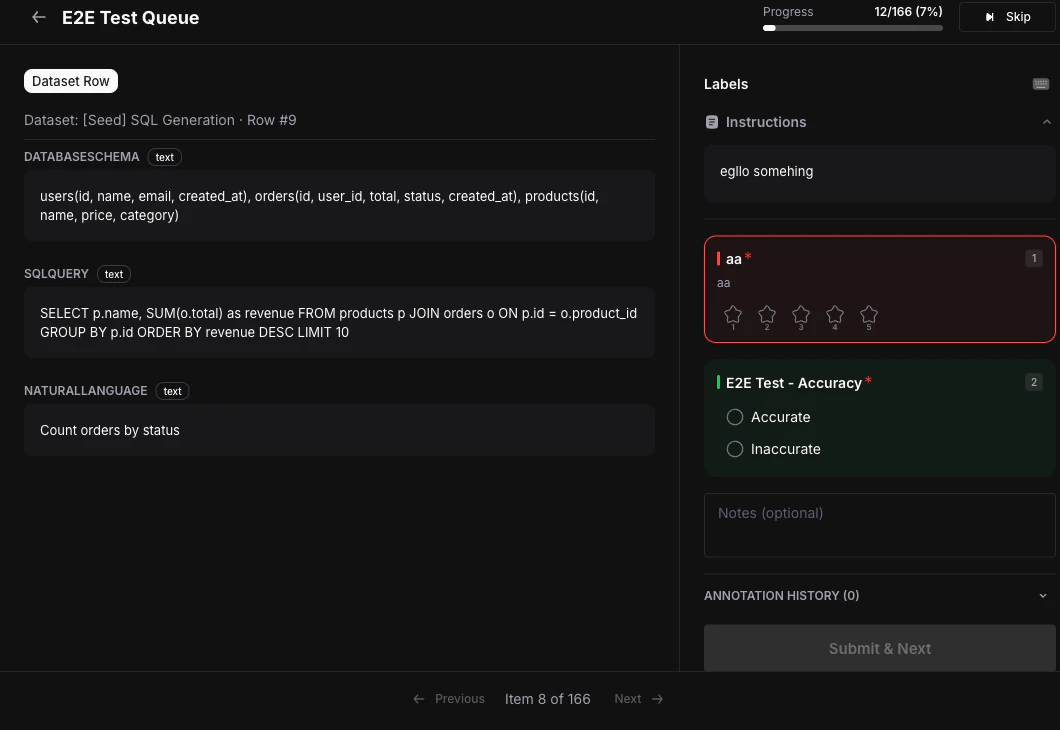
Review the source content
The left panel (~60% of the screen) displays the source content. What you see depends on the source type:
| Source Type | What is displayed |
|---|---|
| Trace | Full trace tree with expandable spans — input, output, metadata, latency, tokens, cost |
| Dataset Row | All fields and values from the dataset row |
| Session | Conversation history with expandable individual traces |
| Prototype Run | Prompt, response, and model information |
| Simulation Call | Transcript, analytics, and audio player (for voice calls) |
Fill in the labels
The right panel (~40% of the screen) shows each label as a section with a colored header. Fill in values based on the label type:
- Categorical — Click a radio button (single-choice) or checkbox (multi-choice). Use number keys
1—9for quick selection. - Numeric — Drag the slider or type directly in the input field. Values are enforced within the configured min/max bounds.
- Star — Click a star to set the rating. Use number keys
1—Nwhere N is the number of stars. - Thumbs Up/Down — Click the Yes or No button. Use key
1for thumbs up or2for thumbs down. - Text — Type in the text area. A character count is shown. Input is saved with a 300ms debounce.
Add notes (optional)
If the queue’s labels have Allow Notes enabled, an optional free-text field appears at the bottom of the labels panel. Use it to add context or comments about your annotation.
Submit and move to the next item
Click Submit & Next or press
Ctrl+Enter (Cmd+Enter on Mac) to save your annotations and advance to the next item.- An item is marked as Completed when all required labels have been scored.
- If the queue requires multiple annotators, the item stays In Progress until the required number of annotators have submitted.
Keyboard shortcuts
Use keyboard shortcuts for significantly faster annotation speed.| Shortcut | Action |
|---|---|
Tab / Shift+Tab | Navigate between labels |
1—9 | Select a categorical option or set a star rating |
Ctrl+Enter / Cmd+Enter | Submit and move to next item |
S | Skip current item |
← / → | Previous / next item |
? | Toggle keyboard shortcuts help |
Instructions panel
If the queue creator wrote annotation instructions, they appear in a collapsible section above the labels. Instructions are rendered as markdown and typically include criteria, examples, and edge-case guidance. Review them before starting your first annotation.Skipping items
Click the Skip button in the header or pressS to skip the current item and move to the next one. Skipped items can be revisited later — they are not marked as completed.
Navigation
- Use the Previous and Next buttons in the footer to move between items.
- A position indicator shows your current item (e.g., “5 of 50”).
- The workspace maintains a history of up to 50 visited items for easy back-navigation.
- A progress bar in the header shows overall completion (X of Y completed).
Completion
When all items in the queue have been annotated, a success screen appears with completion statistics.If an item’s source has been deleted, the workspace displays a “Source item has been deleted” message. If another annotator has reserved the item, a lock icon is shown and you will be routed to the next available item.
Next steps
Inline Annotations
Annotate directly from trace detail, session grid, or dataset views without opening a queue.
Export Annotations
Export annotated data as training or evaluation datasets.
Analytics
View completion rates, annotator activity, and label distributions.