Run an optimization
Fill the Run Optimization drawer, launch a run, and get it stopped or restarted from the same tab.
Optimization runs live inside a dataset, next to the prompt column they’re improving. A run writes new versions of that prompt, scores each against your evals, and returns the version that wins as a result you review; it doesn’t overwrite the prompt in your dataset column. This guide walks through starting a run on a dataset with a summary_prompt column, using GEPA as the optimizer and summary_quality as the scoring eval, and covers stopping or restarting it afterward.
Note
You need a dataset with a column that Run Prompt created, since Choose Column only lists those, and at least one eval that scores that column’s output. See Running Evaluations for where to set one up if you don’t have one yet.
Open the run drawer
Open the dataset that holds the prompt column you want to improve, then go to its Optimization tab. The button is Run Optimization on an empty tab and Optimize Prompts in the grid header once runs exist; either one opens the same Run Optimization drawer.
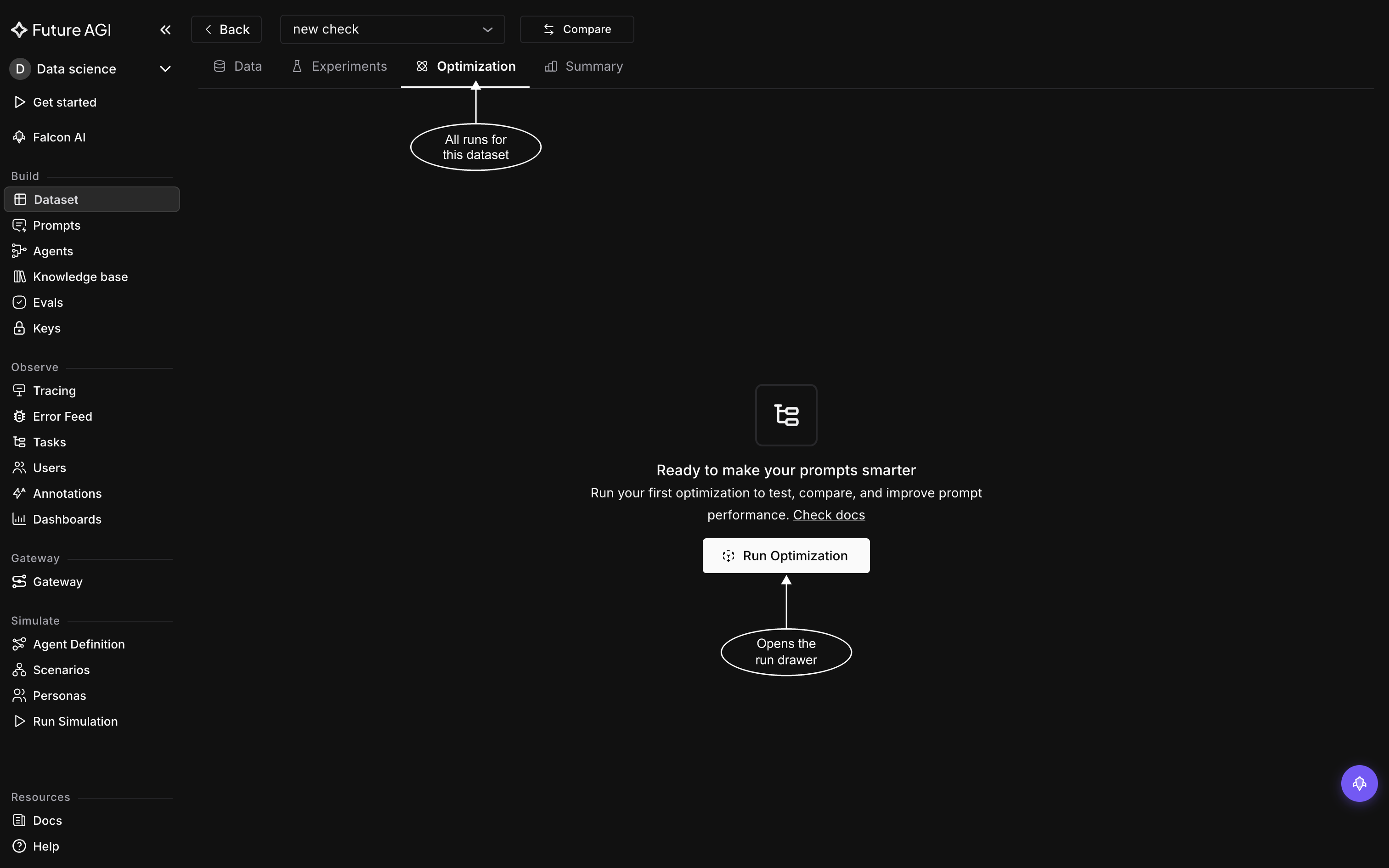
Optimization is a tab on the dataset, not a section of its own, so a run is always tied to the dataset you opened it from
If the dataset doesn’t yet have a column of generated outputs to optimize, the drawer shows a Run Prompt button in place of the fields below. Click it, or see Run Prompt, then reopen the drawer.
Fill the run drawer

GEPA is already selected when the drawer opens, so this is the state you land on before filling anything in
For this walkthrough, fill in the fields as follows. The first four are fixed fields in the drawer; the rest are parameter fields that change with the selected optimizer, and Evaluations is a separate accordion below them:
- Name: leave the auto-generated column-optimizer-timestamp value, or edit it to something more recognizable; your edit is kept instead of the generated value
- Choose Column:
summary_prompt, the column holding the prompt to optimize - Choose Optimizer: GEPA, already selected by default; leave it as is for this walkthrough
- Language Model: any available model in the list; any of them works here
- Optimization Objective:
Produce concise, accurate summaries that capture the key points of the source text, a goal statement describing what the optimized prompt should achieve - Max Metric Calls: 40, the suggested default; this is the total number of metric evaluations the run can spend
- Evaluations: an accordion, not a field you choose from; picking
summary_promptloads whatever evals are already attached to that column, and every one of them scores the run. If none are attached, the accordion shows ‘No evaluations added’ with an Add Evaluations button. For this walkthrough,summary_qualityis already attached tosummary_promptand loads in with it
Optimization Objective is shared across all six optimizers; the remaining parameter fields change with whichever optimizer is currently selected. See Optimizers for the full field list by optimizer.
An eval is the signal the optimizer improves against: it scores each candidate prompt. See Understanding Evaluation for how evals work. The run needs at least one before it will start; submitting without one is blocked with ‘Add evaluations before starting your optimization run’.
Note
Closing the drawer partway through prompts a confirmation, ‘Are you sure you want to close? Your work will be lost’, so anything you’ve filled in is gone once you confirm.
Start the run
Click Start Optimization. A successful submission shows ‘Optimization created successfully’ and takes you straight into the new run’s page instead of leaving you on the run list. If it fails, a toast reads ‘Failed to create optimization’ when the server doesn’t return a more specific error message; click Start Optimization again to retry.
Note
A run samples at most 50 rows from the dataset regardless of how many rows the dataset holds, so results reflect that sample rather than the full dataset.
Once the run starts you can leave the tab and come back; it keeps going either way. See Read optimization results for how to track it and read what it produces.
Stop a run
While a run’s status chip reads Queue or Running, its row carries a Stop control. Clicking it opens the Stop optimization run modal; confirm with Stop Optimization to cancel the run. Once a run finishes, fails, or is already stopped, the control is gone.
Restart a stopped run
A stopped run’s status chip in the grid reads Cancelled. Click its row in the Optimization tab to open its page. It shows the Optimization Stopped panel: ‘The run was stopped before completion. Click below to start it again.’, with a Re-Run Optimization button. Click it to open the Re-run Optimization drawer prefilled from the stopped run: the name gets a - Rerun - <date> suffix, and the column, optimizer, model, config, and evals are carried over. Review the fields and click Start Optimization to launch it as a new run from the beginning.
Dive deeper
Questions & Discussion