Test a guardrail
Run a prompt through your active guardrails from the Test tab and read the verdict.
The Test tab runs a single prompt through your active guardrail configuration and shows you the verdict immediately, so you can check how a guardrail behaves before any traffic from your app reaches it.
Note
You need a guardrail already turned on for a run to mean anything; with nothing configured, every prompt just passes through. If you haven’t set one up yet, turn on a guardrail first.
Open the panel
Go to Gateway > Guardrails > Test. That tab is the Test Guardrails panel.
Pick a prompt
The panel gives you five example chips: Safe prompt, PII test, Injection test, Secrets test, and Toxic content. Click one to drop a ready-made prompt into the box, or skip the chips and type your own into “Enter a test prompt…”.
If you turned on a PII Detection guardrail using the PII example from Turn on a guardrail, click PII test. The chip’s prompt carries the kind of data that guardrail is built to catch, so running it comes back blocked.
Name a model (optional)
Below the prompt box, “Model (optional)” takes a model name, with placeholder text reading “e.g. gpt-4o-mini”. It names the model the test request actually runs against.
Run the test
Press Run Test. It stays disabled until there’s a prompt in the box, whether you typed one or picked a chip, and while a test is in flight it reads “Running…”.
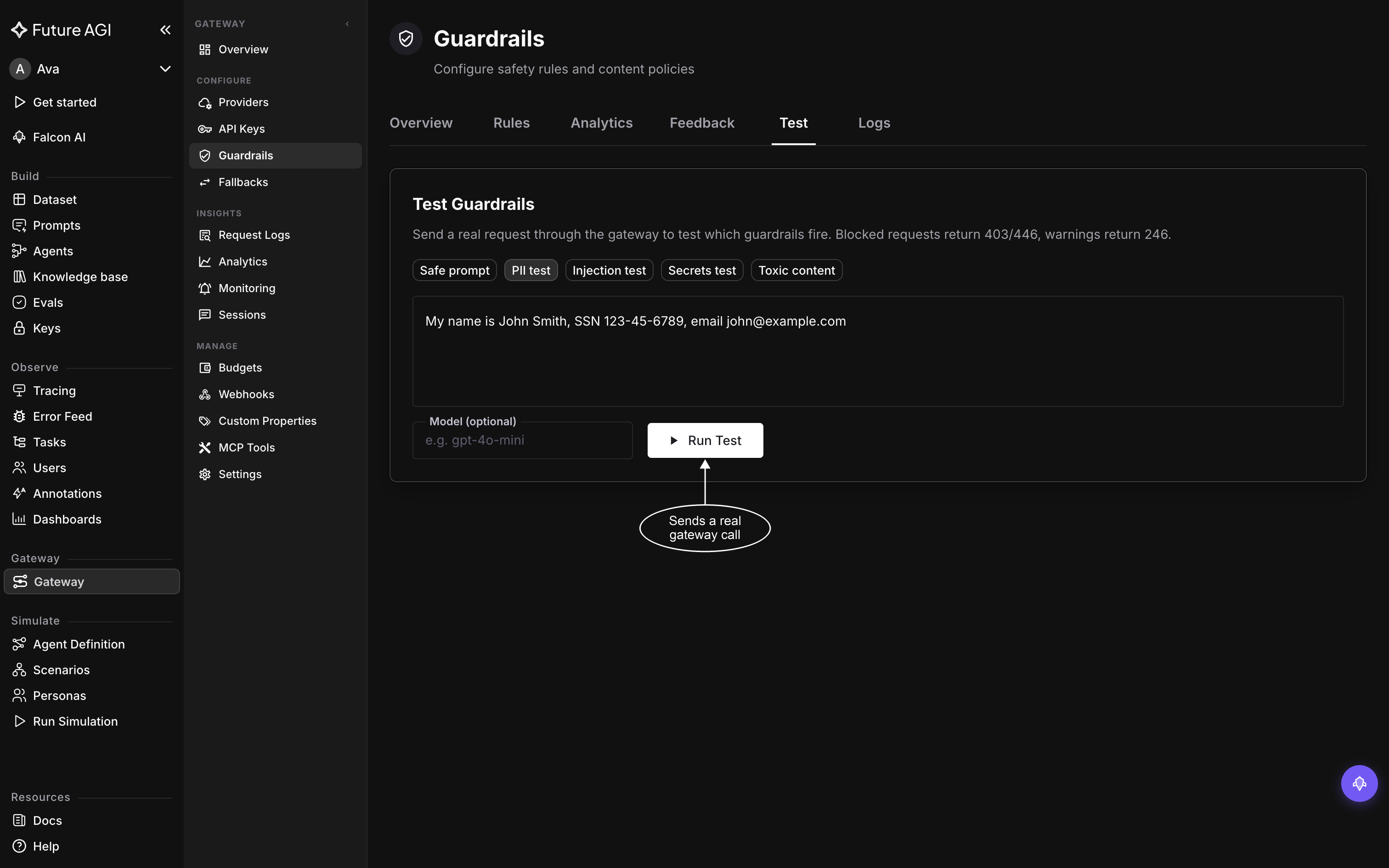
The PII test chip fills the box for you, so Run Test is live without typing anything
Read the result
When the test finishes, a result chip reports the outcome: “BLOCKED” if a guardrail stopped the request, or “OK” with the status code the call actually returned if it passed cleanly. A blocked call returns 403; a check set to Warn or Log never stops the call, so it comes back 200 and shows as OK. See Guardrail checks for the status each action produces. For the PII test walkthrough above, expect “BLOCKED”.
Below the chip, Guardrail Headers and Response Body show the guardrail headers and the response body the call returned. Open them when you’re wiring your own client to react to blocked or warned responses and need the exact shape it will get, not just the summarized chip.
Check Recent Tests
Recent Tests keeps your last 20 runs and clears when you reload the page.
If something doesn’t look right
The test didn’t run. If the test call itself can’t complete, an error alert replaces the result chip.
The verdict was wrong. A chip that doesn’t match what you expected, for example a prompt you thought would block coming back OK, points back to the guardrail’s configuration rather than the panel. See Guardrail fires on the wrong requests to fix it.
Dive deeper
Questions & Discussion