Future AGI Roles and Permissions: RBAC Access Control
Future AGI provides role-based access control (RBAC) with organization roles (Owner, Admin, Member, Viewer) and workspace roles for team access management.
Future AGI provides a role-based access control (RBAC) system with two levels: organization roles and workspace roles. This guide explains what each role can do and how access works across your team.
Organization Roles
Every user in your organization has one of four roles. These control what the user can do across the entire organization.
| Role | Description |
|---|---|
| Owner | Full control over the organization. Can manage billing, settings, members, and all workspaces. Every organization must have at least one owner |
| Admin | Same access as Owner, except cannot manage Owners or other Admins. Automatically gets admin access to all workspaces |
| Member | Can view, create, and edit resources in workspaces they belong to. Cannot manage members or organization settings |
| Viewer | Read-only access. Can view data but cannot create, edit, or delete anything |
Note
Owner and Admin users automatically get Workspace Admin access to every workspace in the organization. You do not need to add them to individual workspaces.
Workspace Roles
Workspaces let you organize projects, datasets, traces, and queues into separate groups. Users who are not Org Admins or Owners need explicit workspace membership to access a workspace.
| Role | Can View | Can Edit | Can Manage Members |
|---|---|---|---|
| Workspace Admin | Yes | Yes | Yes |
| Workspace Member | Yes | Yes | No |
| Workspace Viewer | Yes | No | No |
You can view workspace members and their roles from the workspace settings page.
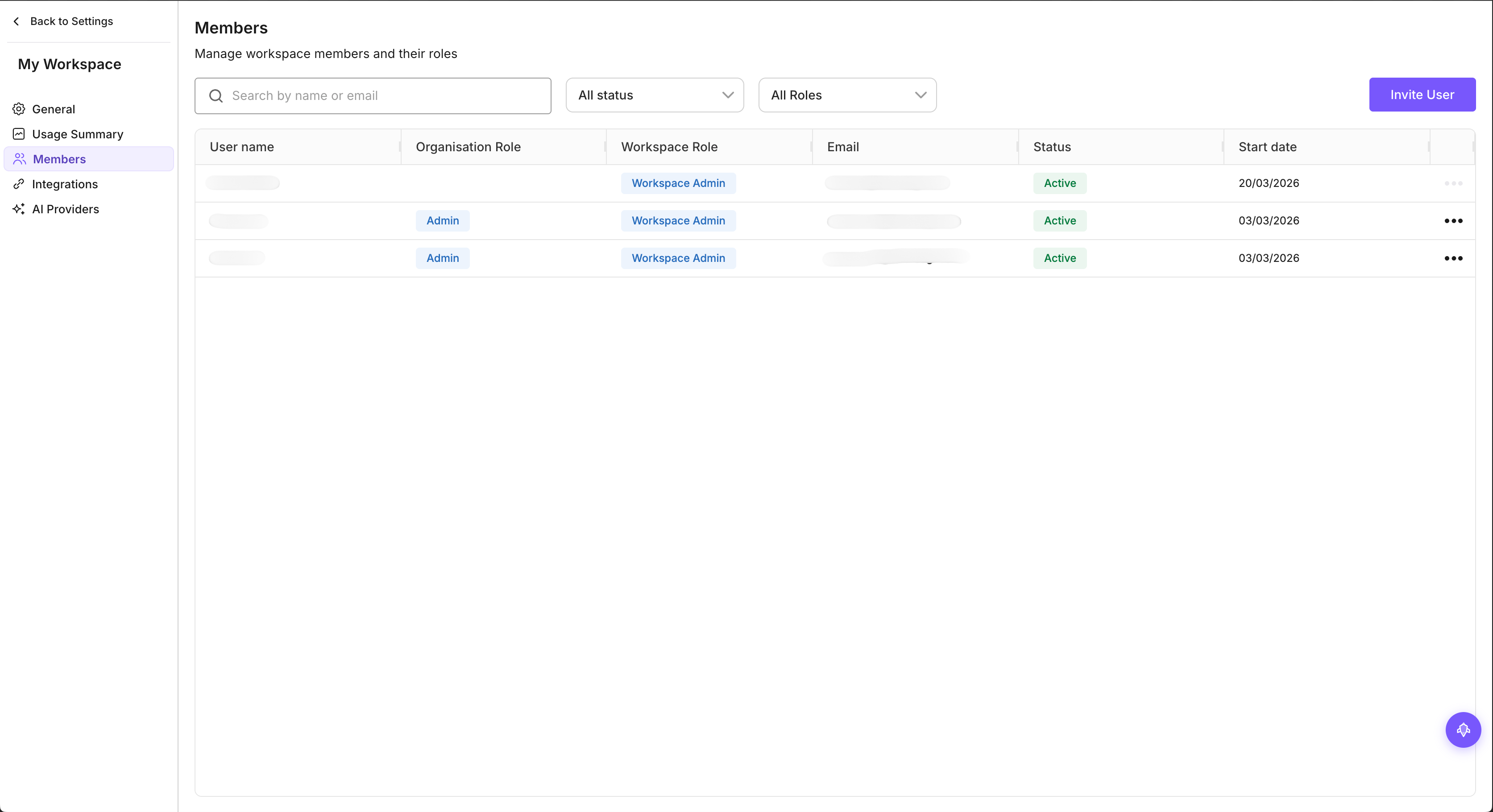
How workspace access is determined
A user’s effective workspace access is the higher of their organization role and their workspace role:
- An Org Admin always has Workspace Admin access everywhere, even without explicit workspace membership
- An Org Member with Workspace Admin on a specific workspace gets admin access only in that workspace
- An Org Member with no workspace membership has no access to that workspace
Inviting Users
Org Admins and Workspace Admins can invite new users to the organization. You can manage all members from the Organization > Members page.
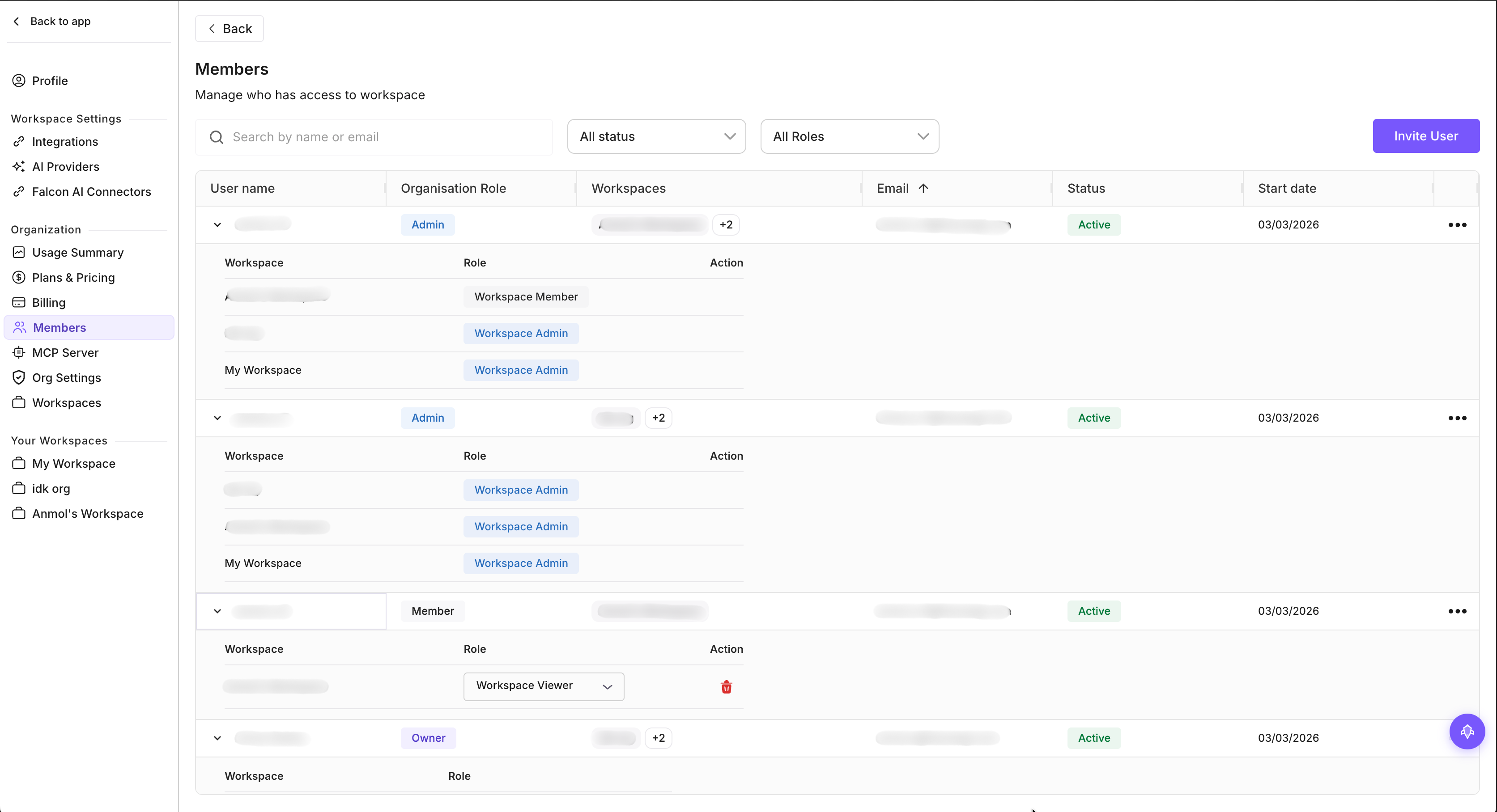
Navigate to Members
Go to Organization > Members in the sidebar.
Click Invite
Click the invite button and enter the user’s email address.
Set organization role
Choose the organization role: Owner, Admin, Member, or Viewer.
Assign workspace access
Select which workspaces the user should have access to and set their workspace role for each.
Send invite
The user receives an email invitation. The invite is valid for 7 days.
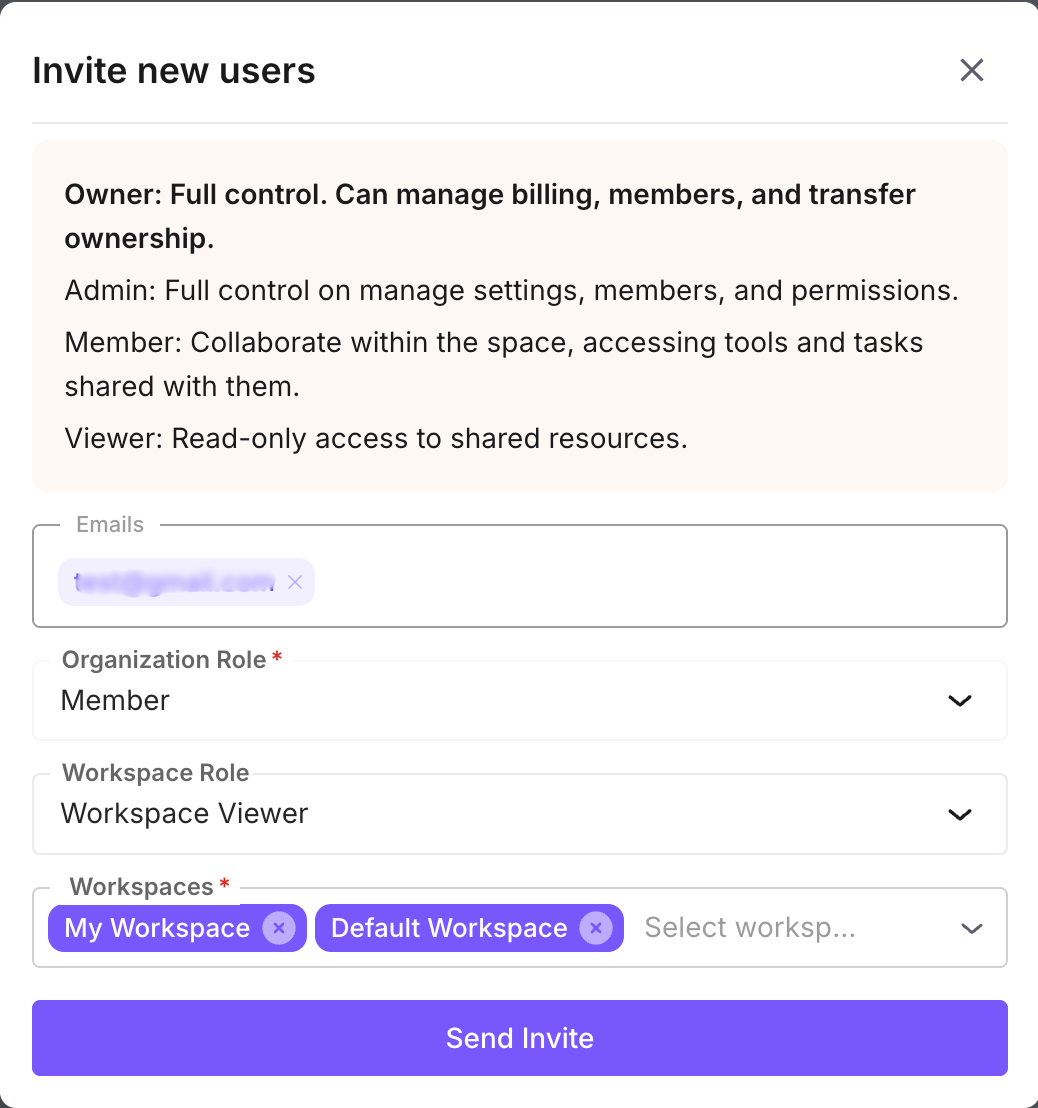
Invitation rules
- You can only invite users at a role equal to or below your own role. An Admin cannot invite an Owner.
- Workspace Admins can invite users but only grant access to workspaces they manage.
- If an invite is not accepted within 7 days, it expires. You can resend it from the members list.
Managing Members
Changing a user’s role
Org Admins and Owners can change any member’s organization role or workspace role from the Users page.
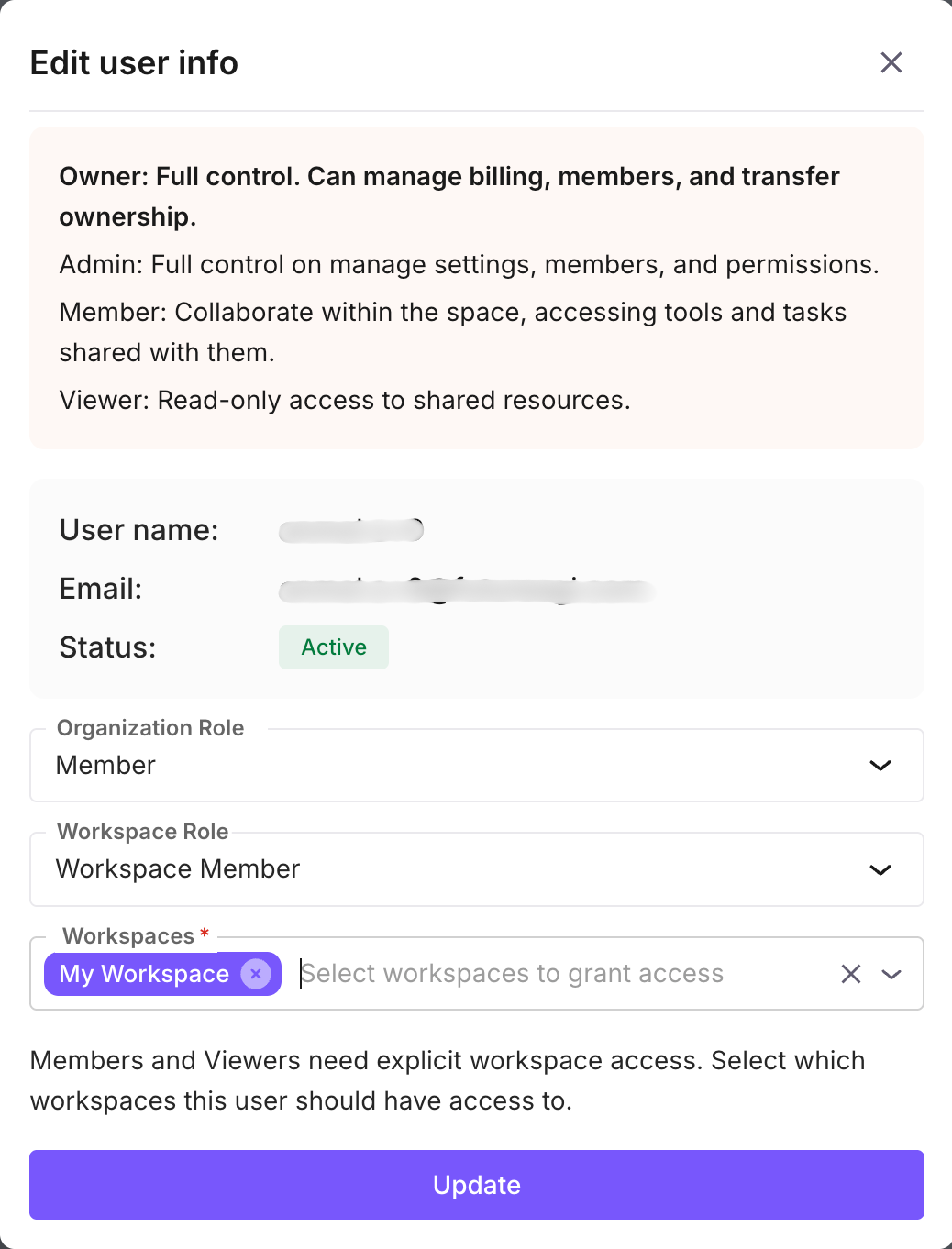
- You cannot manage a user at or above your own role (escalation prevention). Only Owners can manage other Owners.
- If you promote a user to Admin or Owner, they automatically get Workspace Admin access to all workspaces
- If you demote an Admin to Member, their workspace access reverts to their explicit workspace memberships
Removing a user
- Removing a user from the organization also removes them from all workspaces
- Removing a user from a workspace only removes workspace access — they stay in the organization
- You cannot remove the last Owner of an organization
- You cannot remove yourself
Reactivating a user
Previously removed users can be reactivated from the members list. Their original role is preserved.
Permission Summary
| Action | Owner | Admin | Member | Viewer |
|---|---|---|---|---|
| View traces, sessions, datasets | Yes | Yes | Yes | Yes |
| Create/edit traces, datasets, queues | Yes | Yes | Yes | No |
| Manage organization settings | Yes | Yes | No | No |
| Invite and manage members | Yes | Yes | No | No |
| Manage Owners and Admins | Yes | No | No | No |
| Access all workspaces automatically | Yes | Yes | No | No |
| Manage billing | Yes | Yes | No | No |
| Create/delete workspaces | Yes | Yes | No | No |
| Workspace Action | Workspace Admin | Workspace Member | Workspace Viewer |
|---|---|---|---|
| View workspace resources | Yes | Yes | Yes |
| Create/edit resources | Yes | Yes | No |
| Manage workspace members | Yes | No | No |
| Invite users to workspace | Yes | No | No |
FAQ
Can a user belong to multiple workspaces?
Yes. A user can be a member of multiple workspaces with different roles in each.
Can a user have different roles in different workspaces?
Yes. A user can be a Workspace Admin in one workspace and a Workspace Viewer in another.
What happens if I'm an Org Admin but not explicitly added to a workspace?
You still have full Workspace Admin access. Org Admins and Owners automatically get admin access to every workspace.
Can a Workspace Admin invite users to the organization?
Yes, but they can only grant access to workspaces they manage. They cannot grant access to other workspaces.
Can I remove the only Owner of an organization?
No. Every organization must have at least one Owner. Transfer ownership to another user first.
What happens when a user is removed from the organization?
They lose access to all workspaces and all organization resources immediately. Their data (annotations, scores, etc.) is preserved.
Questions & Discussion