Choose connector tools
Choose which of a connector's discovered tools Falcon AI is allowed to call.
About
A connector that’s finished discovery hands Falcon AI every tool it found, already allowed. Narrowing that down to what you actually want Falcon AI calling is a separate step, and it happens on the connector’s own entry in Workspace Settings.
This guide assumes you’ve already added a connector, authenticated it, and run discovery on it. If you haven’t, see Connect an MCP server first.
Open a connector’s tools
Go to Settings > Falcon AI Connectors and select the connector in the list on the left. Its Discovered Tools section is the last thing on the detail pane, headed by the number of tools the most recent discovery returned.
Each tool is a row of its own, carrying the tool’s name, the description the server supplied for it, and a toggle.
Allow or deny individual tools
Every successful discovery switches all returned tools on. Switch off the tools you don’t want Falcon AI to call, leaving at least one allowed.
Note
You cannot switch off the last allowed tool. The UI explains: “At least one tool must stay allowed for this connector.”
The change saves as you make it, with no confirmation step and nothing to submit, and it holds when you reload the page.
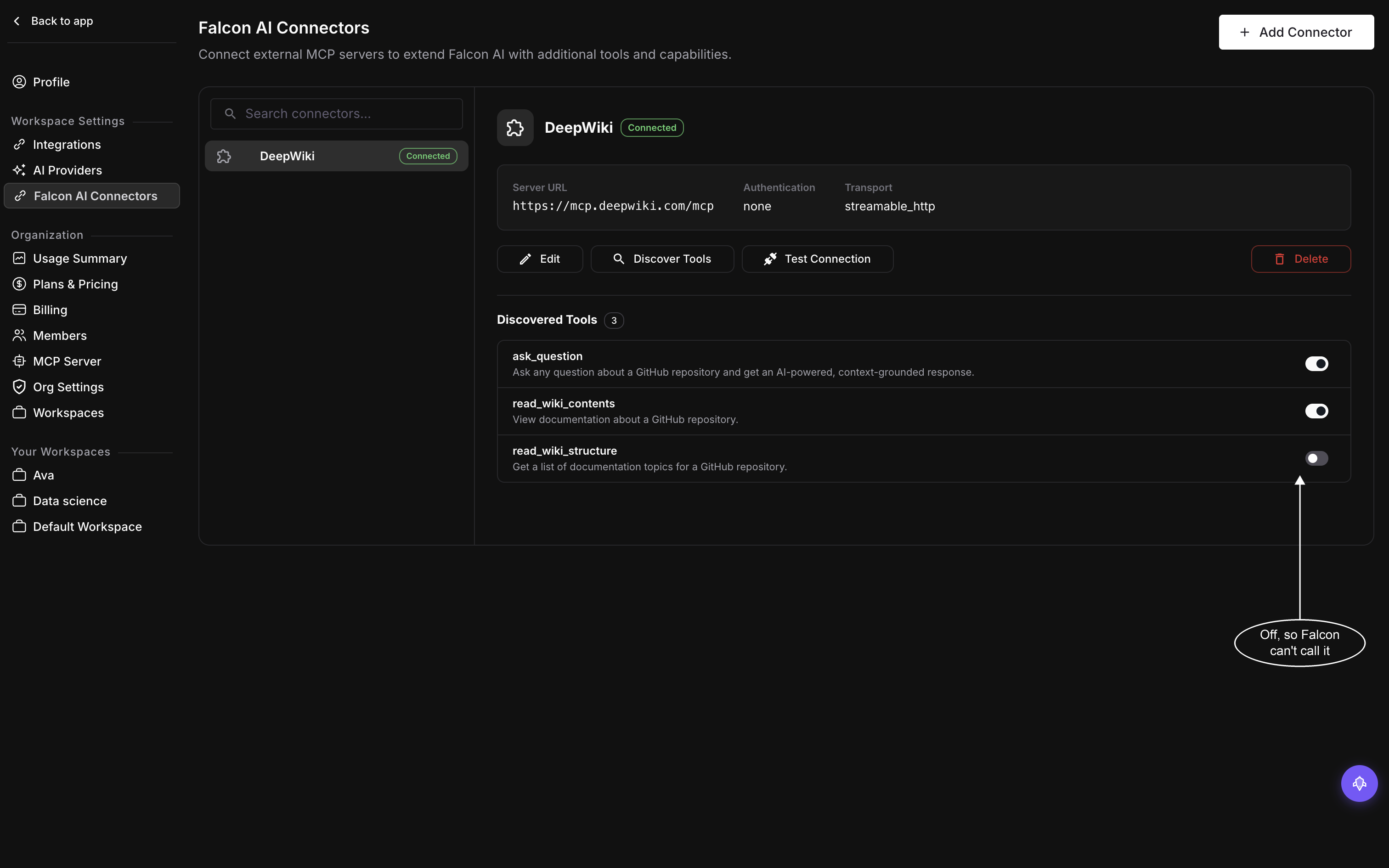
The count beside the heading is how many tools were discovered, not how many are allowed, so it stays put as you switch tools off
If a permission change reports unknown tools
An “Unknown tools” error means the names being saved aren’t in the connector’s stored discovery list. Saving permissions checks that cached list; it does not fetch a fresh tool list from the remote server. A tool disappearing from the server does not, by itself, cause this error.
Re-run Discover Tools to refresh the stored list, then review and reapply the tools you want allowed.
Warning
Every successful discovery enables all returned tools, replacing your previous restrictions. OAuth reauthentication can also trigger discovery. Review and reapply your selection afterward, before continuing to use the connector.
Before a connector has discovered anything
Until a connector has discovered something, there are no rows to switch, and a single note sits where the list would be: “No tools discovered yet. Click Discover Tools or Re-authenticate to fetch available tools.” That’s expected on a connector you’ve just added. Run Discover Tools on it and the list fills in.
Manage connectors from the chat input
The chat input’s + menu has a Connectors submenu listing every connector configured for the workspace along with its connected state, and a Manage connectors link that opens the connector settings page. If none are configured yet, it reads “No connectors configured” instead.
Next Steps
Questions & Discussion