Create a skill
Build, save, and run a custom Falcon AI skill
A skill packages a multi-step Falcon AI workflow into a slash command that anyone in your workspace can reuse, so instead of re-explaining a recurring analysis in every conversation, you type one command and Falcon AI runs the workflow behind it. This guide walks through building your own, from opening the editor to running what you save.
Open the skill editor
Skills are built from Falcon AI’s full page view; see Chat with Falcon AI if you haven’t opened it yet. For what a skill is, see Skills.
Click Customize in the left rail of the Falcon AI full page to open the Customize panel. It opens on Skills, its other nav entry being Connectors, and lists the skills available in your workspace with a search field for finding one by name. Click Create Skill at the bottom of that list to open the editor for a brand new skill.
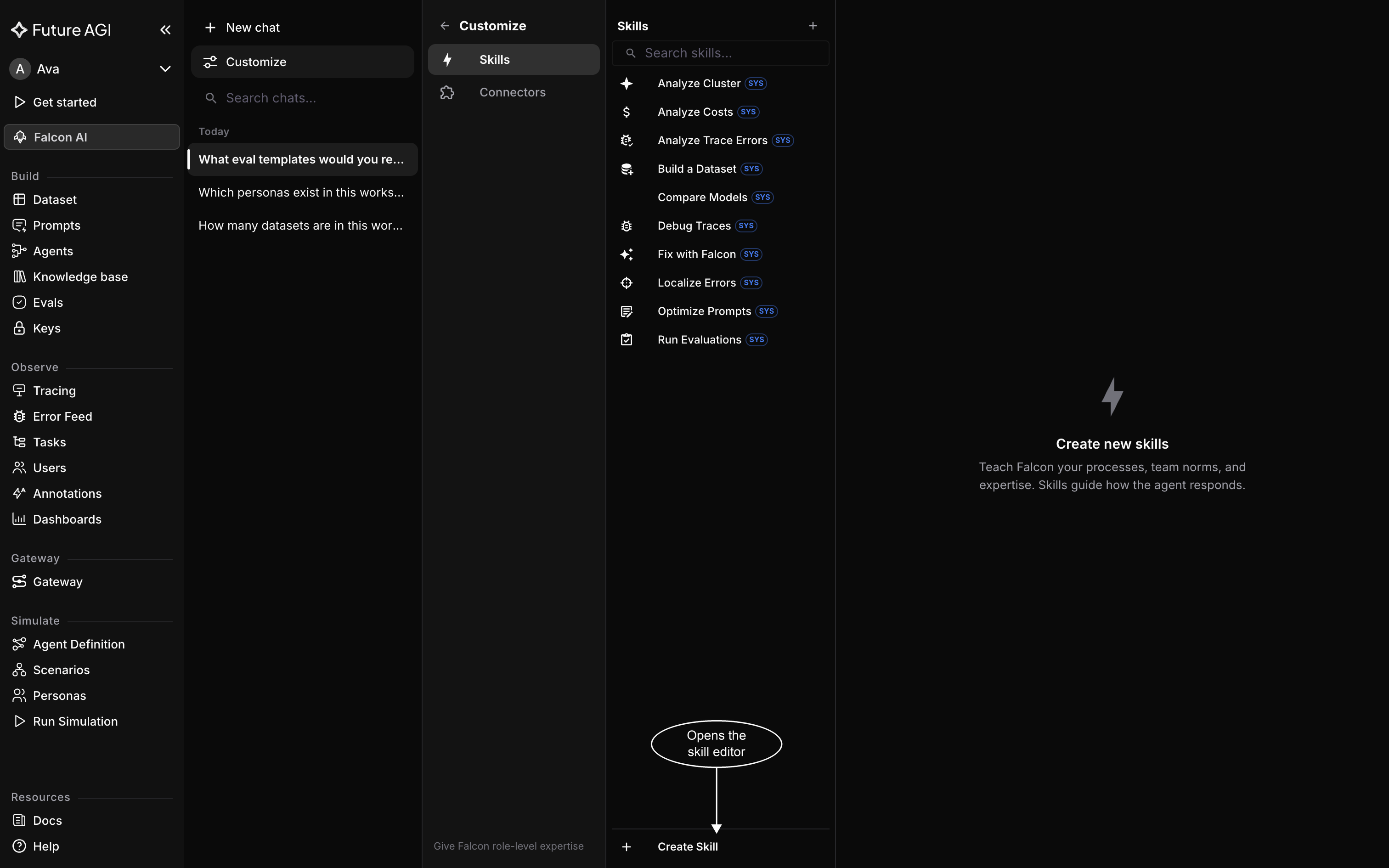
The SYS tag marks a skill that shipped with Falcon AI, so this workspace has no custom ones yet
Tip
Already mid-conversation? The Skills menu in the chat header also has a Create Skill entry, so you can build a skill without leaving the chat. It’s a separate dialog rather than the Customize editor: it adds an Icon field, which takes an MDI icon name such as mdi:bug and sets the icon shown against the skill in the Skills list and picker, and its button reads Create on a new skill instead of Save.
Fill in the skill
The Customize editor asks for four fields.
Name is required and limited to 100 characters, and it’s how the skill is labelled in the Skills list, so keep it short.
Description is optional. It shows in the skill picker, so it’s worth a line explaining what the skill does.
Instructions is required. It’s the prompt Falcon AI follows once the skill runs. Describe the workflow and reasoning, not a rigid script of commands to execute:
- Workflow: “Compare this week’s scores against last week’s, and flag any metric that dropped by more than 5%.”
- Script: “Call the scores endpoint for this week, call it again for last week, then subtract.”
Trigger phrases need at least one entry before you can save; each one is an example of how someone might ask for this skill. Type a phrase and press Enter to add it to the list.
Example: a weekly eval regression review skill
Here’s a complete skill that compares Evaluations scores week over week, filled in field by field:
-
Name: Weekly Eval Regression Review
-
Description: Comparing this week’s evaluation scores against last week’s and flagging anything that dropped
-
Instructions:
Pull the evaluation scores for every dataset in this workspace from the last 7 days, then pull the same metrics for the 7 days before that as a baseline. Compare the two periods per dataset and per metric, and treat any metric that dropped by more than 5% as a regression worth flagging. Present the findings as a table with columns for Dataset, Metric, This Week, Last Week, and Change, with the biggest drops listed first. If nothing regressed, say so plainly instead of returning an empty table. -
Trigger phrases: “weekly eval review” and “check eval regressions”
Save and run it
Click Save at the bottom of the editor to store the skill; it reads Saving… while it works.
The skill you save gets its own slash command. Run it in any conversation by typing / in the chat input and picking the skill from the list that appears.
Note
In the Customize editor, leave Name blank and it says “Name is required”. Leave Instructions blank and it says “Instructions are required”. Skip trigger phrases and it says “At least one trigger phrase is required”. A name already in use by another skill is rejected.
Edit, delete, and duplicate skills
Custom skills can be edited and deleted. Open one again from the Skills list in Customize, change whatever field needs it, and save to update it. Delete removes it from the workspace entirely, and that option is available on any custom skill; skills that shipped with Falcon AI don’t offer it. If a shipped skill covers most of what you need but not quite all of it, open it and click Duplicate instead of building from scratch. That gives you your own editable copy, ready to rename and adjust into the variant you actually want.
Dive deeper
Questions & Discussion