Configure an LLM Prompt node
Name the node, pick its prompt version and model, then save without breaking what's wired into it
The LLM Prompt node’s configuration form lives in the node drawer, and most of it comes from the prompt you pick. Walk the form top to bottom and each choice sets up the next.
Note
This guide picks up once a workflow with an LLM Prompt node already exists on the canvas; see Build a workflow to add one first.
Open the drawer
Click the LLM Prompt node on the canvas. Its drawer opens with the node’s own configuration form.
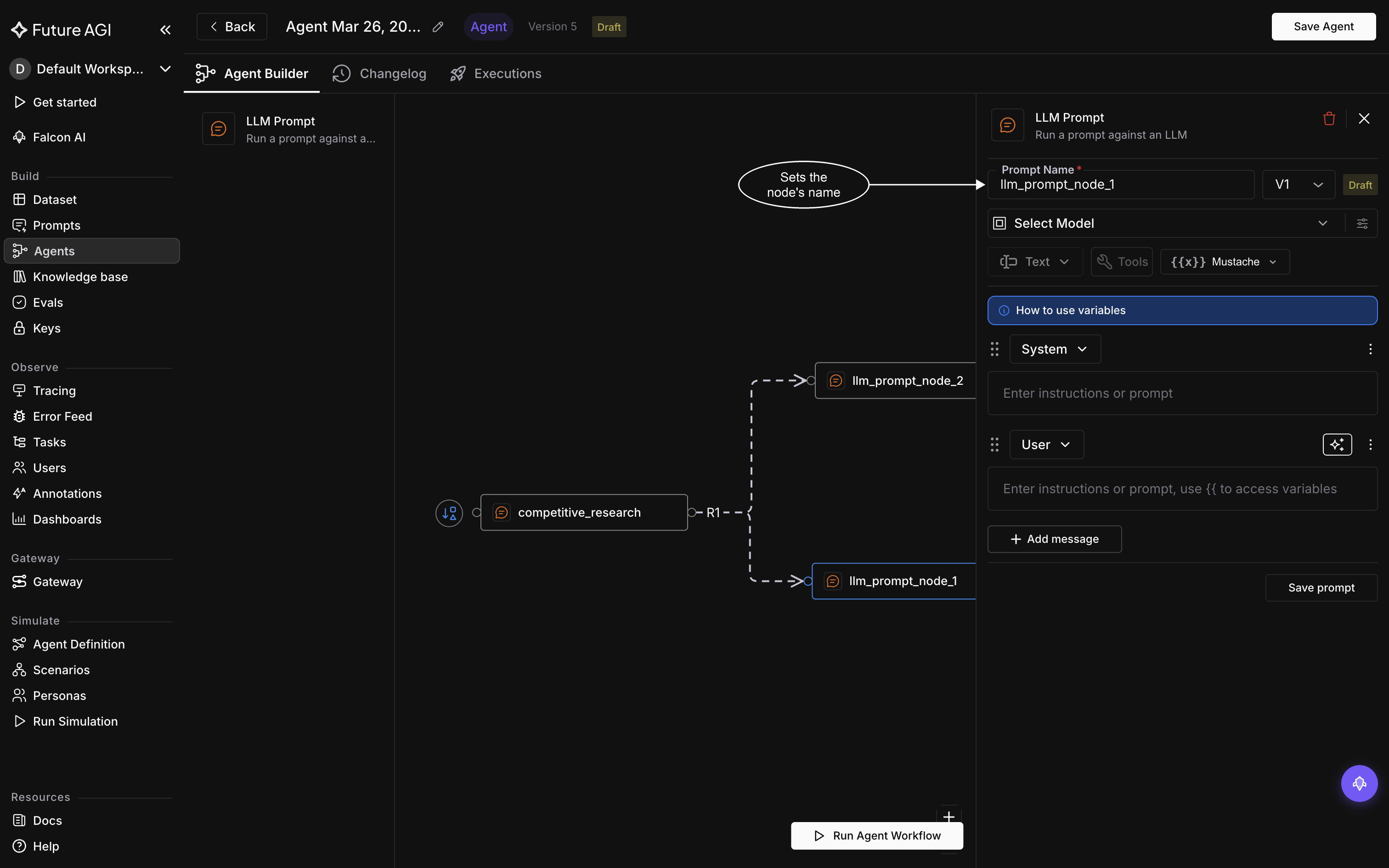
The form reads top to bottom: name, version, model, then the messages
Name the node
Prompt Name is required and sits at the top of the form. Typing here sets this node’s name: what you type is lowercased, every character other than a-z, 0-9, and _ is replaced with an underscore, and leading underscores are stripped.
A name that already belongs to another node on the canvas is refused with “A node with this name already exists”. Pick a different name and try again.
Pick a version
A version select sits beside Prompt Name. Its options are labeled with the version, uppercased. When the selected version hasn’t been saved yet, a Draft badge appears beside the select, not on the option inside the dropdown.
Not every version can be used here. If the version you pick has an output format the builder doesn’t support, the form shows: “This prompt uses an unsupported output format. Only text-based prompts are supported in the agent builder.” While that alert shows, the model picker, the Tools control, and Save prompt are all disabled.
Choose the model
The model picker selects which LLM this node uses. It’s also what unblocks the Tools button beside it: Tools stays disabled until a model is chosen, and hovering it before then shows why, “Select a model first”.
Inputs follow the prompt
The node’s inputs are generated from the prompt’s {{variable}} placeholders, and those placeholder names become the node’s input names. See Limits & rules for naming restrictions. Swapping the prompt text or picking a different version changes that set of placeholders, so it also changes the set of inputs the node exposes.
Save the prompt
Save prompt, at the bottom of the form, writes your changes. If the save fails, a toast reads “Failed to save prompt” and the form stays open so you can retry. On a successful save, the drawer closes.
Note
Picking a different version of the prompt can change what this node returns: the output shape downstream nodes expect may shift, since the node’s response follows the response format set on the linked version.
Closing with unsaved changes
Close the drawer while a change is unsaved and a dialog titled “Unsaved Changes” asks “You have unsaved changes. Are you sure you want to discard them?” Confirm with Discard to drop the edits, or back out of the dialog to go save first.
Dive deeper
Questions & Discussion