Set input variables
Open the Variables drawer, fill in each field, and see what a run does when one's still empty.
A run needs a value for every input variable before it can start. Set them from the builder before you run anything.
Note
This guide picks up once a workflow with at least one LLM Prompt node already exists on the canvas; see Configure an LLM Prompt node to add one first.
Open the Variables drawer
In the builder, click Add input variables at the top right of the canvas. The drawer opens headed Variables, with the subtext “Define values for your prompt variables”.
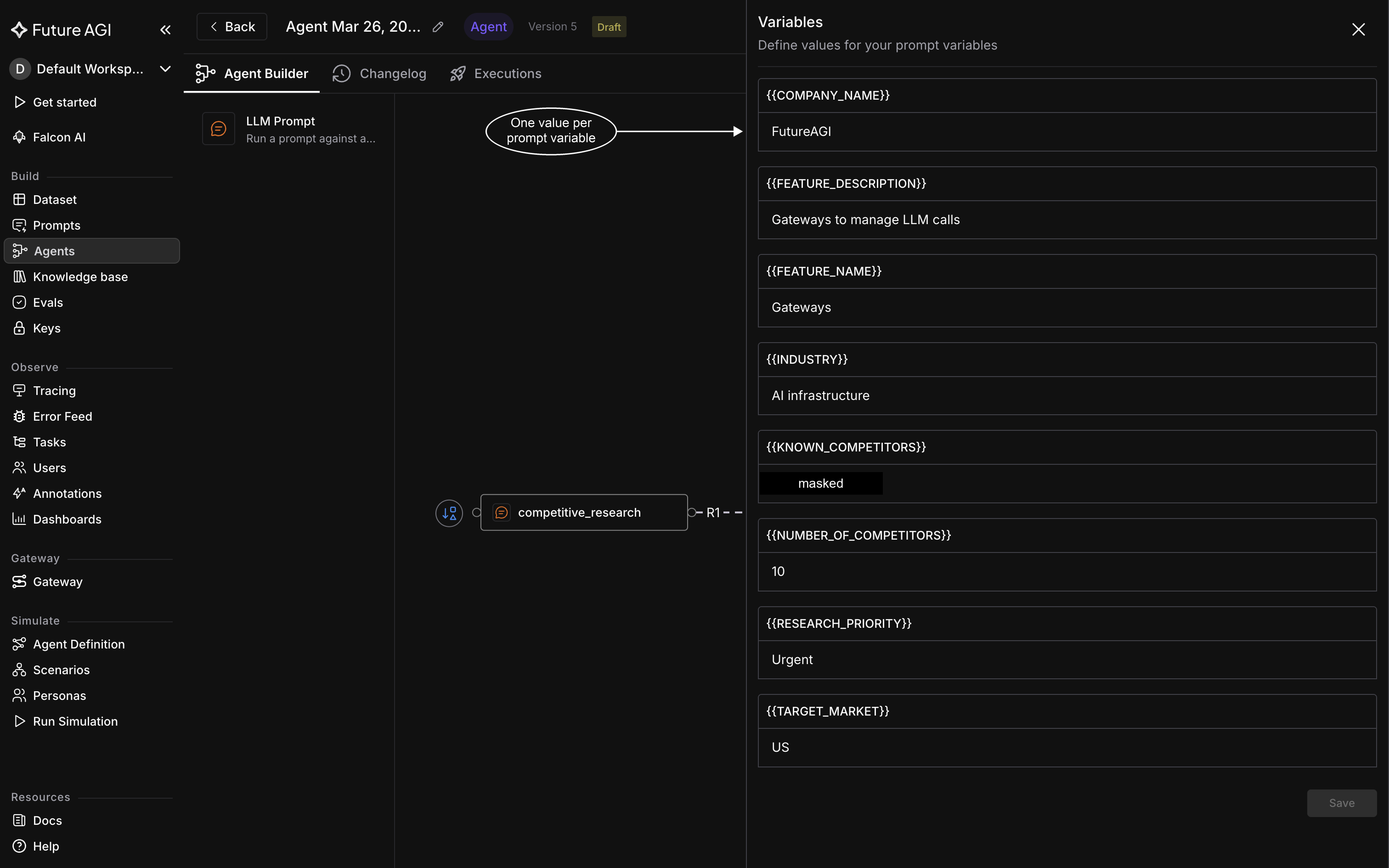
This is the state a run needs: every listed variable carrying a value, none left blank
Note
The list comes from your workflow’s saved version. A variable you added a moment ago won’t appear here until you’ve saved both the node and the agent, so an empty or short list usually means an unsaved edit rather than a missing variable.
Fill in each variable
The drawer lists each variable by name, with the field for its value directly underneath. Give every listed variable a concrete value. If your prompt asks for the invoice text to classify, for example, fill that variable with the actual invoice, such as “Invoice #4521 from Acme Supplies, $2,400 due in 30 days.” Only inputs with no incoming connection show up here, since those are the agent’s own inputs.
Save your values
Click Save to store your values. If a run is waiting on these variables, the button reads Save & Run Workflow instead, and saving starts that run.
Note
Close the drawer instead while an edit is unsaved, and a dialog titled “Unsaved Changes” asks “You have unsaved changes. Are you sure you want to close without saving?” Confirm with Discard Changes to close without keeping them, or cancel to go back and save first.
A run won’t start with an empty variable
Leave any variable blank and a run refuses to start. You’ll see the warning “Fill in all variables before running”, and the drawer opens on its own with the run held until you fill in what’s missing and save. Once every variable has a value, Run an agent covers starting the run itself.
Dive deeper
Questions & Discussion