Control spend
Read usage while the period is still running, preview the current bill, and set a budget that notifies, warns or pauses.
Billing on Future AGI is usage-based, so the bill follows your traffic, and traffic changes without anyone deciding it should. A quiet week and a load test land on the same invoice at very different totals. This guide covers seeing where the money is going while the period is still open, and putting a ceiling on it before the invoice arrives.
Before you start
- Your organization is on Cloud or Enterprise, the only deployments where billing exists
- You are an Owner or Admin, the two roles that can change billing settings and budgets (see Roles and permissions)
- At least one meter has moved, otherwise every card on the page reads zero
Read the usage overview
Go to Settings > Usage Summary. The page shows one card per meter for the current billing period: storage, AI credits, gateway requests, gateway cache hits, text simulation tokens, voice simulation minutes and tracing events.
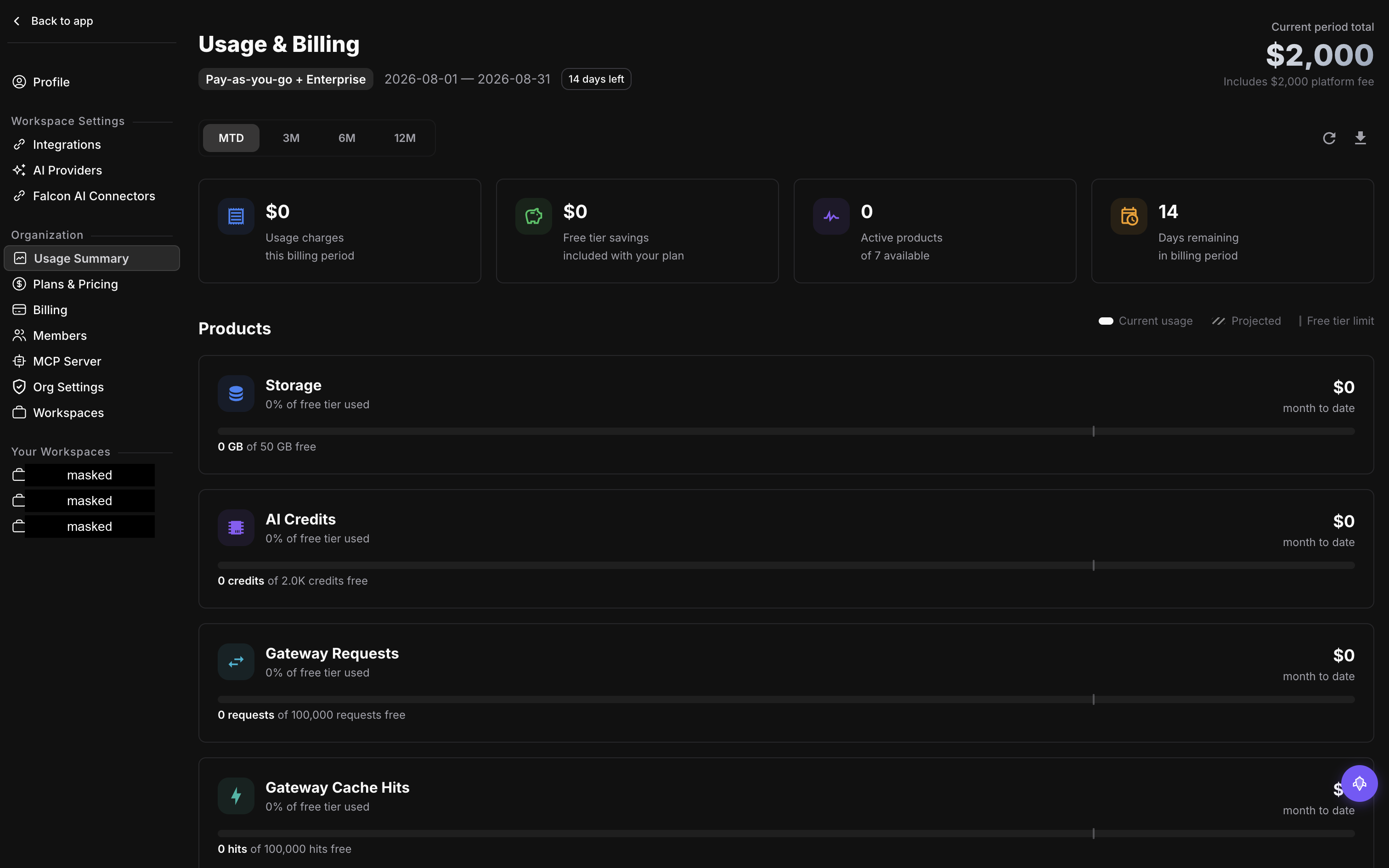
A fresh period: every meter still inside its free allowance, so the period total is just the platform fee
Each card carries what you have used so far, the free allowance that usage counts against, the share of the allowance you have spent, the projected total by the end of the period, and the estimated cost with the tier bands that produced it. Above the cards sit your plan name, the platform fee, the start and end of the billing period, and the total estimated cost across every meter. Two filters narrow the view: one picks the period, the other scopes everything to a single workspace.
Read the projection as a pace, not a promise. It extrapolates from how fast the meter has moved so far, so it shifts as the month goes on and is least reliable in the first few days, when a single busy afternoon can drag the whole line upward.
Look at the trend
Pick a meter to open its usage over time. Inside a single month you get a daily series; give it a range of months instead and the same meter comes back bucketed by month.
This is the view that answers whether a jump was one bad day or a new baseline. A single spike that falls back to the old line is usually a backfill or a test run. A step that holds is a change in how much traffic your agents are actually doing, and that is the one worth a budget.
Split usage by workspace
Go to Settings > Usage Summary, open a meter’s trend, then break it down by workspace for a period. This is distinct from the workspace filter on the overview page: the filter scopes the whole page to one workspace, while this view compares workspaces against each other for a single meter, telling you which team is driving the number rather than just how big it got.
Reach for this before you set a budget. A ceiling on total spend catches everything but tells you nothing, while knowing which workspace is driving a meter tells you which meter is worth putting a ceiling on.
Preview the running bill
Settings > Billing shows what this period’s invoice would look like if it closed right now: the platform fee, one line for each meter that went past its free allowance with the tier bands behind it, any credits that would be applied, the subtotal and the total. Looking at it charges nothing and consumes no credit. It is the same calculation the real invoice runs, just stopped short of billing you.
One thing to keep in mind while reading it: an invoice does not cover a single month cleanly. This period’s invoice carries this period’s platform fee in advance together with last period’s usage in arrears, so a usage line you see here is not the same window as the fee line beside it. What lands on an invoice walks through the split.
Set a budget
A budget is a threshold plus an action. Scope it to a single meter and set the threshold in that meter’s own units (GB, credits, minutes, events), or scope it to total spend and set the threshold in dollars, then pick what should happen when usage crosses it.
A budget fires at most once per billing period, so a meter that keeps climbing past the threshold will not keep emailing you. When the new period starts, the flag clears and the budget is armed again.
| Action | What happens |
|---|---|
| Notify | An email goes out, and a Slack message too if you have added a webhook |
| Warn | Everything Notify does, plus a banner in the app |
| Pause | Further usage on the meter the budget is scoped to is blocked for the rest of the period |
Each budget takes an optional list of extra email recipients and its own Slack webhook, so a storage budget can page the platform team while a simulation budget goes to whoever runs the test suite. Budgets are edited and deleted like any other setting.
Warning
Pause stops the work, not just the spend. Traffic on the paused meter is refused for the rest of the period, which means ingestion, gateway calls or simulation runs stop landing depending on what you scoped it to. Point it at a meter you can afford to lose until the period rolls over.
Banners and emails
A budget in warn state shows a banner in the app that you can dismiss once you have seen it. A budget in pause state shows one you cannot dismiss, since the usage really is stopped and hiding the banner would not change that. Both carry a link straight to the budget that raised them.
Future AGI also sends billing email, so it is worth knowing what can arrive:
- Budget threshold reached
- Payment failed
- Payment retry reminder
- Final warning before downgrade
- Account downgraded to Free
- Invoice generated
- Invoice paid
Check what you were charged
Invoice History on Settings > Billing lists your recent invoices with the period they cover, the plan, the platform fee, the usage total, any credits applied, the subtotal, tax, the total and the status.
Open one to see its line items. Each line carries a quantity, the unit it is counted in, the unit price and the amount, and a usage line also shows the tier bands that produced it, so you can see which part of a meter was billed at which rate. Every invoice links out to its hosted copy and to a PDF.
Dive deeper
Questions & Discussion