Manage your plan
Move off Free, turn an add-on on or off, choose monthly or annual, and keep your payment details current.
Every organization starts on Free, where a spent allowance stops the call rather than billing you for it. This guide moves you to Pay-as-you-go, turns add-ons on and off, and keeps the card and billing contact current.
Before you start
- You are an Owner or Admin. Those are the two organization roles that can manage billing, see Roles and permissions
- Your organization is on Future AGI Cloud. The plans, meters and invoices described here are part of the hosted service; a self-hosted install is licensed separately
- A card, for anything past Pay-as-you-go
Upgrade to Pay-as-you-go
Go to Settings > Plans & Pricing, pick Pay-as-you-go and confirm.
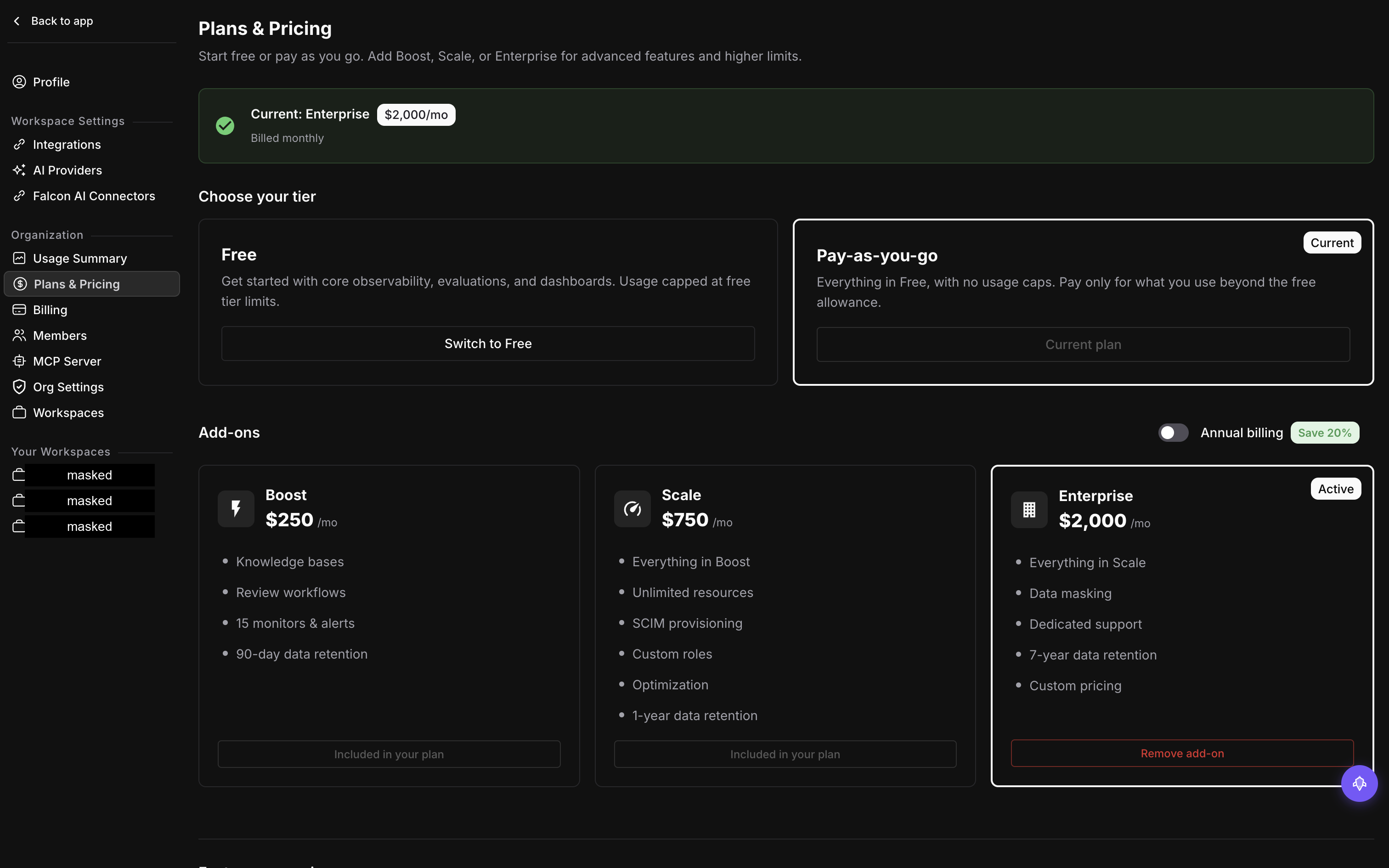
The two tiers up top, the three add-ons below: this organization is on Pay-as-you-go with Enterprise active
Card details are collected on a secure checkout page hosted by our payment provider, so Future AGI never sees the card number. When you come back, Pay-as-you-go is marked as your current tier.
Be clear about what that changed. The free allowances don’t change, see the table on What you are billed for. The platform fee is still $0. The only difference is what happens at the end of an allowance: usage past it now continues and is billed on the usage rates, instead of being refused.
Add an add-on
Boost, Scale and Enterprise sit on top of Pay-as-you-go rather than replacing it.
Two things have to be true before you try. You must already be on Pay-as-you-go, because a Free organization is refused and told to upgrade first. And you must have a default card on file, otherwise the add-on is rejected before checkout is reached.
From Settings > Plans & Pricing, pick the add-on and confirm.
| Add-on | Platform fee | What it raises |
|---|---|---|
| Boost | $250.00 / month | Higher counted limits, 500 API requests per minute, 90 day retention |
| Scale | $750.00 / month | Unlimited monitors, alerts, queues, shadow experiments and automation rules, concurrency 50, 2,000 API requests per minute, 365 day retention |
| Enterprise | $2,000.00 / month | Unlimited limits and rate, 7 year retention |
Moving from Boost to Scale changes the add-on you already have, it does not stack a second one on top.
For the exact limits behind each row, see Plans & pricing.
Monthly or annual
Add-ons bill monthly or annually, and the annual price carries a discount.
| Add-on | Monthly | Annual | Works out at |
|---|---|---|---|
| Boost | $250.00 | $2,700 | $225.00 / month, 10% off |
| Scale | $750.00 | $7,200 | $600.00 / month, 20% off |
| Enterprise | $2,000.00 | $19,200 | $1,600.00 / month, 20% off |
The interval applies to the platform fee only. Usage is always billed on the period it happened in.
Remove or reinstate an add-on
Removing an add-on schedules it to end at the close of the current billing period rather than cutting it off there and then. The raised limits stay in place until that date, and the Plans page shows the add-on as pending cancellation with the date it ends.
Reinstating it before that date cancels the scheduled end. Nothing changes on your bill and the limits never drop.
Warning
Your limits fall to the Pay-as-you-go level on the end date. Anything you are over by then, such as monitors beyond the lower cap, needs sorting out before the date arrives.
Downgrade to Free
From Settings > Plans & Pricing, pick Free and confirm. Know the consequence before you do: Free is hard-capped, so once a meter’s allowance is spent, calls on that meter are refused until the next billing period starts.
Cards and billing details
The Payment methods section of Settings > Billing lists the cards on file by brand, last four digits and expiry. You can add a card, set which one is charged by default, and remove one you no longer use.
Two guard rails apply. You cannot remove your only card while you are on a paid plan, and you can only touch cards belonging to your own organization.
The billing contact is what appears on the invoice: name, email, company, address, city, state, country and postal code. Edit it on the billing details page. If you would rather manage cards and receipts outside Future AGI, a link there opens the payment provider’s own portal.
If a payment fails
A failed payment does not cut you off. The organization moves into a grace period, usage keeps running, and you get an email saying a payment failed, followed by a retry reminder and a final warning if it stays unresolved.
If it is still unpaid after that, billable usage is refused until a payment succeeds. Access comes back the moment one does. Retries and receipts come from the payment provider.
Dive deeper
Questions & Discussion