Running Evals in Simulation: Score Agent Interactions
Run evaluations in Future AGI simulations to test AI agents against simulated customers and score interactions for quality and context retention.
About
Simulation is Future AGI’s agent testing product. It lets you run your AI agent against simulated customers in realistic scenarios without real users, real calls, or production risk. You define who the customer is, what they want, and how they behave. The platform drives the conversation and scores every interaction using evaluations you configure. The result is a detailed breakdown of where your agent succeeds and where it fails, before you ship.
Prerequisites: Before starting, make sure you have set up your Agent Definition, Scenarios, and Personas.
Open the Run Simulation Dashboard
Navigate to your simulation and click Run Simulation. You’ll see the eval configuration panel where you can add evaluators before starting the run.
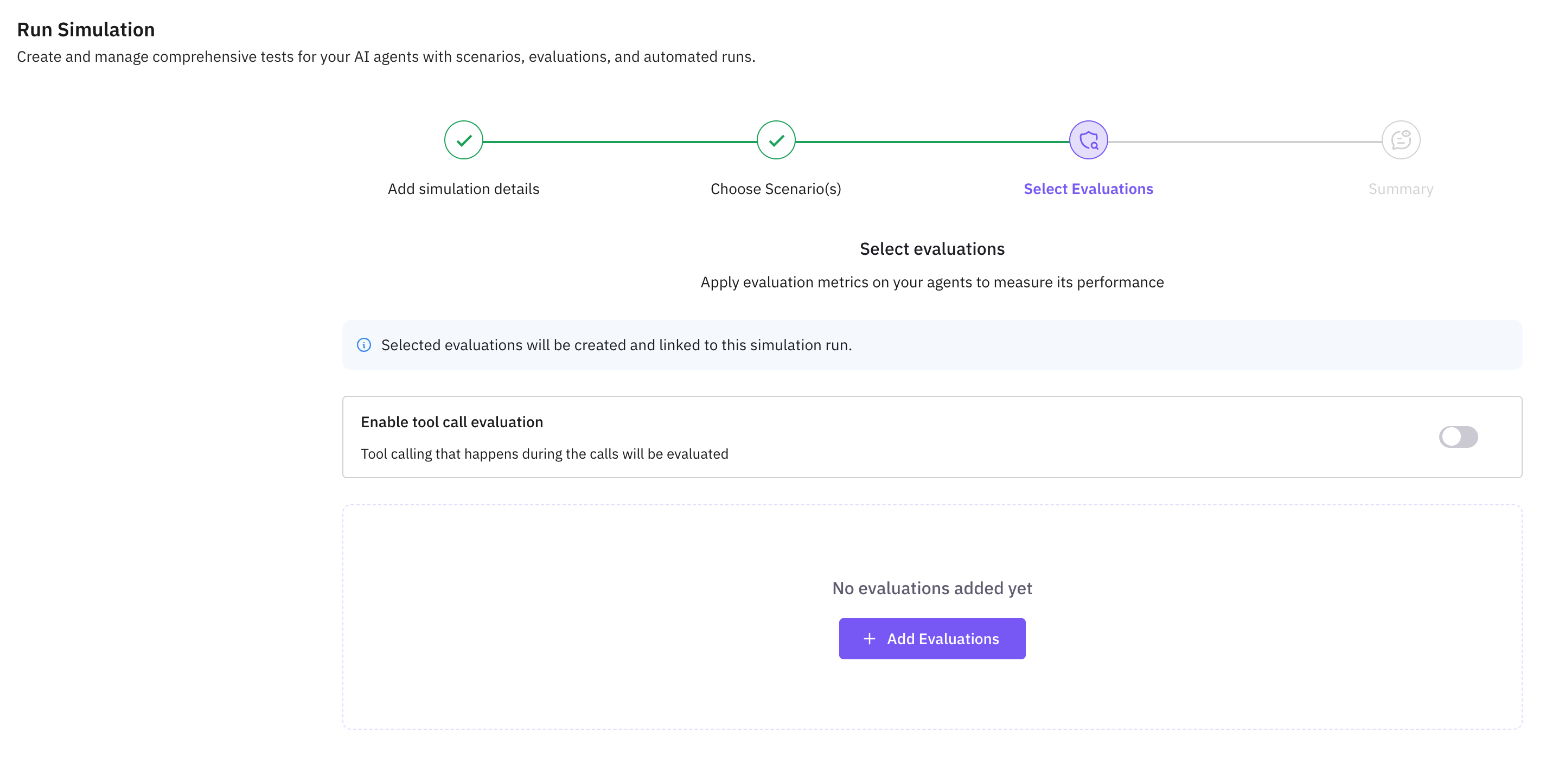
Add an Evaluation
Click Add Evaluation to open the eval drawer. Choose from Future AGI’s built-in simulation evals or create a custom one.
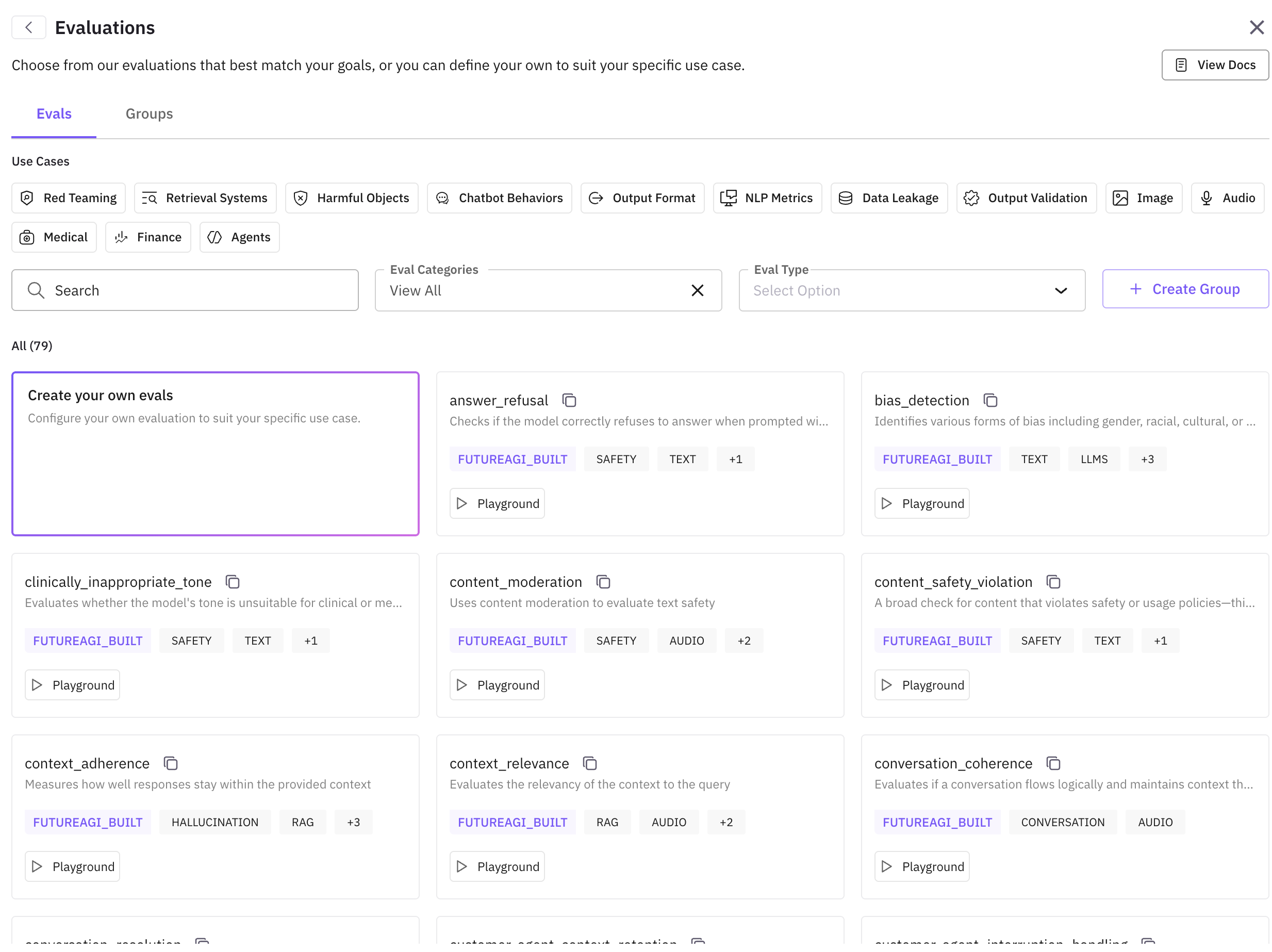
Recommended built-in evals for simulation:
customer_agent_conversation_quality— overall conversation qualitycustomer_agent_query_handling— correct interpretation and relevant answerscustomer_agent_context_retention— agent remembers earlier contextcustomer_agent_human_escalation— appropriate escalation to a humancustomer_agent_loop_detection— detects repetitive or looping responses
See the full list of built-in evals here.
Configure the Eval
After selecting an eval, a configuration drawer opens. Fill in the required fields:
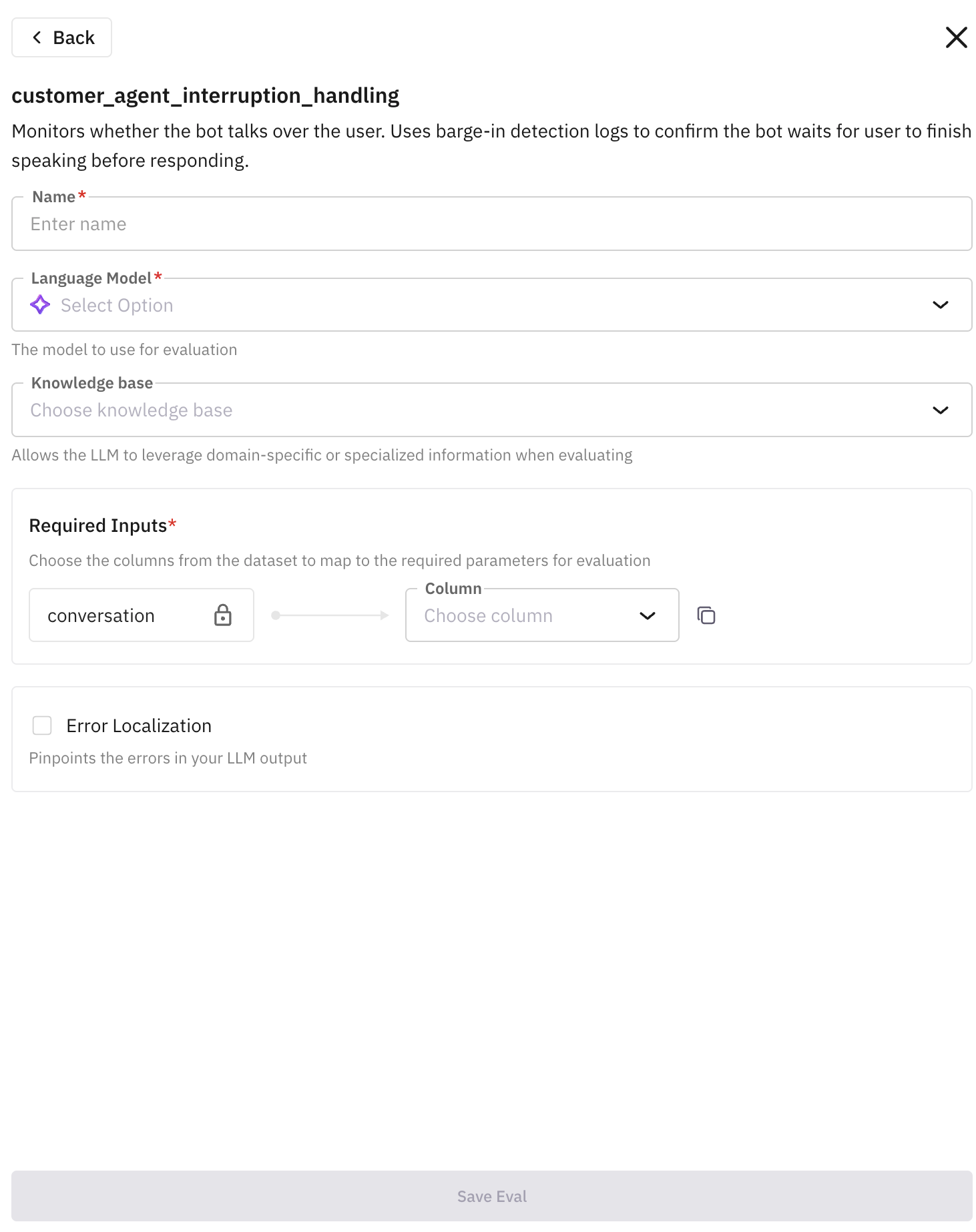
- Name: displayed in your simulation dashboard after the run
- Language Model: recommended
TURING_LARGE - Required Inputs: map the eval’s input keys to your simulation columns:
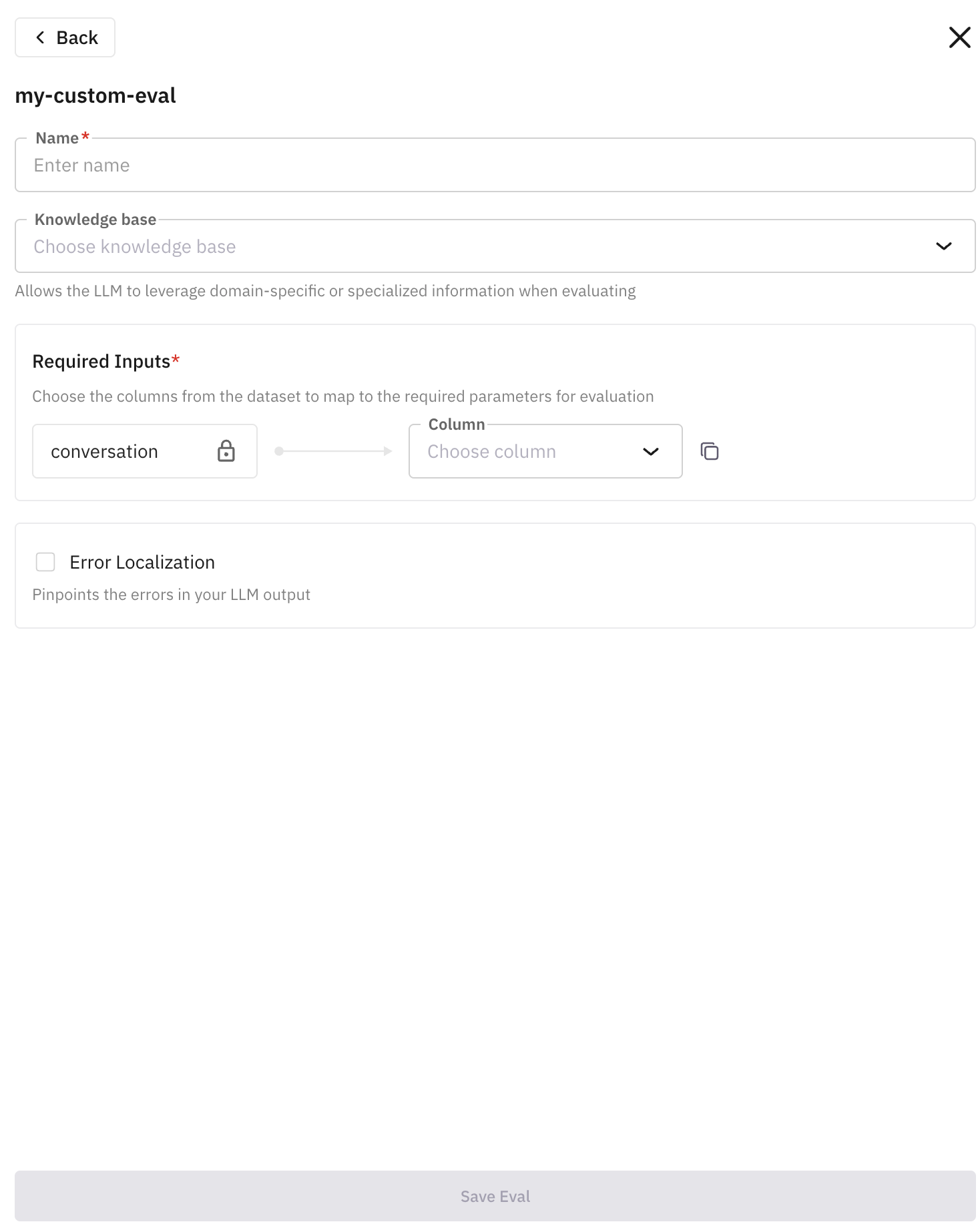
conversationmaps toMono Voice RecordingorStereo Recordinginputmaps topersonorsituationoutputmaps toMono Voice Recording,Stereo Recording, oroutcome
Click Save Eval when done.
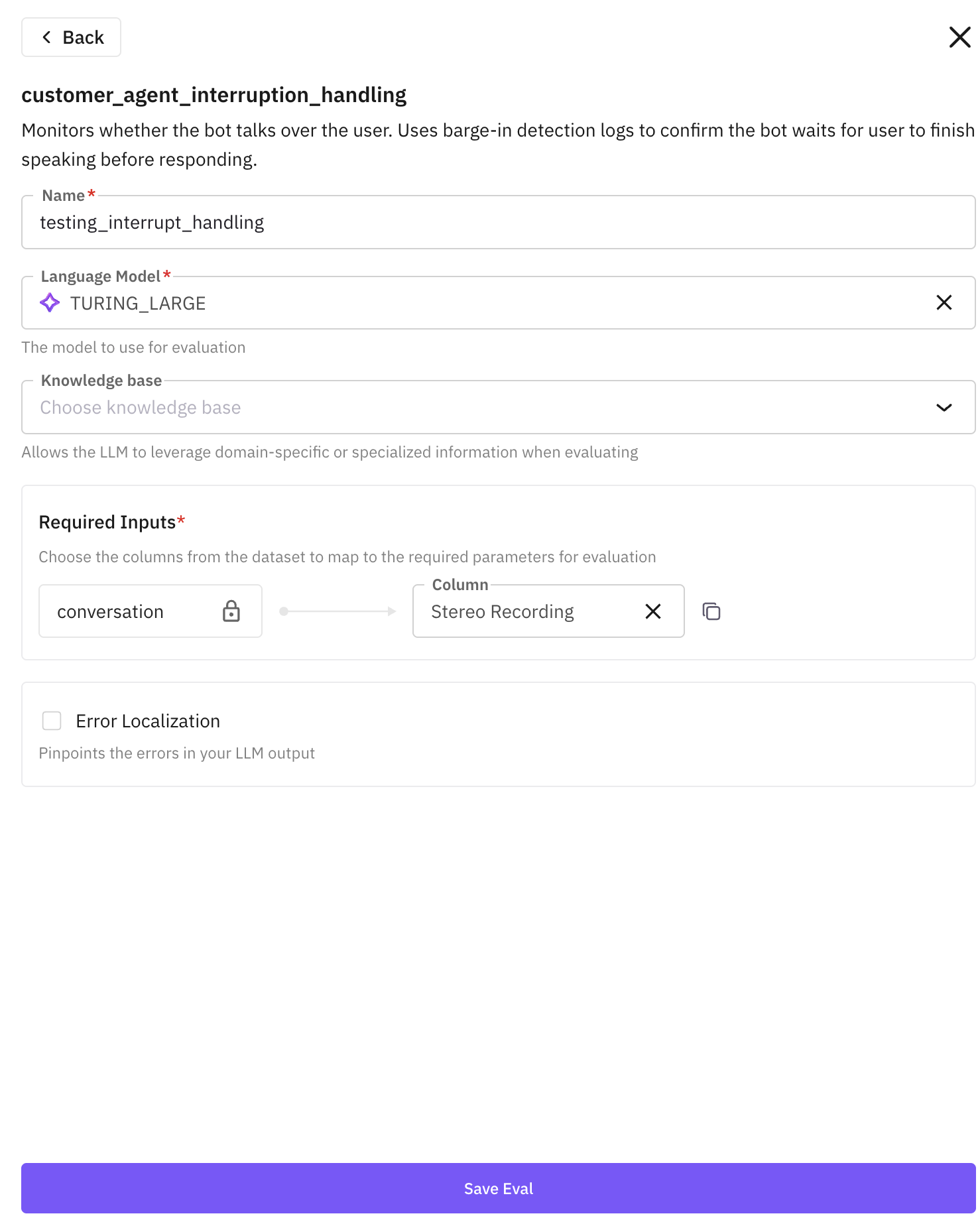
Add More Evals (Optional)
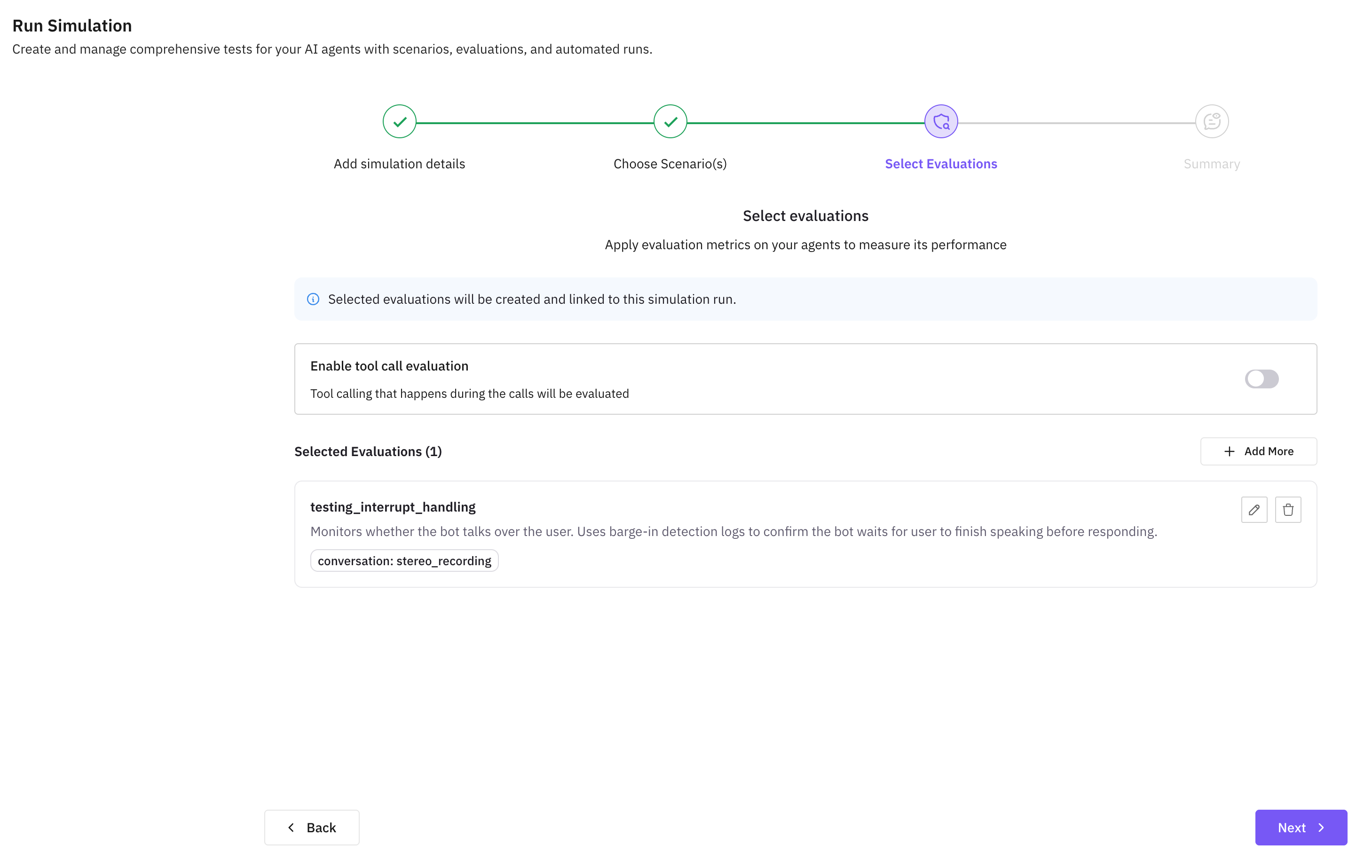
The saved eval appears under Selected Evaluations. You can add multiple evals to a single run to test the agent more broadly.
Run the Simulation
Once you’ve added all the evals you need, click Next and then run the simulation.
View Results
After the simulation completes, your results appear in the simulation dashboard. Each scenario shows a score for every eval you configured. You can drill into individual conversations to see the full transcript and where the agent scored well or poorly.
Creating a Custom Eval
If the built-in evals don’t cover your use case, you can create your own.
Start a Custom Eval
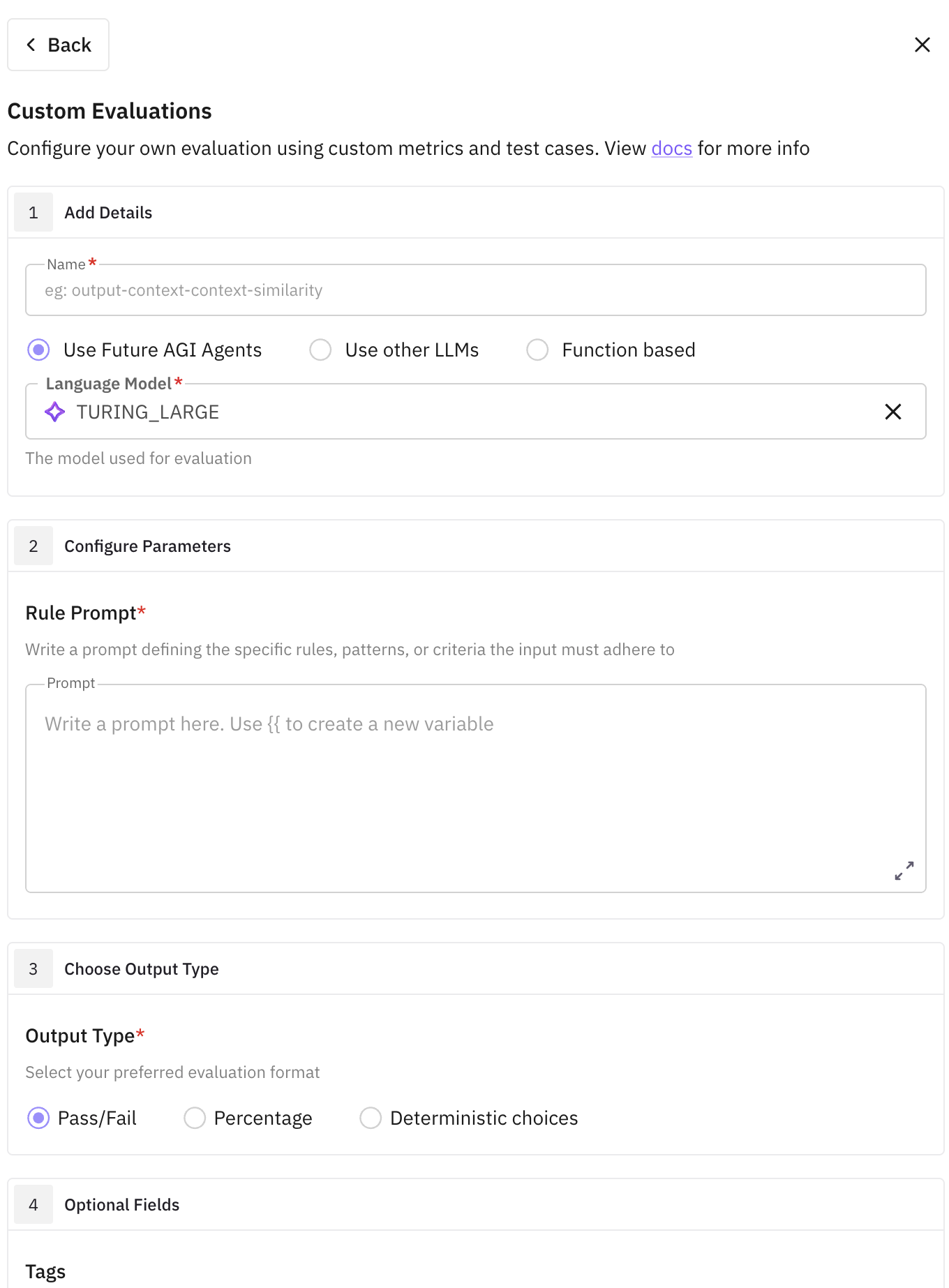
In the eval drawer, click Create your own evals and provide a unique name.
Write a Rule Prompt
Select a model (recommended: TURING_LARGE) and write your evaluation criteria using {{ }} for input variables.
Example: Given {{conversation}}, evaluate if the agent convinces the customer to purchase insurance.
Map {{conversation}} to Mono Voice Recording or Stereo Recording.
Set the Output Type
Choose how the eval should score results:
- Pass/Fail — recommended for most cases
- Percentage — specify what 0% means
- Categorical — define all possible output labels
Click Create Evaluation to save it as a reusable template under User Built evals.
Use the Custom Eval
Your custom eval now appears in the eval drawer. Select it, give it a run name, map the input columns, and click Save Eval.
Next Steps
- Browse all built-in evals to find metrics that fit your use case
- Set up agent definitions if you haven’t already
- Learn about simulation concepts for a deeper understanding of how scenarios and personas work
Questions & Discussion