Create Prompts Quickstart: Future AGI Prompt Workbench
Create and manage AI prompts in Future AGI's Prompt Workbench. Design, test, version, and optimize prompts with built-in model selection and evaluation.
About
Prompt is Future AGI’s prompt engineering product. The Prompt Workbench is where you design, test, version, and optimize the instructions you give to AI models. Instead of managing prompts in code or scattered documents, everything lives in one place with model selection, parameter tuning, version history, and built-in evaluation. You can build prompts from scratch, start from a template, or generate a first draft with AI.
Build a prompt manually with full control over every parameter: model, temperature, tools, and content.
Navigate to Prompts
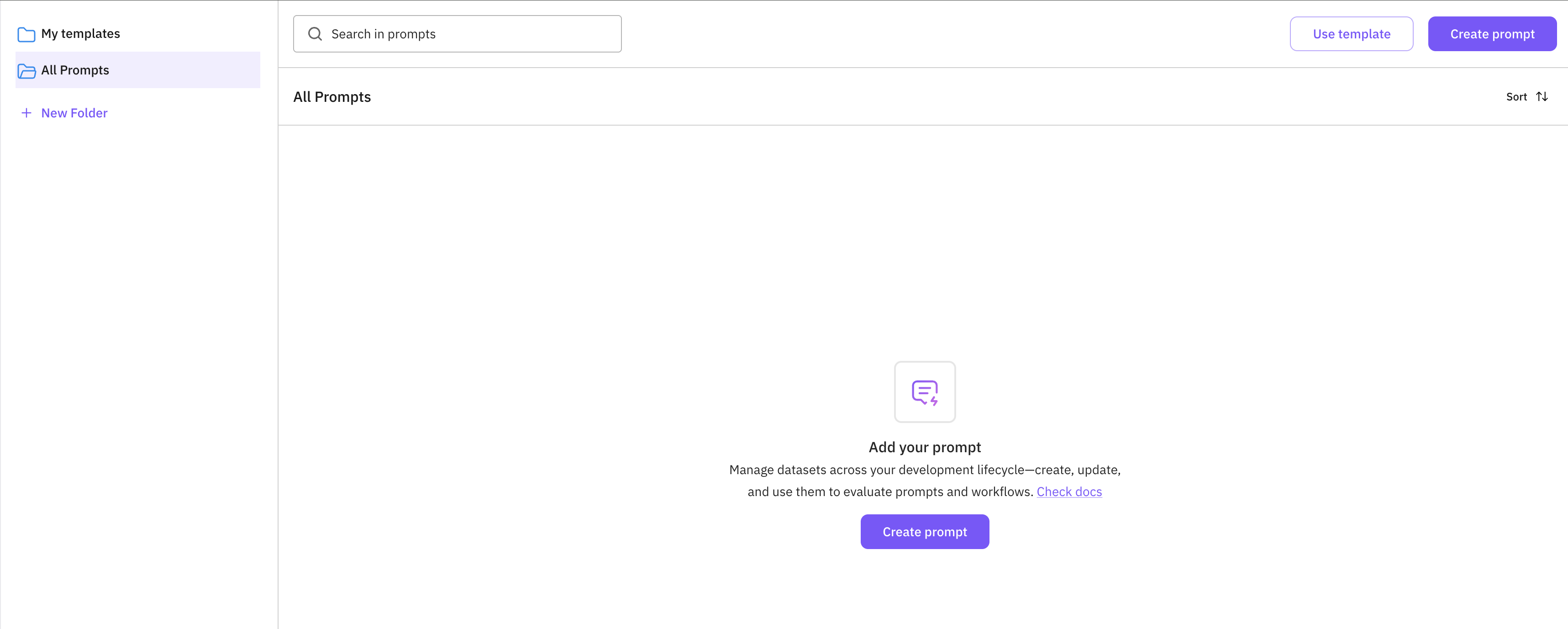
From the dashboard, click Prompts in the left sidebar under the Build section.
Create a New Prompt
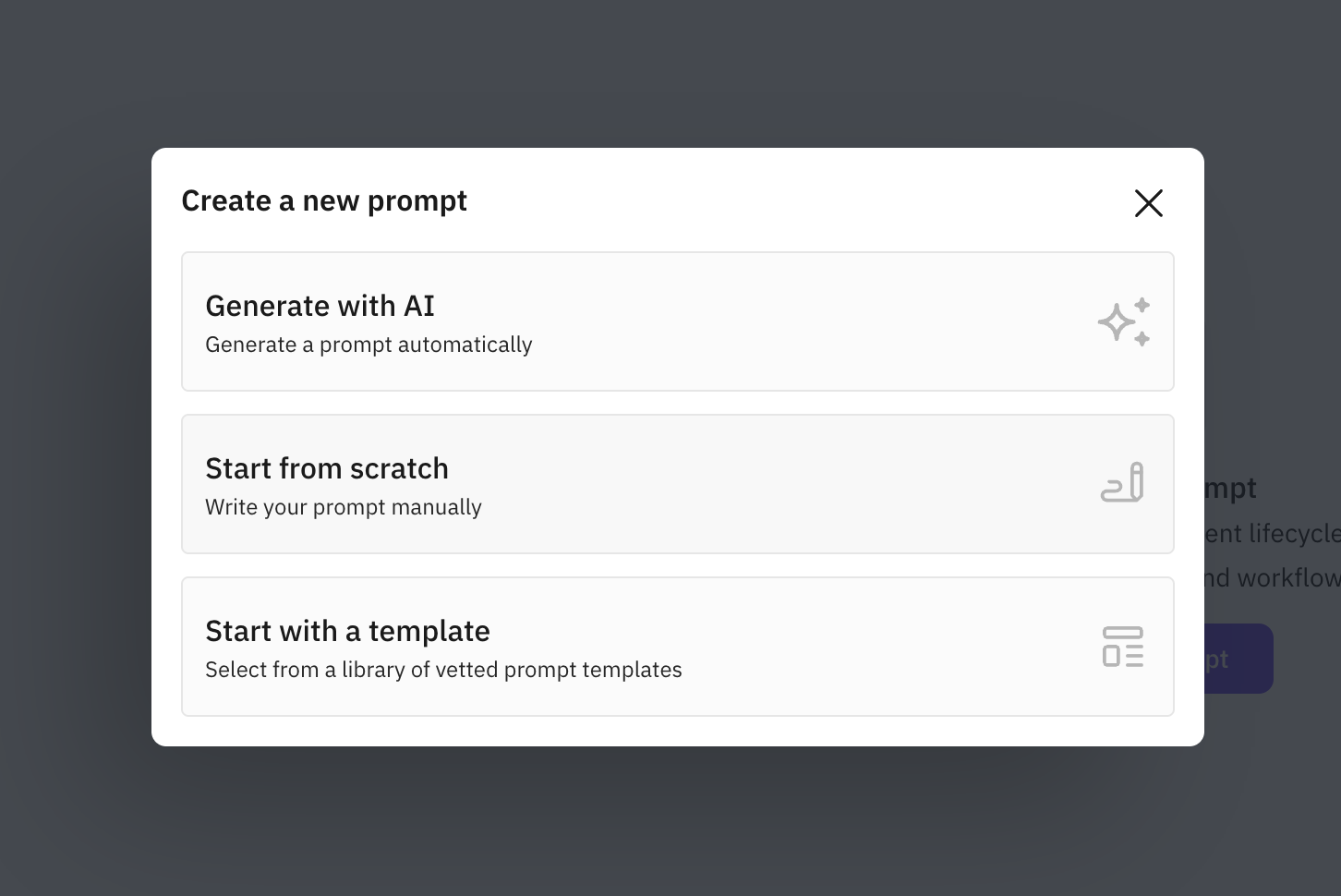
Click Create prompt on the right. In the modal, select Start from scratch.
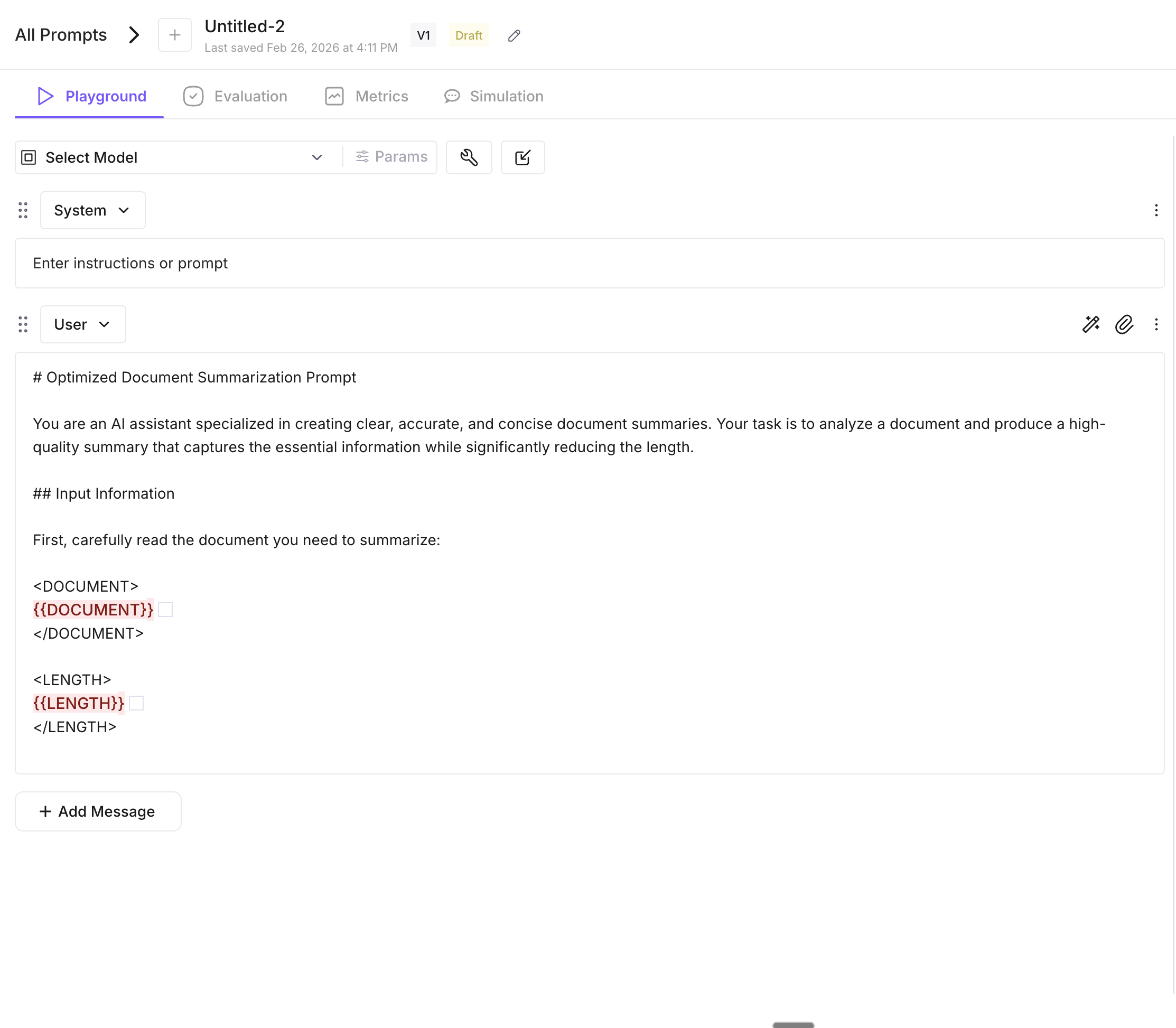
Configure Your Prompt
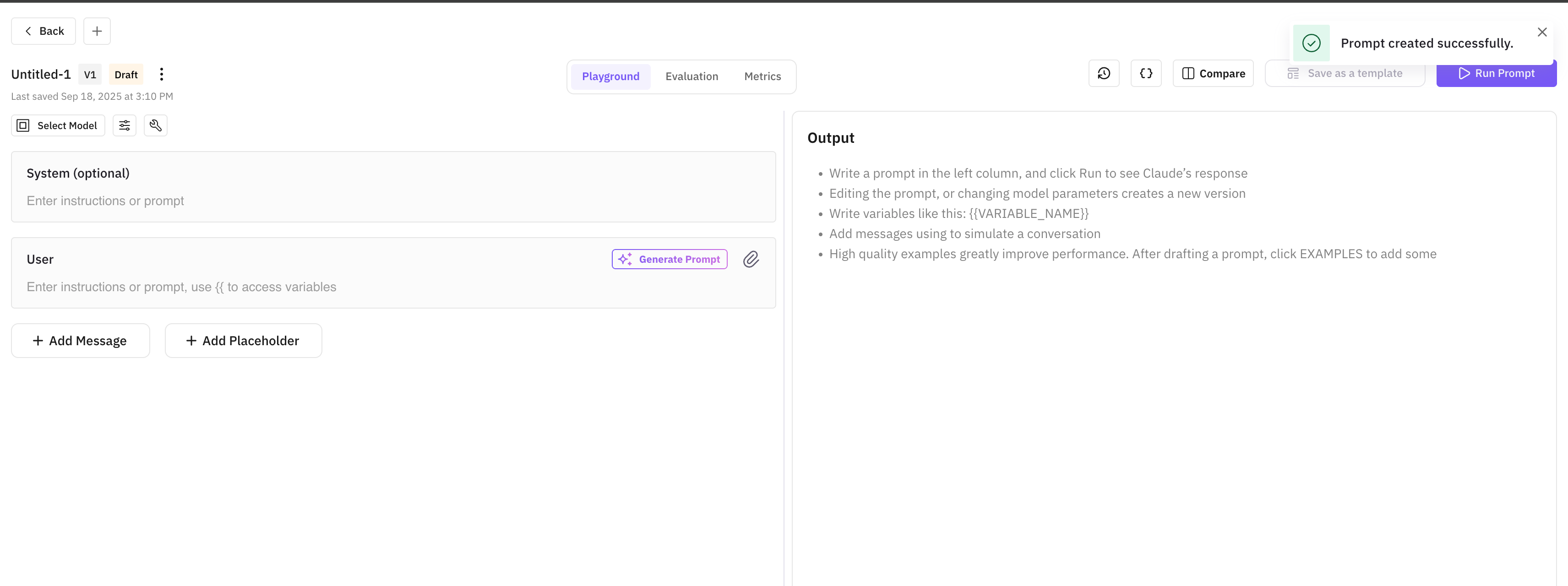
In the prompt editor:
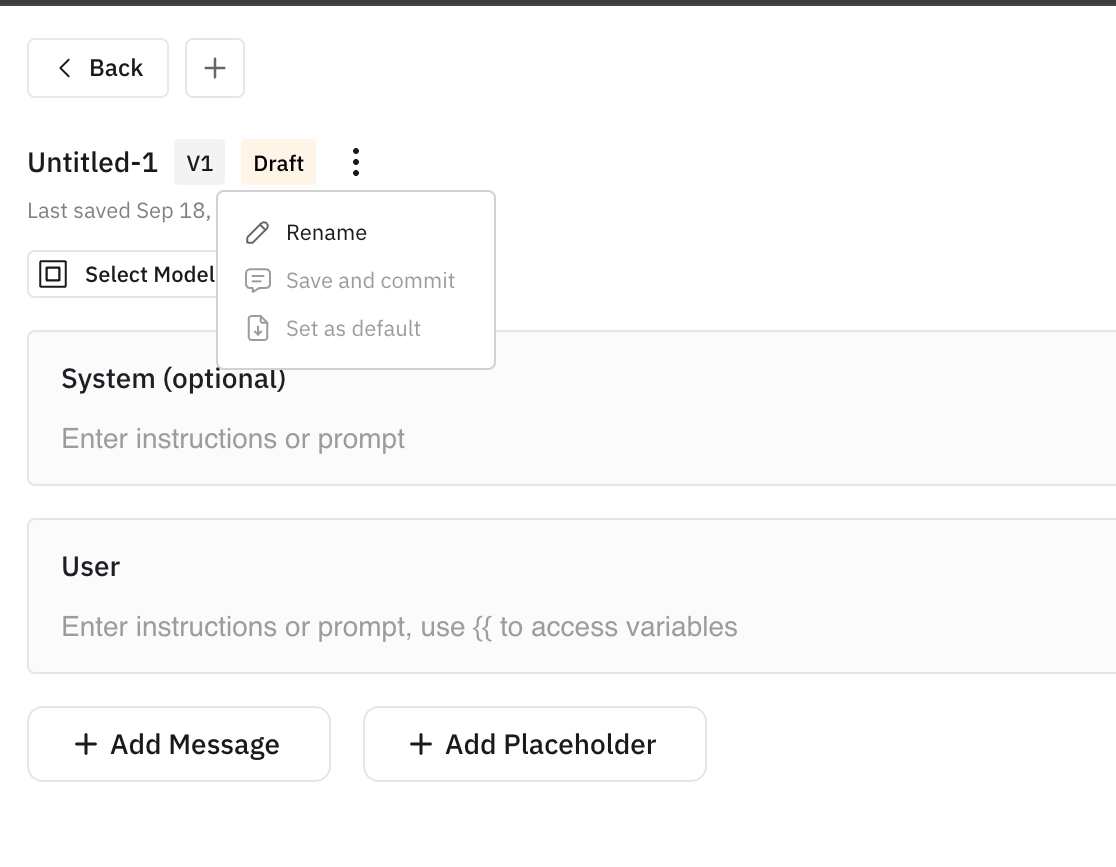
- Rename: click the title to give your prompt a descriptive name.
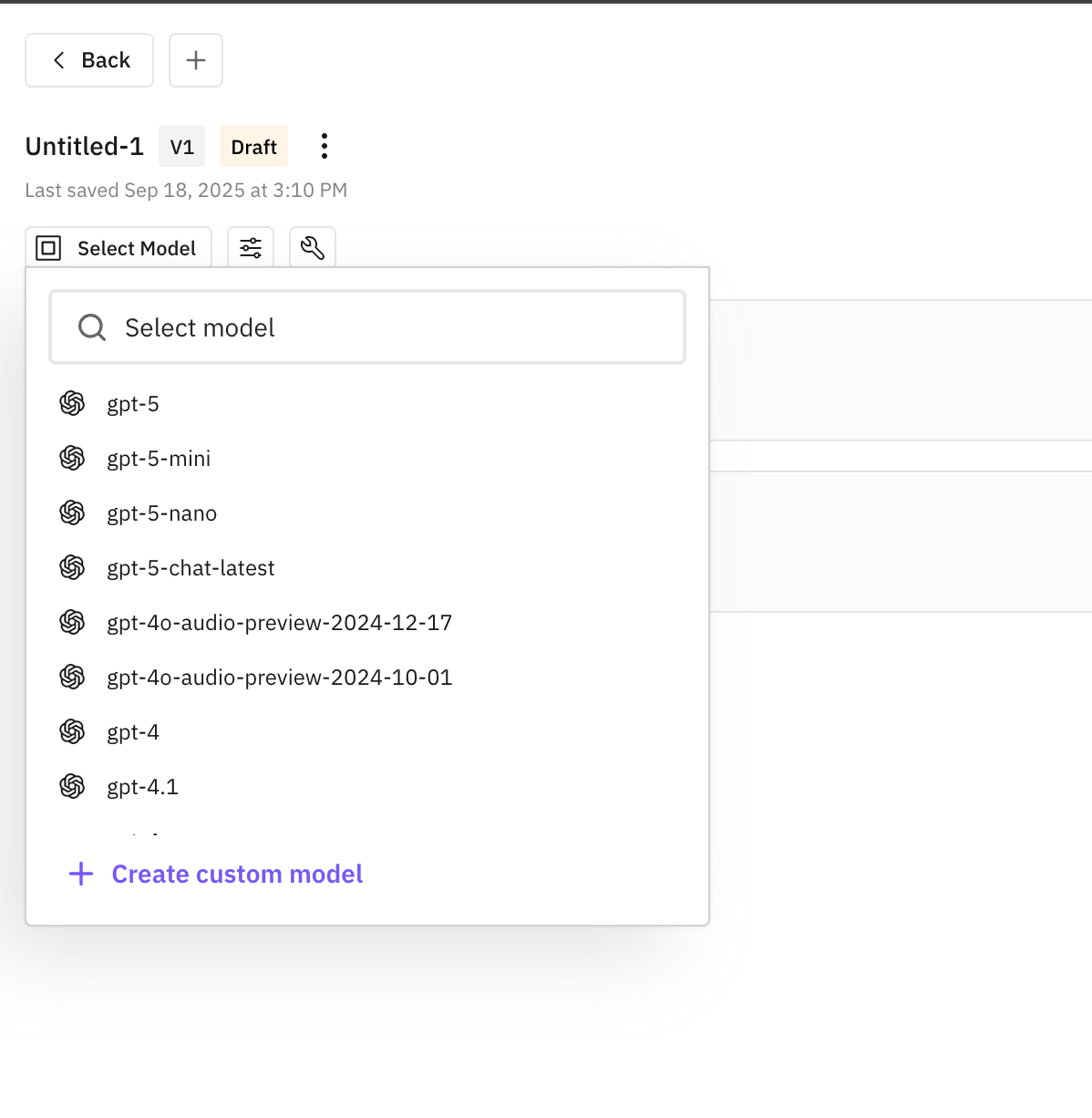
- Choose a model: click Select Model to pick an AI model.
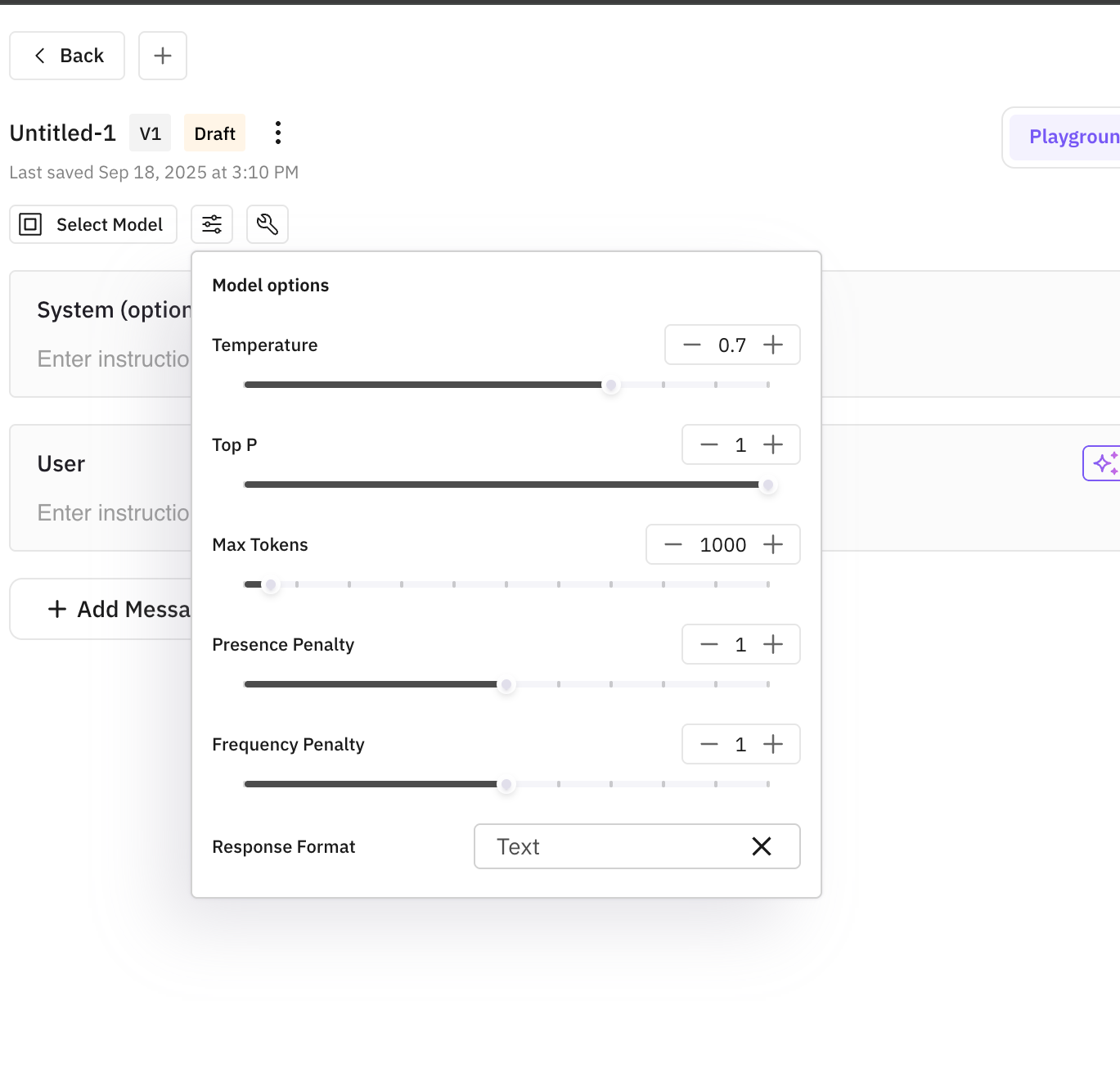
- Set parameters: adjust temperature, top-p, max tokens, presence/frequency penalty, and response format.
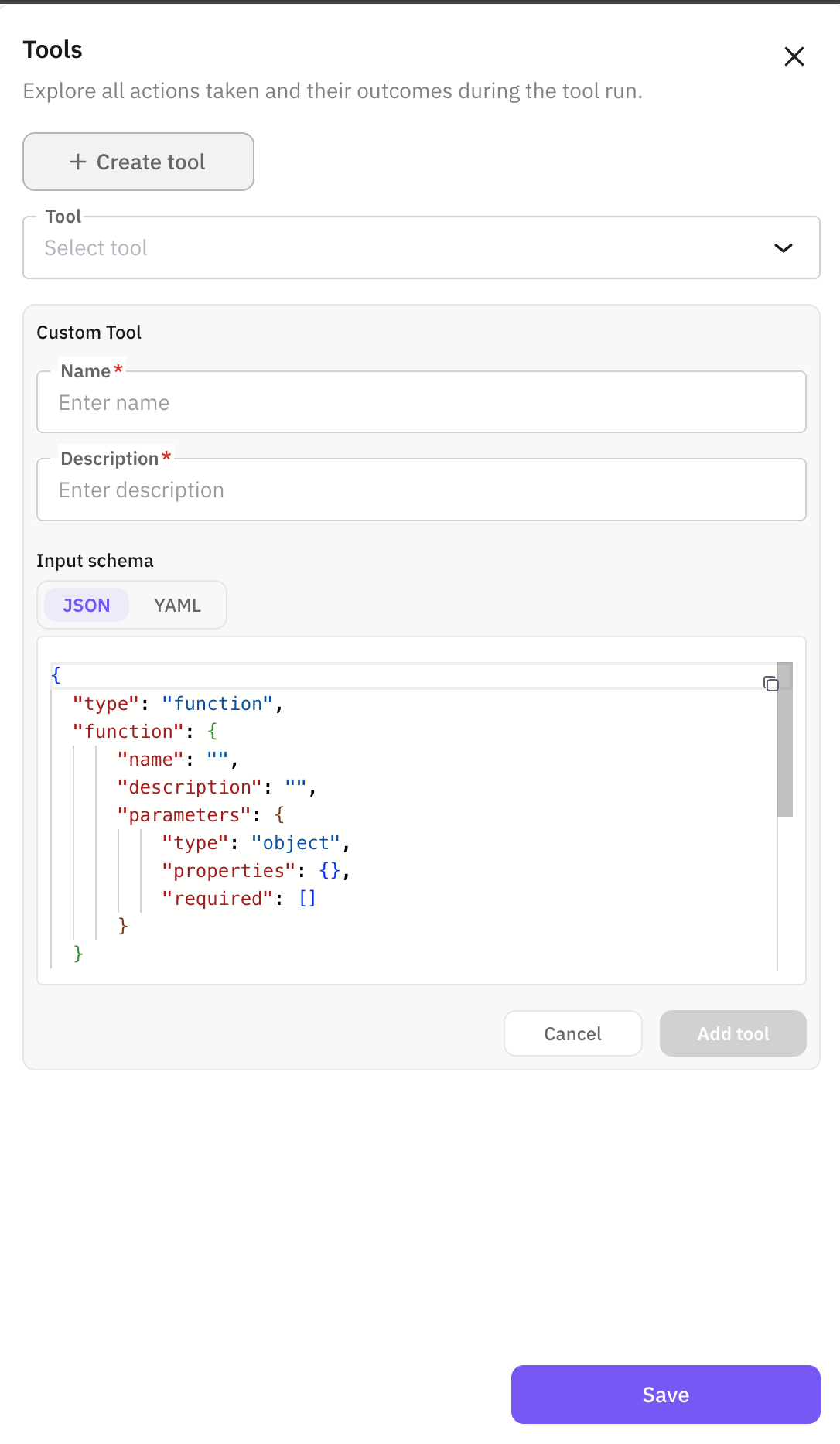
- Add tools (optional): click the Tools tab, then Create tool to add tools with a name, description, and input schema.
Write and Run
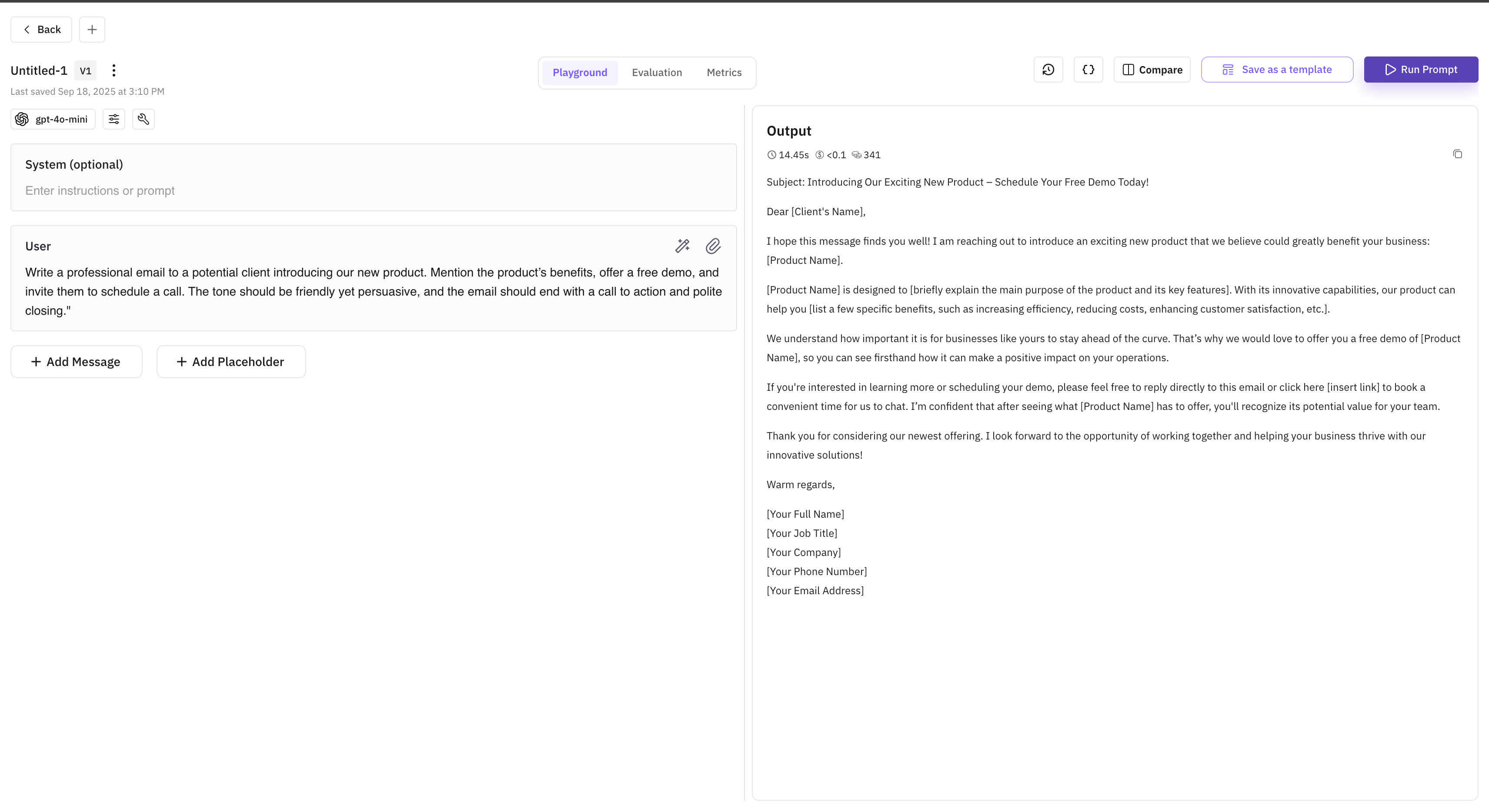
Fill in the System (optional) and User fields, then click Run Prompt to see the model’s response.
Start from a pre-built template and customize it for your use case. Faster setup with expert-crafted structure.
Navigate to Prompts
From the dashboard, click Prompts in the left sidebar under the Build section.
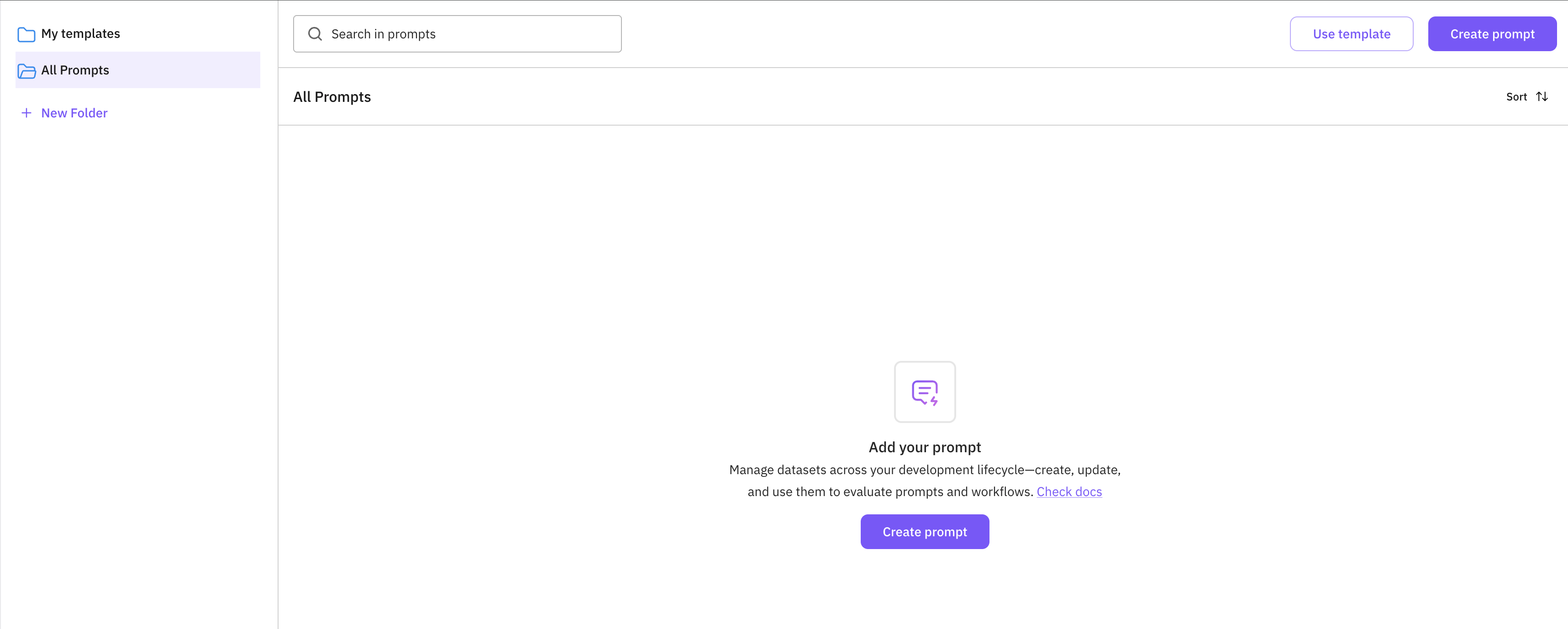
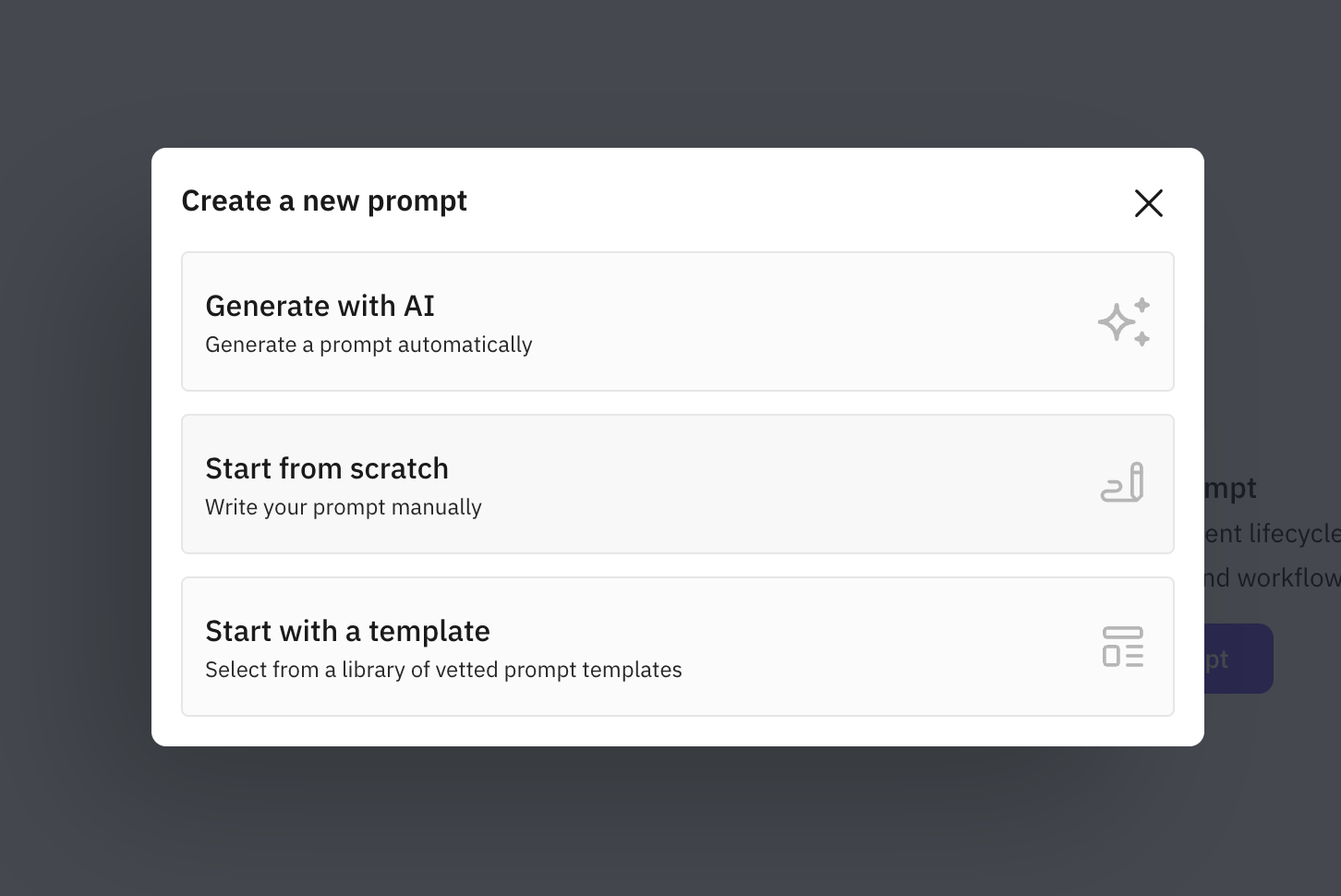
Open the Template Browser
Click Create prompt on the right. In the modal, select Start with a template.
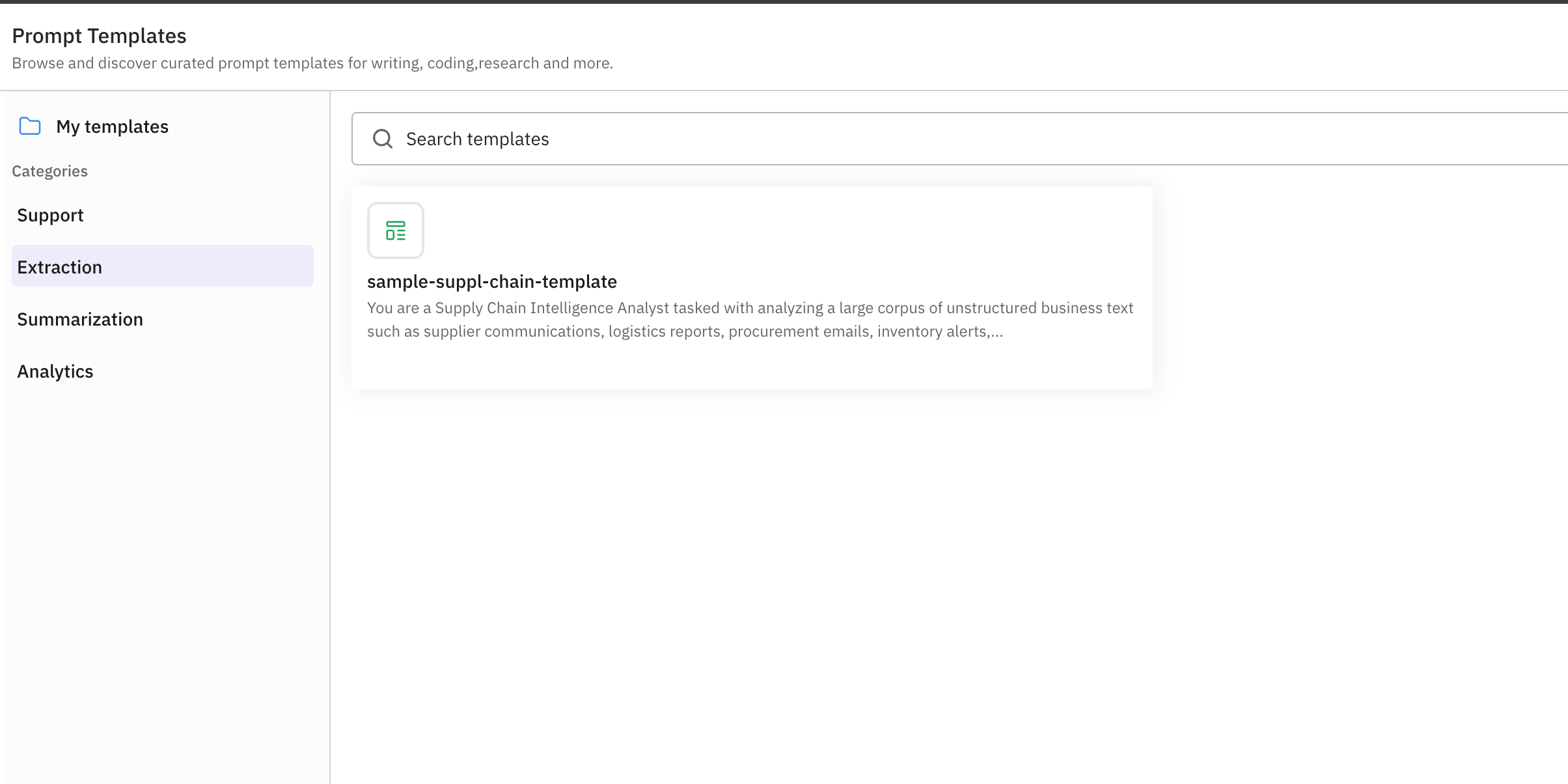
Browse and Select a Template
Browse by category in the left sidebar or use the search bar. Click a template card to view its details.
Use the Template
Click Use this template to open it in the editor with pre-filled system and user content.
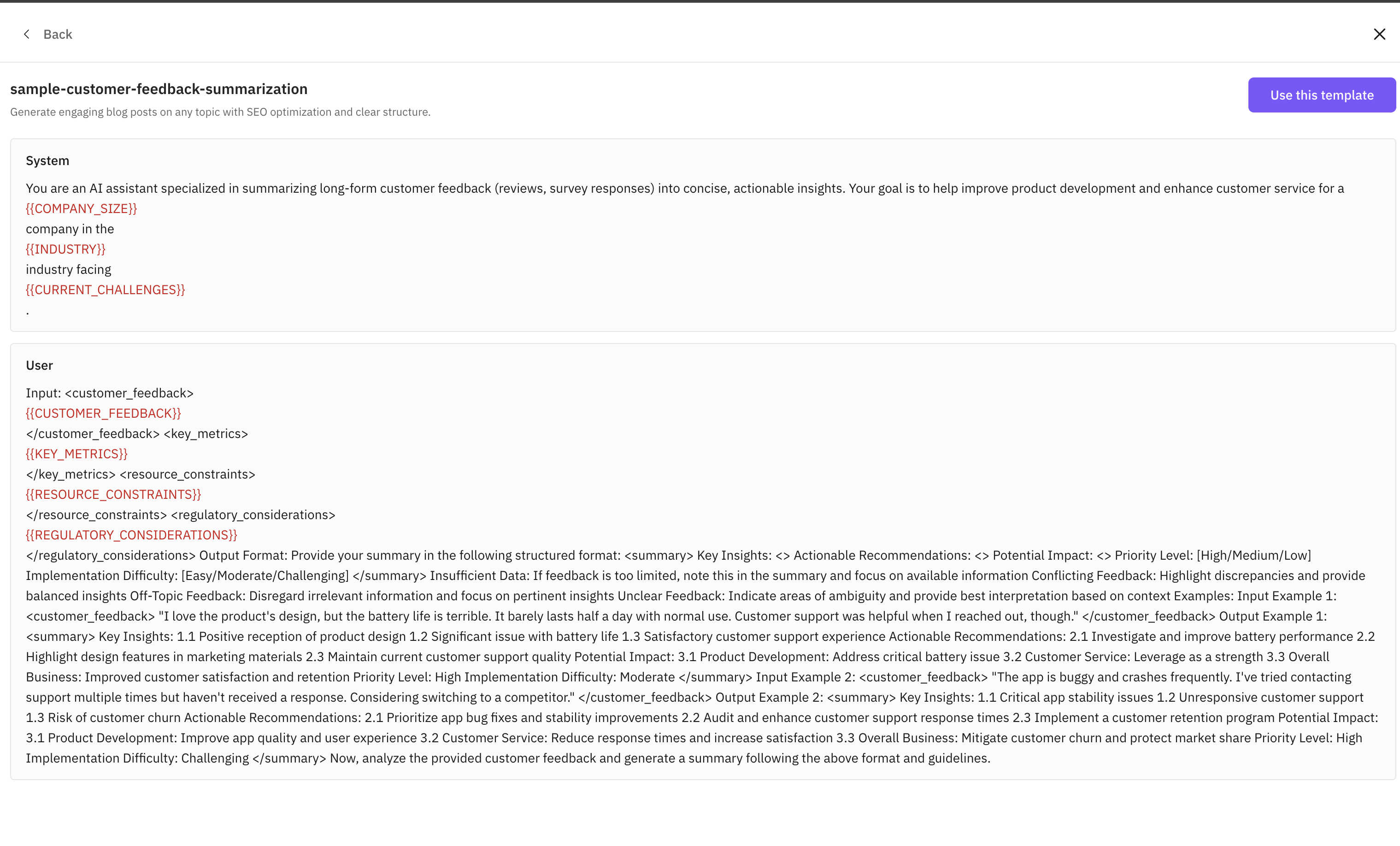
Customize and Run
Replace any {{PLACEHOLDERS}} with your specific context, adjust model parameters if needed, then click Run Prompt.
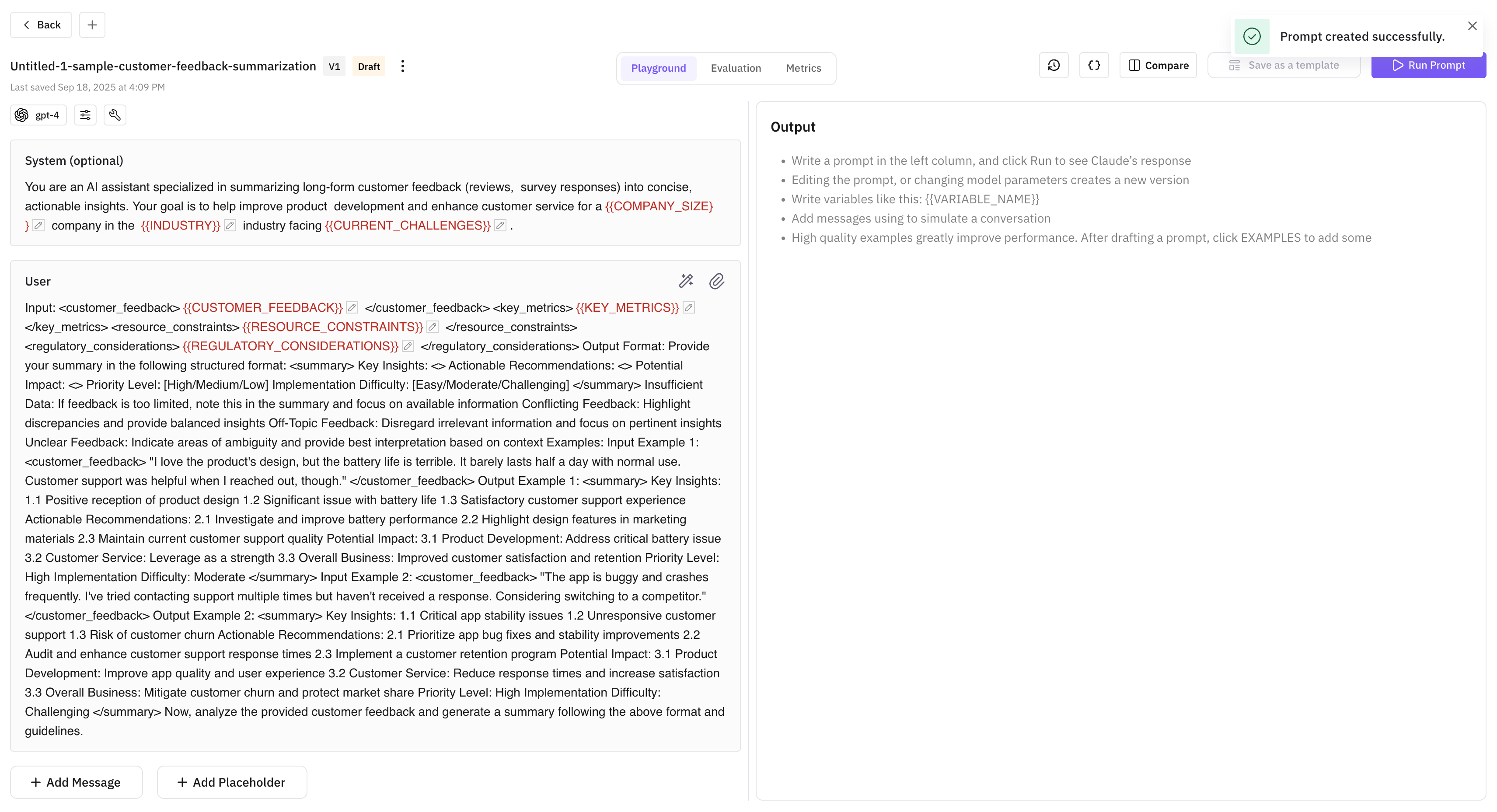
Describe what you want the prompt to do — the platform generates system and user content for you.
Navigate to Prompts
From the dashboard, click Prompts in the left sidebar under the Build section.
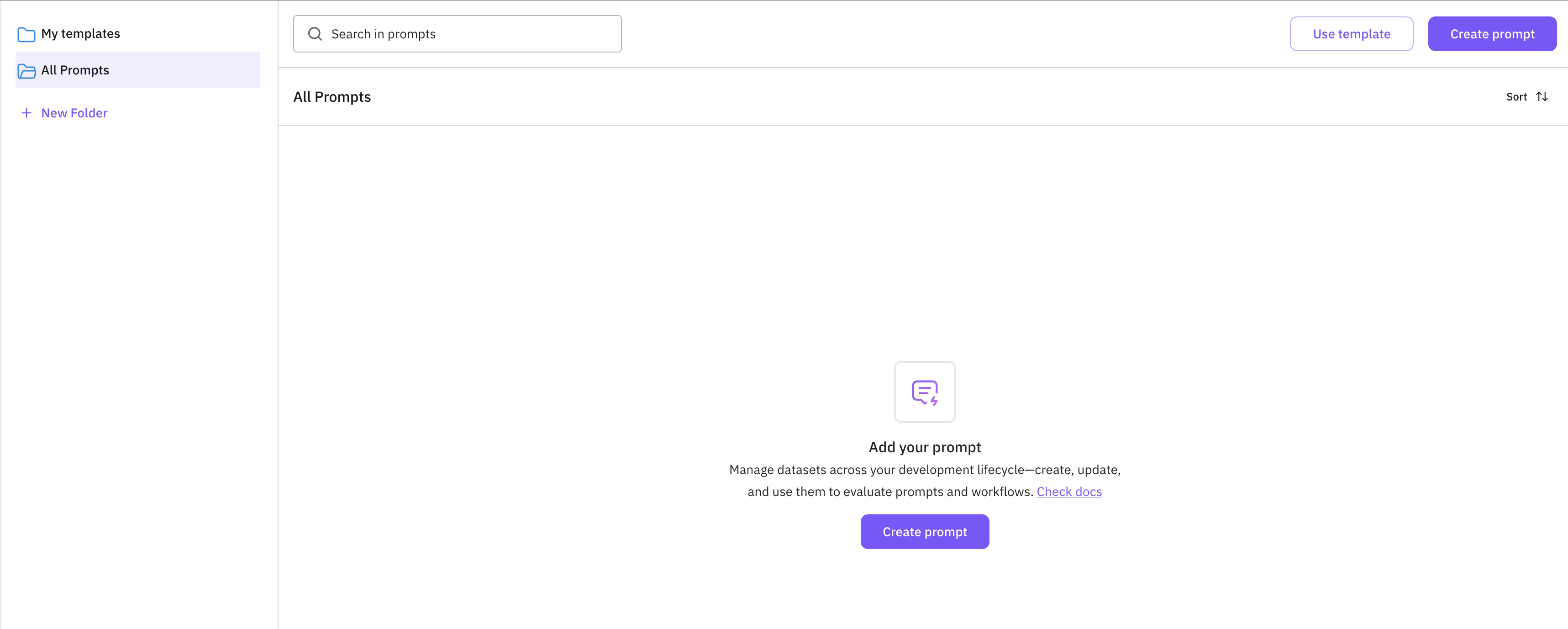
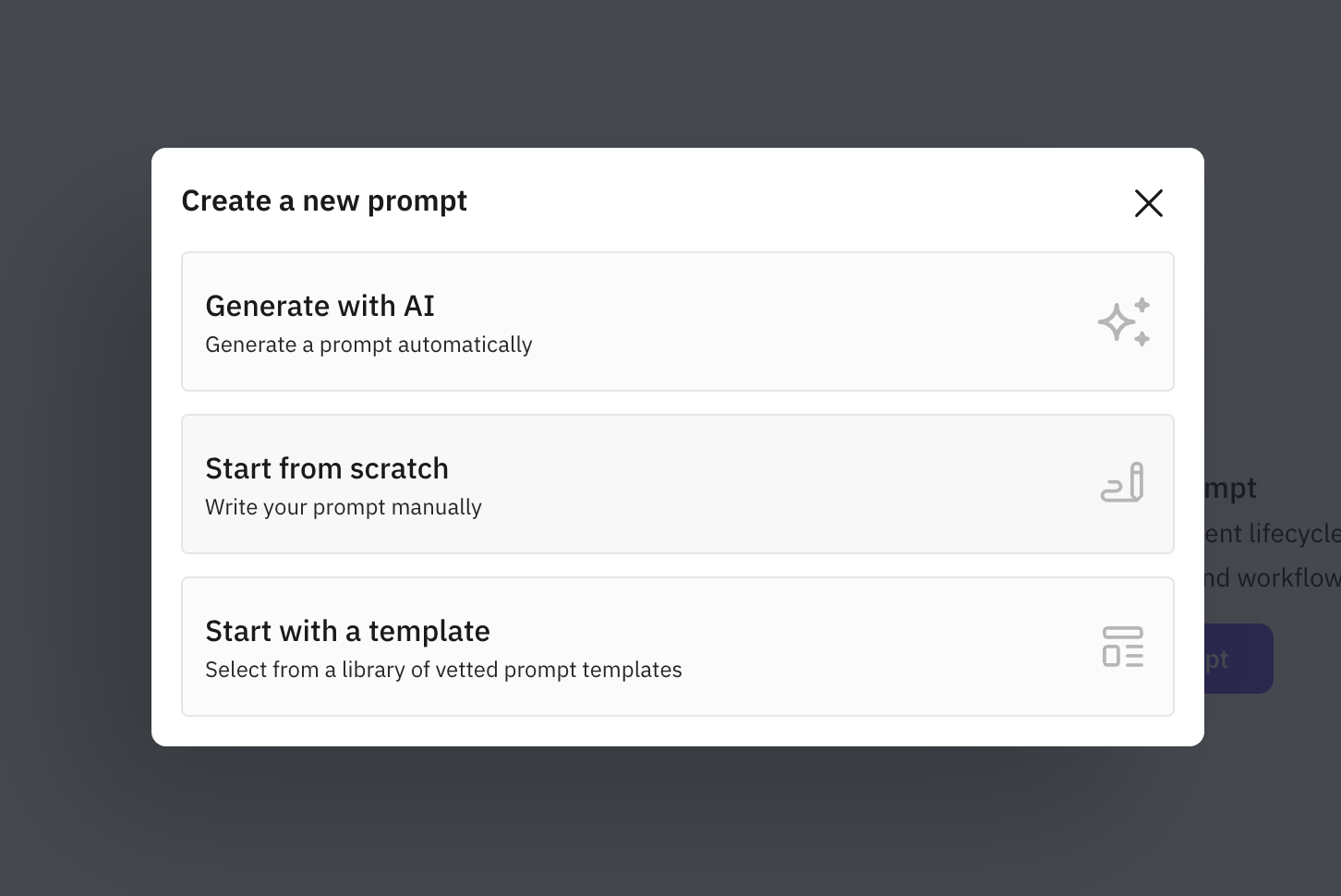
Start Generate with AI
Click Create prompt on the right. In the modal, select Generate with AI.
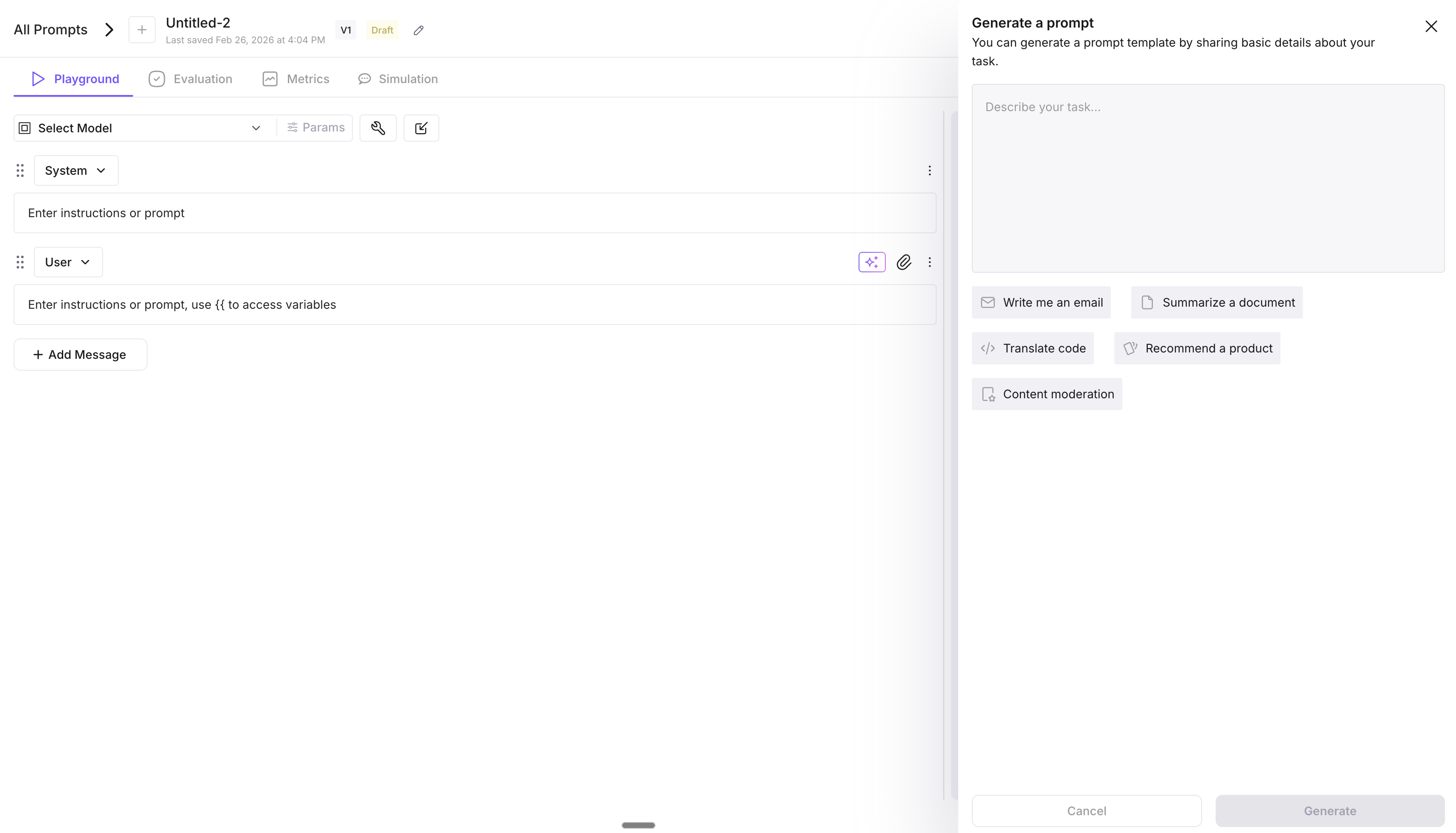
Enter Your Statement
Describe what you want the prompt to do. For example:
- “Write a professional email using the recipient’s name and topic”
- “Summarize the following text in bullet points”
- “Answer customer support questions in a friendly, concise way”
Wait for Generation
The platform generates system and user prompt content based on your statement. When complete, the editor opens with the generated content.
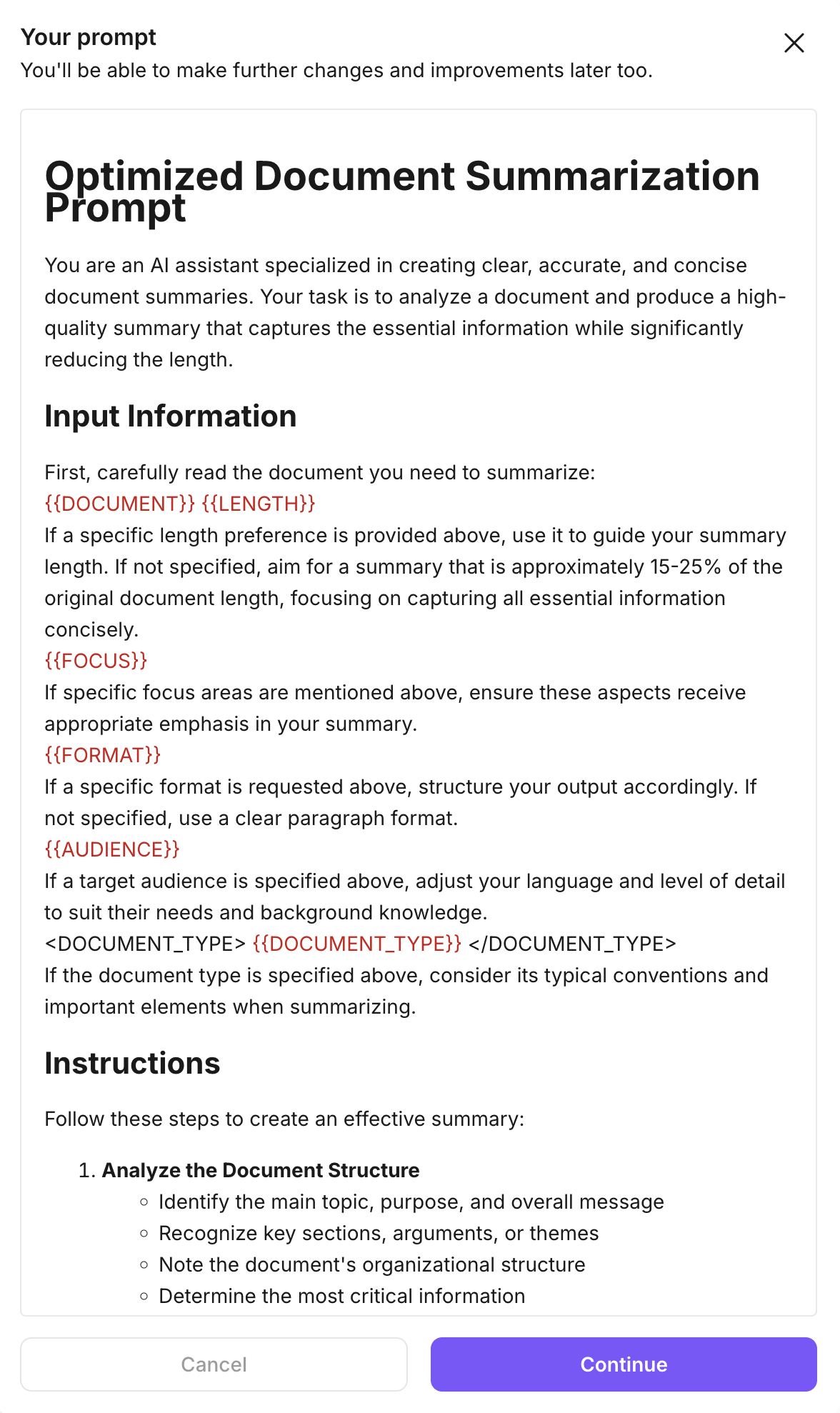
Review, Edit, and Run
Rename the prompt, choose a model, edit the generated content as needed, then click Run Prompt to test it.
Next Steps
- Use prompts via SDK to serve and manage prompts programmatically in your application
- Optimize your prompts to automatically improve prompt performance using evaluation-driven feedback
- Run evaluations to measure how well your prompts perform across different inputs
Questions & Discussion