Migrate from Langfuse
Migrate existing Langfuse traces/spans etc. to Future AGI, with no re-instrumentation
Migrating from Langfuse to Future AGI is as simple as connecting your project once. This page guides you through the Langfuse import, which pulls your existing traces, spans, and scores into Future AGI so you can run evals and analysis on them without re-instrumenting anything
We recommend starting with a full backfill of your history, then letting Future AGI sync new traces on a schedule. Your Langfuse setup keeps working exactly as it is, nothing changes on that side
You can turn the import off at any time, too. Anything already imported stays in Future AGI
Prerequisites
- A Langfuse account with at least one project that already has traces
- Your Langfuse Public Key (
pk-lf-...) and Secret Key (sk-lf-...), from Langfuse → Settings → API Keys - Atleast Member level access in your Future AGI workspace.
Note
For a detailed breakdown of Role based access, see Roles & Permissions.
1. Open Integrations and pick Langfuse
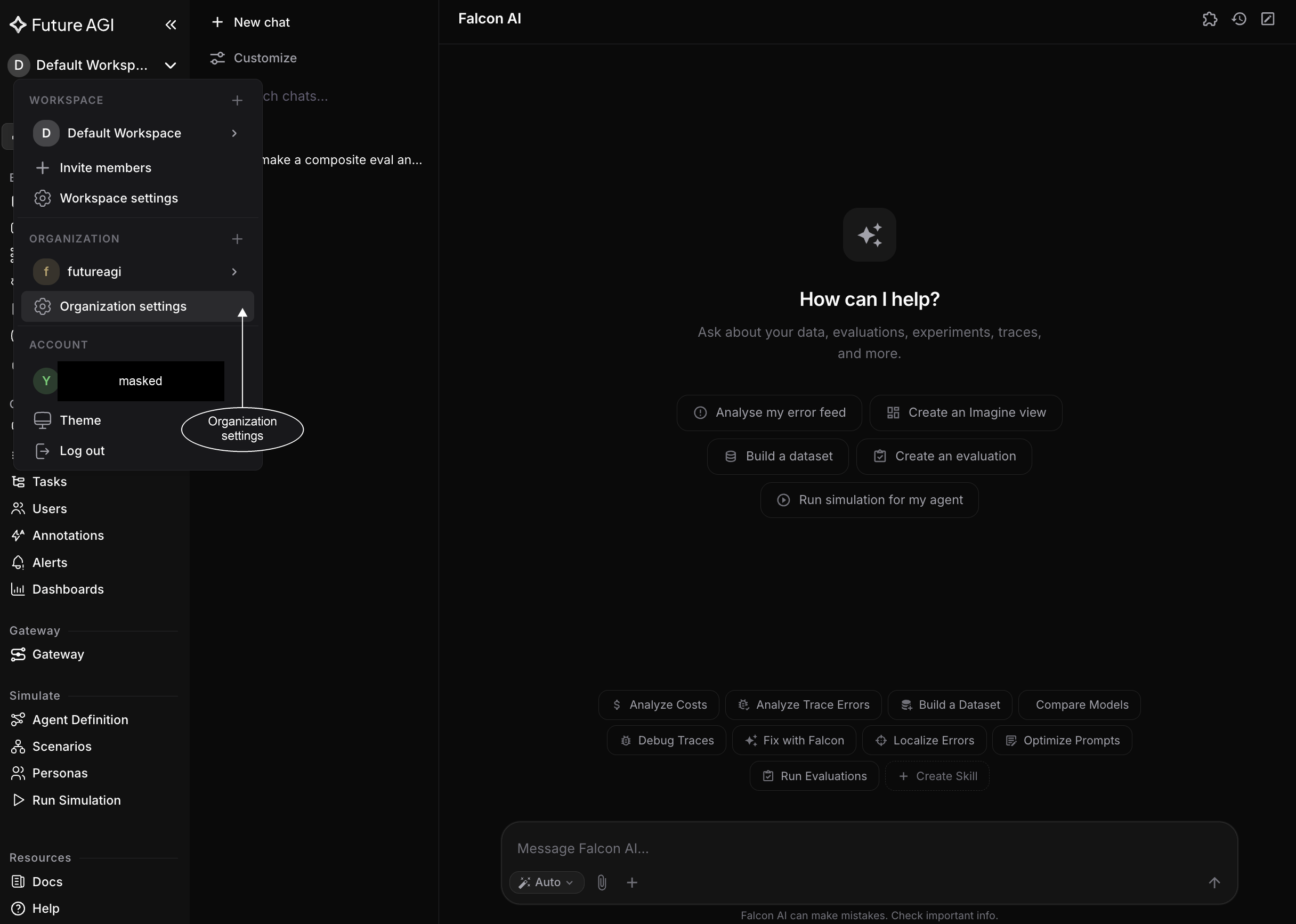
In your Future AGI workspace, open the workspace menu and go to Workspace settings → Integrations, click Add Integration, then choose Langfuse. A side panel opens and walks you through four steps: Platform, Credentials, Project, and Sync Settings
2. Configure Langfuse credentials
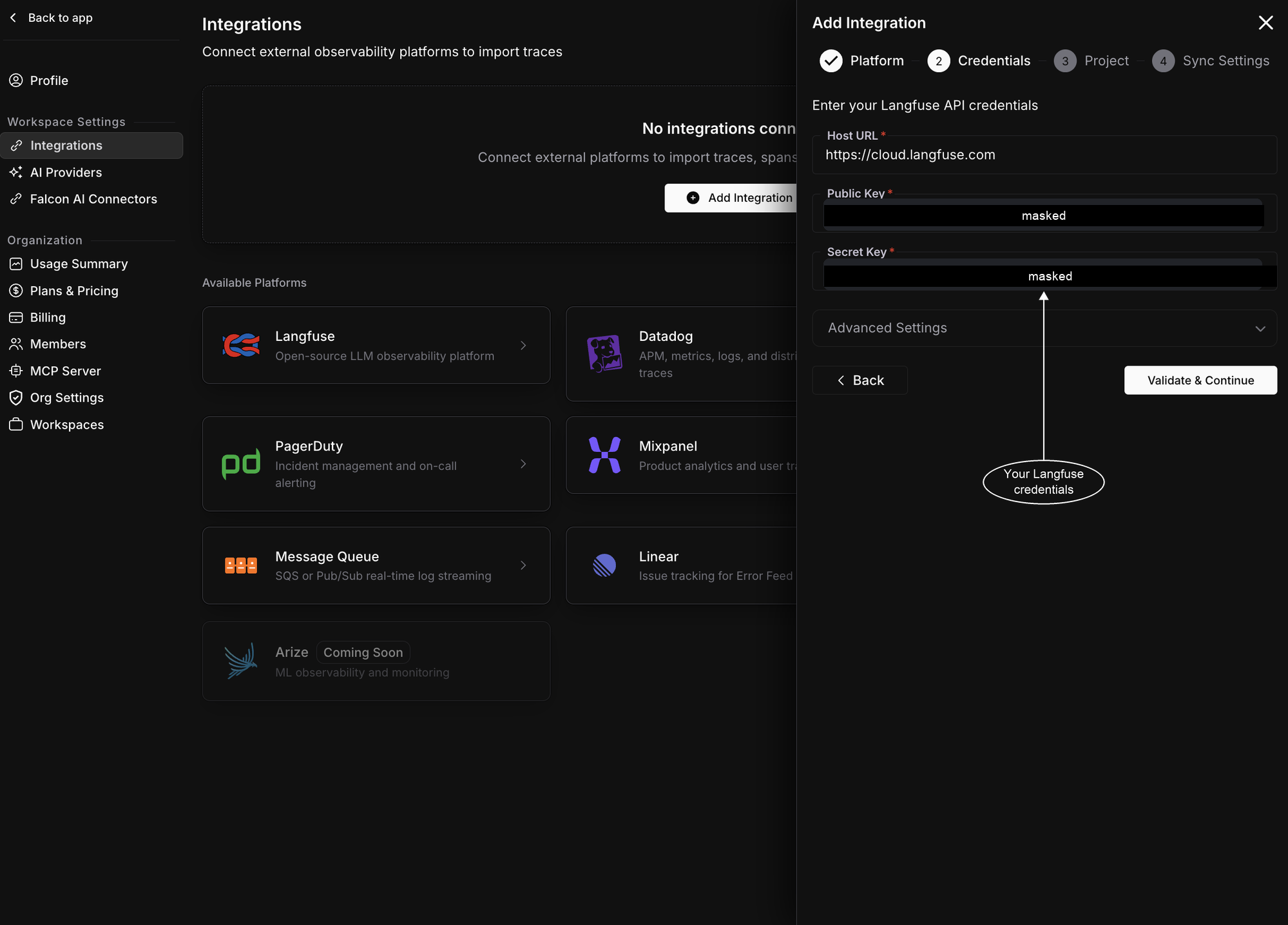
On the Credentials step, paste the values from Langfuse:
| Field | What to enter |
|---|---|
| Host URL | https://cloud.langfuse.com, or your self-hosted Langfuse URL |
| Public Key | Your Langfuse public key (pk-lf-...) |
| Secret Key | Your Langfuse secret key (sk-lf-...) |
Note
Self-hosted Langfuse with a private certificate? Expand Advanced Settings and paste your CA certificate (PEM). Then click Validate & Continue, and Future AGI verifies the keys before moving on
3. Map your project
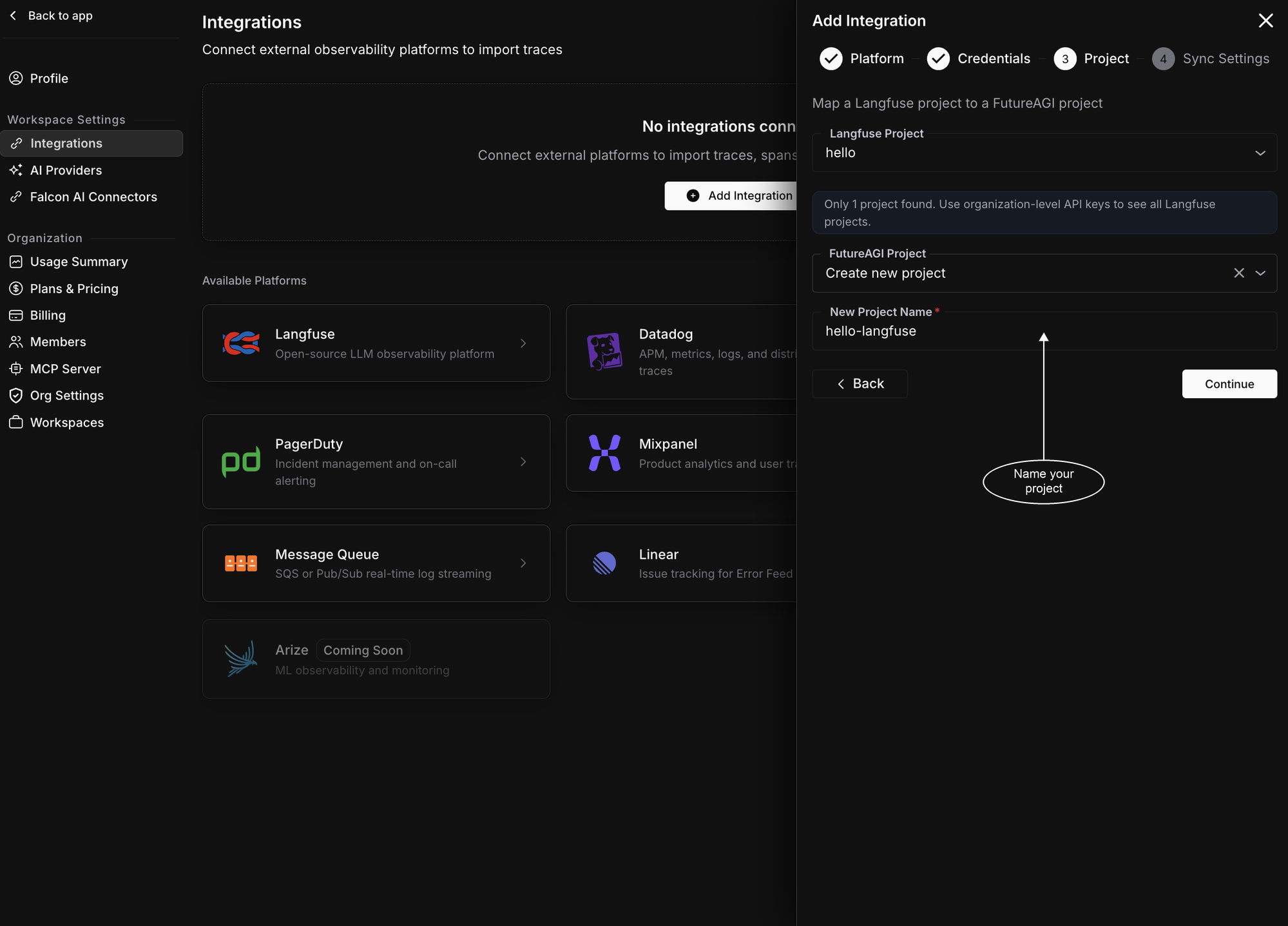
Pick the Langfuse project to import from, then choose where its traces should land in Future AGI: an existing project, or Create new project with a name. Each connection maps one Langfuse project to one Future AGI project. Click Continue
Tip
Seeing only one project? Your key is project-scoped. Use an organization-level Langfuse key to see all of them
4. Configure backfill & sync
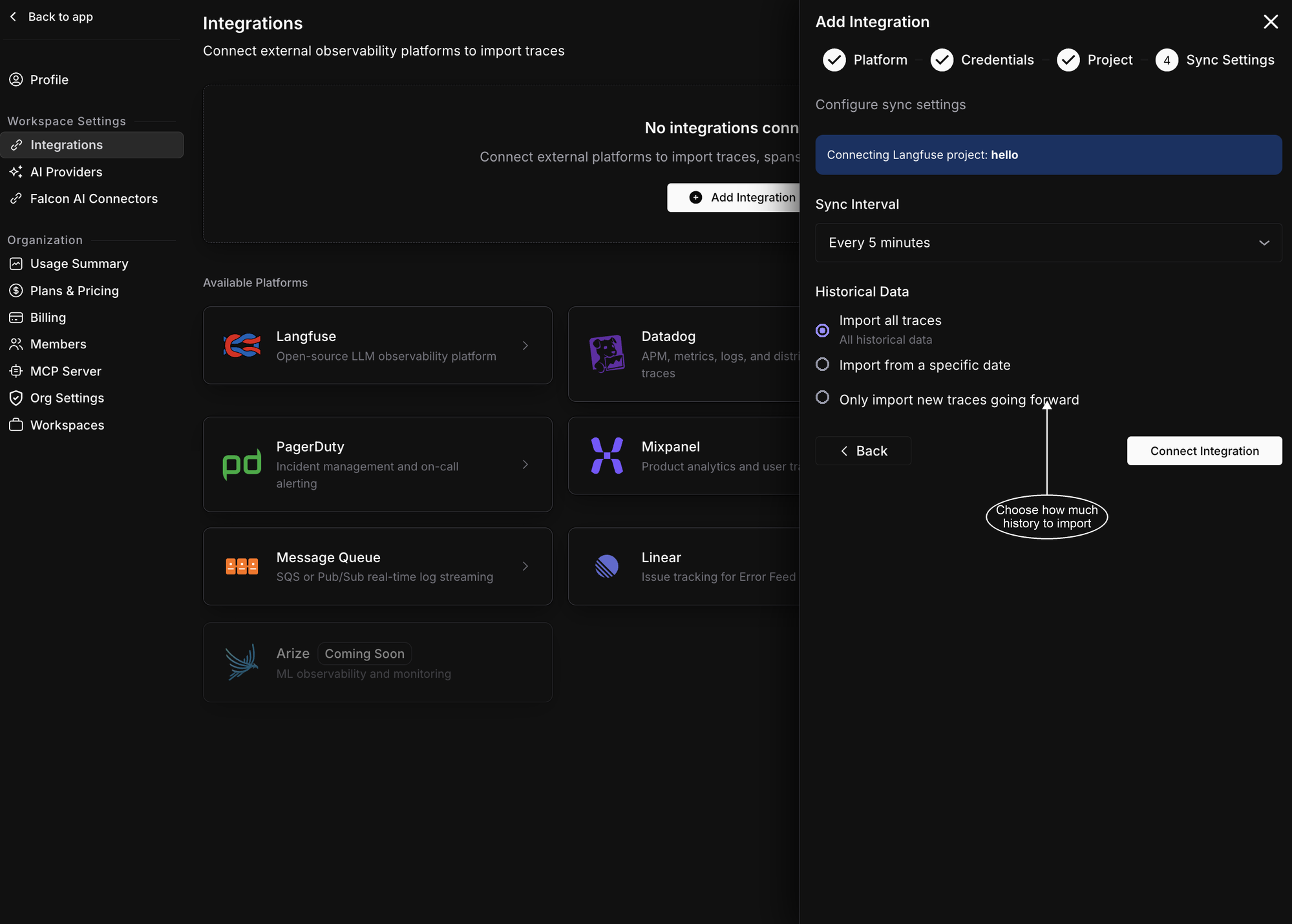
- Set how much history to bring in, and how often to sync:
- Import your full trace history
- Import from a specific date
- Only import new traces going forward
- Set Sync Interval: This indicates how often Future AGI checks Langfuse for new traces (5 minutes is a good default)
- Click Connect Integration
5. Verify
That’s it, your connection is live. Future AGI starts the backfill right away and keeps syncing on your interval
Open the connection from Settings → Integrations to watch it work. The Sync Status shows the backfill in progress, with Total Traces, Total Spans, and Total Scores climbing as data arrives. To pull the newest traces straight away, click Sync Now
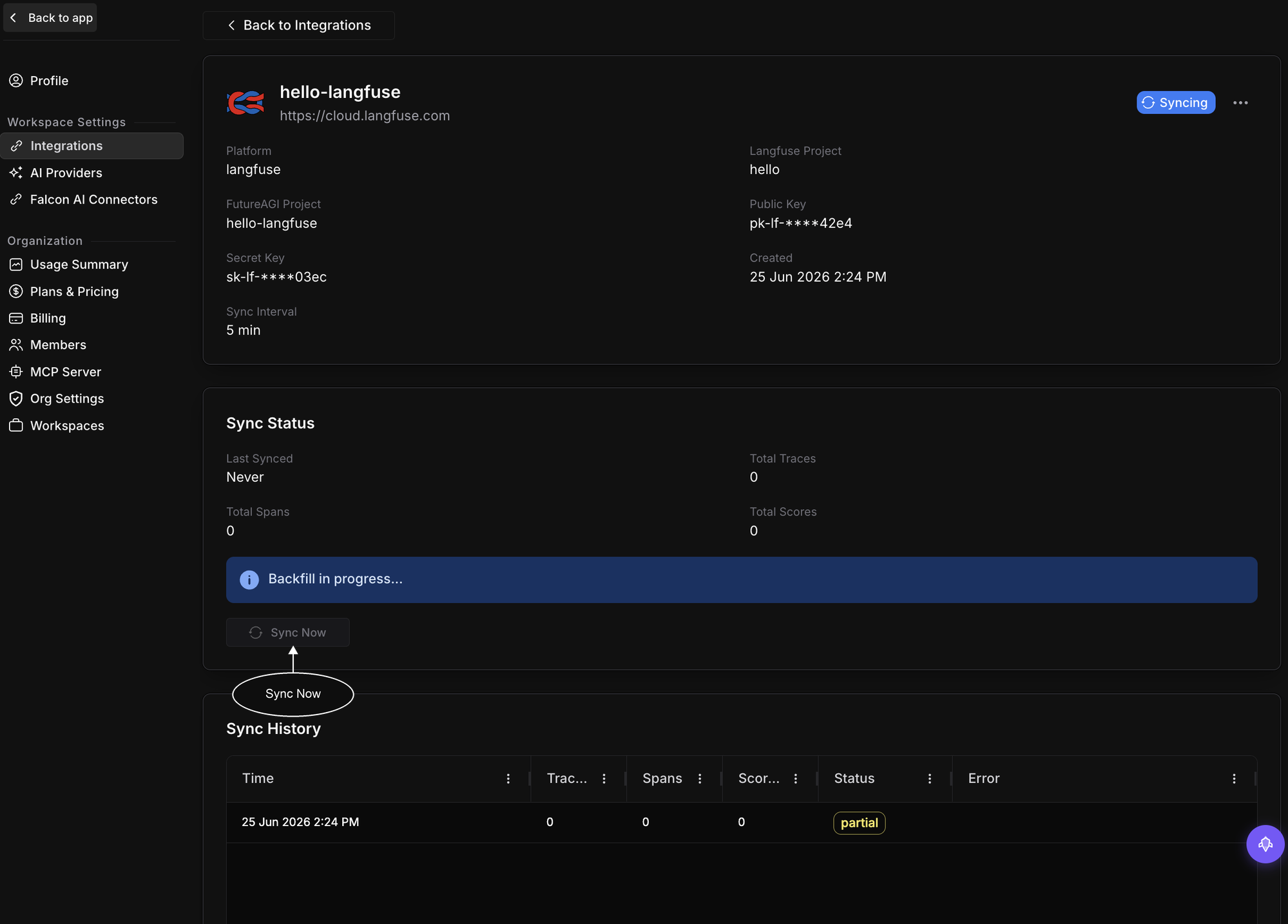
Open the target project in Observe → Tracing and your imported Langfuse traces are there, with their spans, inputs, outputs, model, latency, and scores
Congratulations! Your Langfuse traces are now flowing into Future AGI 🎉
What gets imported ?
| In Langfuse | In Future AGI |
|---|---|
| Trace | Trace (name, metadata, tags, user ID, session ID) |
| Observation (span or generation) | Span (input, output, model, latency, status) |
| Token counts and cost | Span attributes |
| Scores | Evaluation scores, trace-level and span-level, numeric and categorical |
The sync is idempotent, so running it again never creates duplicates. New scores and metadata edits on existing Langfuse traces are picked up on the next cycle
Manage the connection
From the connection’s detail page you can:
- Sync Now: pull the latest traces immediately, with a 60-second cooldown between manual syncs
- Edit: update the display name, API keys, host URL, or sync interval. Changing keys triggers re-validation
- Delete: stop syncing. Traces already imported stay in Future AGI
Troubleshooting
Not seeing your traces? Try checking these:
- Validation failed: Copy the Public and Secret keys again, confirm the Host URL matches your Langfuse region or self-hosted instance
- Only one project listed: Your key is project-scoped, switch to an organization-level Langfuse key
- No traces after connecting: The backfill may still be running, or you chose “Only import new traces”. Reconnect with Import all traces and click Sync Now
- A sync shows “partial”: large backfills can hit Langfuse rate limits, and the next cycle retries automatically
Dive deeper
Questions & Discussion