Agent Definition
An agent definition is a configuration that specifies how your AI agent behaves during voice or chat conversations
What it is
An agent definition is the configuration record for a single AI agent that you use in Simulate. It describes which agent is being tested and how the platform connects to it. Each agent definition has a name, a type (voice or chat), and connection details: the provider (e.g. Vapi, Retell), the provider’s assistant ID, and authentication (e.g. API key). For voice agents you can set a contact number, whether the agent handles inbound calls, and language (or multiple languages). For custom or WebSocket-based agents you can set a websocket URL and headers. You can optionally attach a knowledge base and an observability provider for tracing. An agent definition can have multiple versions: each version stores a snapshot of the agent’s configuration (and optional model/details) so you can run simulations against a specific version, compare versions, or roll back. Scenarios and run tests in Simulate reference an agent definition (and often a chosen version) so that when you execute a test, the system runs the scenario against that agent.
Creating Agent Definition
Navigate to Agent Definition
Open Simulate from the sidebar and click Agent Definition.
Provide basic information
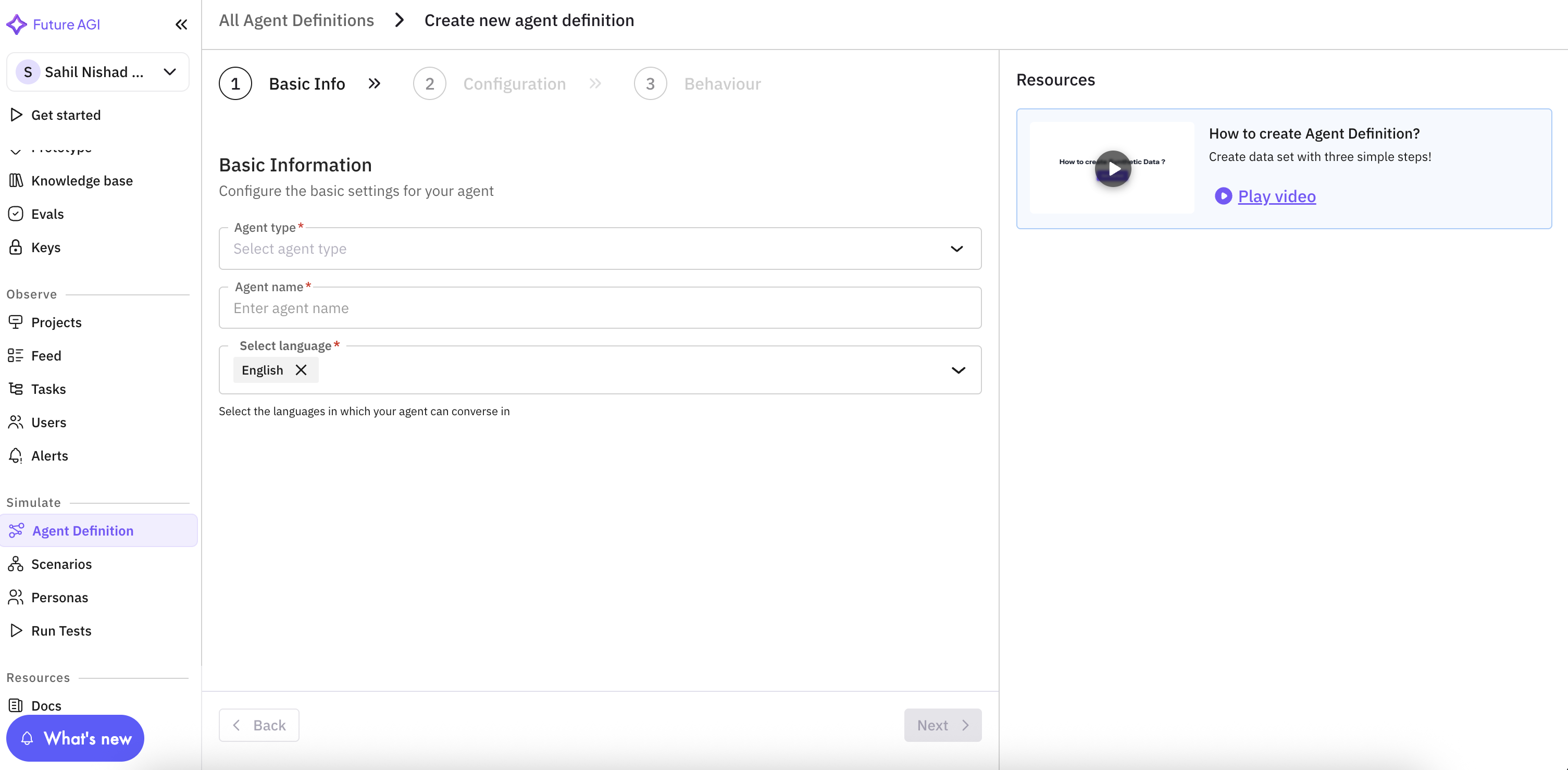
Fill in the required basic information so the agent can be identified and used in scenarios and run tests. These fields appear at the top of the form.
| Field | Description |
|---|---|
| Agent Type | Choose Voice or Chat. Voice agents are used for phone or voice-channel simulations; chat agents for chat-based ones. |
| Agent Name | A unique, descriptive name for your agent. This name appears when you select an agent in scenarios and run tests, and is used for the observability project name if you enable observability. |
| Language | The primary language (or multiple languages) the agent will use. Select one or more from the supported list (e.g. English, Spanish, French). This drives language-specific behavior in simulations. |
If you already have an assistant configured in a provider (e.g. Vapi or Retell), you can use Sync from provider (see the next steps) to pull the assistant’s name and prompt into the form after entering the provider, API key, and assistant ID.
Agent configuration
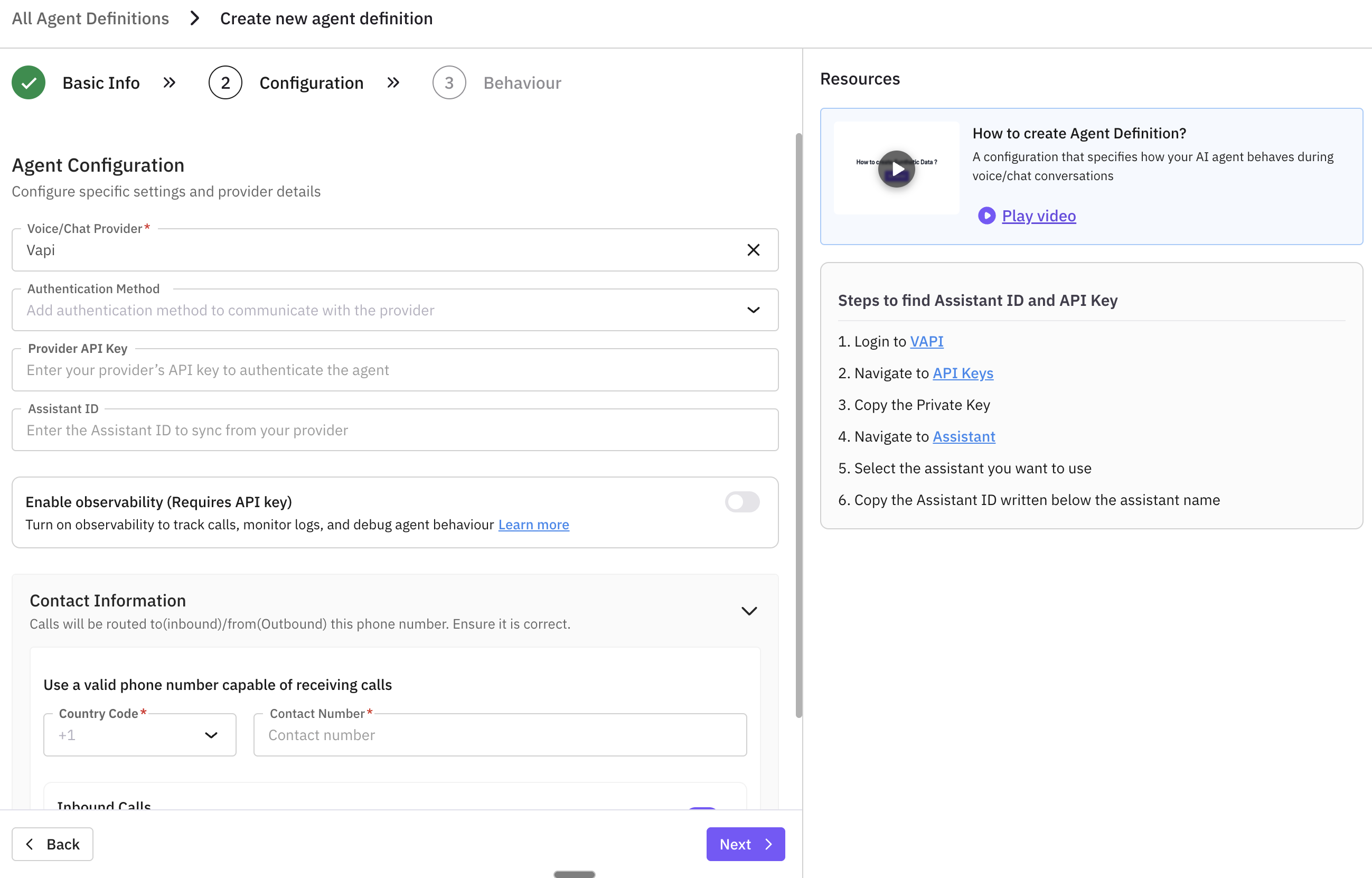
Configure how the platform connects to your agent: choose the provider, set the assistant ID and API key, and optionally set up voice observability . This section is required for outbound agents and for syncing or running tests.
| Field | Description |
|---|---|
| Voice/Chat Provider | The provider that hosts your agent (e.g. Vapi, Retell, Eleven Labs, or Others for custom/WebSocket). The platform uses this to connect to your assistant and, for supported providers, to fetch assistant details or enable observability. See supported providers for setup and integrations. |
| Assistant ID | The assistant or agent ID from your provider’s dashboard. The platform uses this to run tests and, for Vapi/Retell, to sync name and prompt. Required when connection type is Outbound (the system will validate this when you save). |
| API Key | Your provider API key for authentication. Required when connection type is Outbound. Keep it secure; it is stored and used to call the provider when running tests or syncing. |
| Observability Provider | If you want to track calls and performance, enable observability here. Voice observability is supported for certain providers (e.g. Vapi, Retell). When enabled and you run a test, a project is created in Observe under your agent’s name. |
For Outbound agents, both Assistant ID and API Key must be set; otherwise saving will fail with a validation error.
Sync from provider (optional)
If your agent is already set up in Vapi or Retell, you can pull the assistant’s name and system prompt into the form. Enter the Voice/Chat Provider, Assistant ID, and API Key in the Agent configuration section, then use the sync (or “Fetch assistant”) action. The platform calls the provider, retrieves the assistant name and prompt (e.g. system prompt for Vapi, general prompt for Retell), and fills the agent name and description/prompt fields. This avoids re-typing and keeps the definition in sync with the provider. If the API key or assistant ID is wrong, you’ll see an error asking you to recheck them.
Define agent behavior
Describe what the agent does and optionally attach a knowledge base so it can answer using your domain data. The description (and any model/prompt details you set) is stored in the agent definition and in each version snapshot.
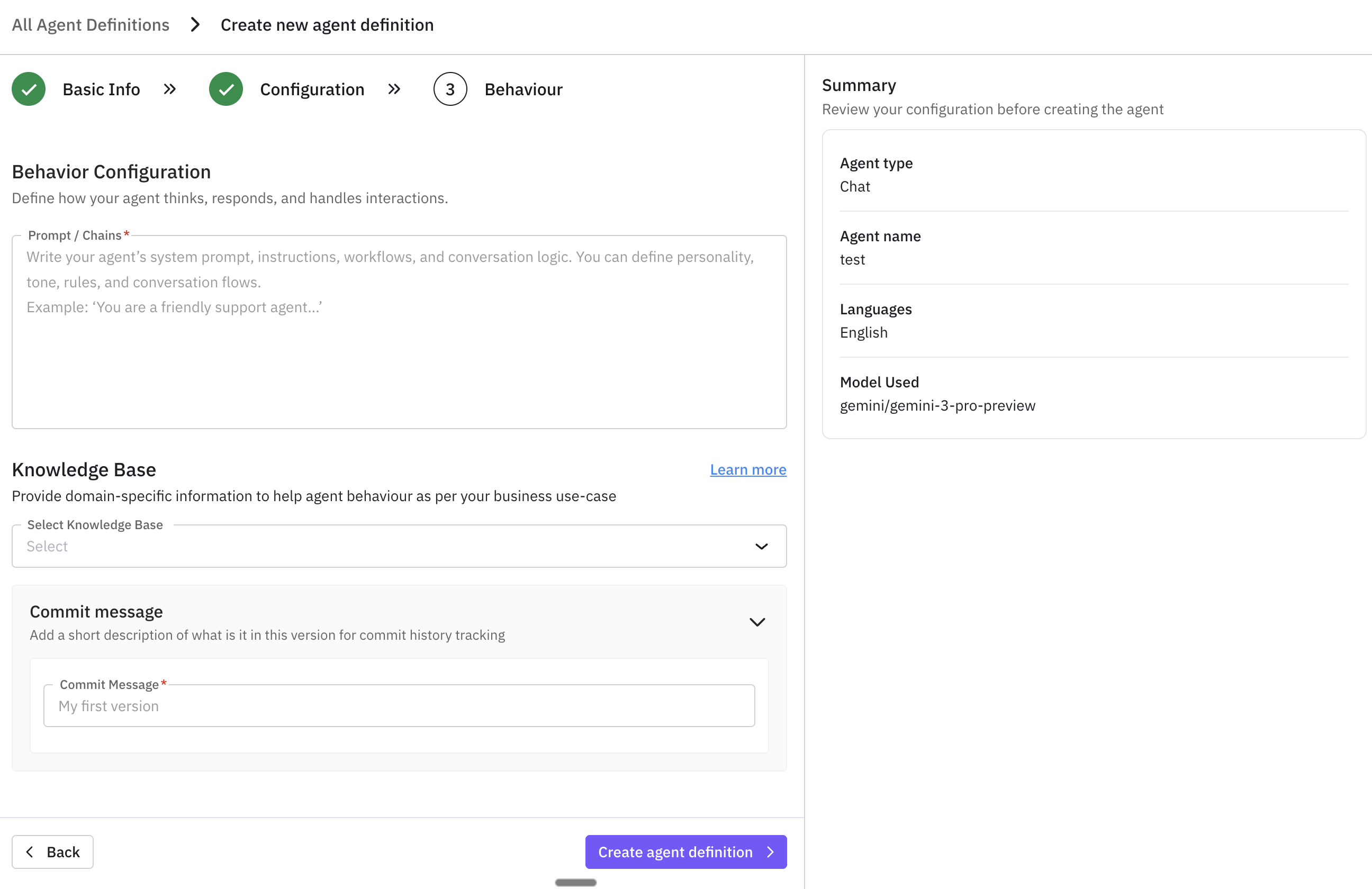
- Description / model: Add a clear description of the agent’s purpose and, if needed, set the model and model details (e.g. system prompt, personality, or other provider-specific settings). This is what gets snapshotted when you create a version. If you used “Sync from provider,” the prompt may already be filled here.
- Knowledge base (optional): A knowledge base is the source of truth your agent is expected to know — your FAQs, SOPs, product docs, compliance policies, and domain content. Attaching one to the agent definition tells the simulation system what this agent is responsible for knowing. Without it, evals can only score against generic reasoning; with it, evals can check whether the agent’s actual responses match your real content — catching wrong answers, invented procedures, or off-policy responses. It is the reference the evaluator uses to judge the agent.
Tip
Learn more in the Knowledge base overview.
Set contact information
Configure contact and call direction (for voice agents).
- Contact number: The phone number the agent will use.
- Country code: Select the country code for the contact number.
- Connection type:
- Inbound (ON): The agent receives incoming calls from customers.
- Outbound (OFF): The agent places calls to customers. For Outbound, Assistant ID and API Key (in Agent configuration) must be set.
Add version details
When saving, provide a commit message (and optionally a version description or release notes) to track changes and keep version history. The system creates a new version with a snapshot of the current configuration.
Enable observability (optional)
Turn this on to track your agent’s performance. After you enable it and run a test, a project is created in your agent’s name in the Observe section.
After creating: Agent detail view
When you open an agent from the list (or right after creating it), you see the agent detail screen. Here you can edit the configuration, manage versions, and inspect performance and call logs. Saving changes creates a new version and keeps all previous versions so you can compare or roll back anytime.
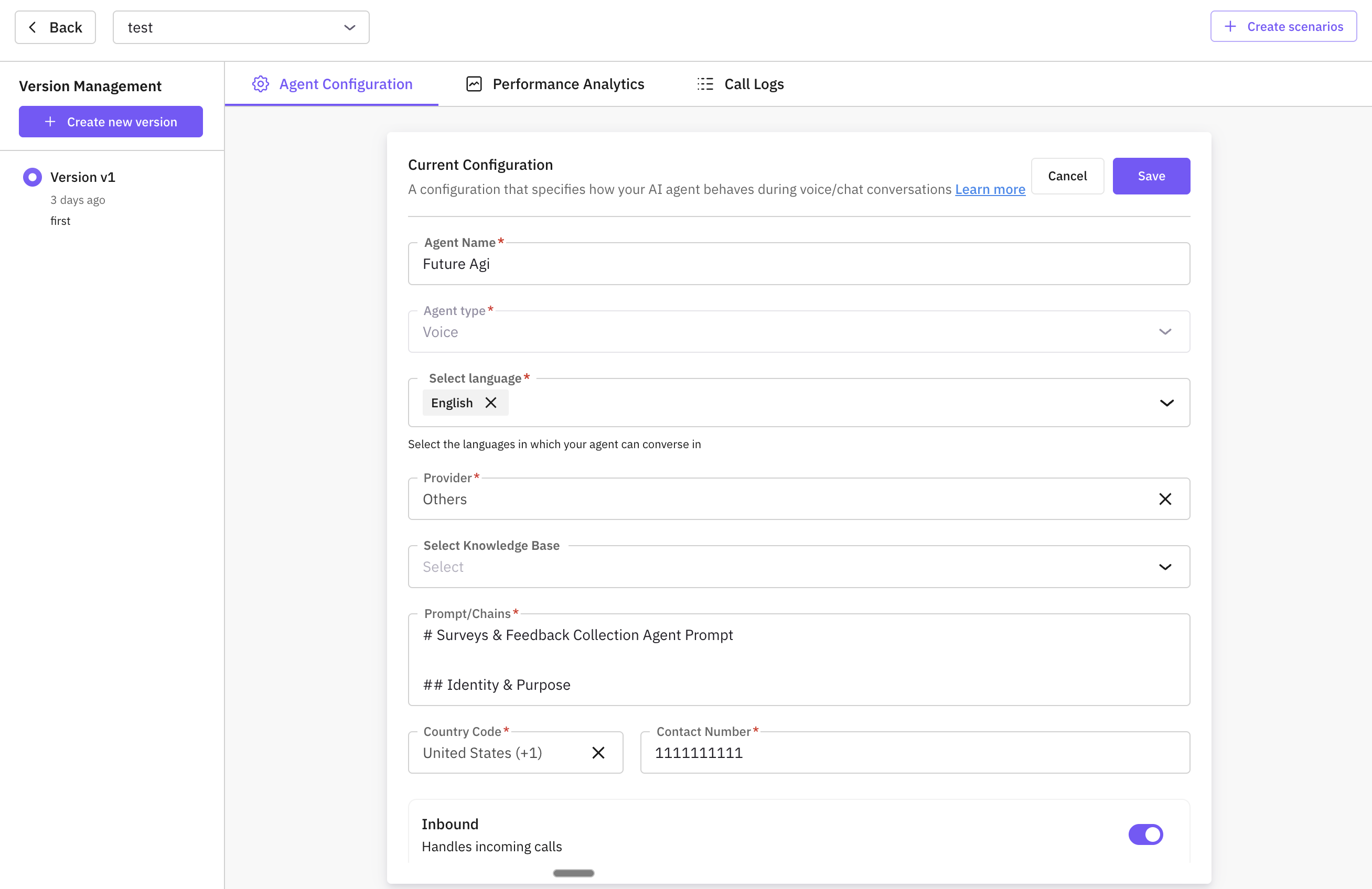
Layout:
- Agent select dropdown – Switch between your agents without leaving the page.
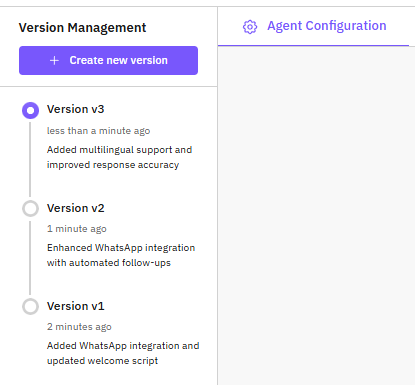
- Version management (left) – All versions for this agent, newest first. Each row shows version number, timestamp, and commit message. Click a version to load it for viewing or editing.
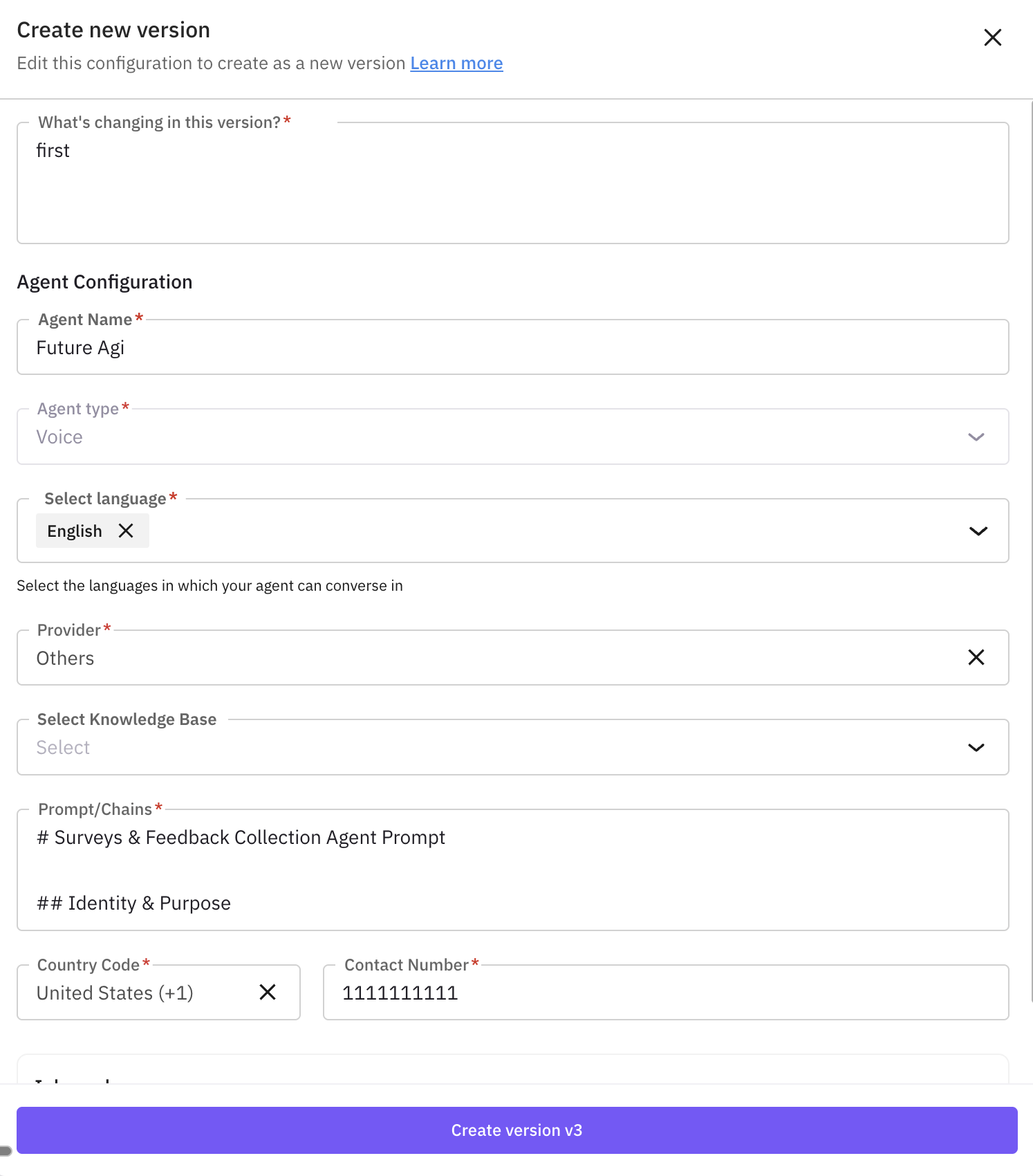
- Create new version – Opens a side drawer to create a new version from the current agent config (commit message, basic info, and configuration fields).
The Agent config tab is where you view and edit the agent’s definition. It shows the same fields you used when creating the agent.
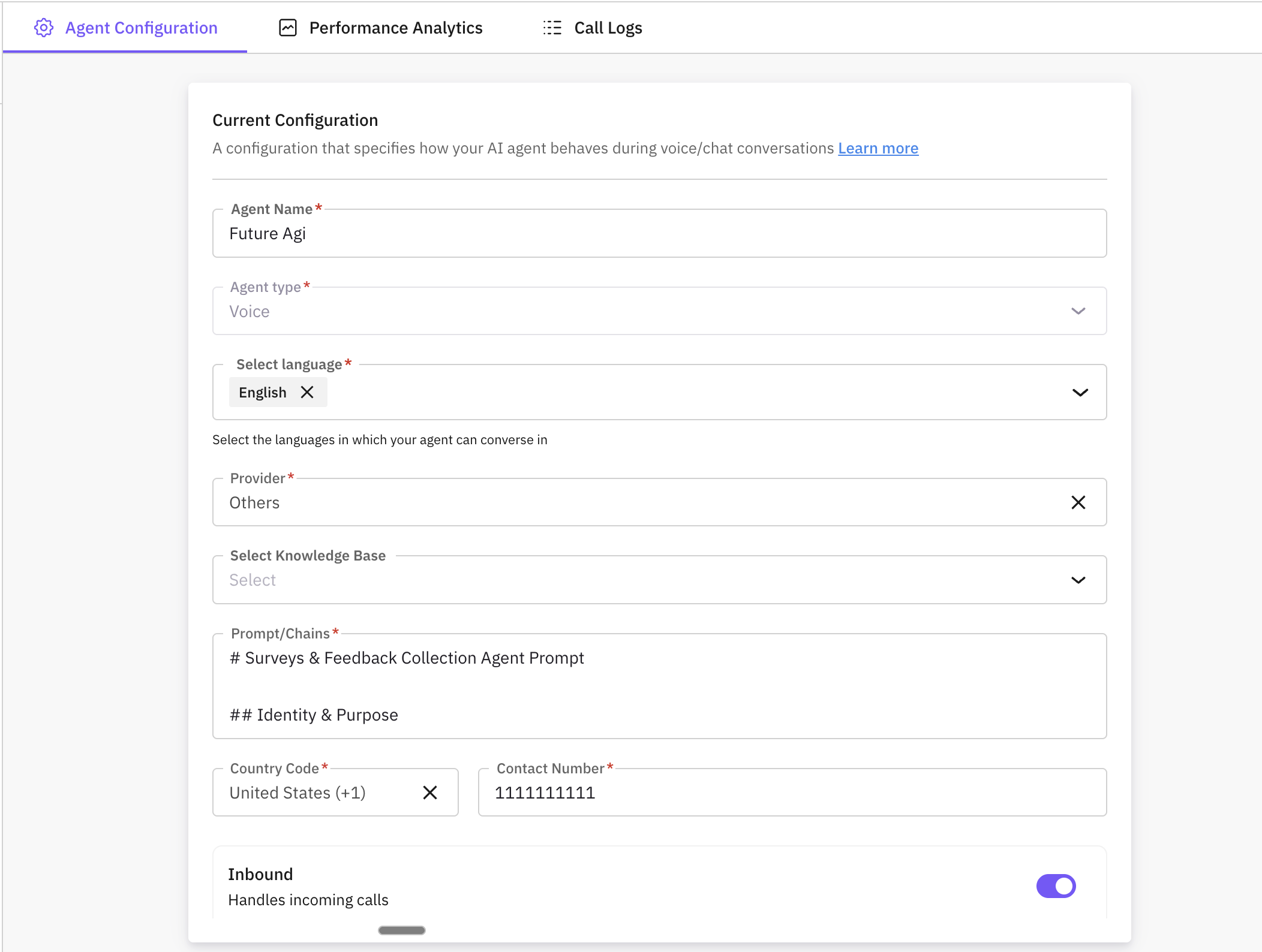
What you see:
- Basic information – Agent name, type (Voice or Chat), and language(s).
- Provider and connection – Voice/Chat provider, Assistant ID, API key, observability provider.
- Behavior – Description, model, model details (e.g. system prompt), and optional knowledge base.
- Contact (voice agents) – Contact number, country code, and connection type (Inbound vs Outbound).
What you can do:
- Edit – Change any field and save. Saving creates a new version with a snapshot of the updated config and your commit message; previous versions stay in the version list.
- Delete – Soft-delete the agent when you no longer need it. Use this from the Agent config area.
All changes are tracked through versioning, so you can always switch back to an older version or restore from it.
What versioning is: Each version is a saved snapshot of your agent’s configuration at a point in time. A version has a version number, optional name, status (Draft, Active, Archived, Deprecated), and a commit message. Only one version can be Active at a time; run tests and scenarios use the active version by default. Versions let you experiment safely, roll back to a previous config, and keep an audit trail.
Process – step by step:
Create a new version
Click Create new version. In the side drawer, enter a Commit message, update Basic information and Configuration fields if needed, then click Save. The system saves the current agent config as a new version and adds it to the version list (newest at top).
Tip
Switch to a different version
In the version list (left), click the version you want. The main area loads that version’s config so you can view or edit it. Saving from here creates another new version. Switching does not remove or overwrite other versions.
Note
Activate a version
To make a version the one used by default in run tests, use Activate on that version. The previously active version stays in the list but is no longer active.
Restore from a version
To revert the current agent definition to an older snapshot, use Restore on that version. The agent’s config is overwritten with that version’s snapshot; you can then save as a new version if you want to keep the change in history.
Delete a version
Use Delete to soft-delete a version. You cannot delete the only active version—activate another version first, then delete the one you don’t need.
For each version you can also open Eval summary and Call logs to see results of runs that used that version.
What it is: The Performance analytics tab shows how this agent is performing across test runs in one place. The data comes from completed call executions and their evaluation results for this agent (and can be filtered by version).
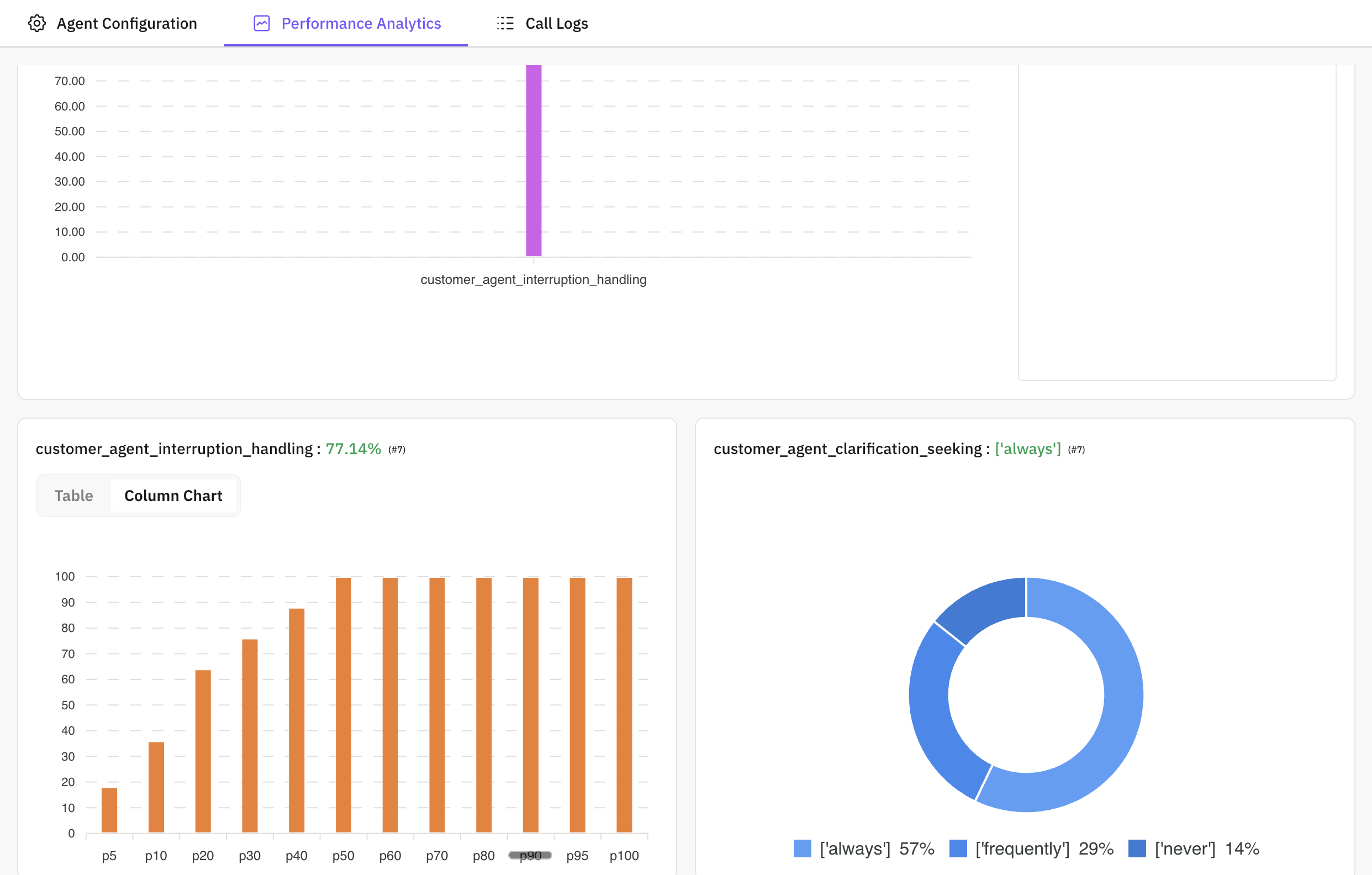 What you see:
- Call success rate – Proportion of calls that completed successfully vs failed or cancelled.
- Average response time – How long the agent typically takes to respond (e.g. latency).
- Evaluation scores – Scores by eval metric (e.g. correctness, tone, compliance) so you can see which areas are strong or weak.
- Error rate – How often calls fail or hit errors, so you can spot reliability issues.
How to use it:
- Identify strengths and weaknesses – See which metrics score high or low and focus improvements there.
- Track over time – Compare performance across versions or test runs to see if changes helped or hurt.
- Spot regressions – Catch drops in success rate or scores before shipping to production.
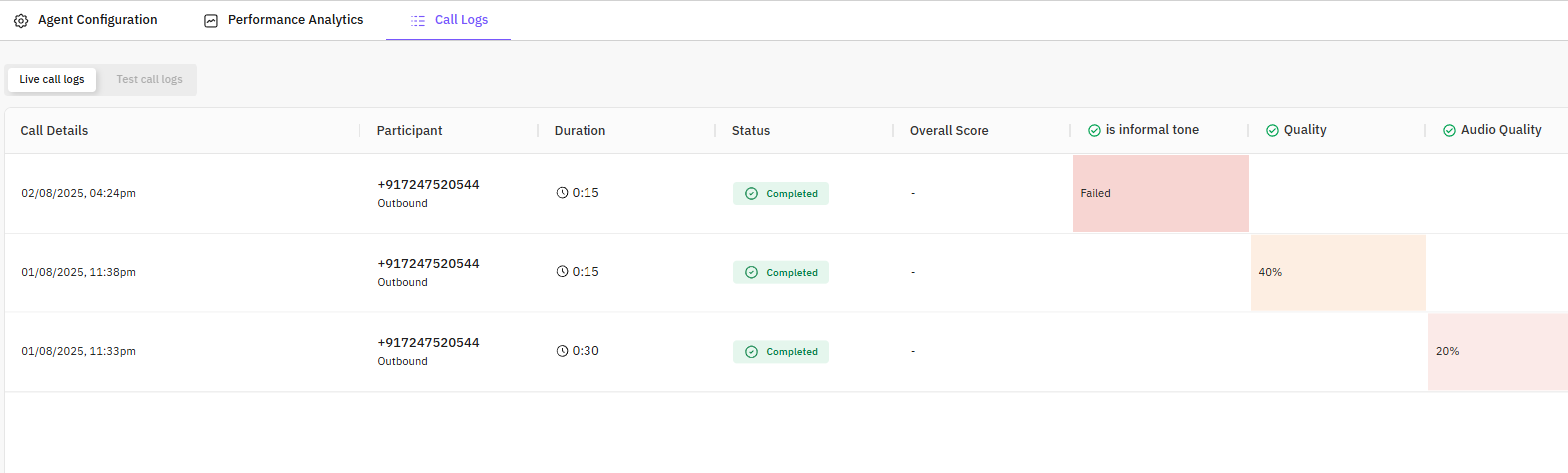
What it is: Call logs lists every call execution for this agent each individual voice or chat run from a test that used this agent. You can filter the list by version to see only calls that used a specific version.
What each row shows:
- Call information – Duration, participants (e.g. agent and customer), and status: Completed, Failed, Cancelled, or Queued / Ongoing for in-progress runs.
- Evaluation scores – When the run test had evals, you see the scores for that call in the row or summary.
 Process – how to inspect a call:
Open the call list
Go to the Call logs tab. Optionally filter by version using the version selector so you only see calls for that version.
Open call detail
Click a call in the list. A call detail drawer or view opens with the full conversation and results.
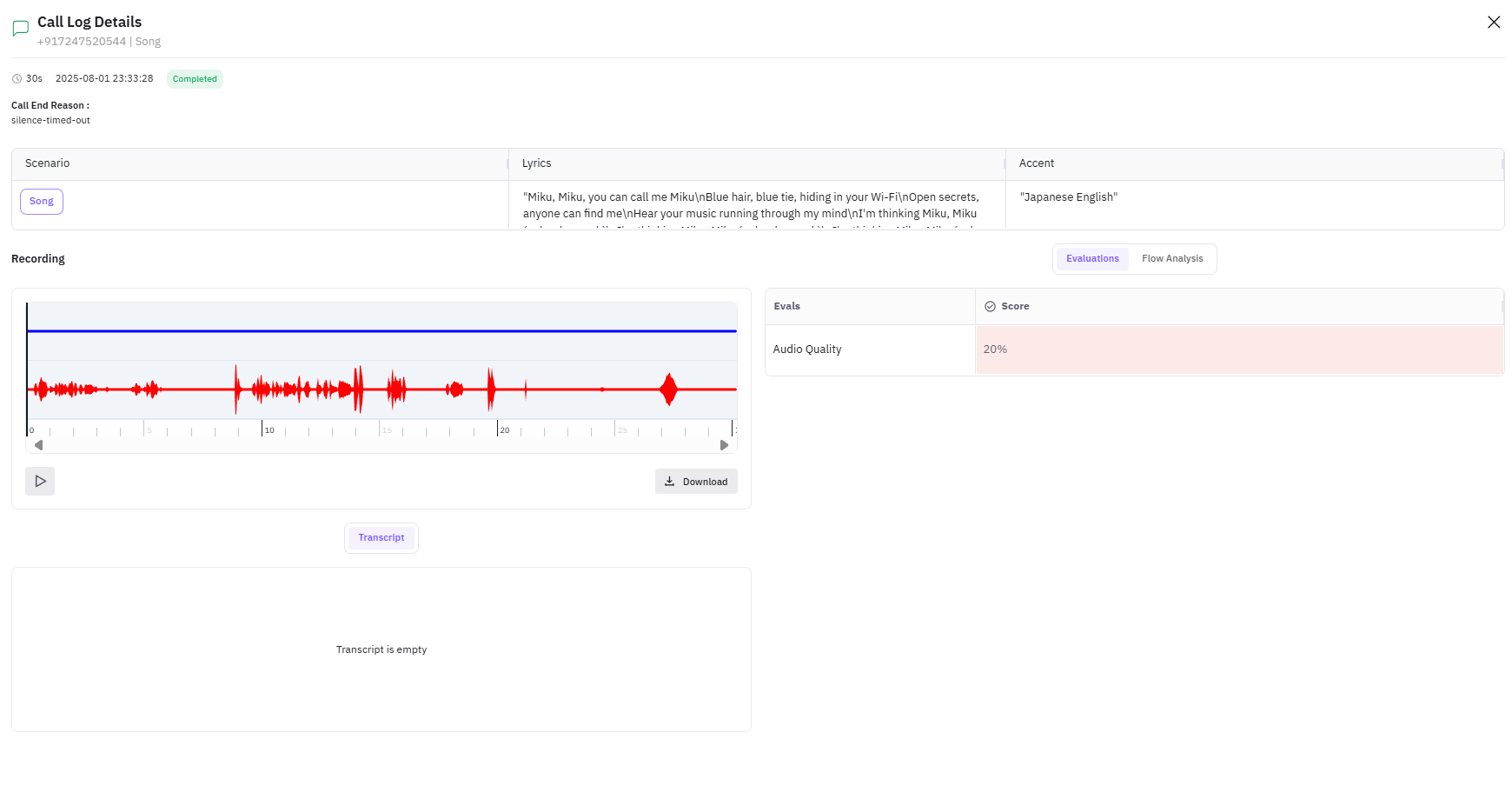
Review transcript and evals
In the call detail you get: full transcript (turn-by-turn), evaluation results per metric, and audio playback when available. Use this to see exactly what the agent said, how evals scored it, and to debug failures or compare behavior across versions.
With observability enabled, more detailed tracing and logs are available in Observe.