Export to Cloud Storage: S3, Azure, and GCS Integration
Archive Agent Command Center logs to Amazon S3, Azure Blob Storage, or Google Cloud Storage as compressed JSONL files for long-term retention.
Connect your cloud storage bucket and Future AGI will archive Agent Command Center request logs as gzip-compressed JSONL files, partitioned by date and hour. Supports Amazon S3, Azure Blob Storage, and Google Cloud Storage.
What this does
This integration archives your Agent Command Center traffic to cloud object storage for long-term retention or offline analysis. Logs are written as gzip-compressed JSONL files, partitioned by date:
{prefix}/logs/2026/03/31/hour=14/batch_a1b2c3d4e5f6.jsonl.gzEach line in the file is a JSON object representing one gateway request with full details: model, provider, latency, tokens, cost, error info, cache status, and more.
Before you start
You’ll need credentials for one of the supported providers:
- An S3 bucket (already created)
- AWS Access Key ID and Secret Access Key with
s3:PutObjectpermission on the bucket - The bucket’s region (e.g.,
us-east-1)
- An Azure Storage container (already created)
- The storage account connection string from Azure Portal
- A GCS bucket (already created)
- A service account key (JSON) with
storage.objects.createpermission on the bucket
You also need Admin or Owner role in your Future AGI workspace, and the Agent Command Center set up and receiving traffic.
Connect Cloud Storage
Open Integrations
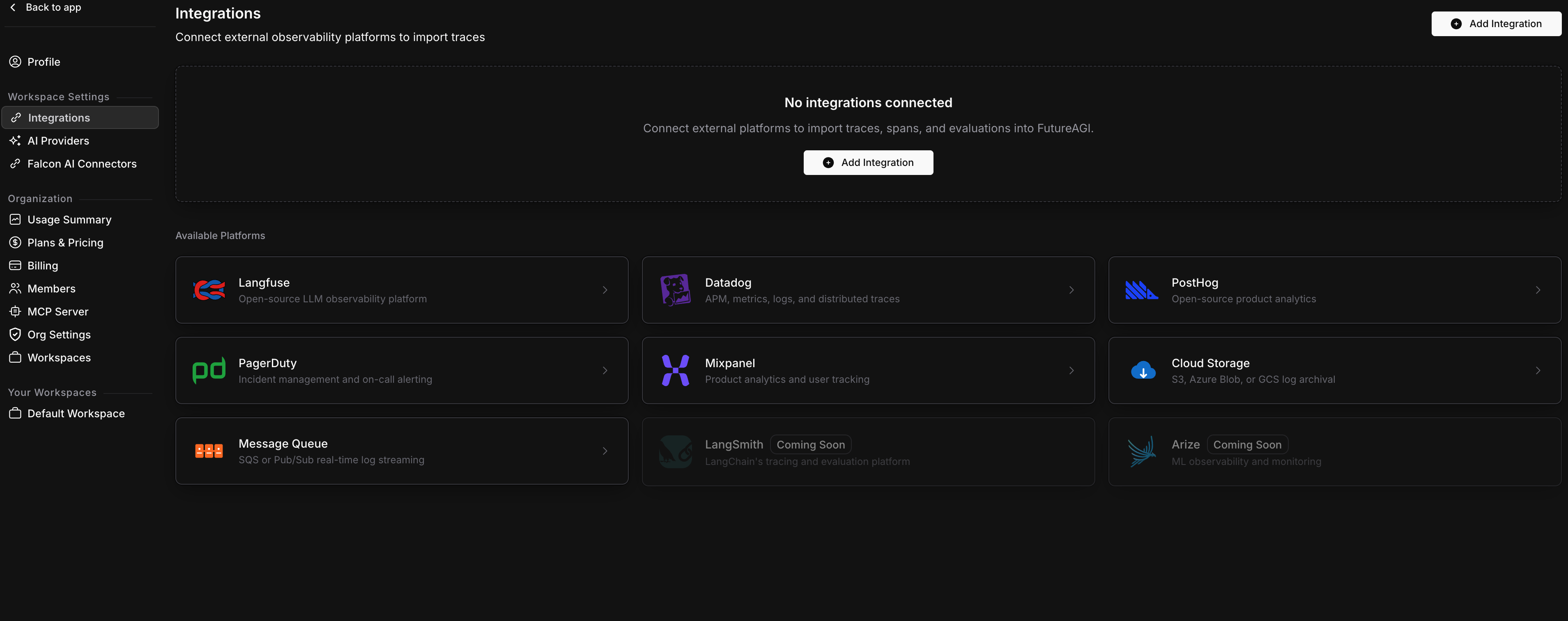
Go to Settings > Integrations in your Future AGI workspace. Click Add Integration or click the Cloud Storage card.
Choose provider and enter credentials
Select your storage provider (S3, Azure Blob, or GCS), then fill in the credentials.
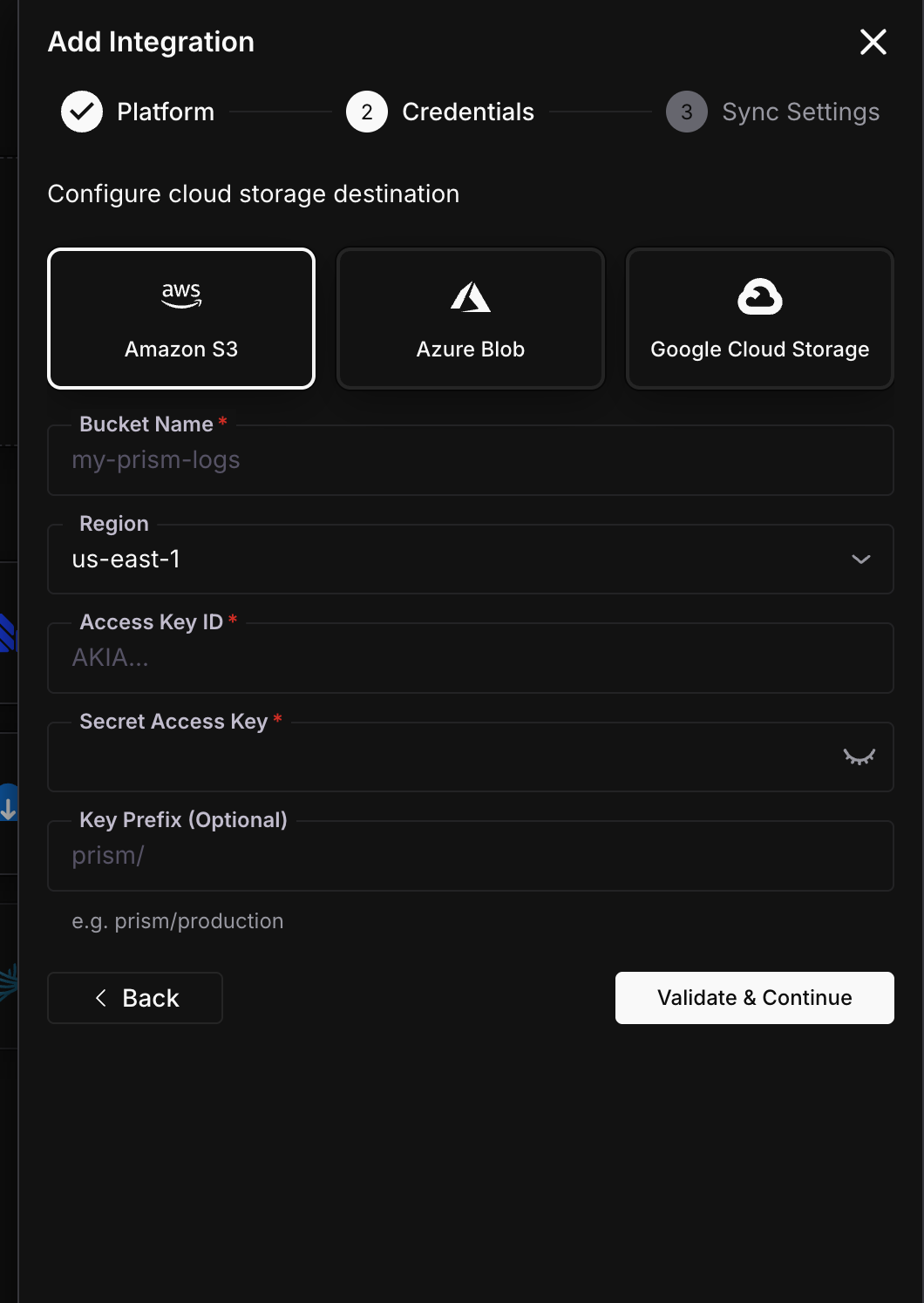
| Field | Required | Description |
|---|---|---|
| Bucket Name | Yes | Your S3 bucket name |
| Region | Yes | AWS region (e.g., us-east-1) |
| Access Key ID | Yes | AWS access key |
| Secret Access Key | Yes | AWS secret key |
| Key Prefix | No | Path prefix, e.g. agentcc/production |
| Field | Required | Description |
|---|---|---|
| Container Name | Yes | Azure Blob container name |
| Connection String | Yes | Storage account connection string from Azure Portal |
| Blob Prefix | No | Path prefix, e.g. agentcc/production |
| Field | Required | Description |
|---|---|---|
| Bucket Name | Yes | GCS bucket name |
| Service Account JSON | Yes | Full service account key JSON |
| Object Prefix | No | Path prefix, e.g. agentcc/production |
Click Validate & Continue.
Configure sync settings
Set the sync interval and historical data option.
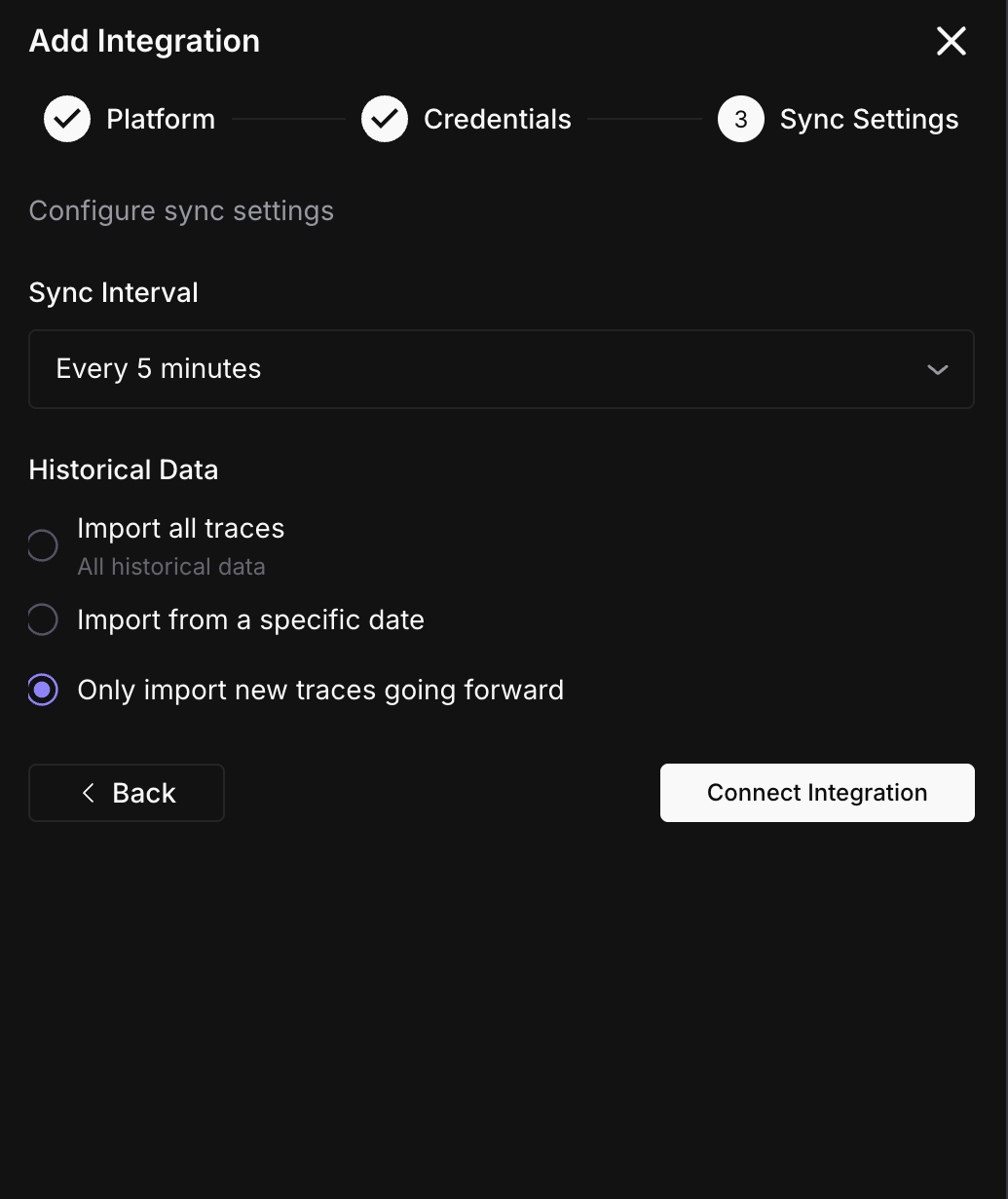
Click Connect Integration.
Done
Logs start archiving on the next sync cycle.
File format
Each batch produces a gzip-compressed JSONL file. Every line is a JSON object:
{
  "request_id": "req_abc123",
  "model": "gpt-4o",
  "provider": "openai",
  "latency_ms": 842,
  "input_tokens": 1200,
  "output_tokens": 323,
  "total_tokens": 1523,
  "cost": 0.02,
  "status_code": 200,
  "is_error": false,
  "cache_hit": false,
  "guardrail_triggered": false,
  "routing_strategy": "",
  "timestamp": "2026-03-31T14:22:10.000Z",
  "event_type": "request"
}
Files are partitioned as {prefix}/logs/{YYYY}/{MM}/{DD}/hour={HH}/batch_{id}.jsonl.gz. This makes it easy to query with Athena, BigQuery, or any tool that reads partitioned data.
Sync status
Monitor your integration from the detail page (Settings > Integrations > click your Cloud Storage connection).
| Status | Meaning | Action |
|---|---|---|
| Active | Archiving on schedule | None needed |
| Syncing | A batch is being uploaded right now | Wait for it to finish |
| Paused | You paused the export manually | Click Resume when ready |
| Error | Credentials invalid or bucket/container not accessible | Check permissions |
Troubleshooting
No files appearing in my bucket
Check that your credentials have write permission. For S3, the IAM user needs s3:PutObject on the bucket. For GCS, the service account needs storage.objects.create. For Azure, the connection string must have write access to the container.
Files are empty or very small
If the Agent Command Center had no traffic during a sync window, no files are written. Files are only created when there are logs to archive.
Wrong prefix or partition path
The prefix is set during setup and prepended to all file paths. To change it, edit the integration and update the prefix field. Existing files are not moved.
What’s next
Questions & Discussion