Export to Mixpanel: LLM Usage Events for Product Analytics
Send LLM usage events from Future AGI's Agent Command Center to Mixpanel for product analytics, user behavior tracking, and funnel analysis.
Connect your Mixpanel project and Future AGI will push LLM usage events from the Agent Command Center on every sync cycle. Each gateway request becomes a Mixpanel event you can use in funnels, retention, and reports.
What this does
This integration sends your Agent Command Center traffic to Mixpanel as tracked events. Every API call that passes through the gateway becomes a agentcc_request event with properties like model, provider, latency, token counts, and cost.
Useful when your product team tracks feature usage in Mixpanel and wants LLM call data in the same place - for example, to see which user segments generate the most tokens or how LLM latency correlates with session length.
What gets exported
Each Agent Command Center request becomes a Mixpanel event:
| Property | Example | Description |
|---|---|---|
event | agentcc_request | Event name |
properties.distinct_id | agentcc-gateway | Identifies the source |
properties.model | gpt-4o | Model used |
properties.provider | openai | Provider |
properties.latency_ms | 842 | End-to-end latency |
properties.input_tokens | 1200 | Prompt tokens |
properties.output_tokens | 323 | Completion tokens |
properties.total_tokens | 1523 | Total tokens |
properties.cost | 0.02 | Cost in USD |
properties.status_code | 200 | HTTP status |
properties.is_error | false | Whether the request failed |
properties.cache_hit | true | Whether the response was cached |
Tip
If you provide an API Secret during setup, events are sent via Mixpanel’s /import endpoint which supports historical timestamps. Without it, events go through /track which only accepts recent data.
Before you start
You’ll need:
- A Mixpanel account (any plan)
- Your Project Token, found in Mixpanel > Settings > Project Settings > Project Token
- Optionally, your API Secret for historical data import (same settings page)
- Admin or Owner role in your Future AGI workspace
- The Agent Command Center set up and receiving traffic
Connect Mixpanel
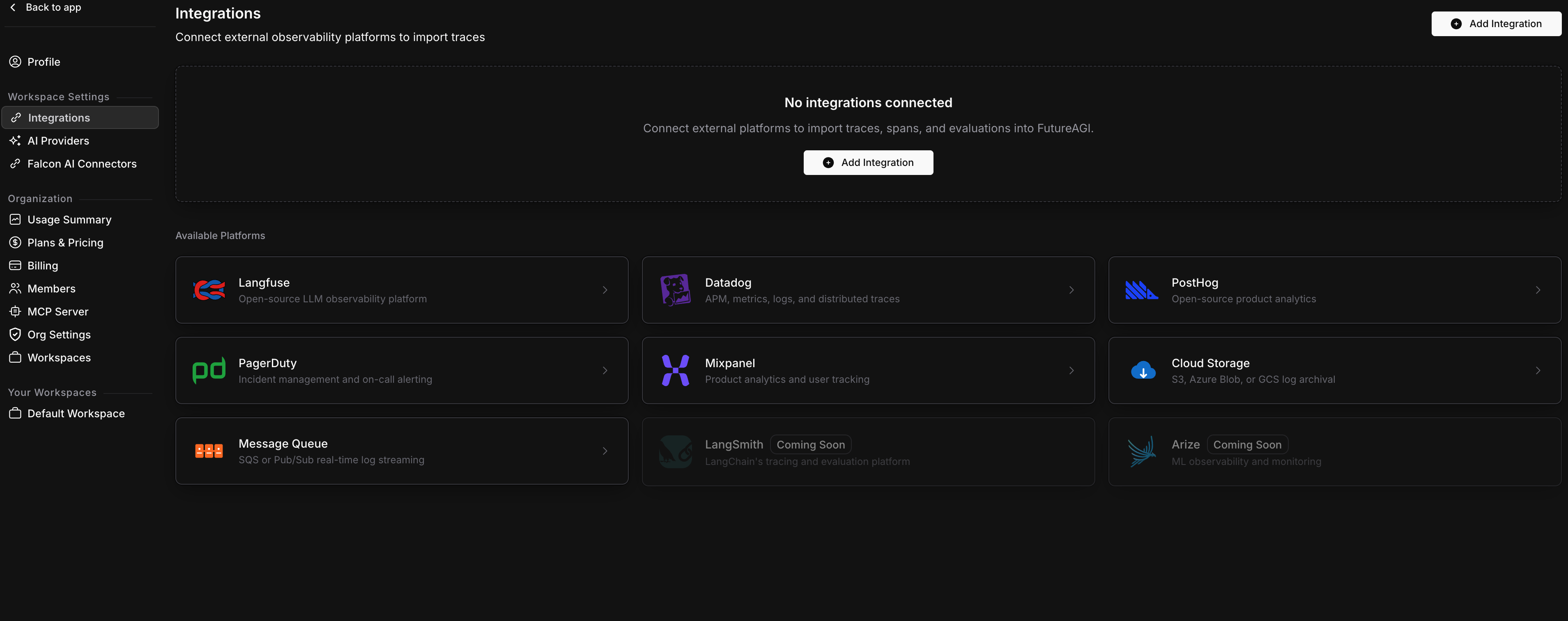
Open Integrations
Go to Settings > Integrations in your Future AGI workspace. Click Add Integration or click the Mixpanel card.
Enter your Mixpanel credentials
On the Credentials step, fill in:
| Field | Required | Description |
|---|---|---|
| Project Token | Yes | Your Mixpanel project token. |
| API Secret | No | Enables historical data import via the /import endpoint. |
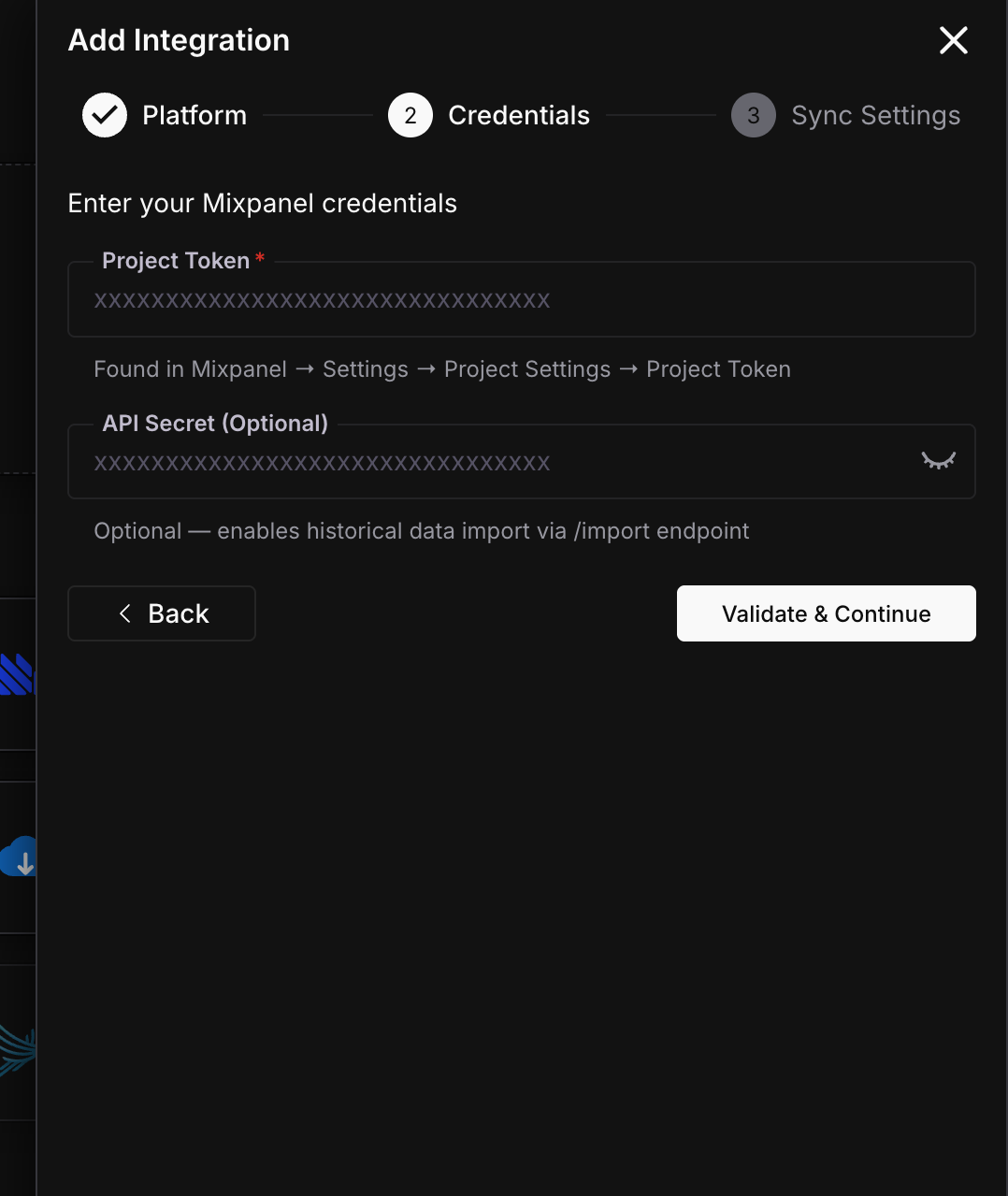
Click Validate & Continue.
Configure sync settings
Set how often Future AGI batches and sends events to Mixpanel, and whether to backfill historical gateway data.
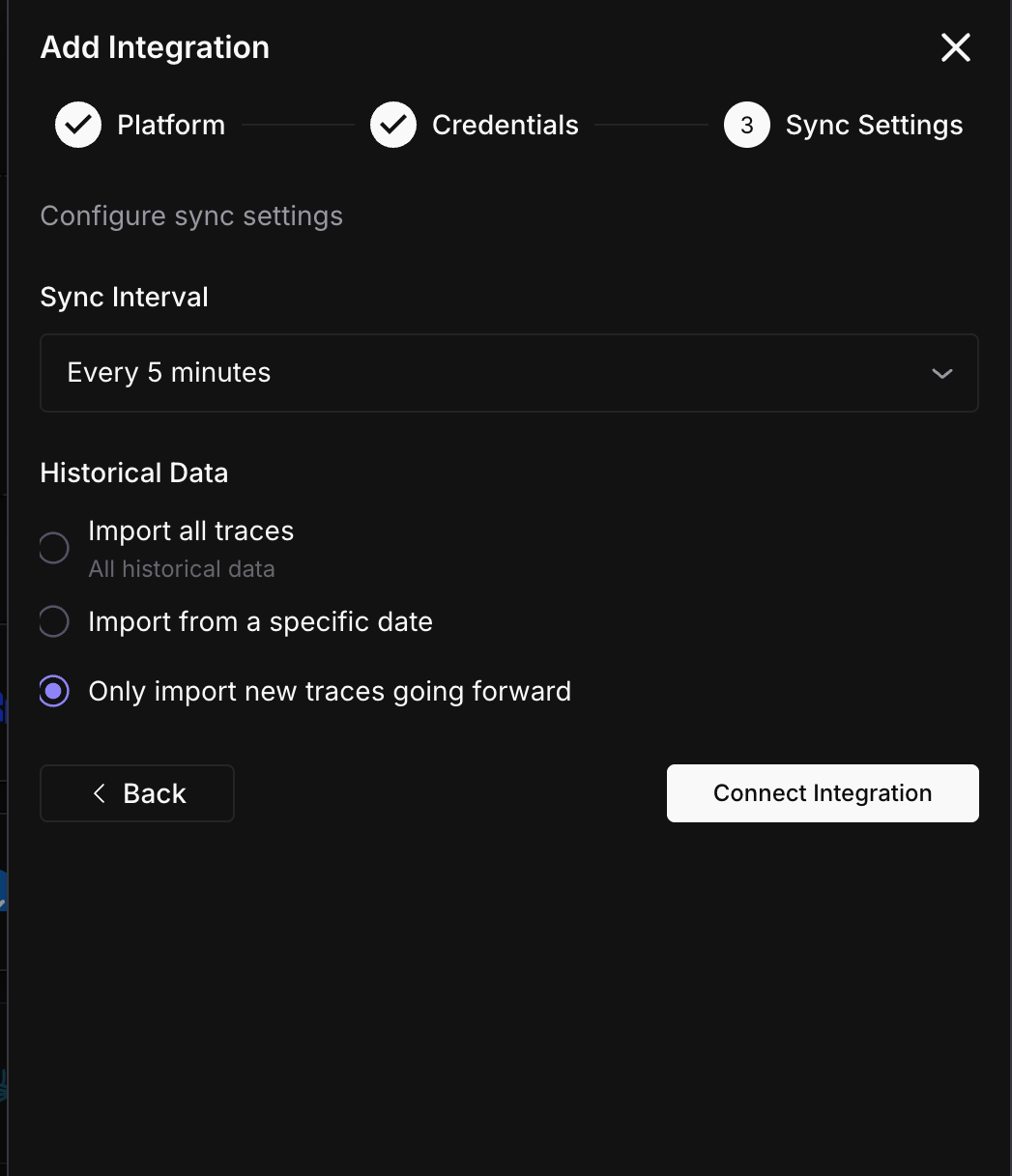
Click Connect Integration.
Done
Events start flowing to Mixpanel on the next sync cycle.
Verify in Mixpanel
Once the first sync completes:
- Go to Mixpanel > Events and search for
agentcc_request - Or create an Insights report filtering on the
agentcc_requestevent to see request volume over time
If nothing shows up after 10 minutes, check the sync status in Settings > Integrations.
Sync status
Monitor your integration from the detail page (Settings > Integrations > click your Mixpanel connection).
| Status | Meaning | Action |
|---|---|---|
| Active | Exporting on schedule | None needed |
| Syncing | A batch is being sent right now | Wait for it to finish |
| Paused | You paused the export manually | Click Resume when ready |
| Error | Project token invalid or Mixpanel rejected the request | Check your token |
Troubleshooting
No events appearing in Mixpanel
Verify your project token is correct. Go to Mixpanel > Settings > Project Settings and compare. Also check that the Agent Command Center is actively receiving traffic - if there are no requests in the sync window, no events are sent.
Historical events not showing up
The /track endpoint only accepts events with recent timestamps. To import historical data, you need to provide an API Secret during setup. Edit the integration and add your API Secret, then re-run the backfill.
Connection shows Error status
Your project token may have been rotated. Get the current token from Mixpanel > Settings > Project Settings, then edit the integration to update it.
What’s next
Questions & Discussion