Export to Message Queues: Amazon SQS and Google Pub/Sub
Stream Agent Command Center logs from Future AGI to Amazon SQS or Google Pub/Sub for real-time processing and downstream event handling.
Connect your SQS queue or Pub/Sub topic and Future AGI will publish Agent Command Center request logs as JSON messages on every sync cycle. Build your own consumers for custom processing, alerting, or data pipelines.
What this does
This integration streams your Agent Command Center traffic to a message queue. Every API call that flows through the gateway gets published as a JSON message to your SQS queue or Pub/Sub topic.
Useful when you want to build custom processing on top of your LLM traffic - for example, feeding requests into your own analytics pipeline or triggering custom alerts based on your own rules.
What gets published
Each message is a JSON object:
{
  "request_id": "req_abc123",
  "model": "gpt-4o",
  "provider": "openai",
  "latency_ms": 842,
  "input_tokens": 1200,
  "output_tokens": 323,
  "total_tokens": 1523,
  "cost": 0.02,
  "status_code": 200,
  "is_error": false,
  "cache_hit": false,
  "guardrail_triggered": false,
  "routing_strategy": "",
  "timestamp": "2026-03-31T14:22:10.000Z",
  "event_type": "request"
}
SQS messages include message attributes: source = agentcc-gateway, event_type = request. Messages are sent in batches of up to 10 (SQS limit).
Pub/Sub messages include the same attributes and are published asynchronously.
Before you start
You’ll need credentials for one of the supported providers:
- An SQS queue (already created, standard or FIFO)
- The Queue URL (e.g.,
https://sqs.us-east-1.amazonaws.com/123456789/my-queue) - AWS Access Key ID and Secret Access Key with
sqs:SendMessageandsqs:SendMessageBatchpermissions - The queue’s region
- A Pub/Sub topic (already created)
- The full topic path (e.g.,
projects/my-project/topics/agentcc-logs) - A service account key (JSON) with
pubsub.topics.publishpermission - Optionally, the GCP Project ID
You also need Admin or Owner role in your Future AGI workspace, and the Agent Command Center set up and receiving traffic.
Connect a Message Queue
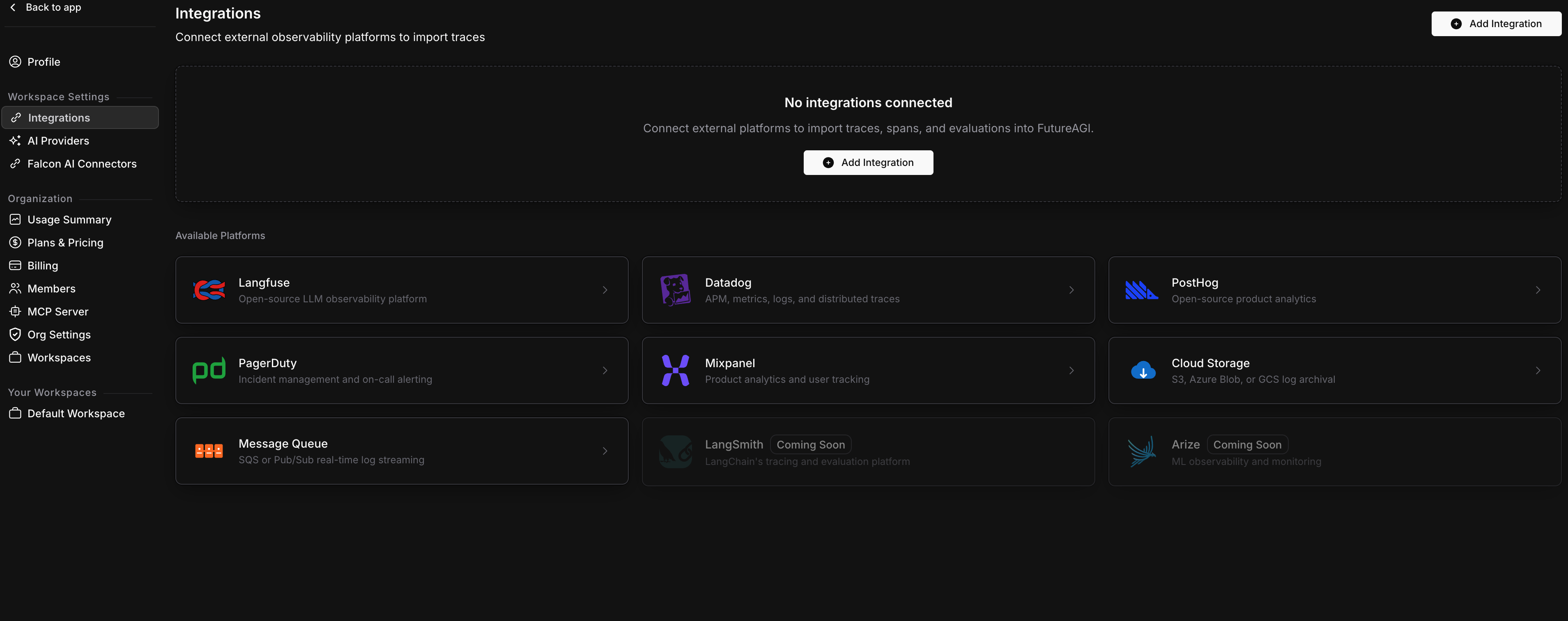
Open Integrations
Go to Settings > Integrations in your Future AGI workspace. Click Add Integration or click the Message Queue card.
Choose provider and enter credentials
Select SQS or Pub/Sub, then fill in the credentials.
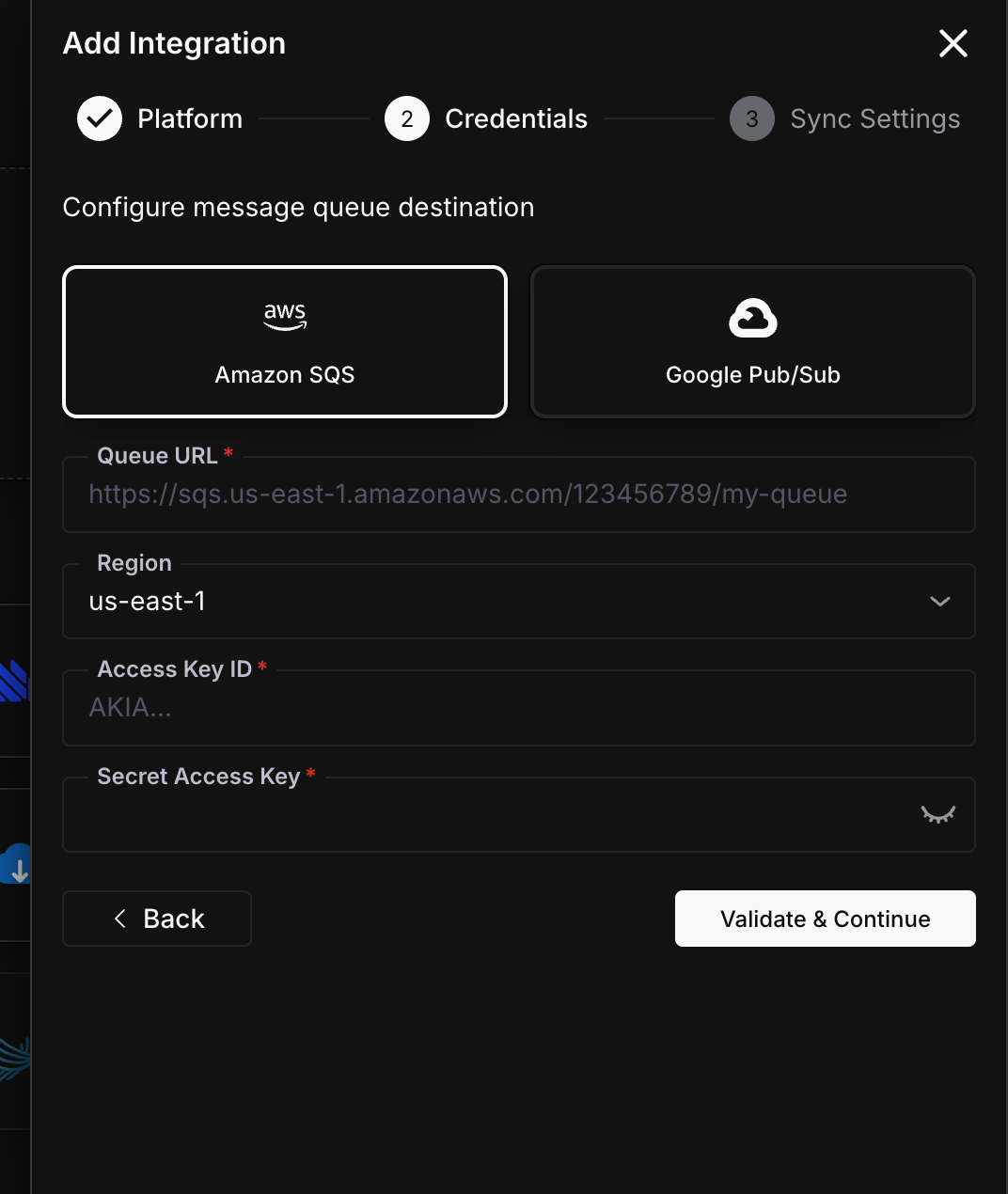
| Field | Required | Description |
|---|---|---|
| Queue URL | Yes | Full SQS queue URL |
| Region | Yes | AWS region (e.g., us-east-1) |
| Access Key ID | Yes | AWS access key |
| Secret Access Key | Yes | AWS secret key |
| Field | Required | Description |
|---|---|---|
| Topic Path | Yes | Full path: projects/{project-id}/topics/{topic-name} |
| GCP Project ID | No | Your GCP project ID |
| Service Account JSON | Yes | Full service account key JSON |
Click Validate & Continue.
Configure sync settings
Set the sync interval and historical data option.
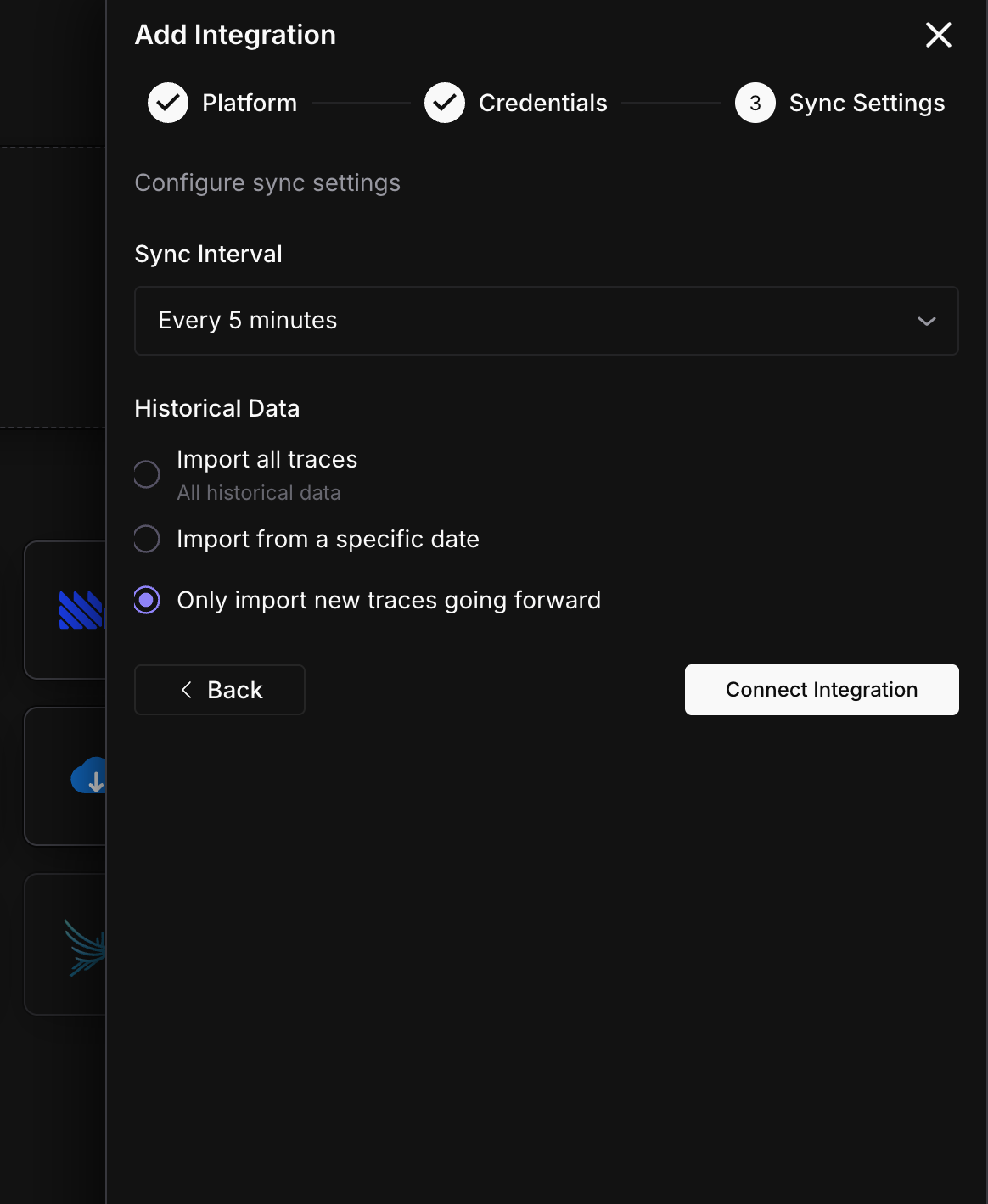
Click Connect Integration.
Done
Messages start publishing on the next sync cycle.
Sync status
Monitor your integration from the detail page (Settings > Integrations > click your Message Queue connection).
| Status | Meaning | Action |
|---|---|---|
| Active | Publishing on schedule | None needed |
| Syncing | A batch is being published right now | Wait for it to finish |
| Paused | You paused the export manually | Click Resume when ready |
| Error | Credentials invalid or queue/topic not accessible | Check permissions |
Troubleshooting
No messages appearing in my queue
Check that your credentials have publish permission. For SQS, the IAM user needs sqs:SendMessage and sqs:SendMessageBatch on the queue. For Pub/Sub, the service account needs pubsub.topics.publish on the topic.
Messages are delayed
Messages are published in batches on each sync cycle. If the sync interval is 5 minutes, messages can be up to 5 minutes behind real-time. Reduce the sync interval for lower latency.
SQS messages are being dropped
Check your SQS queue’s visibility timeout and retention settings. If your consumer isn’t processing messages fast enough, they may expire. Also check the dead-letter queue if you have one configured.
What’s next
Questions & Discussion