Set Up Voice Observability
Enable voice observability by creating or editing an agent definition with your provider API key and assistant ID so call logs appear in an Observe project.
What it is
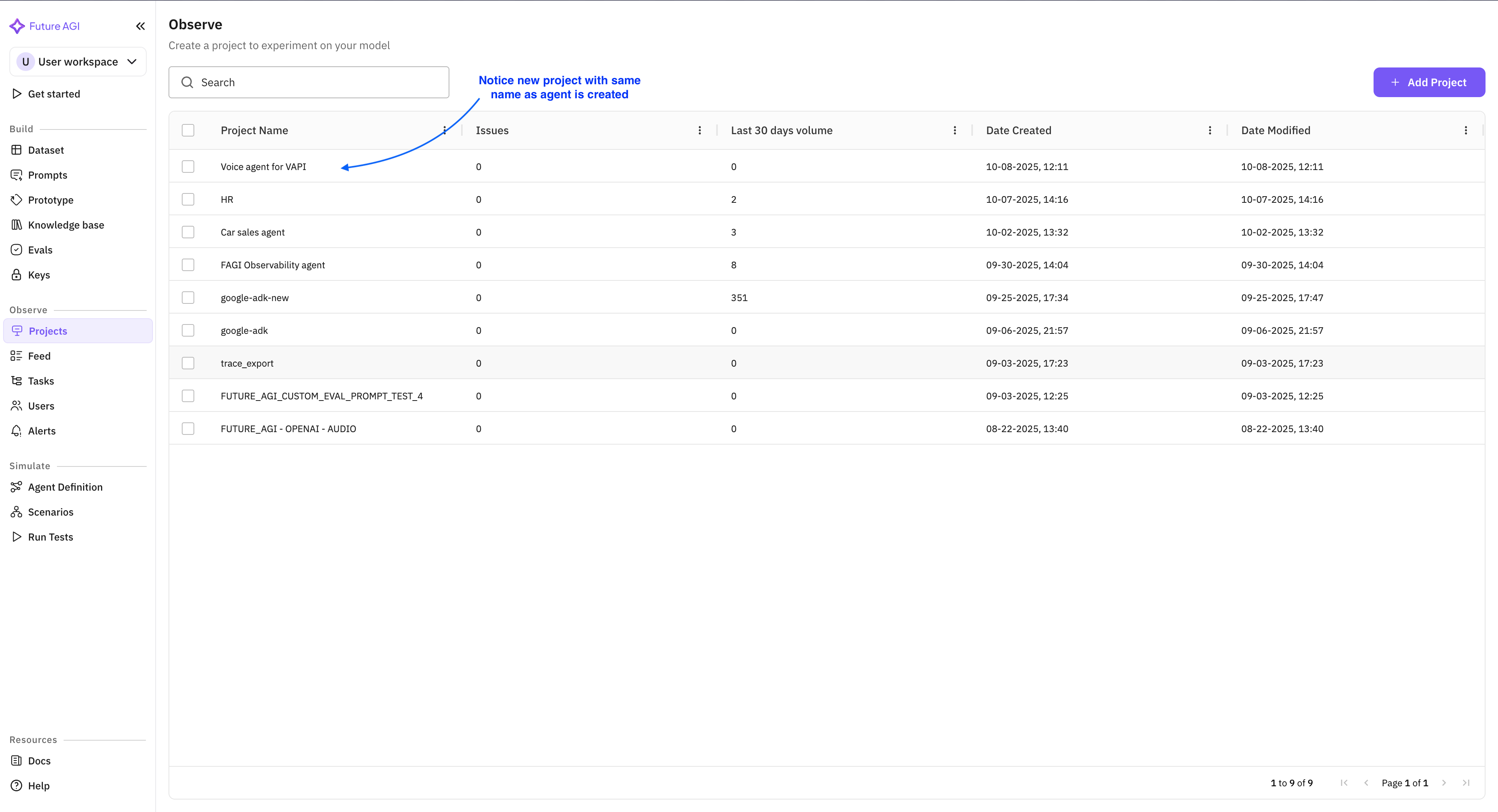
Voice Observability is the UI path to turn on observability for a voice agent. You create (or edit) an agent definition in the platform, enable observability, and provide the voice provider’s API key and Assistant ID. The platform then creates or links an Observe project with the same name as the agent and starts ingesting call logs from that provider. No SDK or code is required in your voice app. Call logs show up in the project as conversation traces so you can view them, run evals, and set alerts like any other Observe project.
Use cases
- First-time setup — Connect a voice agent to Observe using only the provider dashboard credentials.
- No code — Enable observability from the UI without instrumenting your voice application.
- Single place for calls — All calls for that agent appear in one Observe project named after the agent.
How to
Get provider credentials
From your voice provider’s dashboard, obtain:
- API key
- Assistant ID (or agent ID)
These are required when observability is enabled. Supported providers: Vapi, Retell, LiveKit. See supported providers at the end of this page.
Create an agent definition with observability
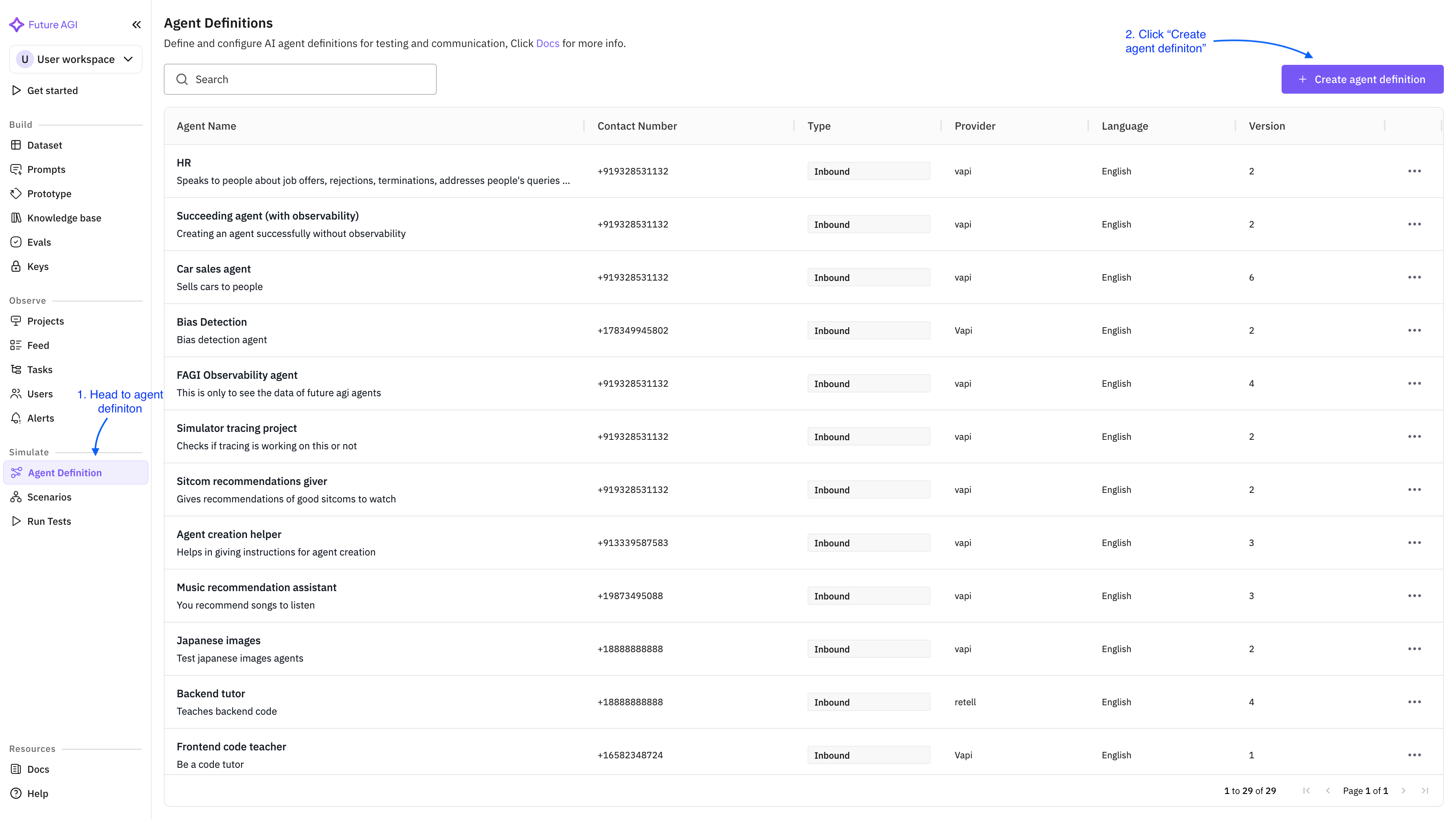
- Go to the Agent definition section in the platform and click Create agent definition.
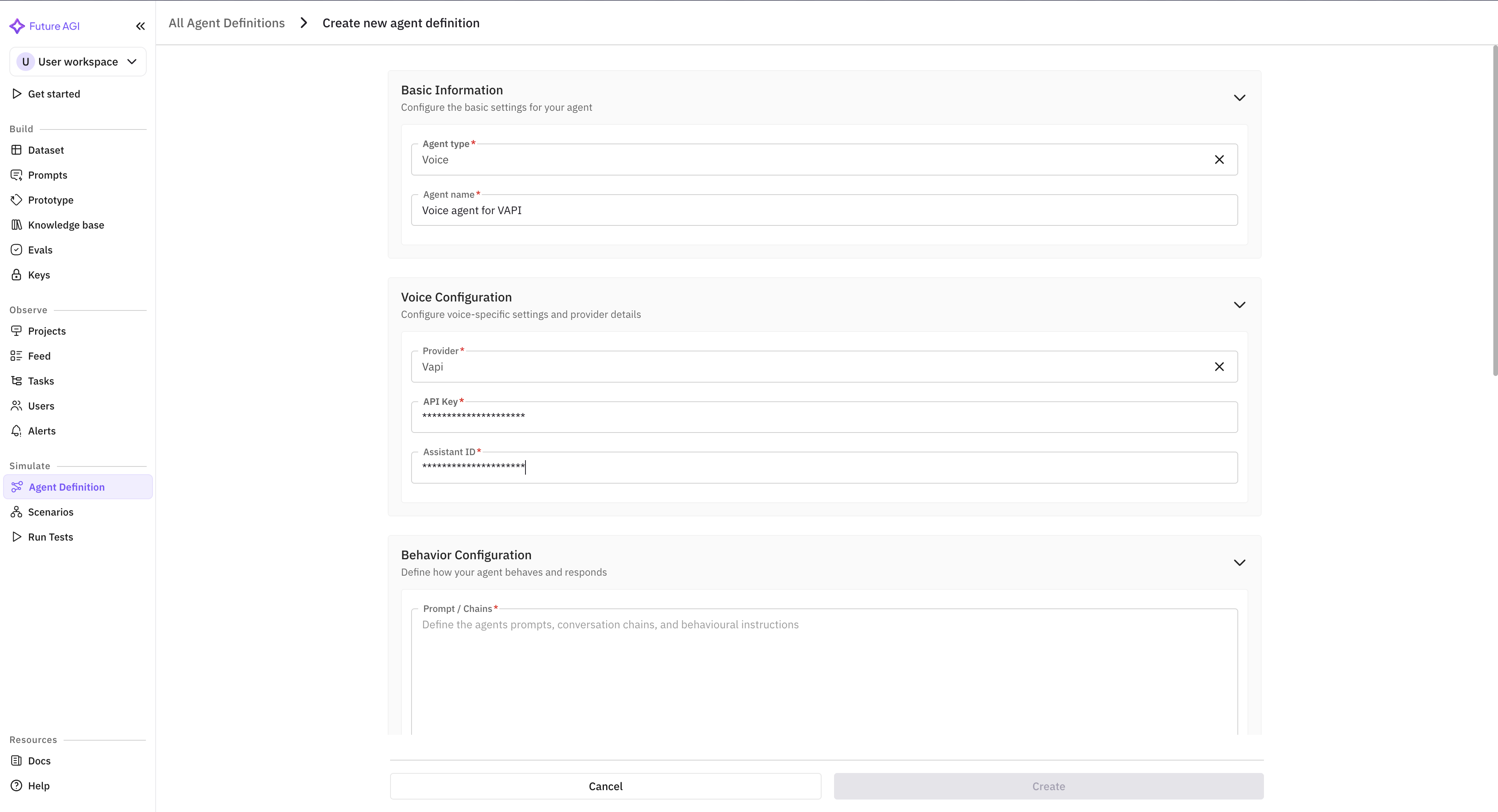
- Fill in agent name, provider, and other required fields. The API key and Assistant ID are masked for security.
- At the end of the form, check Enable Observability. The API key and Assistant ID are required only if you enable observability — otherwise they are optional.
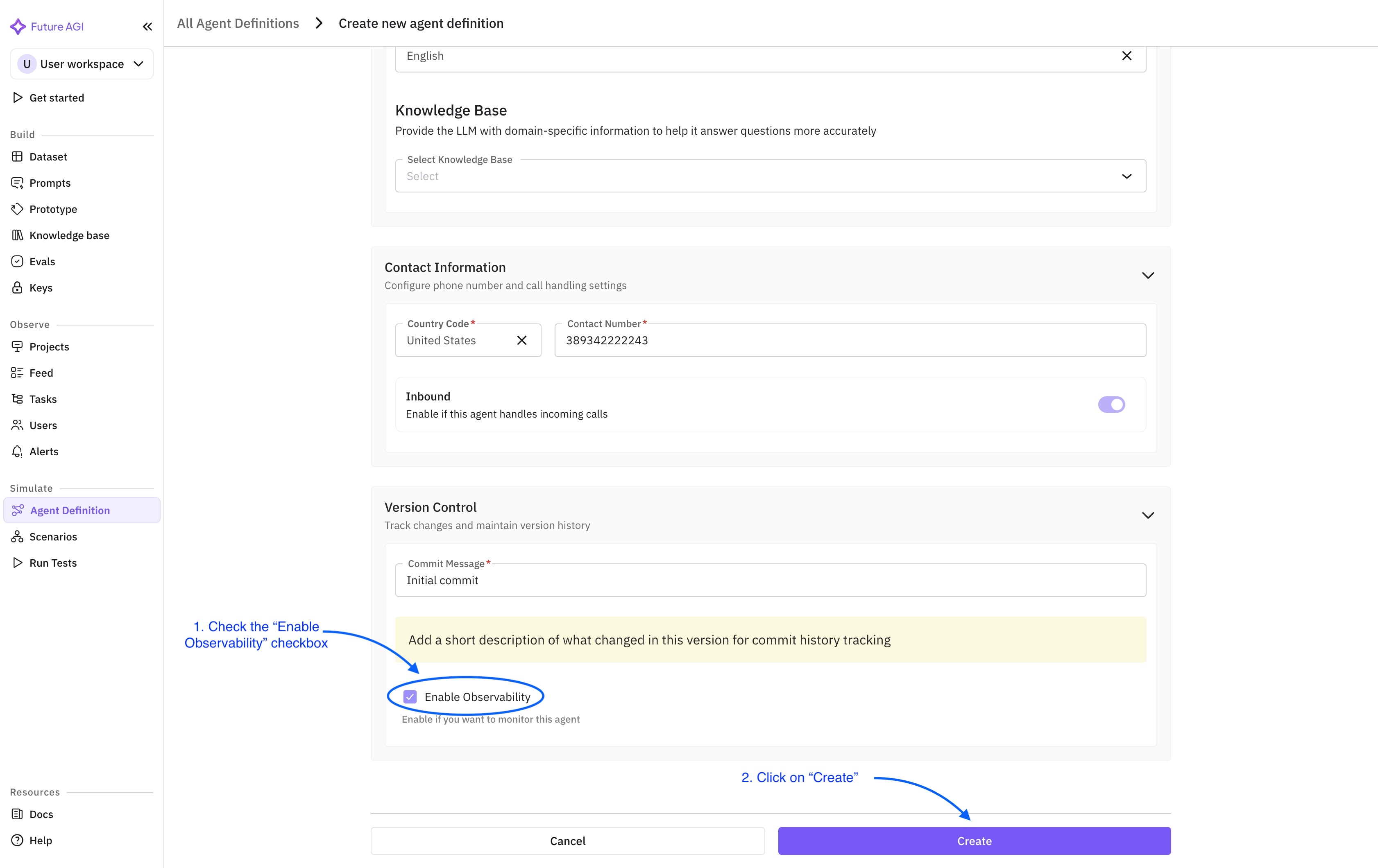
- After filling all the necessary fields, click Create. You are redirected to the agent list where the newly created agent is now visible.
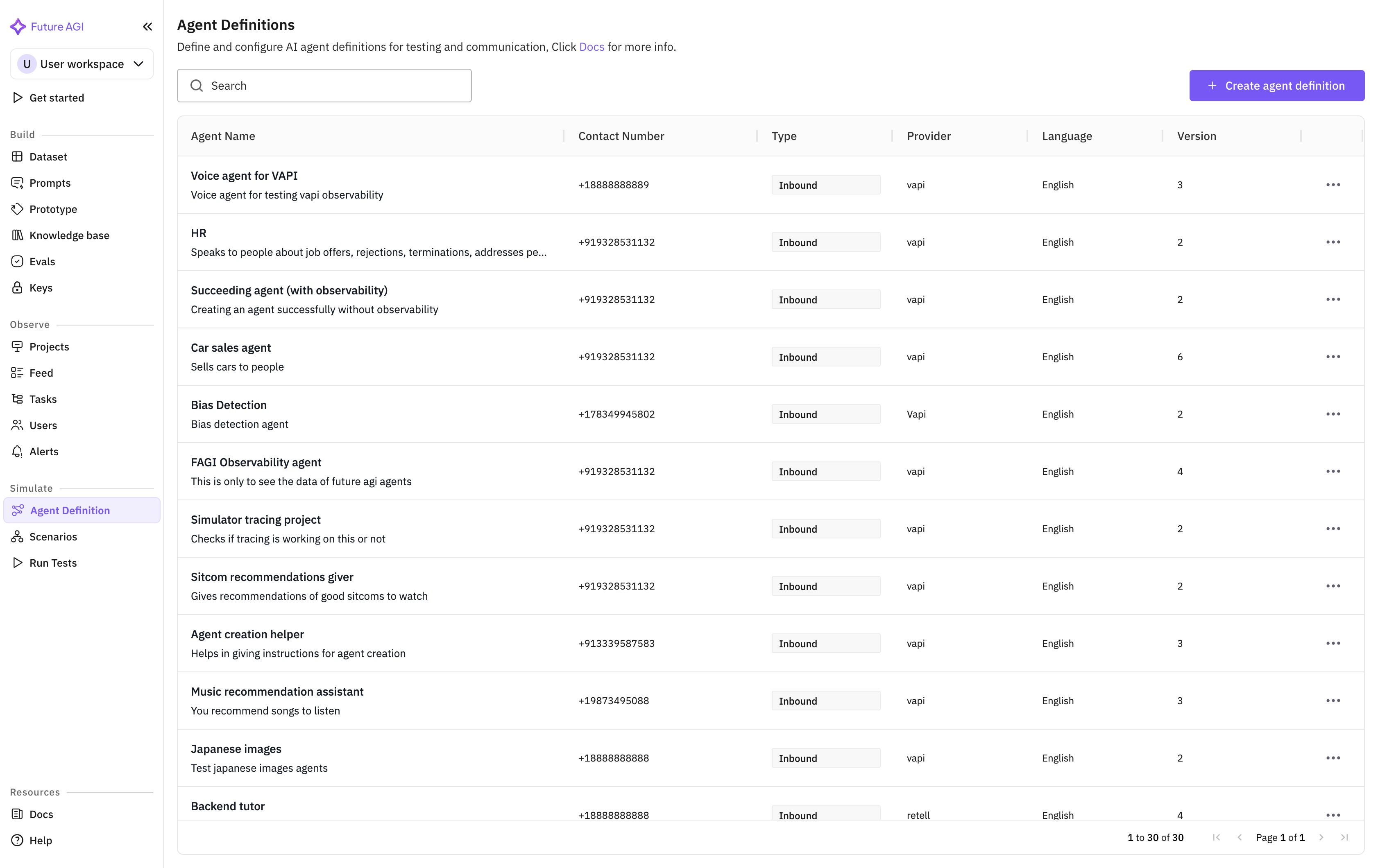
View call logs in Observe
- Open the Projects tab. A project with the same name as your agent lists all call logs for that agent.
- Open the project to see the voice observability table (calls with status, duration, cost, etc.).
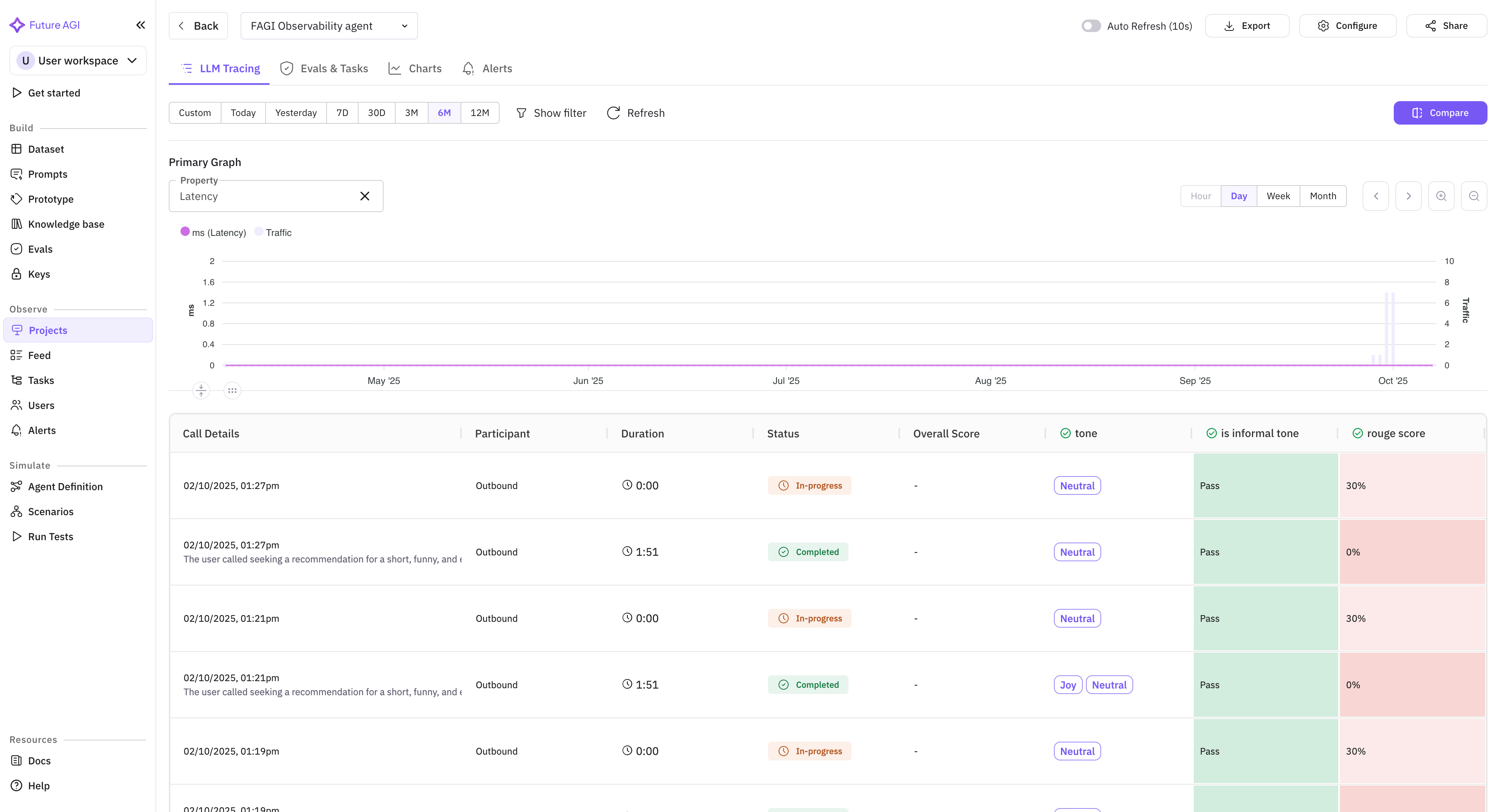
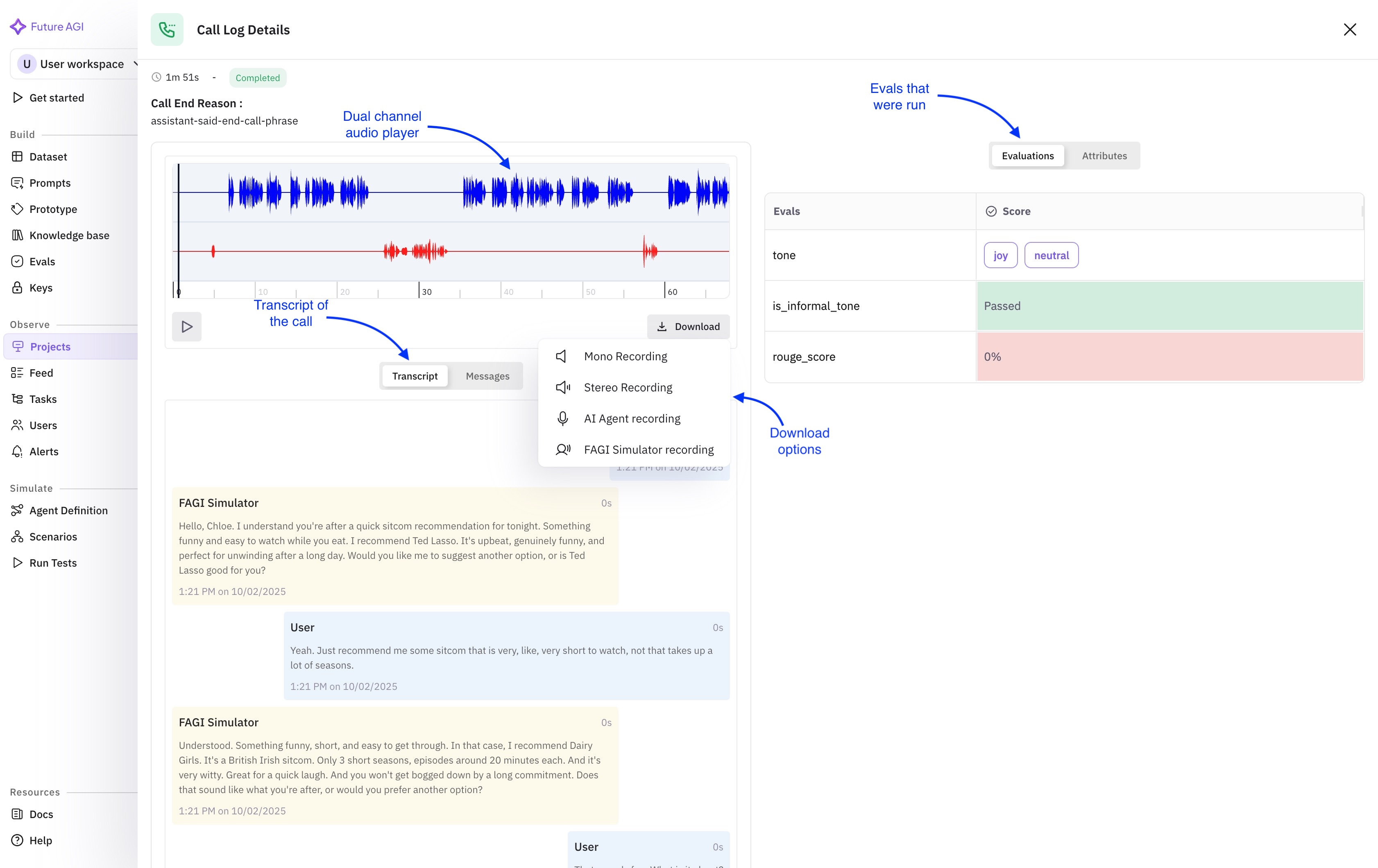
- Click a call to open the detail drawer (transcript, recording URLs, and other call data).
Update or disable observability
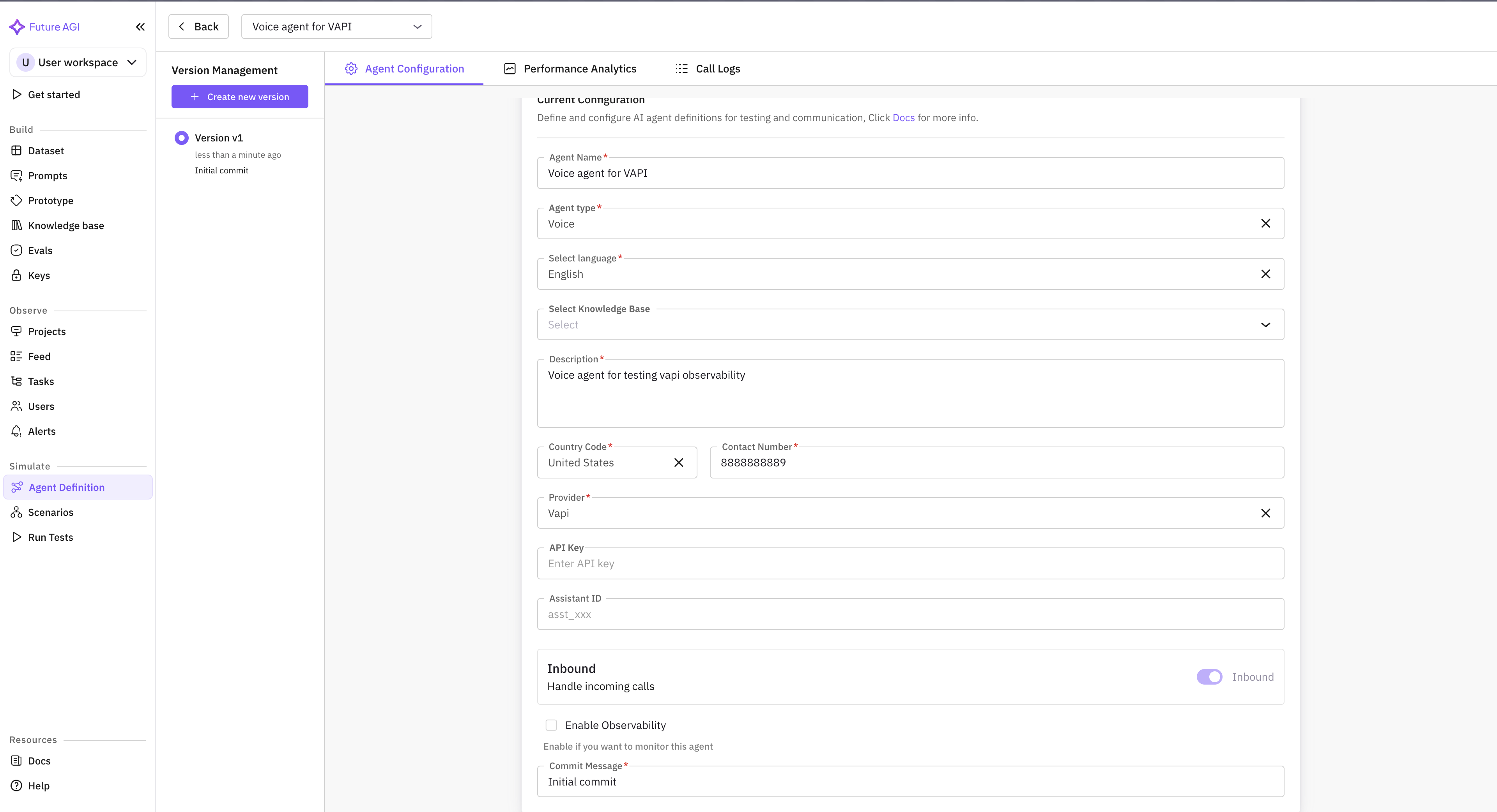
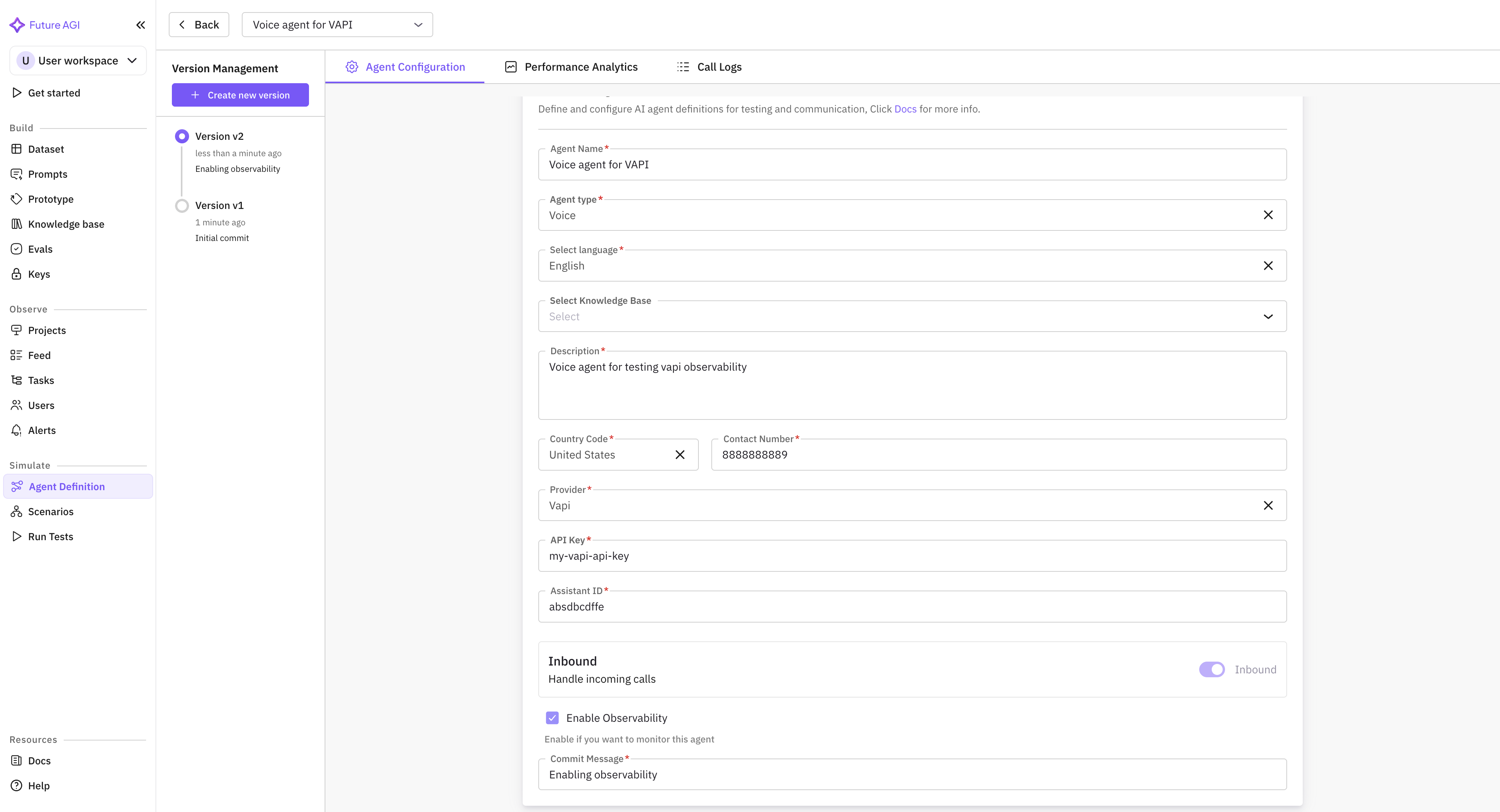
- Click on an agent definition to open the edit form with all current details pre-filled. You can edit any field as needed.
- If you disable observability, the API key and Assistant ID become optional and can be cleared.
- If you enable observability (or keep it on), API key and Assistant ID are required for ingestion to work.