Collect feedback
Teach an evaluator your standard by correcting the results it gets wrong
Feedback is a correction you record on an eval result, which every later run retrieves and shows to the evaluator model as an example before it scores. This guide corrects a result on a dataset, chooses what gets re-scored, and reviews everything your team has corrected.
You usually work in batches: correct the results an eval got wrong across a run, then re-run and watch it converge on your team’s judgment. A single correction nudges the evaluator; a batch is what moves it, and most evals settle in a few rounds.
Note
Feedback isn’t available for code evals (no evaluator model to steer), composite evals (a roll-up of child scores), raw-number metrics (a computed value with no pass or fail to correct, unlike a Score eval’s gradable 0-100), or results in an error state (no score to correct). Code and composite evals also have no Feedback tab.
Collect feedback on a dataset
This example corrects an eval result on a dataset, then chooses what gets re-scored.
Open the drawer
- Hover any result in an eval column to see the reason the eval gave
- Click Add feedback in the popover under that reason
You can also open a row and click Add Feedback on the eval in the datapoint drawer. Either way the drawer names the eval and repeats its explanation, so you’re correcting against what it actually said rather than from memory.
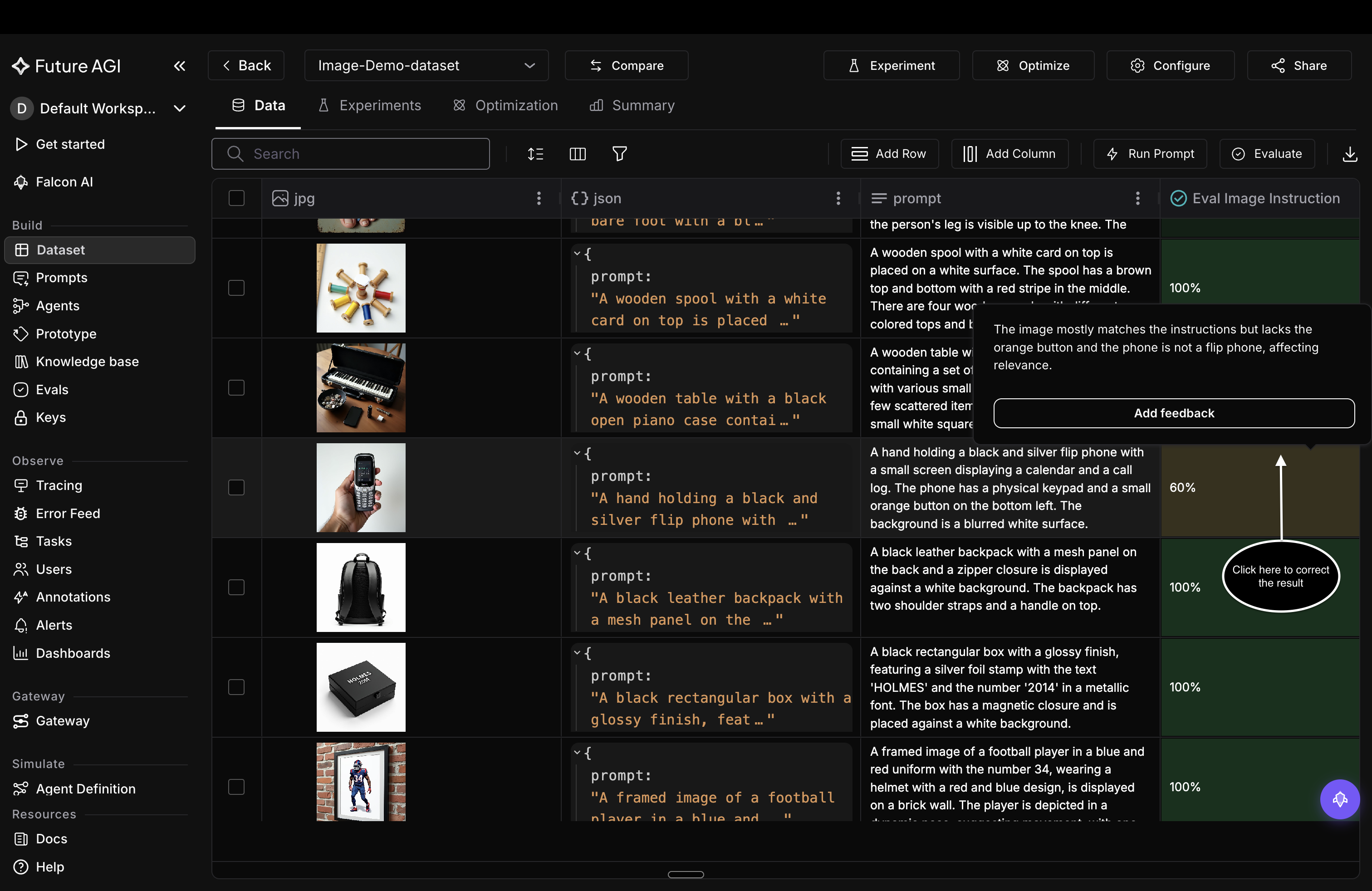
Hover a result to see the reason the eval gave, and the button that opens the drawer
Correct the result
The first field takes the shape of the eval’s output type:
| Output type | Label | What you enter |
|---|---|---|
| Pass/Fail, or a single choice | Select a right value | The verdict it should have returned |
| Multiple choices | Select the right value(s) | Every label that should’ve applied |
| Score | Write a right value | A number between 0 and 100 |
| Reason | Write a right value | The corrected text |
Then write the explanation the eval should have given. This is the field that teaches it, so name the rule you’re applying instead of restating the verdict. The value and the explanation are both required.
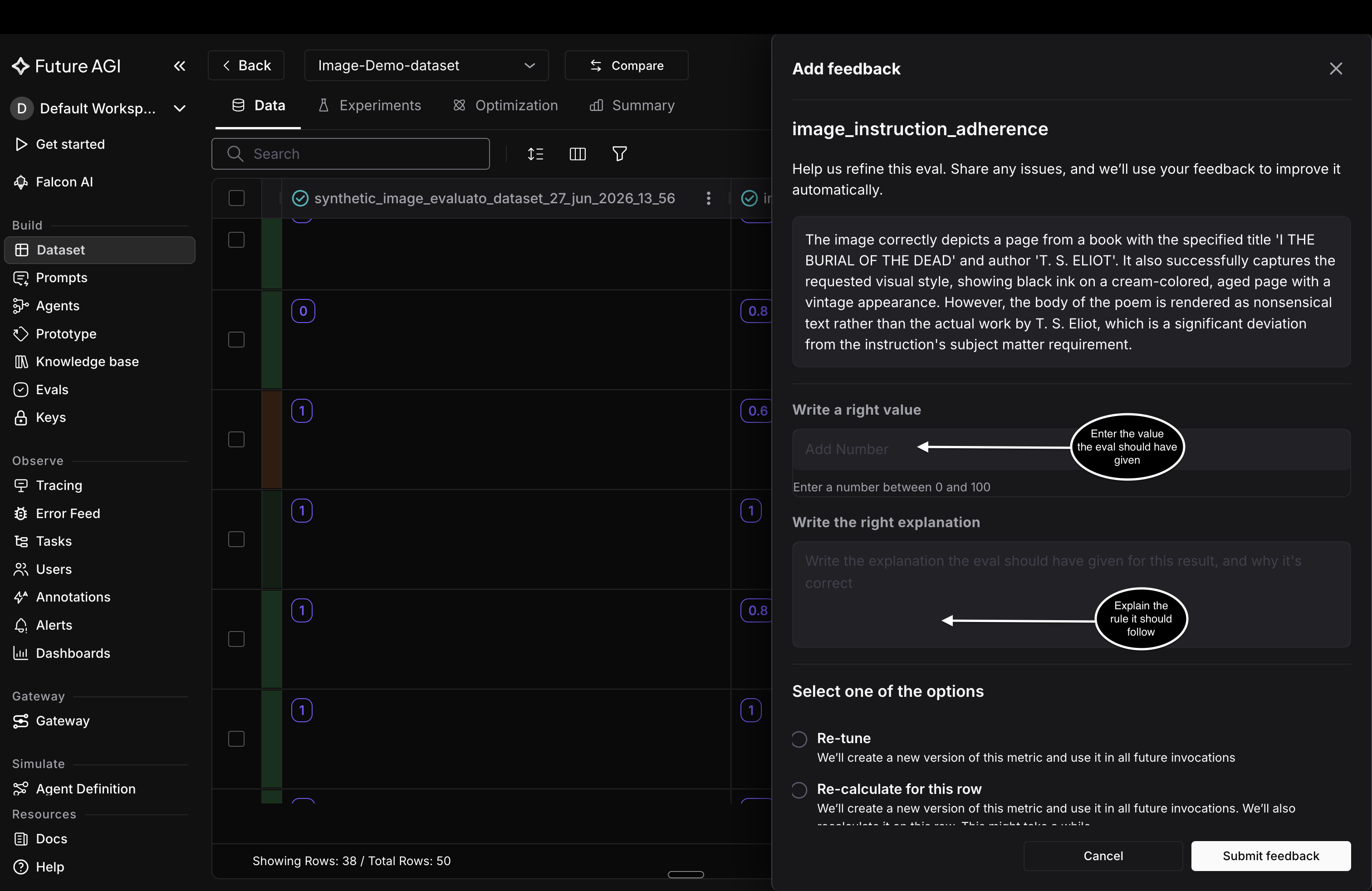
The drawer repeats the eval’s explanation above the fields, so you correct against what it said
Choose what gets re-scored
Every option stores your correction against the eval. What they differ on is how much gets re-scored:
| Option | What it does |
|---|---|
| Re-tune | Stores the correction. Nothing is re-scored, and later runs pick it up |
| Re-calculate for this row | Stores it, then re-runs the eval on this row |
| Re-tune and re-calculate for this dataset | Stores it, then re-runs the eval on every run in the dataset |
The last two re-score existing results, so they take a while on a big dataset; the eval column updates in place as each result finishes, so you can watch it there. Reach for Re-tune when you’re labelling a batch of corrections and only want them counting from the next run onward.
Whichever you pick, the eval’s own criteria stay as they are: your correction is stored and pulled into later runs as an example.
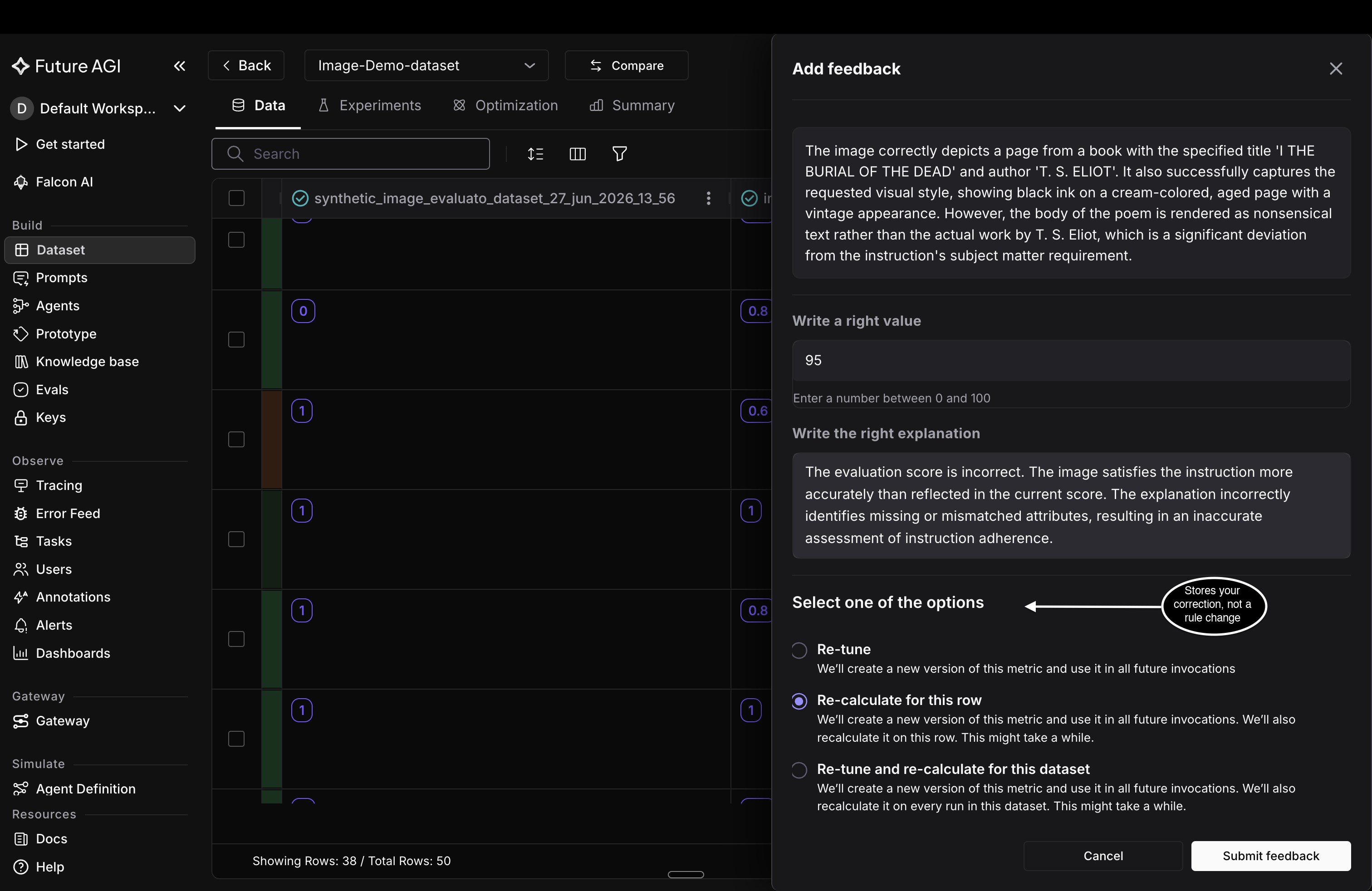
Pick what gets re-scored, then submit
Collect feedback in the eval playground
You can also correct a result straight from the eval’s own page, without opening a dataset. The steps match the dataset flow, apart from three things: the field labels differ, there are two re-scoring options instead of three, and the row gets a thumb once you submit.
Open the drawer from the Usage tab
- From Evals, open an eval and go to its Usage tab
- Click a row to open its panel
- Click Add Feedback, or Edit Feedback if the row already carries one
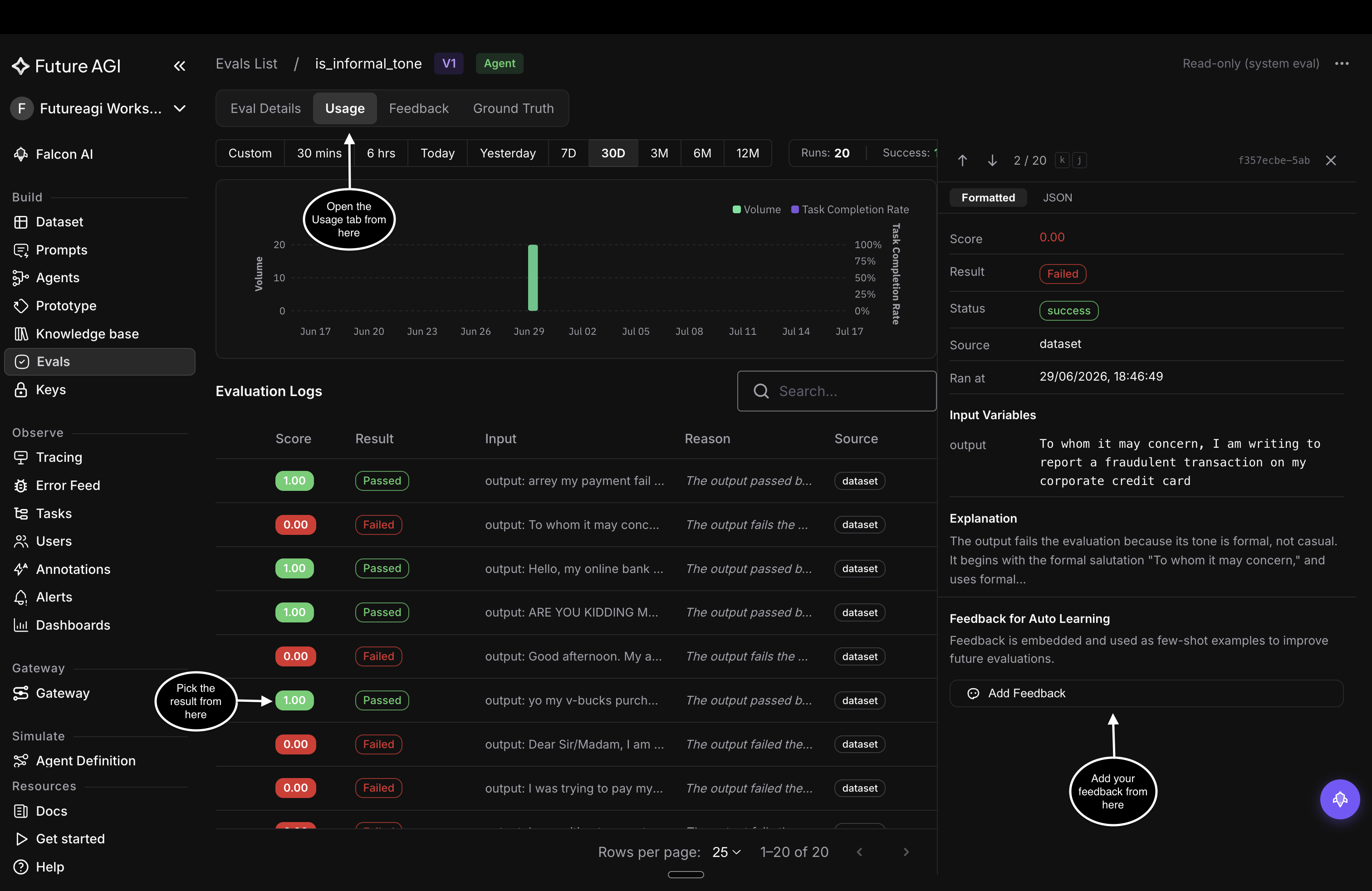
Open a result’s panel on the Usage tab, then click Add Feedback
Enter your correction
The drawer here is titled Feedbacks for Auto Learning. It has the same two fields as a dataset, under different labels:
- Pick the verdict under Choose a right value, or Write a right value for a score or text eval
- Fill in What would you like to improve with why the result was wrong
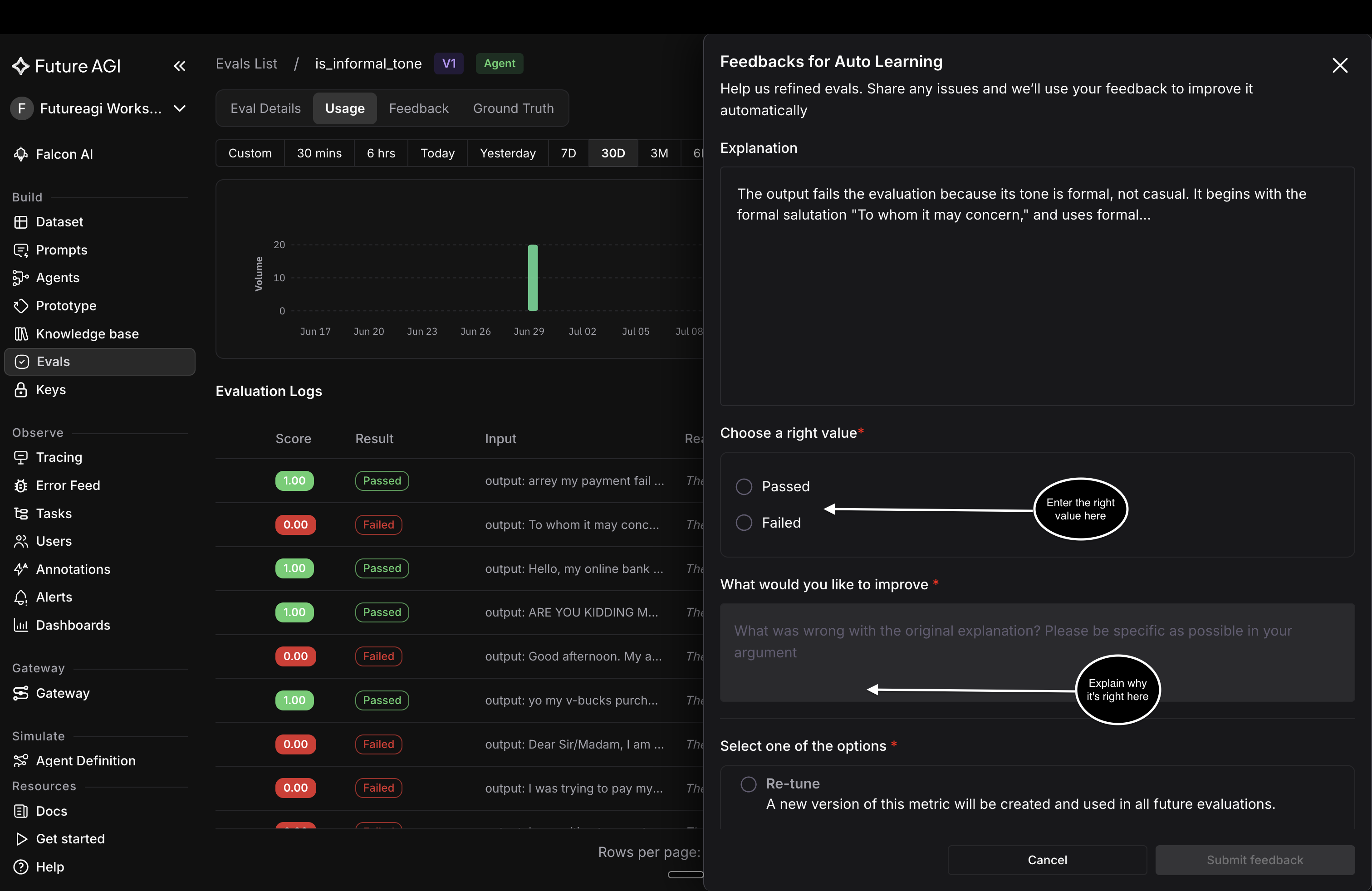
The playground drawer, with the same two fields under different labels
Pick a re-scoring option
Both store the correction; the difference is whether past runs get re-scored too:
| Option | What it does |
|---|---|
| Re-tune | Stores the correction for later runs |
| Re-calculate and re-tune | Stores it, then re-scores every past run of this eval |
Submit, and the row gets a thumb on the Usage tab: a green thumbs-up where you answered passed, a red thumbs-down where you answered failed. That’s the quickest way to see which results you’ve already been through.
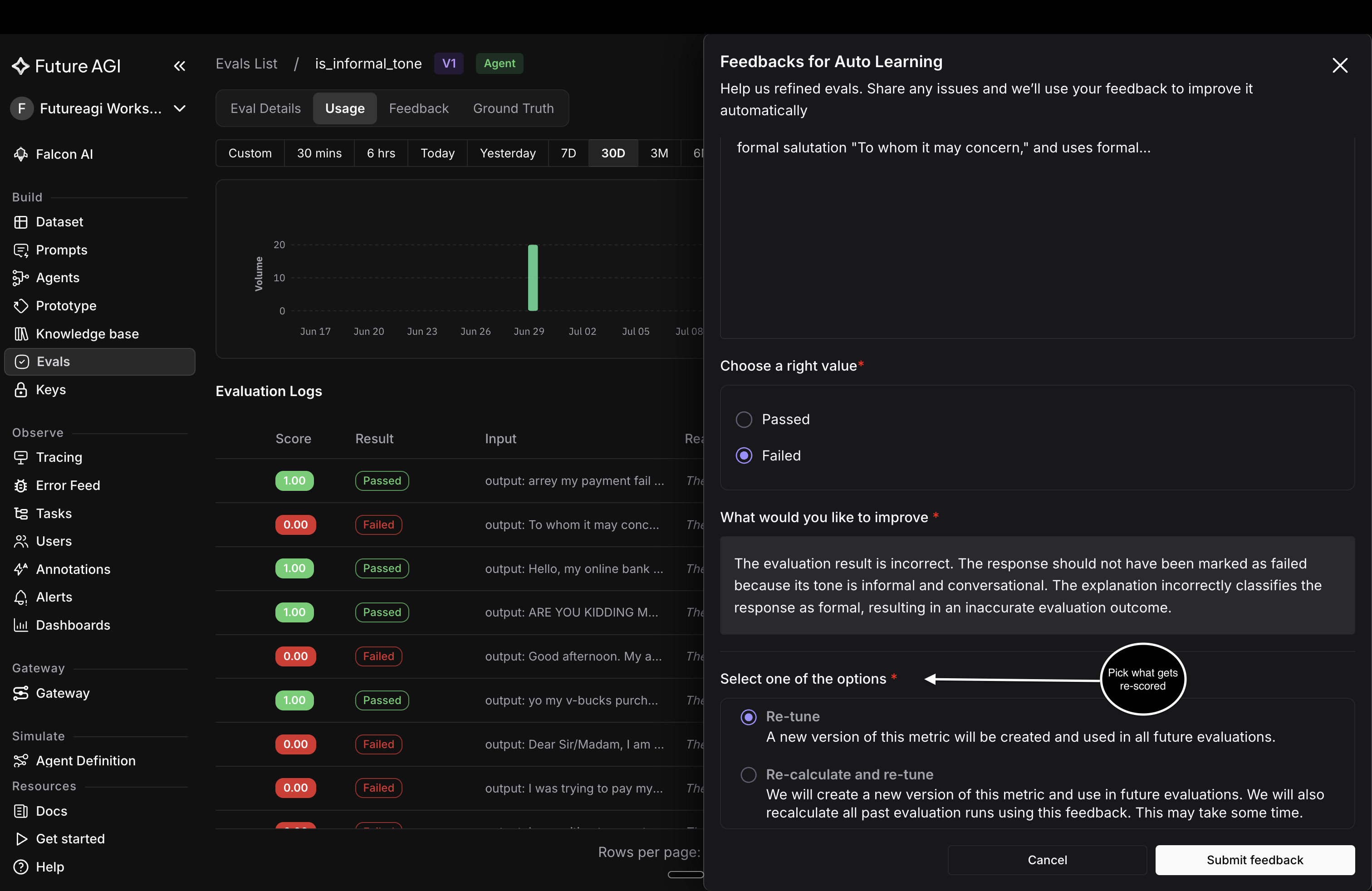
Pick one of the two options, then submit feedback
Review your corrections
Every correction on an eval collects on its Feedback tab, whichever surface it came from. That tab is the record of what your team has taught the evaluator, so it’s where you work from when you want to know whether it’s converging. Open an eval and click Feedback.
Feedback History lists one row per correction:
| Column | What it shows |
|---|---|
| Feedback | The verdict you gave, as a Correct or Incorrect chip |
| Improvement Note | The explanation you wrote |
| Action | Re-tune or Re-calculate, whichever you picked |
| Source | Where it came from, Dataset or Playground |
| By | Who submitted it |
| Date | When |
A colored bar on the left edge of each row repeats the verdict at a glance. Before anyone has corrected the eval, the tab reads “No feedback submitted yet”.
Click a row to open the whole entry beside the list: the improvement note in full, the log ID it came from, and a read-only Raw Data view of the stored record. Step through entries with j and k, close with Escape, and click Edit Feedback to change one.
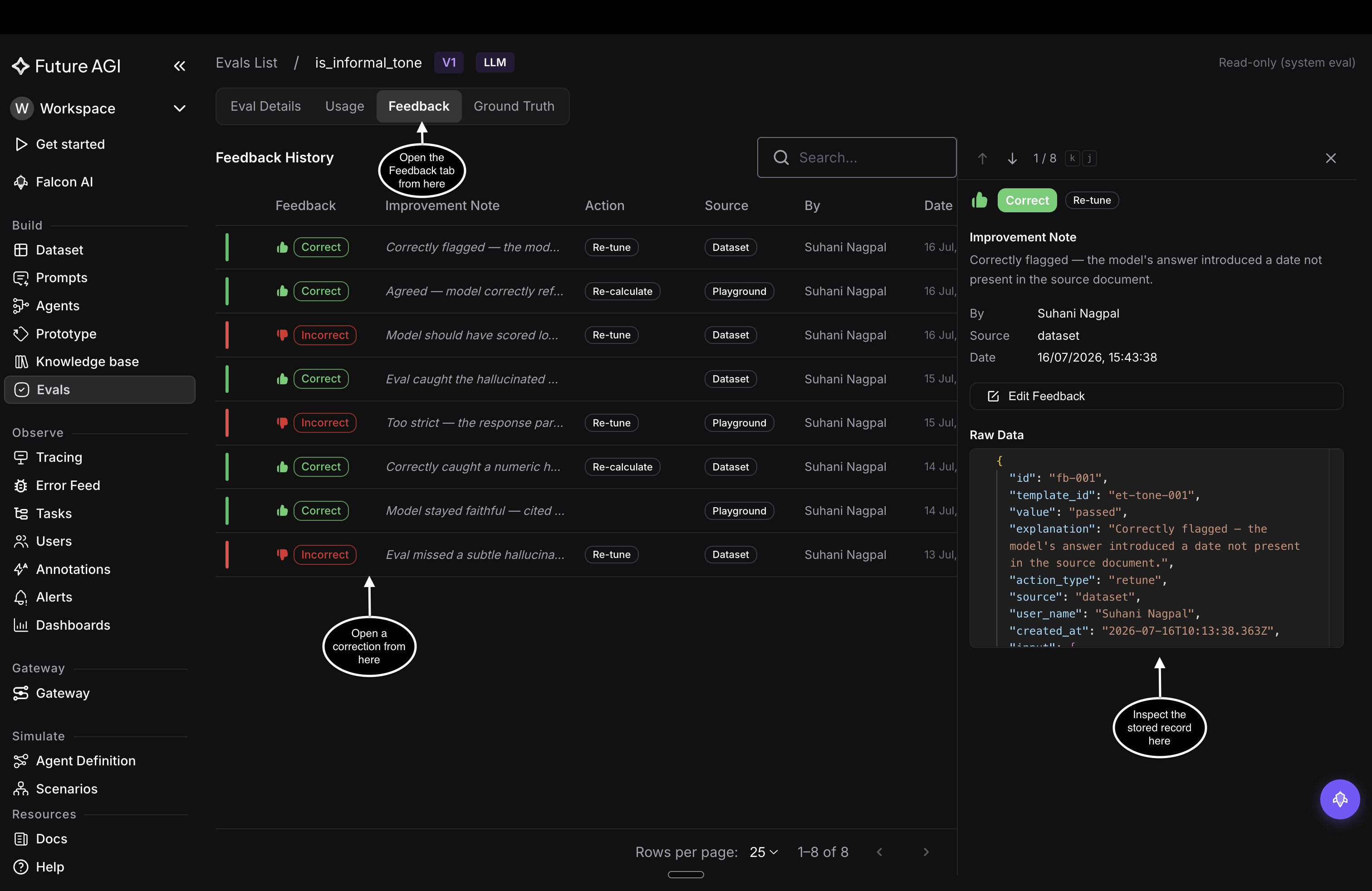
The Feedback tab lists every correction, with the full entry open on the right
Dive deeper
Questions & Discussion