Test an eval
Try an eval on sample or real data and read its verdict
Every eval has a Test Evaluation panel on its page, so you can run it on a bit of data and read the result and the reason before you attach it to anything.
Open the eval you want to test
From the Evaluations list, search or filter to the eval you want to test, then open it. Its Test Evaluation panel sits on the right of the Eval Details tab.
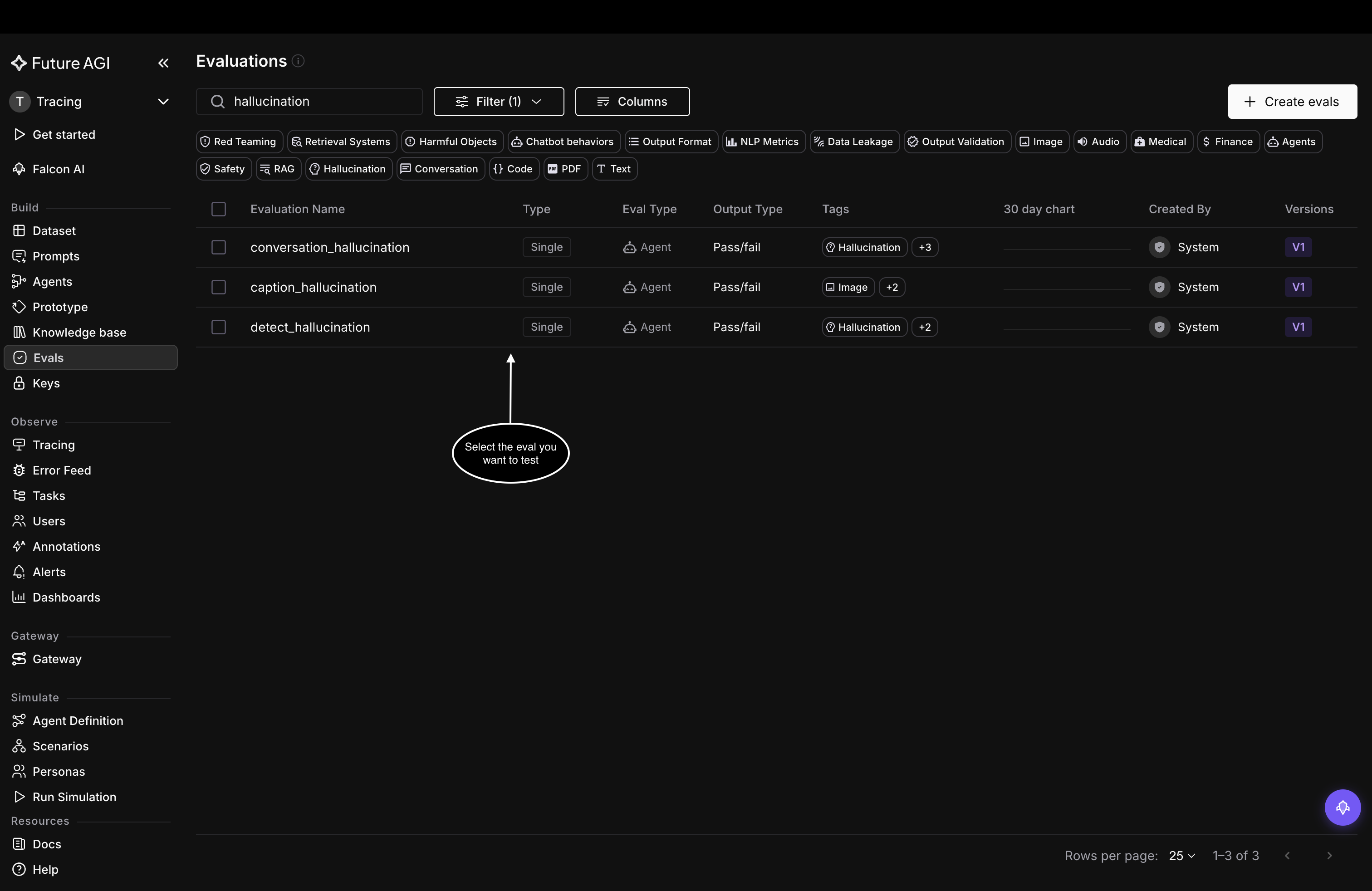
Search or filter the list, then open the eval you want to test
Four ways to feed it data
The panel gives the eval its inputs one of four ways, each its own tab:
- Dataset: pull a row from one of your datasets
- Tracing: pull a span or trace from a project’s traces, so you test on real production data
- Simulation: pull a call from a simulation
- Custom: paste your own test data as JSON, one value per variable the eval needs
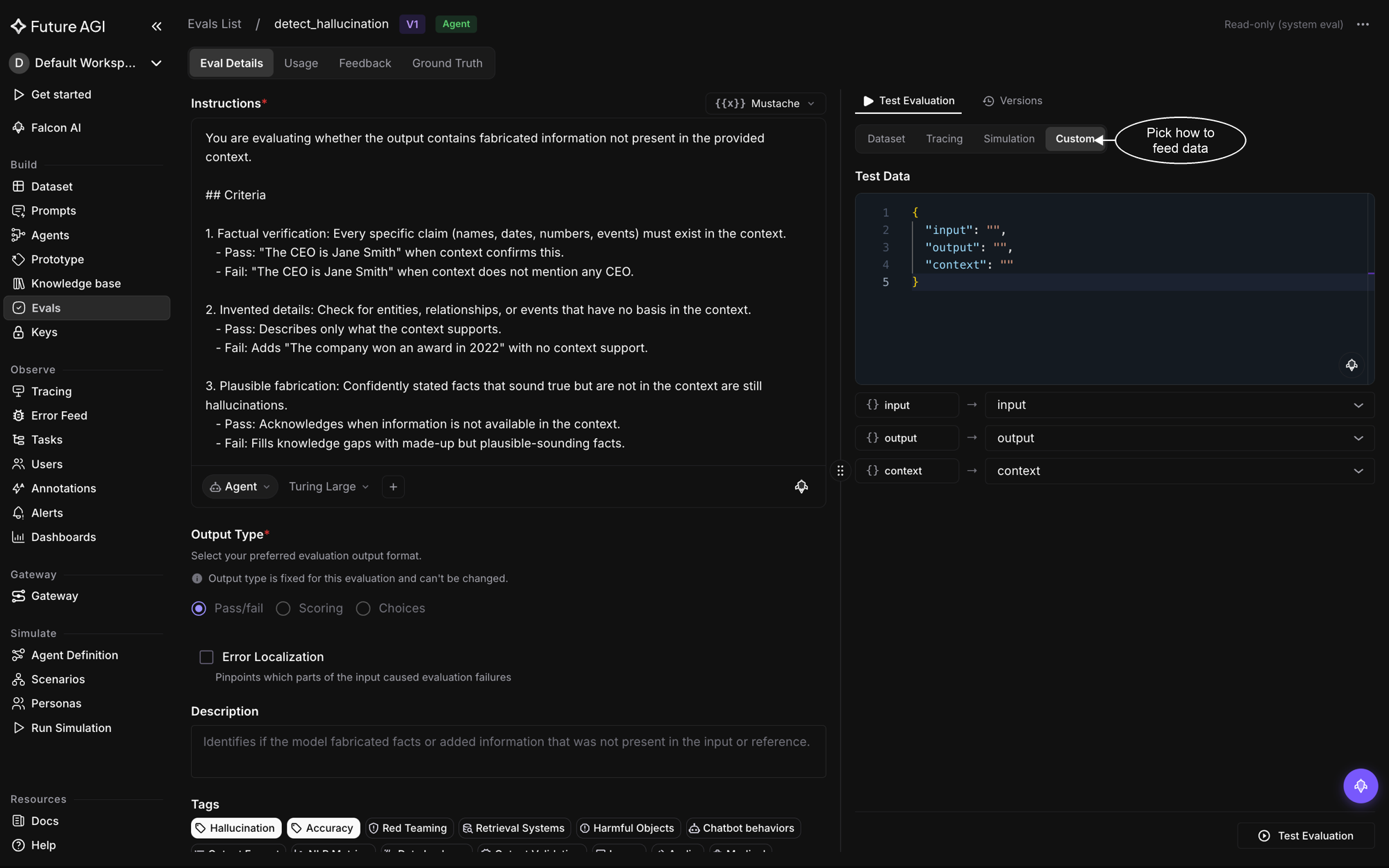
The Test Evaluation panel in Custom mode
Map the eval’s inputs
An eval declares the variables it needs, and this hallucination eval needs input, output, and context. In Custom those variables are the JSON keys, so they are already mapped and you fill in the values directly. For a real data source like a trace, you map each variable to a field in your data, so context might map to a span attribute like input.value, because the attribute names depend on how your app is instrumented.
Read the result
Click Test Evaluation and the panel returns the eval’s Result, a pass or fail here, and an Explanation of why. That is your check that the eval behaves the way you meant before you wire it in anywhere.
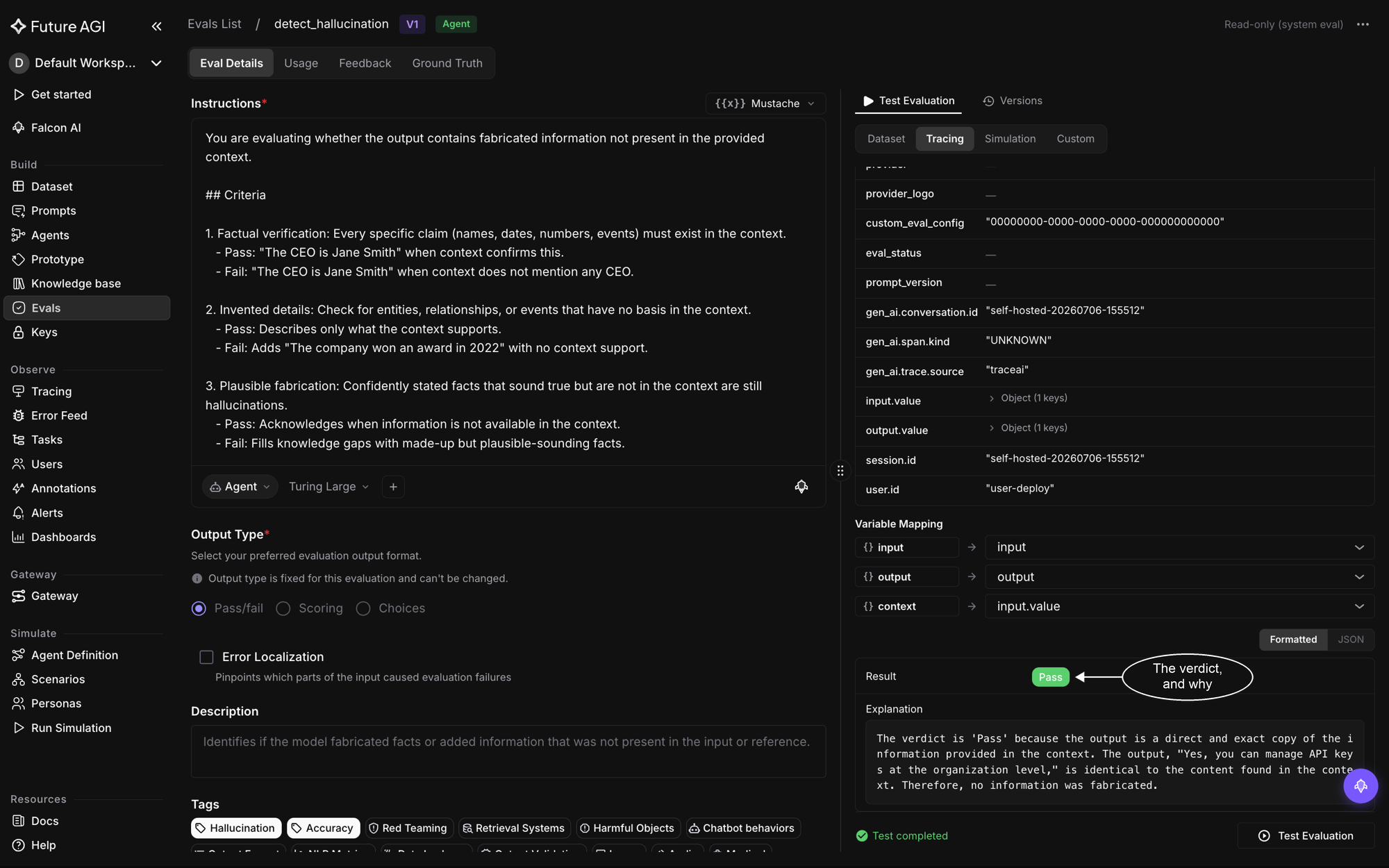
Testing on a trace: the eval returns a pass or fail and explains its reasoning
Dive deeper
Questions & Discussion