Build a composite evals
Combine several evals into one score you can gate on
A composite eval runs several child evals against the same input, then combines their scores into one number with an aggregation function. This guide builds one called customer_evals_composite from the eval builder, combining two built-in agent evals, customer_agent_task_completion and customer_agent_human_escalation, into a weighted average.
Open the eval builder
On the Evals list, click Create evals at the top right.
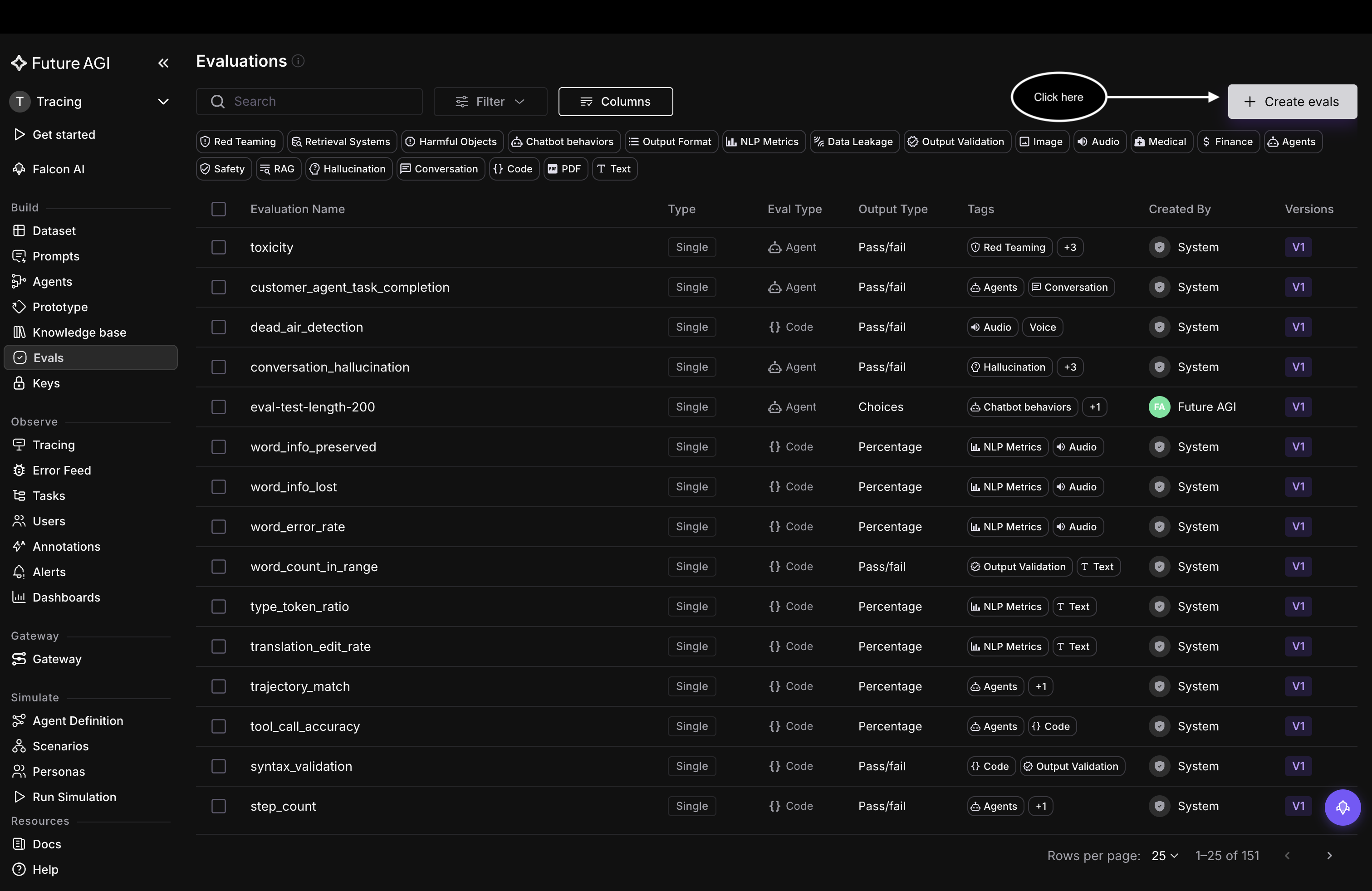
Start from Create evals on the Evals list
Switch to Composite
The eval builder opens on Single. Switch it to Composite with the toggle at the top of Eval details.
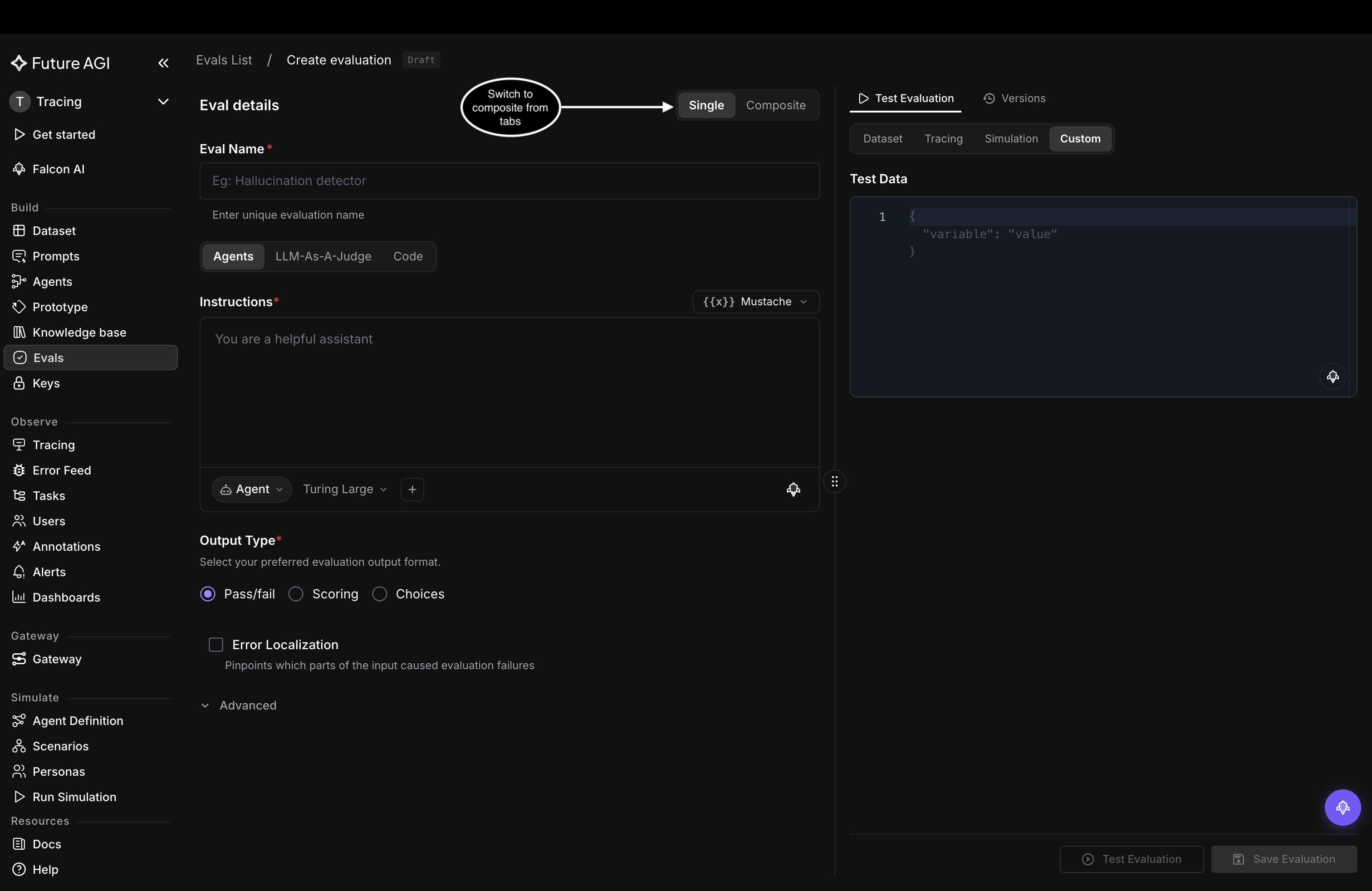
The Single / Composite toggle sits at the top of Eval details
Configure the composite
Under Composite Configuration, set:
- Name: a unique identifier, lowercase letters, numbers, hyphens, and underscores only
- Description: what the composite evaluates
- Child evaluation type: the output type every child must share,
Pass / Fail,Score,Choices, orCode, so their scores are comparable. It locks once you add the first child - Aggregate child eval scores: on by default, combines the children into one composite score. Turn it off to run the children side by side with no combined score
- Aggregation function: how the child scores combine. This example leaves it on
Weighted Average; see the five functions for the rest
This example names the composite customer_evals_composite and picks Pass / Fail as the child type, so only pass/fail evals show up when you add children.
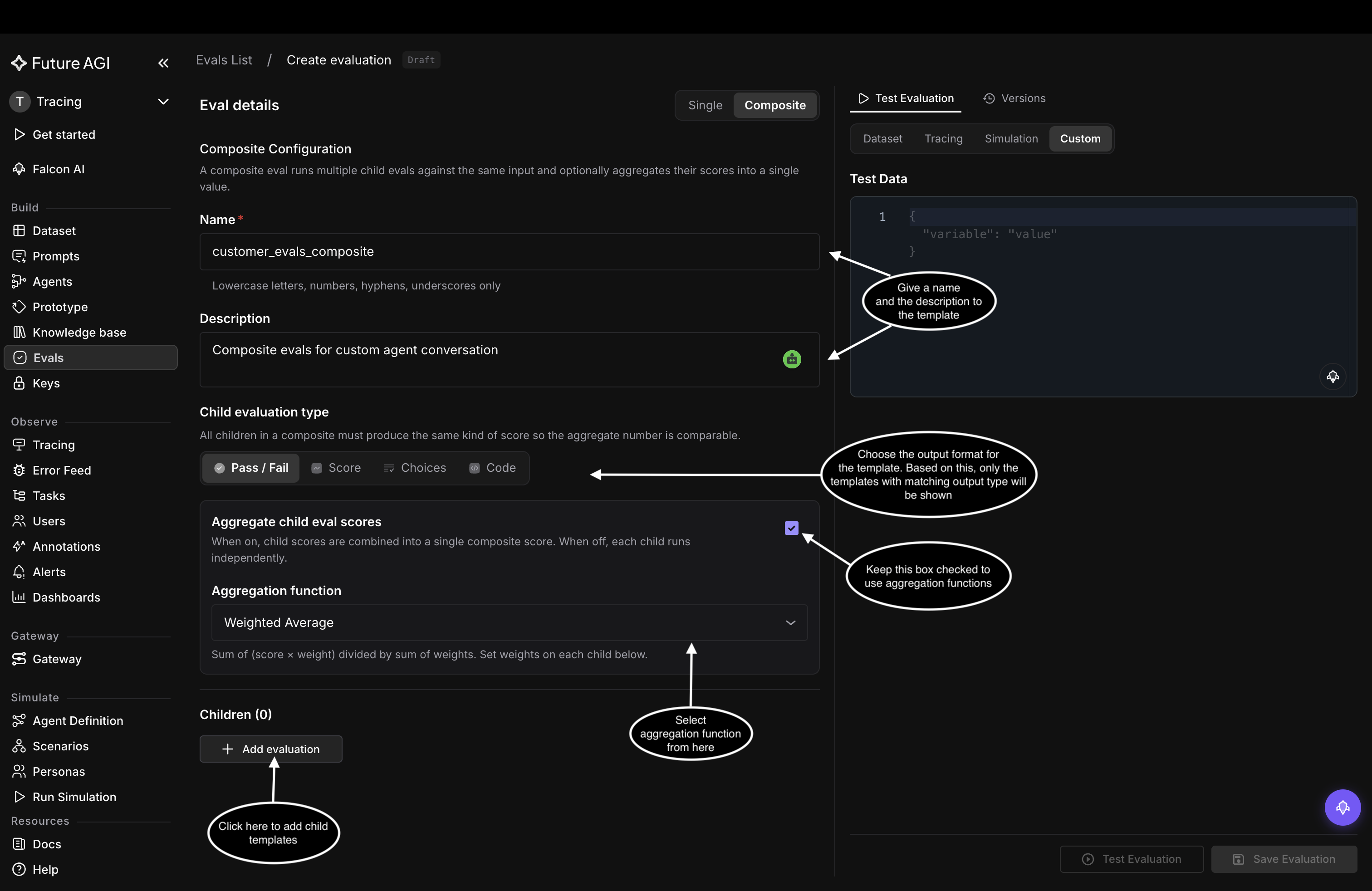
Name the composite, pick the child type, and choose how children combine
Add child evaluations
Under Children, click Add evaluation. The Select Evaluation drawer opens, listing only evals that match the child type you picked. Search for one and click Add on its row.
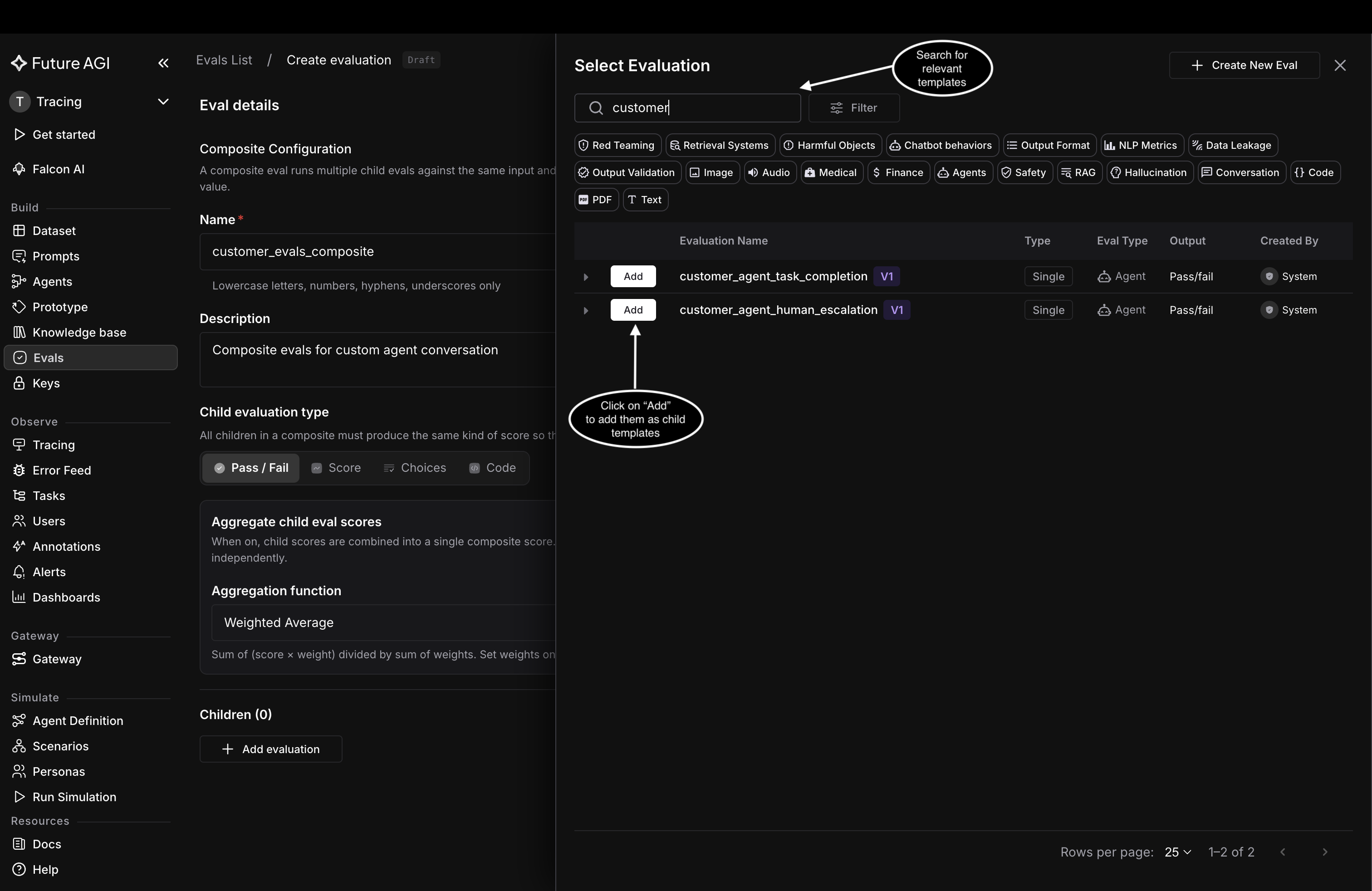
Search the library and add each child one at a time
Each child you add lists under Children with its own Weight field, and its required variables surface in the Test Data panel on the right, already mapped by name.
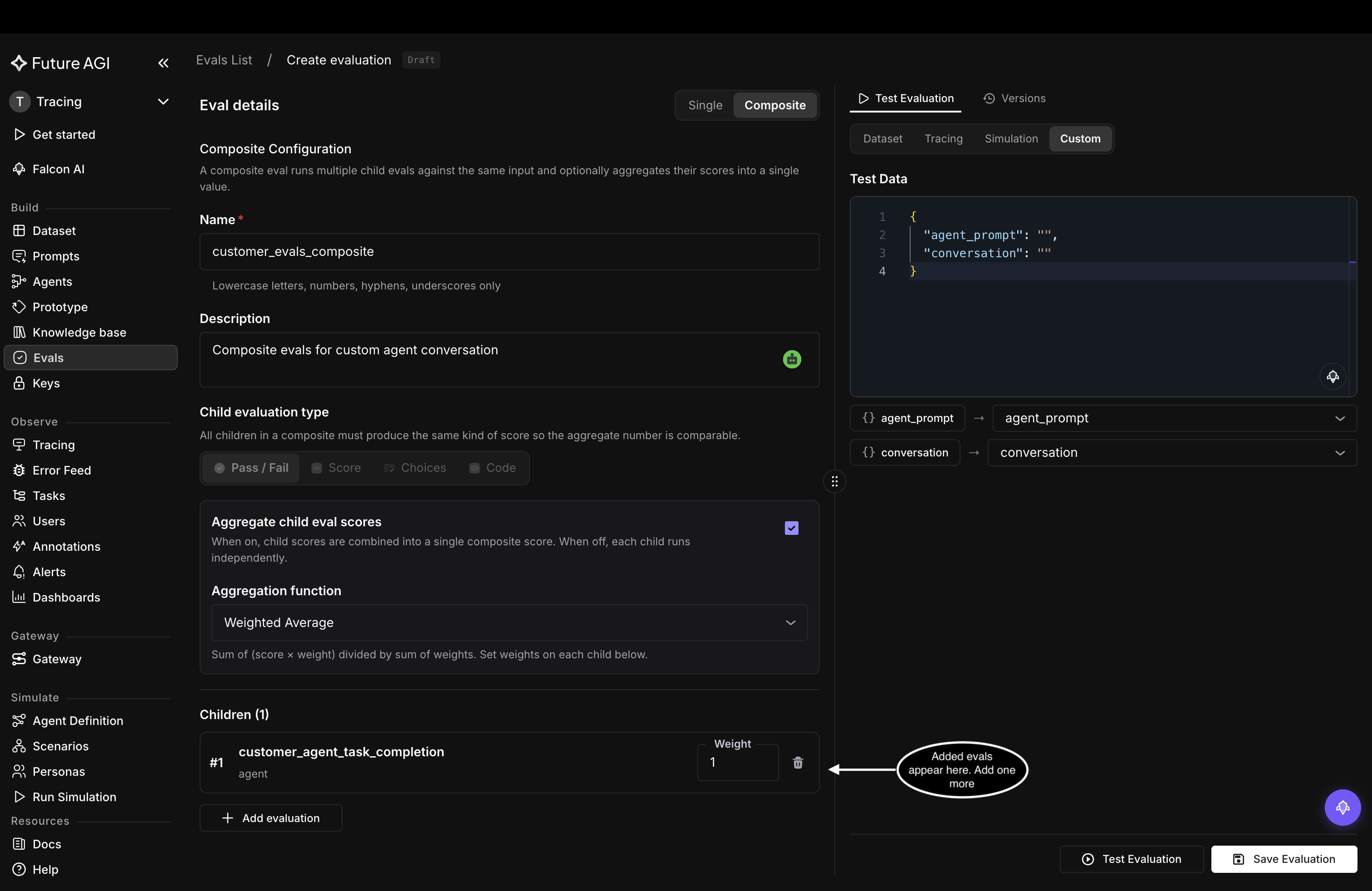
The first child appears under Children, and its variables agent_prompt and conversation map into Test Data
Click Add evaluation again to add the next child. An eval already in the composite shows Added instead of Add. This example adds customer_agent_task_completion and customer_agent_human_escalation.
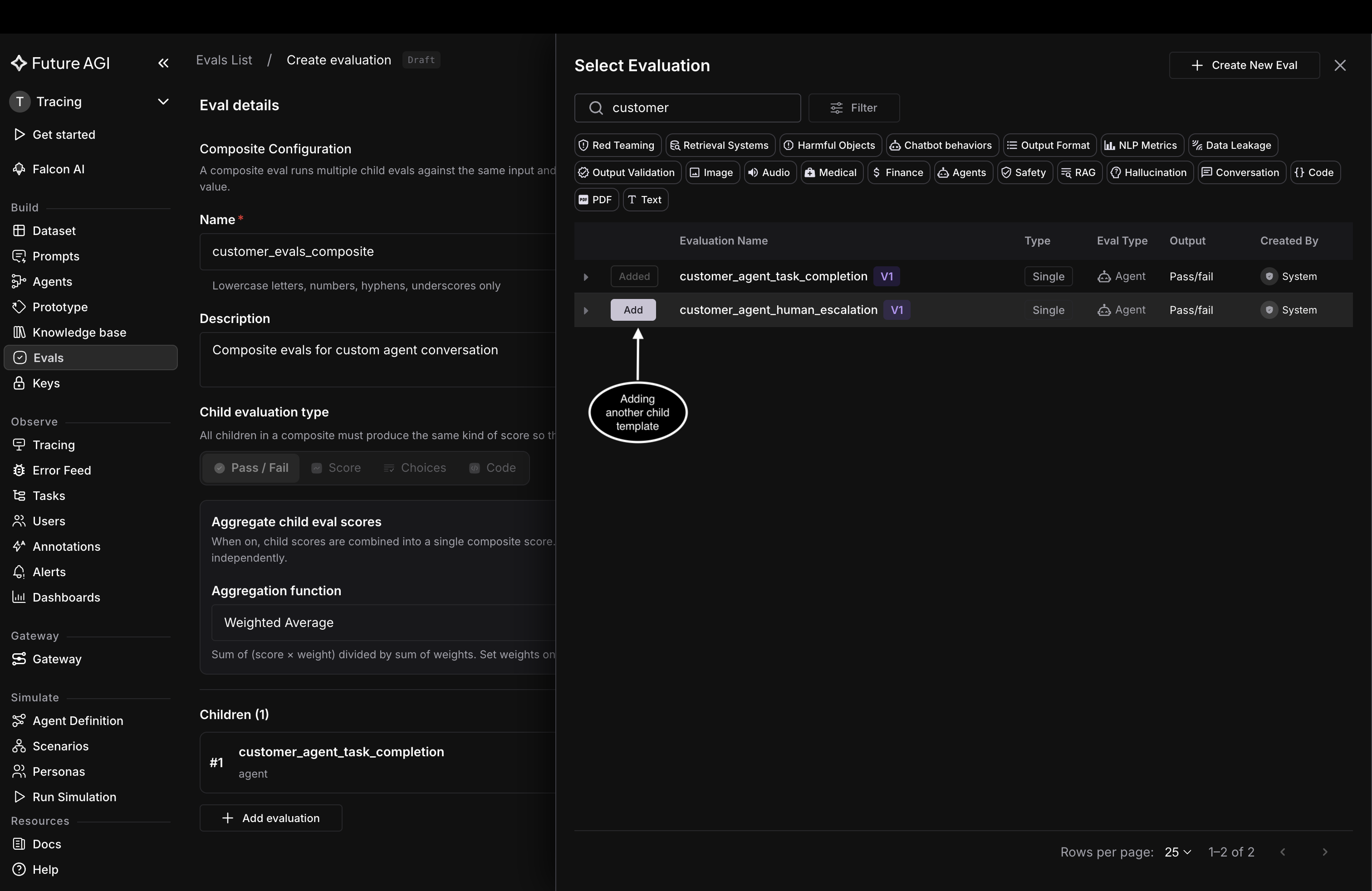
A child already in the composite shows Added; click Add on the next one
Set the weights
With Weighted Average, every child gets a Weight field, from 0.0 to 10.0, defaulting to 1.0. A child you care about more gets a higher weight, and the other four aggregation functions ignore weights entirely. This example weights customer_agent_task_completion at 2 and leaves customer_agent_human_escalation at 1.
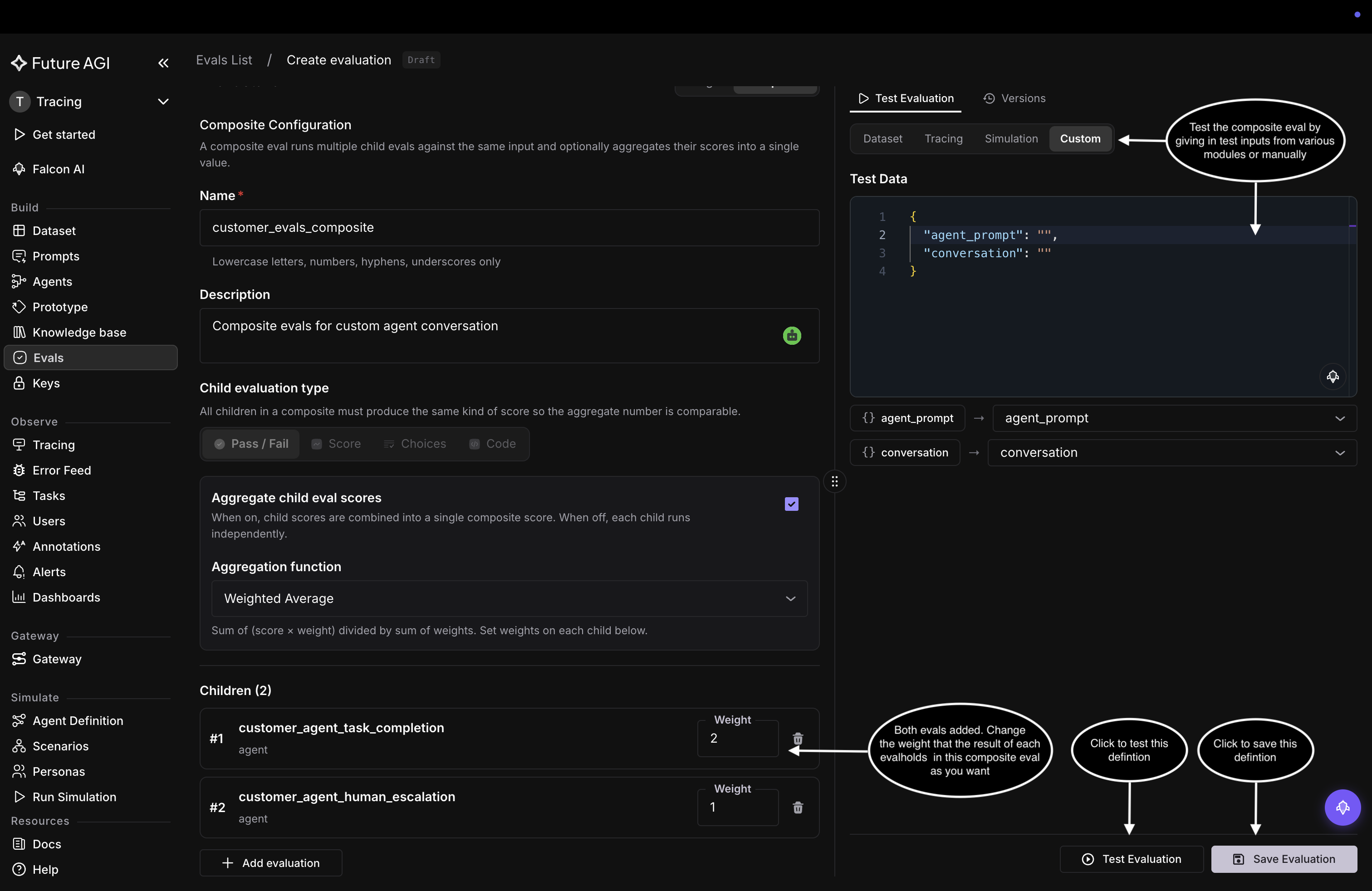
customer_agent_task_completion now counts twice as much as the other child in the weighted average
Test and save
You can try the composite before saving: the Test Data panel takes inputs from a dataset, a trace, a simulation, or typed in by hand, and Test Evaluation runs the composite on them. When it looks right, click Save Evaluation. The composite is created and behaves like any other eval template, ready to attach to a dataset, a trace, or run from the SDK.
Dive deeper
Questions & Discussion