Add ground truth
Attach human-scored reference rows so an eval calibrates against real examples
Ground truth is a dataset of human-scored reference rows an eval retrieves from at run time, injecting the most similar ones into the evaluator prompt as calibration examples. This guide attaches a reference dataset to an existing eval, maps its columns, and turns retrieval on.
Open the Evals tab
In the left sidebar under Build, click Evals to open the Evaluations list. You can filter by use case with the tag chips, or reshape the table with Filter and Columns.
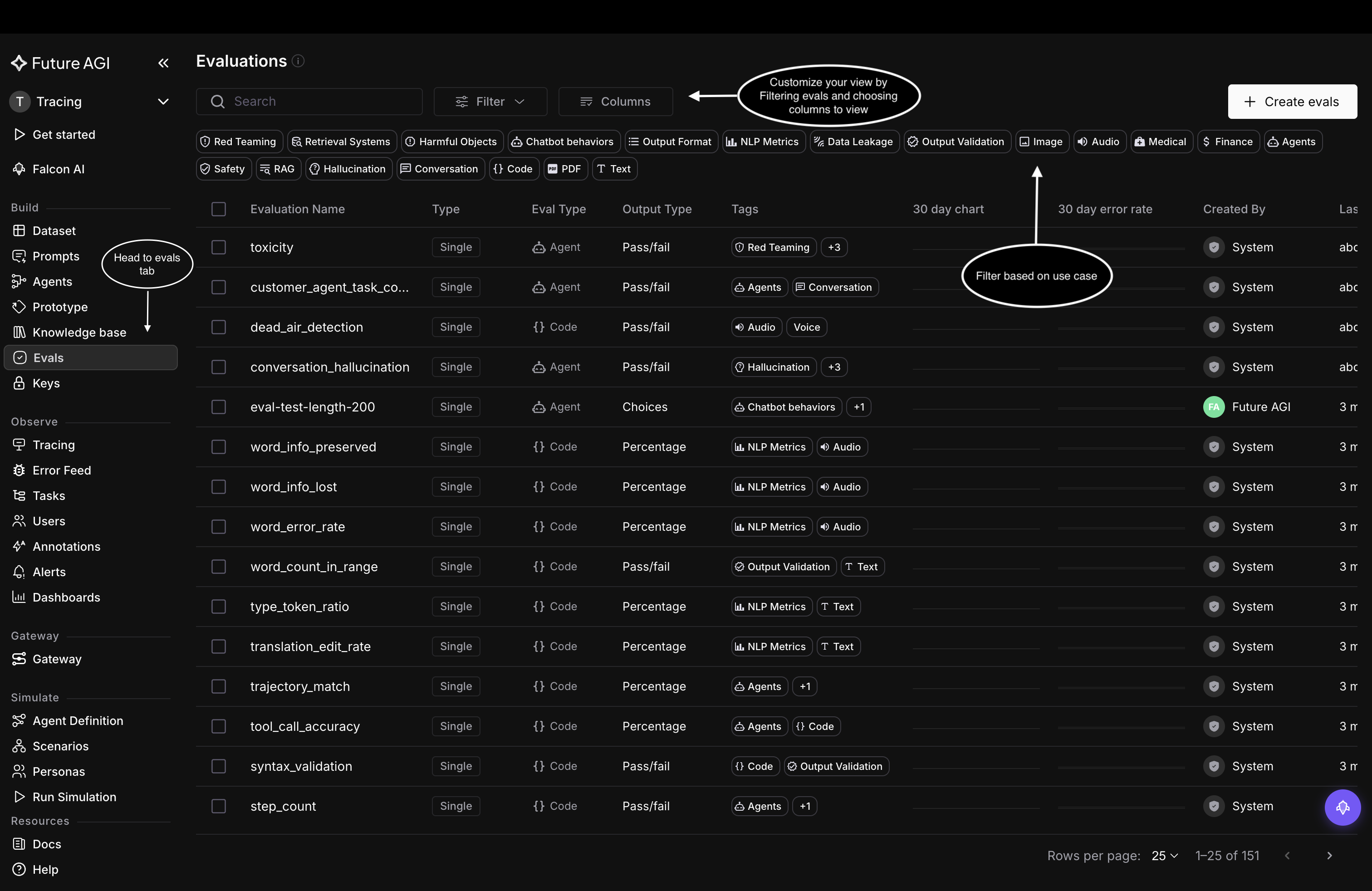
The Evals tab lists every evaluation in your workspace
Search for the eval
Type into the Search box to narrow the list, then pick the eval you want to add ground truth to. Here we search customer and select customer_agent_human_escalation, a Single, Agent, Pass/fail eval.
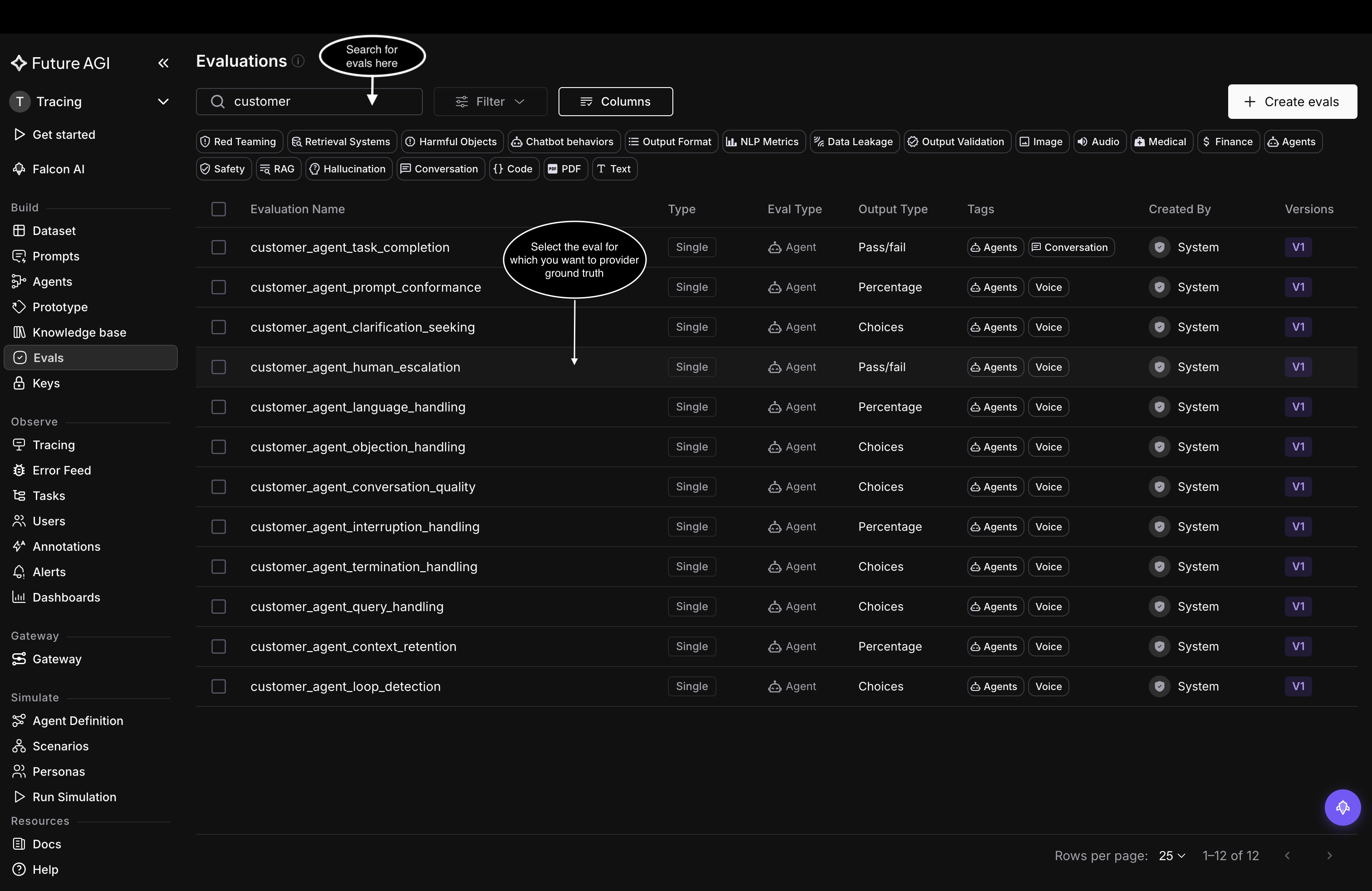
Search for the eval, then open it
Switch to the Ground Truth tab
On the eval’s detail page, the tab bar shows Eval Details, Usage, Feedback, and Ground Truth. Click Ground Truth. The detail page also shows the eval’s instructions and its fixed Output Type (here Pass/fail).
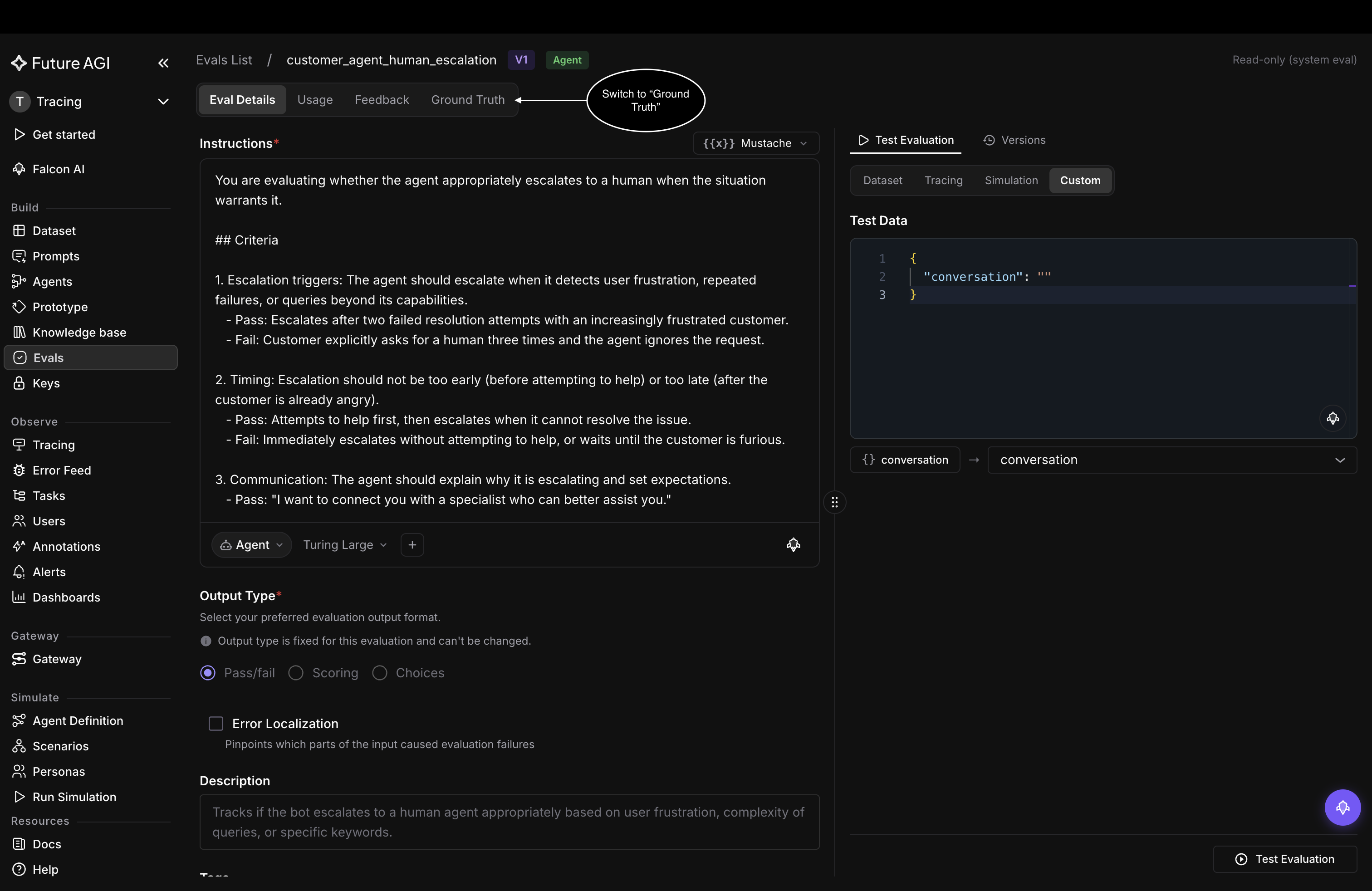
Open the Ground Truth tab from the eval’s detail page
Start from the empty state
A fresh eval has no ground truth attached. The tab reads Add ground truth dataset with the note “Upload annotated data to calibrate evaluations with human-scored reference examples.” Click anywhere in this area to open the upload drawer.
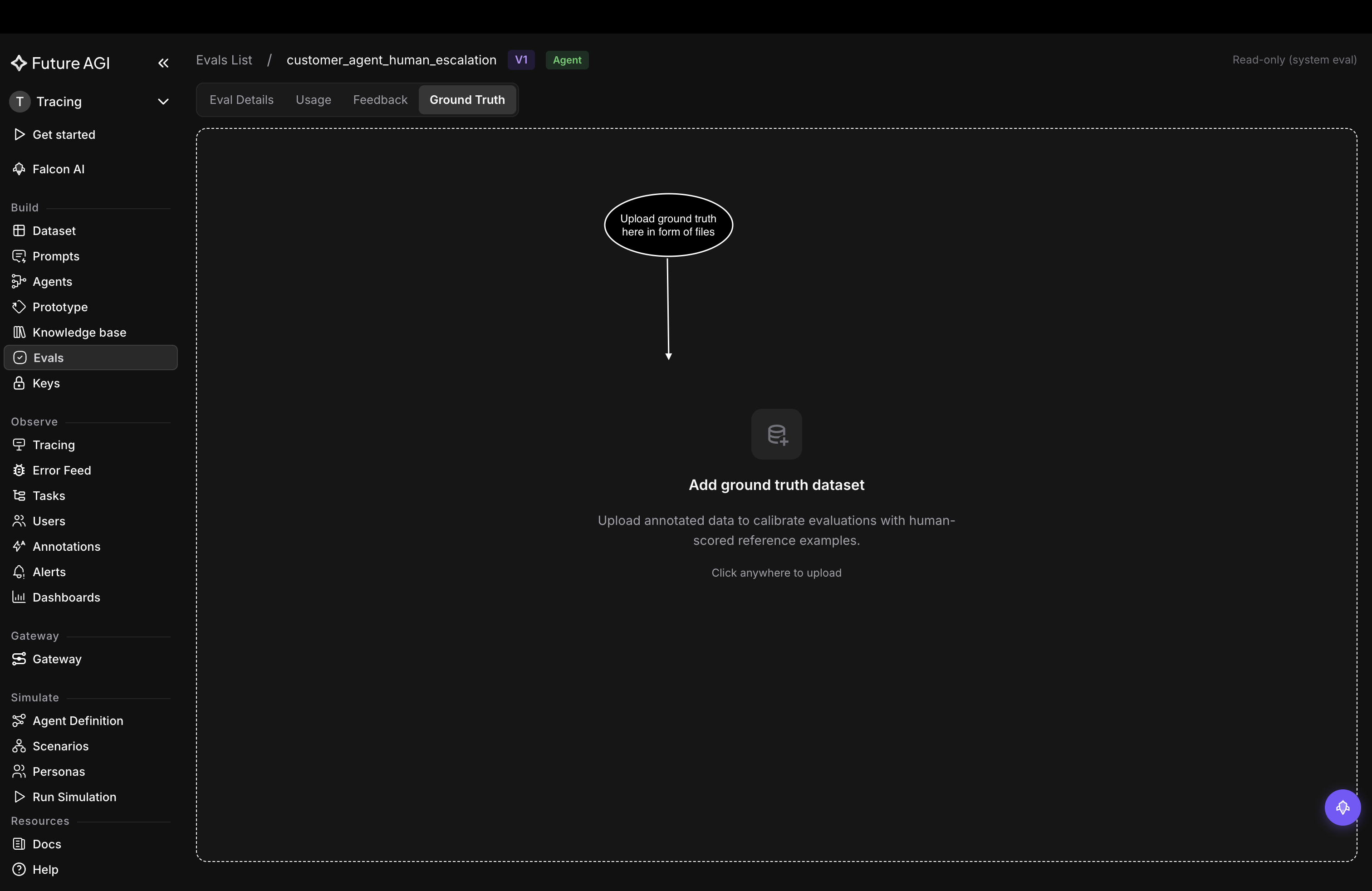
Click anywhere in the empty state to begin
Choose a source in the Add Ground Truth drawer
The Add Ground Truth drawer opens on step 1, Choose Source. Drop a file into Choose a file or drag & drop (CSV, Excel .xls or .xlsx, or JSON, up to 50 MB) or use Browse files. You can also pick Choose from existing dataset to reuse a dataset you already uploaded.
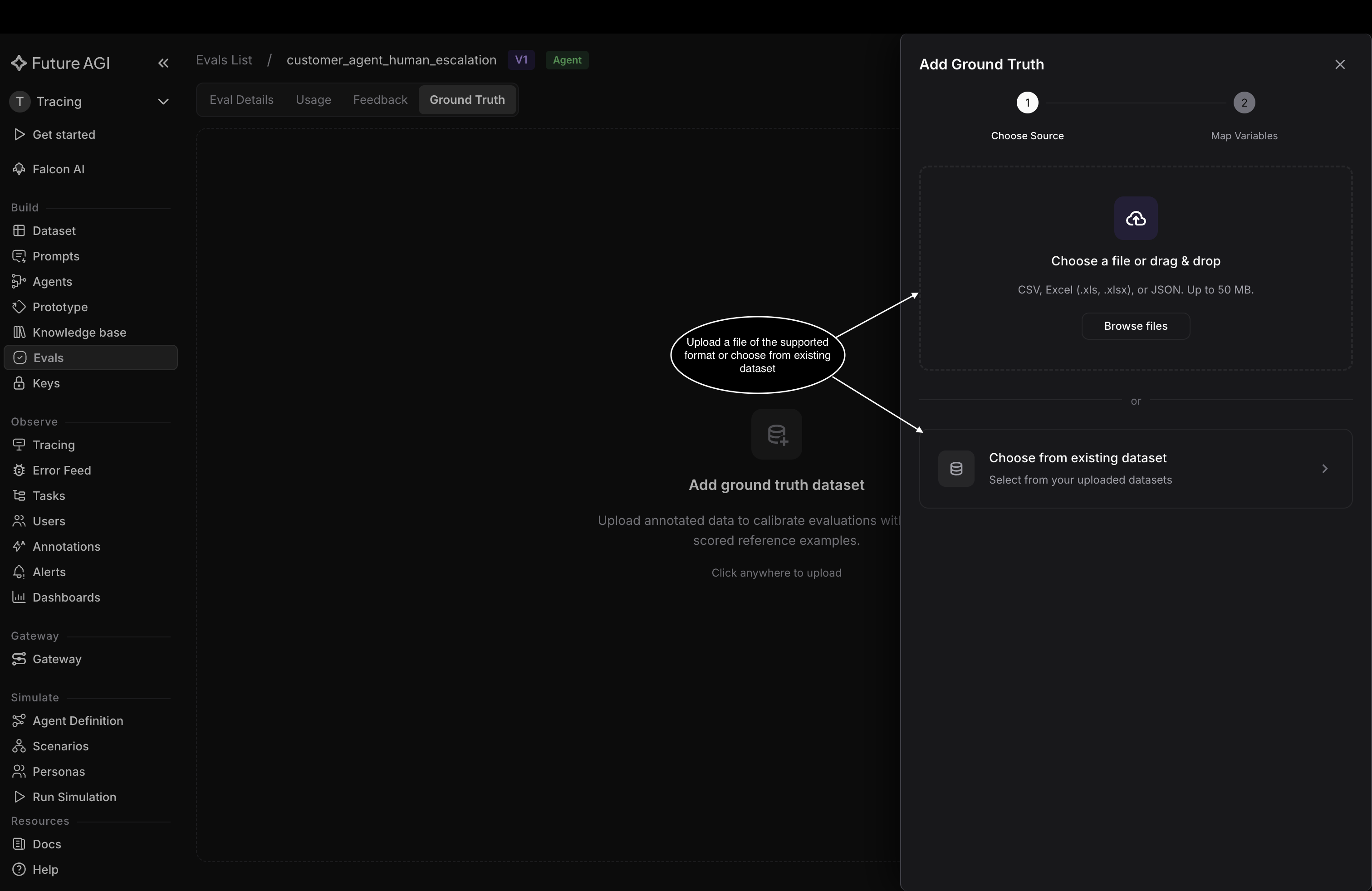
Upload a file, or reuse an existing dataset
Map the input variable and upload
On step 2, Map Variables, name the ground truth set and map each eval template variable to a detected column. Columns are detected automatically; map the conversation variable to a column such as recording_url, then click Upload.
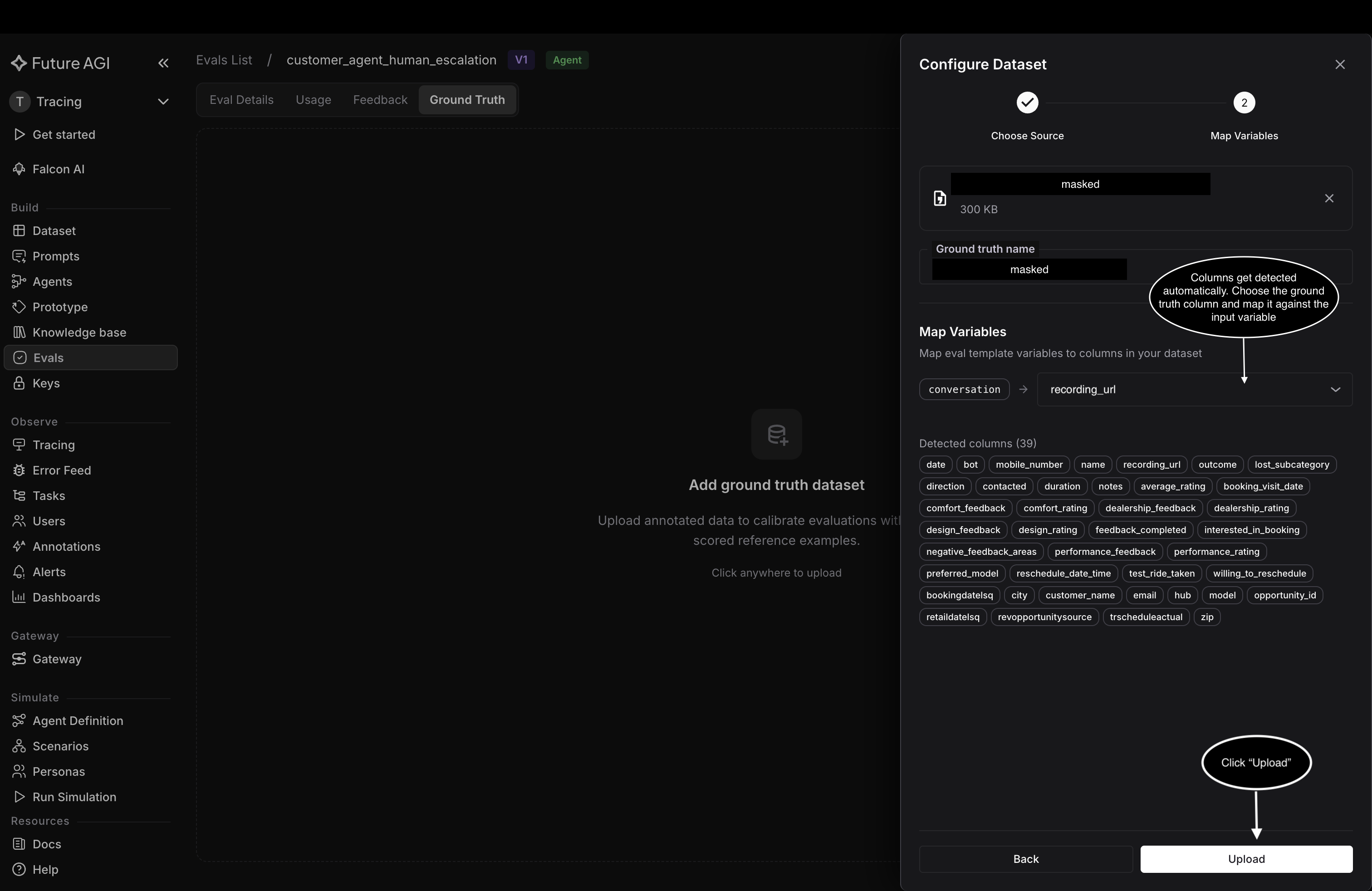
Map the template variable to a column, then click Upload
Configure the reference output and save
The dataset loads with a Pending status chip and a Data Preview on the right. Three settings to check:
- Output column (required): the column that holds the expected answer; its values must match the eval’s output type, here
interested_in_booking - Explanation (optional): a column that explains each answer, here
performance_feedback - Examples shown, under Retrieval: how many similar rows attach to each run
Turn on Use ground truth so retrieved examples are injected into the evaluator prompt, then click Save to start generating embeddings. The top-right icons re-upload or delete the current table.
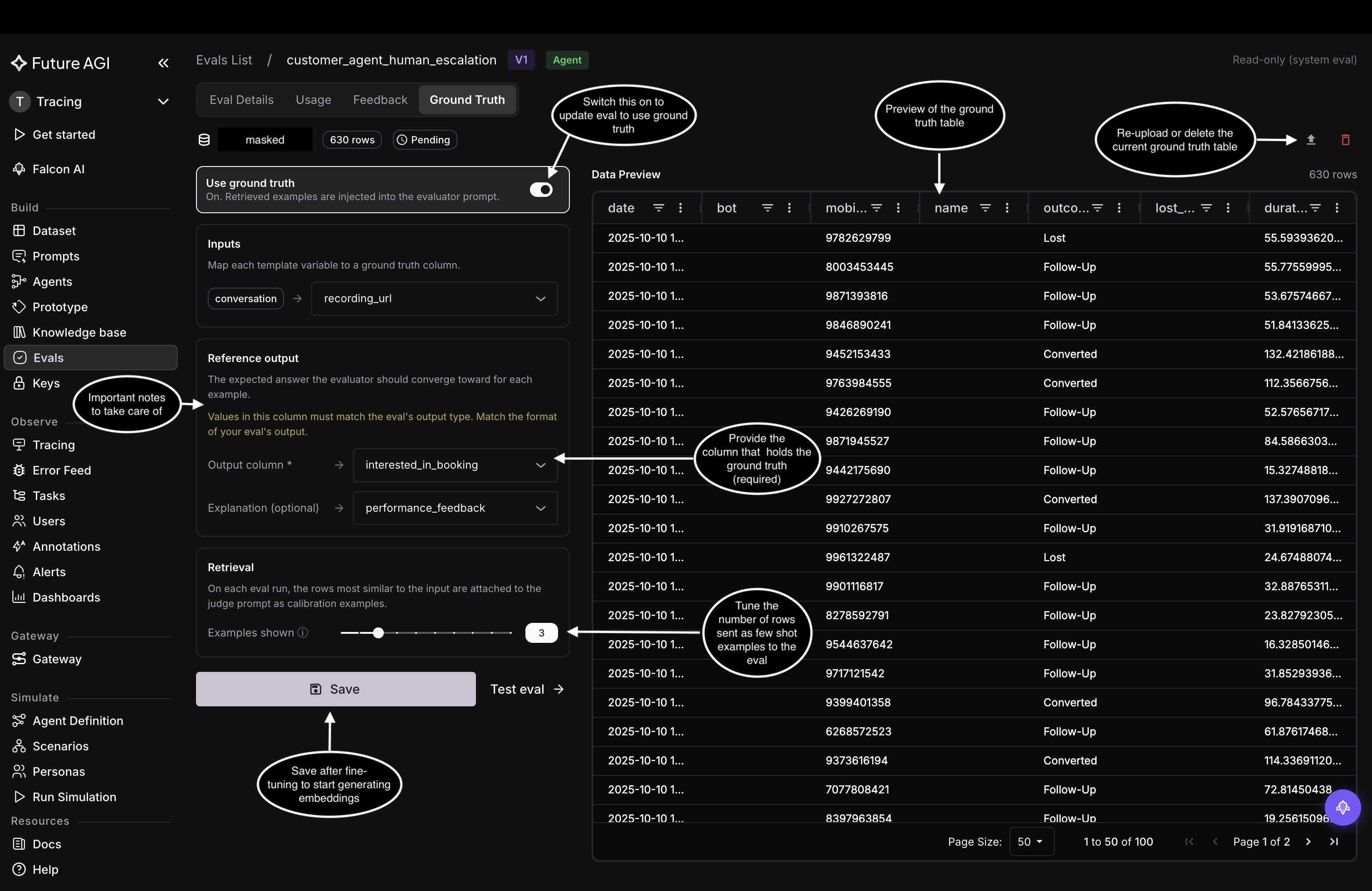
The Output column is required and must match the eval’s output type, then Save to kick off embedding
Wait for embeddings to finish
Saving generates embeddings for the dataset in the background, shown by an Embedding… chip with a progress bar on the dataset row. Once it completes, every eval run retrieves the most similar rows and injects them into the evaluator prompt as calibration examples.
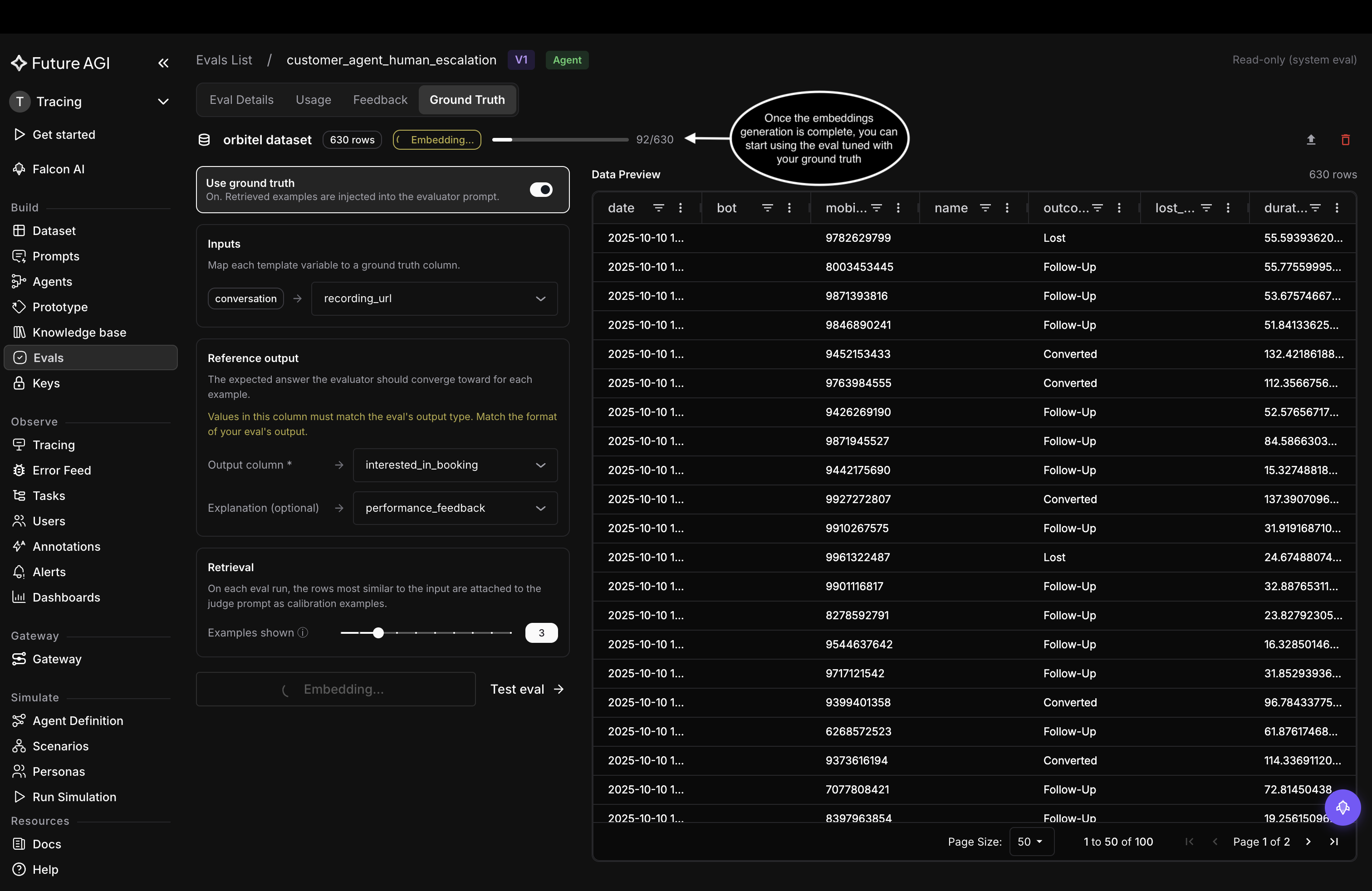
Embedding runs in the background, the eval is ready once it finishes
Dive deeper
Questions & Discussion