Instant eval
Ask Jev a yes/no or category question about traces, spans, sessions or users in an Observe view, then inspect and export the answers.
About
Instant eval asks the same question about the items in an Observe view. Jev reads each item and returns Yes / No, or one of the categories you define. You can read a sample first, extend it, or read every item within the run limit. Answers appear as they finish; you do not have to wait for the whole run.
Instant eval is an Enterprise feature. A self-hosted license must list instant_eval; Cloud plans include it. It also needs your organization’s own TypeSafe key in Settings > AI Providers. The Enterprise license does not supply a TypeSafe key. Jev evaluators themselves are available in every edition, including open source.
When to use
- Check a specific question, such as whether the assistant resolved the request or asked for information already supplied.
- Assign known categories, such as billing, account access and product questions, to a view’s traffic.
- Compare answers across time, users or models, and open the underlying examples.
- Test a question on a sample before turning it into an evaluator for new traffic.
Use Insights when you want the analysis to discover categories and write findings, rather than answer a fixed question on every item.
How to
Choose the Observe view
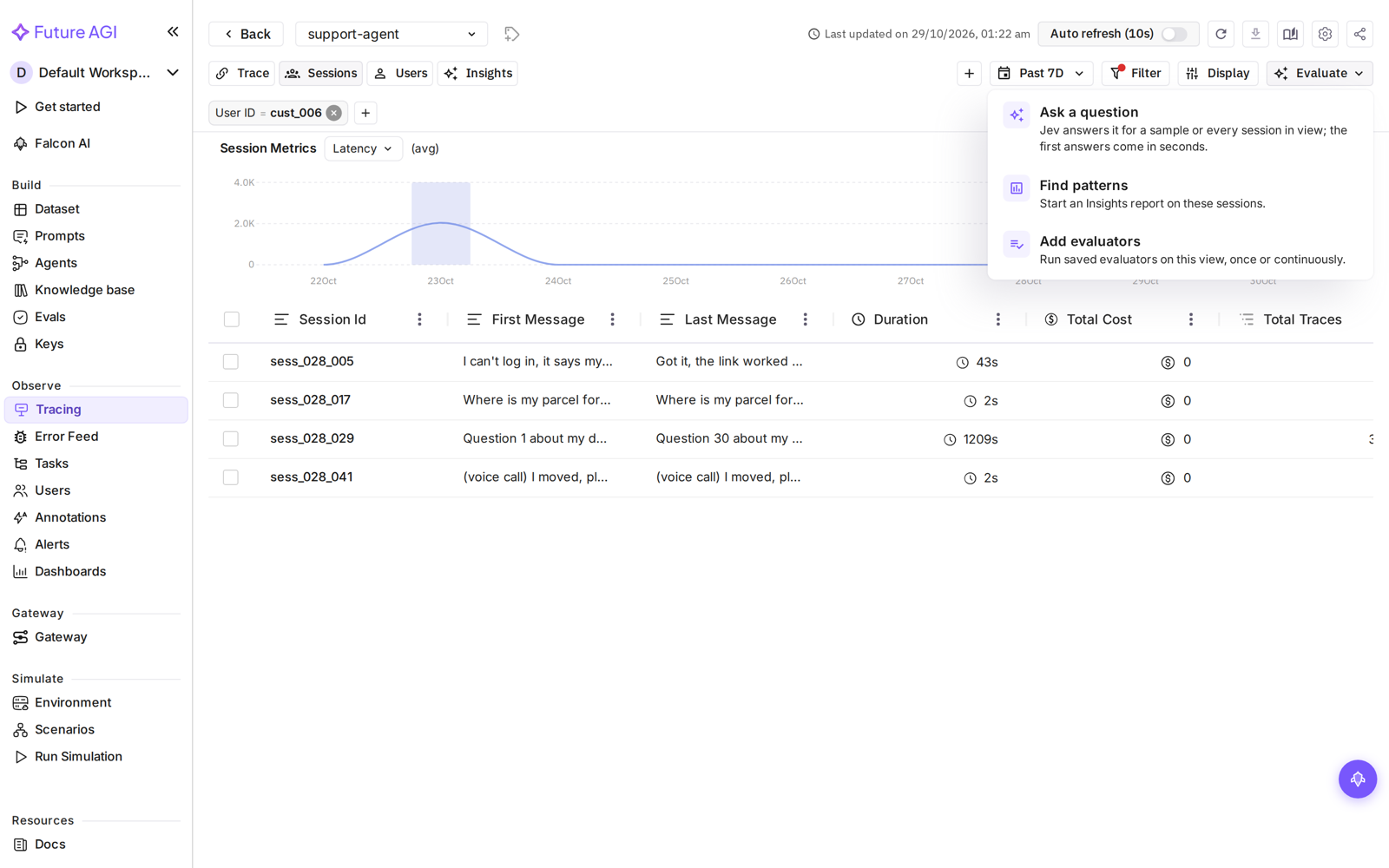
Open an Observe project. Choose Traces, Spans, Sessions or Users, then set the date range and filters. Open Evaluate > Ask a question.
The Ask page carries over the view’s scope. Review it before starting: a question about sessions reads conversations, while a question about spans reads individual operations.
Write the question
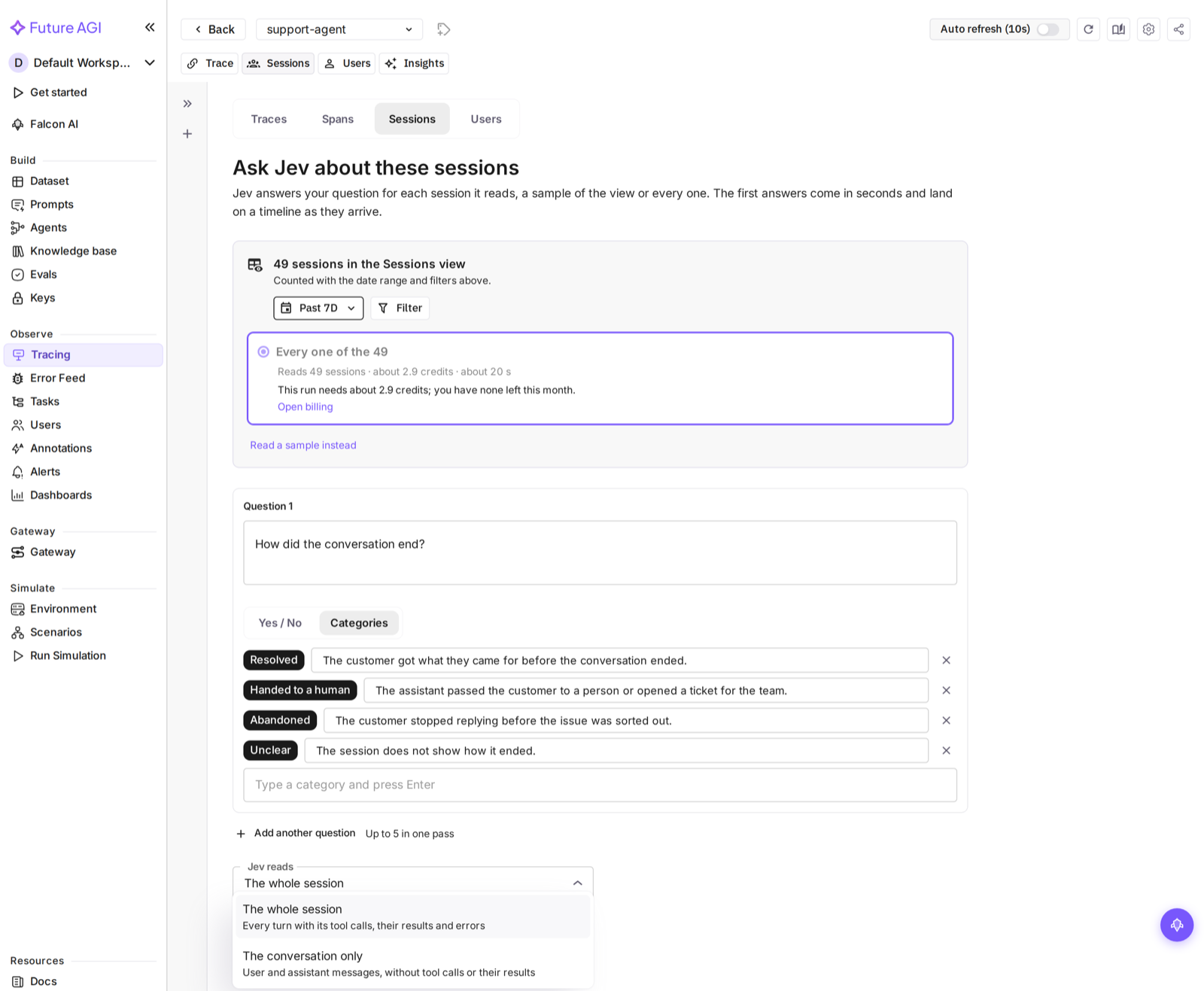
Choose Yes / No or Categories. For a category question, enter between 2 and 10 distinct category names. Add definitions when the labels alone are not enough to distinguish them.
Choose what Jev reads:
| Unit | Reading options |
|---|---|
| Traces | Input and output, the whole trace, input only, or output only |
| Spans | The span’s input and output, input only, or output only |
| Sessions | The whole session (the default): every turn with its tool calls, their results and errors. Or The conversation only: user and assistant messages, without tool calls or their results |
| Users | The same two options, for each sampled session |
You can include up to five questions in one run. Each question produces its own answer.
Every reading option is a bounded text version of the item, about 60,000 characters at most, not an unlimited copy. Nothing is left out without a mark:
- The whole trace and the whole session shrink each span’s input and output first. If that isn’t enough, they leave out spans in the middle of a trace but keep its first and latest spans and every span that errored, and mark each gap. A session gives every turn an equal share; past 39 turns, middle turns are left out and marked.
- The conversation only clips each message to 4,000 characters and leaves out middle turns of a long session.
- Any final cut reads
[… cut to fit …].
Questions about whether the agent did something (“did it resolve the issue?”) usually need the whole session: a failed tool call is often visible only in its result. Open the source item to check anything marked as left out.
Review the sample and estimate
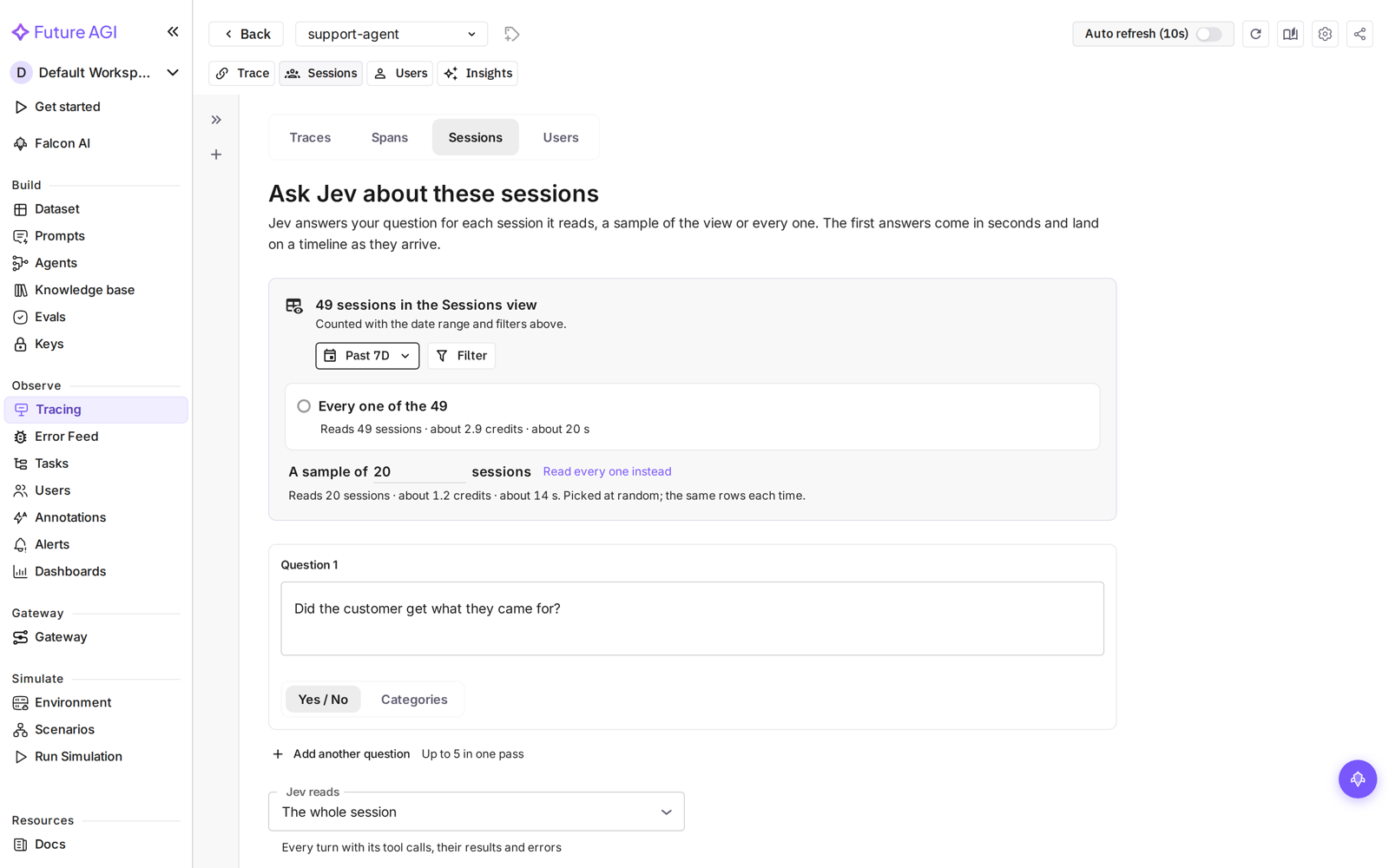
Choose a sample size, enter a custom size, or select every item in view. Review the estimated items to read and duration. On Cloud, the page also shows a credit estimate before you start. TypeSafe usage is charged to your own TypeSafe key separately.
Large runs require confirmation. If the view exceeds the run limit, choose a smaller sample or narrow its filters or date range. If the organization already has the maximum number of active runs, wait for a run to finish.
Select Ask Jev after reviewing the scope and estimate. For a large run, review the additional confirmation and select Start.
Inspect the answers
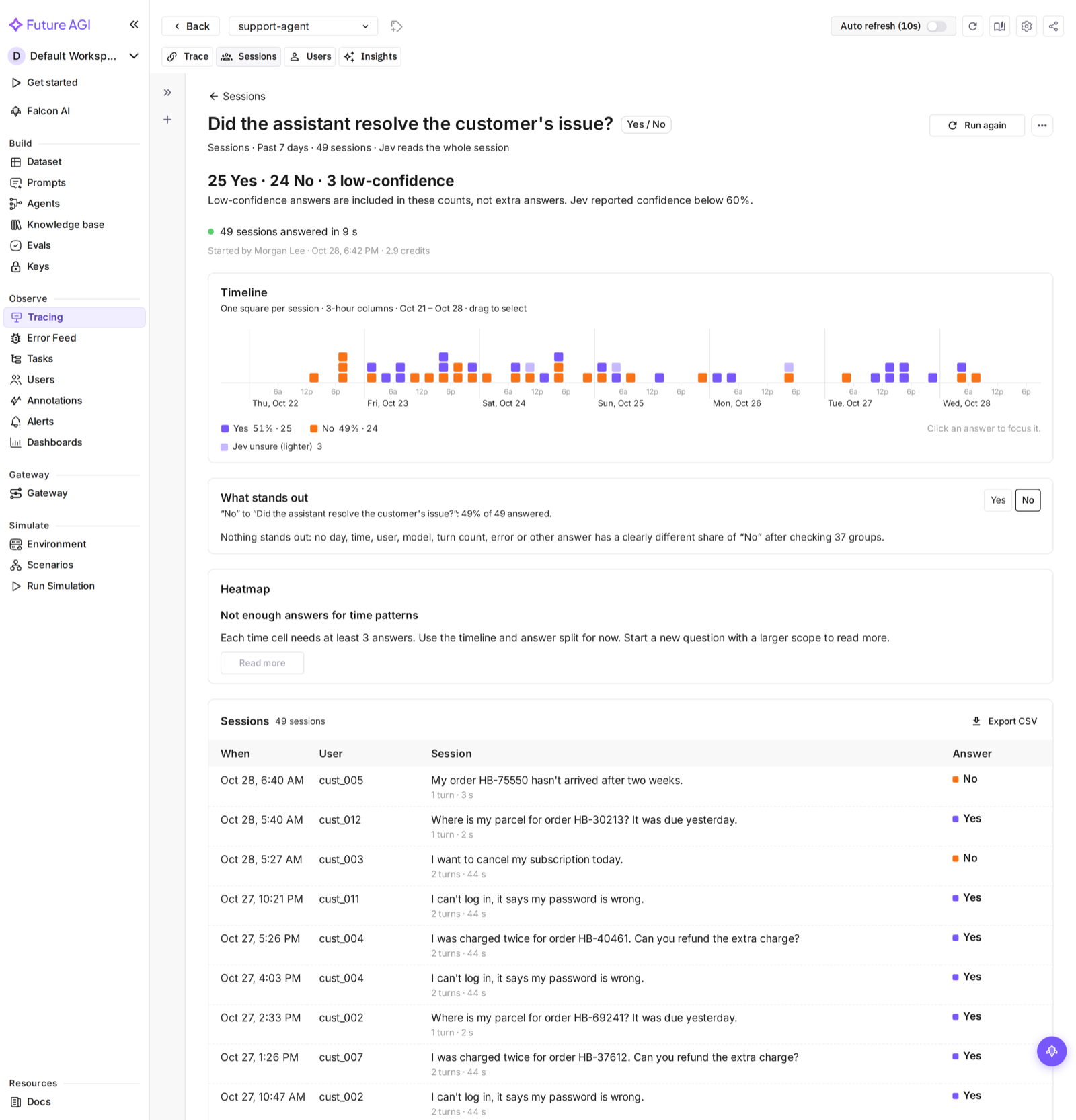
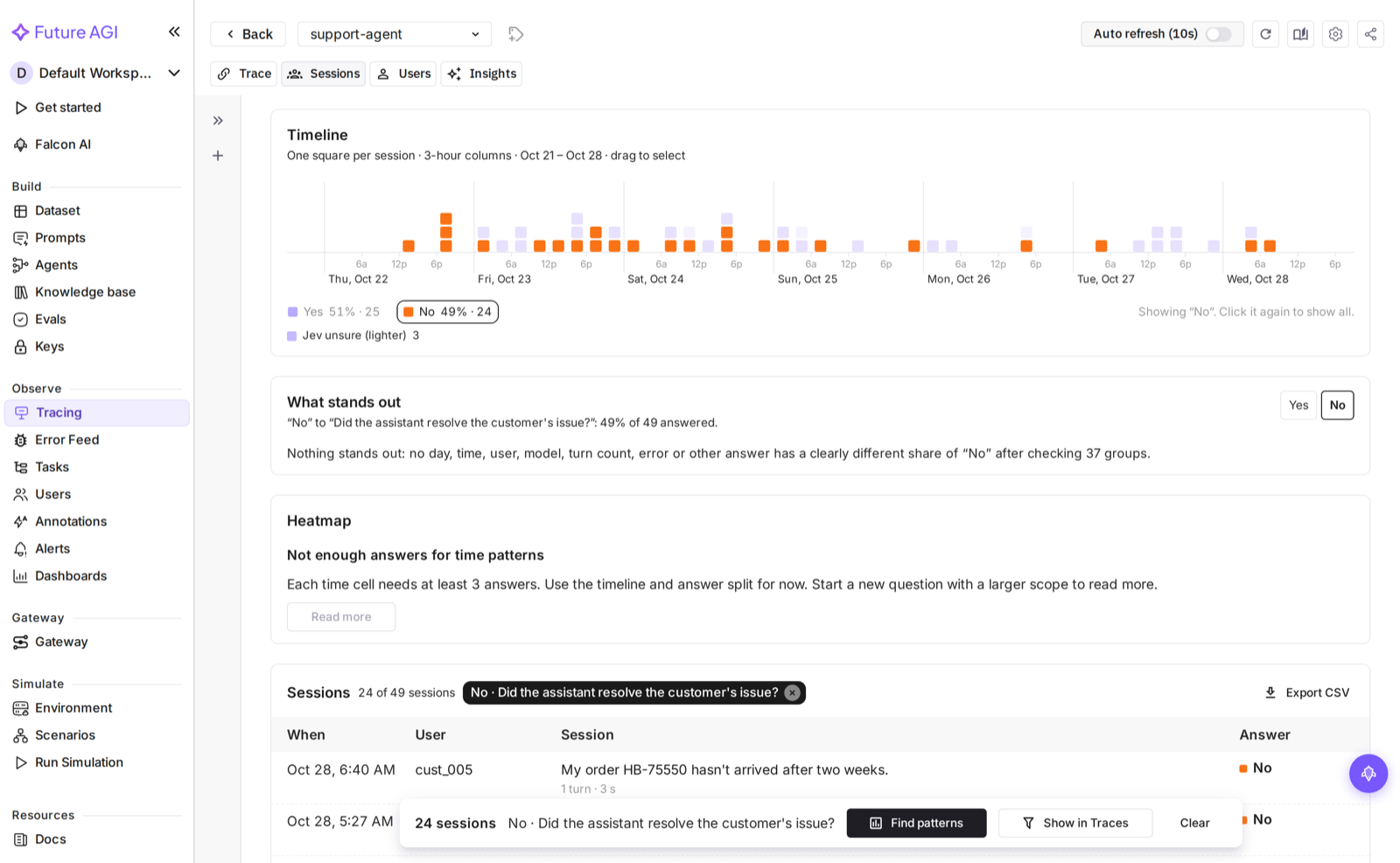
Watch answers arrive in the results table and charts. Select a question to inspect its answers. Select an answer, time range or group in a chart to narrow the table, then open an item to check the source evidence.
Use Read N more or Read all N to extend a sample without starting a separate run. The existing answers remain part of that run.
Save, export or continue
Reopen previous runs from the history rail. Use Export CSV to download the rows matching the current result selection, not just the first rows visible in the table.
Where your organization has a trace retention policy configured, a saved run can become unavailable when its source data expires. Deleting source data can also make an affected run unavailable. The whole affected run is removed, rather than preserving partial answers or copied text. Ask the question again over data that is still retained.
For trace and span runs, Keep answering new traces or Keep answering new spans creates a live evaluation task using the questions and view filters. Review its confirmation, then use View task to manage it. This is not offered for session or user runs, or runs handed over as an explicit list of item IDs.
Reading the charts
- Timeline shows how the answers vary over time. Select a range to inspect its rows.
- Heatmap shows the distribution across time cells. When there are too few answers per cell, it shows a low-data message instead of implying a pattern. Read a larger sample or use the timeline and table.
- What stands out highlights groups whose answer distribution differs from the rest of the run. These are leads to inspect, not proof that a model or time period caused an outcome.
Charts describe the answers already read. A sample is not a count of every item in the source view.
Pause, resume and recover
| Action | What it does |
|---|---|
| Pause | Stops scheduling more work. Answers already in flight can still arrive. |
| Resume | Continues a paused run. |
| Cancel | Asks you to confirm, then stops the run and keeps answers already returned. |
| Retry N rows | Retries the failed rows without rerunning successful answers. |
| Read N more / Read all N | Extends the same run to more items, within its row limit. |
A cancelled run can’t be resumed, retried or extended; ask the question again instead. Extending becomes available once the answers in flight have settled. If a paused or stopped run still has unread rows, resume it before retrying failures or extending the sample.
On Cloud, actions that read more answers are subject to the credit check. A run whose estimate would go past an AI Credits budget with the Pause action is refused before it starts; the message says what the budget still allows and offers a sample that fits. These checks do not reserve credits: runs started together can still cross the limit. Total spend budgets are enforced after usage is recorded, not by this estimate check.
Starting, resuming, retrying and extending a run also require a usable TypeSafe key. If no row could be answered, the run says why at the top (for example, TypeSafe rejected the saved key) with a link to AI Providers and Retry.
Viewers can open runs, charts and exports but can’t start, control or extend runs.
Users: one answer per user
A Users run selects users from the view, then reads up to five of each user’s latest sessions within the selected time window. Jev answers the question on each session. The results then roll those answers up so that each user is counted once per question in the charts, table and default CSV export.
For users with mixed session answers:
- The most frequent successful answer wins.
- A tie is broken by the most recent session carrying a tied answer, and the user counts as low-confidence: their confidence is scaled by the winning answer’s share of their sessions, and the table marks the tie.
- A user stays pending while their sessions are still being answered. Failed sessions are not votes; if no usable answer remains when work finishes, the user has an error rather than an invented answer.
For example, a user with two Yes sessions and one No session is counted once under Yes, not under both answers. The timeline places the user at the start of their latest sampled session. Export sessions downloads the underlying session rows when you need to inspect the rollup.
A Users count may initially show a lower bound such as 1,500+ while filters are being resolved. If starting reports that users are still being counted, retry or narrow the scope; the count continues from its saved progress.
Hand over to Insights
In a trace, session or user run, select an answer or group of results, then choose Find patterns. This opens Insights with the selected items so you can investigate what they have in common. Find patterns accepts at most 5,000 selected items; narrow a larger selection first. Insights then analyzes a report sample from that selection. Span runs do not offer this handover. Insights requires its own insights license feature; access to Instant eval alone does not unlock it.
Limits
| Limit | Default |
|---|---|
| Rows read by one run | 100,000 |
| Explicit confirmation | More than 5,000 rows |
| Active runs per organization | 2 |
| Questions per run | 5 (fixed) |
| Categories per category question | 2–10 (fixed) |
A self-hosted administrator can change the row cap, the confirmation threshold and the active-run limit in the configuration reference. The question and category limits are fixed.
The row budget counts traces, spans or sessions. For Users, it reserves five session rows per selected user, so the default cap permits at most 20,000 users. The confirmation threshold also uses that session-row budget, not the number of users.
Next steps
Questions & Discussion