Build an environment
Connect your agent from a repository, a code upload or a hosted voice platform, and build an environment around it
You don’t write any part of an environment yourself. The builder reads your agent into a contract and builds the rest from it: the world its tools act on, the scenarios, and the grading. This guide connects an agent, runs preflight and starts the build.
Before you start
Pick the way the builder will reach your agent, and check it meets what that way needs:
| Source | Use it when | Your agent needs |
|---|---|---|
| Source repository | The agent’s code is on GitHub | A Docker Compose file or a Dockerfile that starts it; a chat agent also accepts conversations over HTTP, in its own format or the OpenAI-compatible one, or over a JSON WebSocket |
| Code upload | The code is on your machine and you can’t push it to a git host | The same as a source repository |
| Hosted platform | The agent runs on Vapi, Retell AI or LiveKit, or answers a phone number | Its ID on the platform and its credentials, or its phone number |
The builder finds how to start the agent and how to talk to it by reading its code, so there are no endpoint fields to fill in. The builder runs your agent as you ship it. It never writes missing tool code or swaps in a different database, so if the agent can’t start as shipped, the build stops and says why. Supported agents lists every source and platform in full.
Open the Build environment tab
Go to Environment under Simulate in the sidebar. The page opens on Build environment; My Environments next to it lists every environment you have built, with its status, agent type, and counts of tools, scenarios and runs.
Under Or connect your own agent, choose Source repository, Code upload or Hosted platform. The form for that source opens below it.
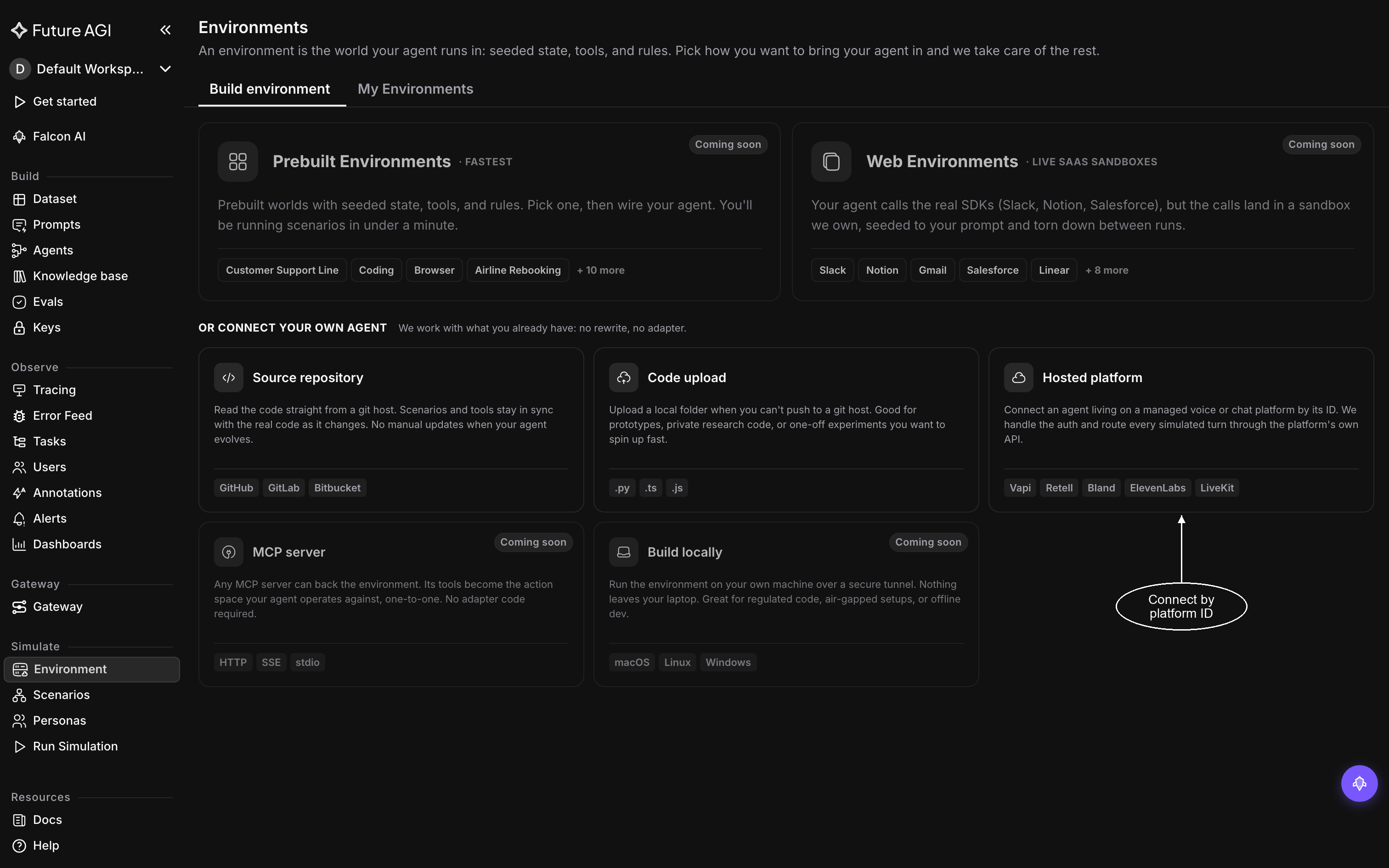
Pick how the builder reaches your agent under Or connect your own agent
Note
MCP server, Build locally, Prebuilt Environments and Web Environments also appear on the page, marked Coming soon.
Connect a source repository
On Source repository, GitHub is the supported host; GitLab and Bitbucket are listed but not yet available. Fill in:
- Repository: the repository as
owner/repo - Branch or tag: what to read,
mainby default - Entry path, optional: the file that defines the agent, such as
src/agent/index.ts - Visibility: Public needs nothing else, and Private asks for a GitHub App installation ID, the GitHub App installation that grants read access to the repository
- Turn on observability, optional and off by default: see Turn on observability
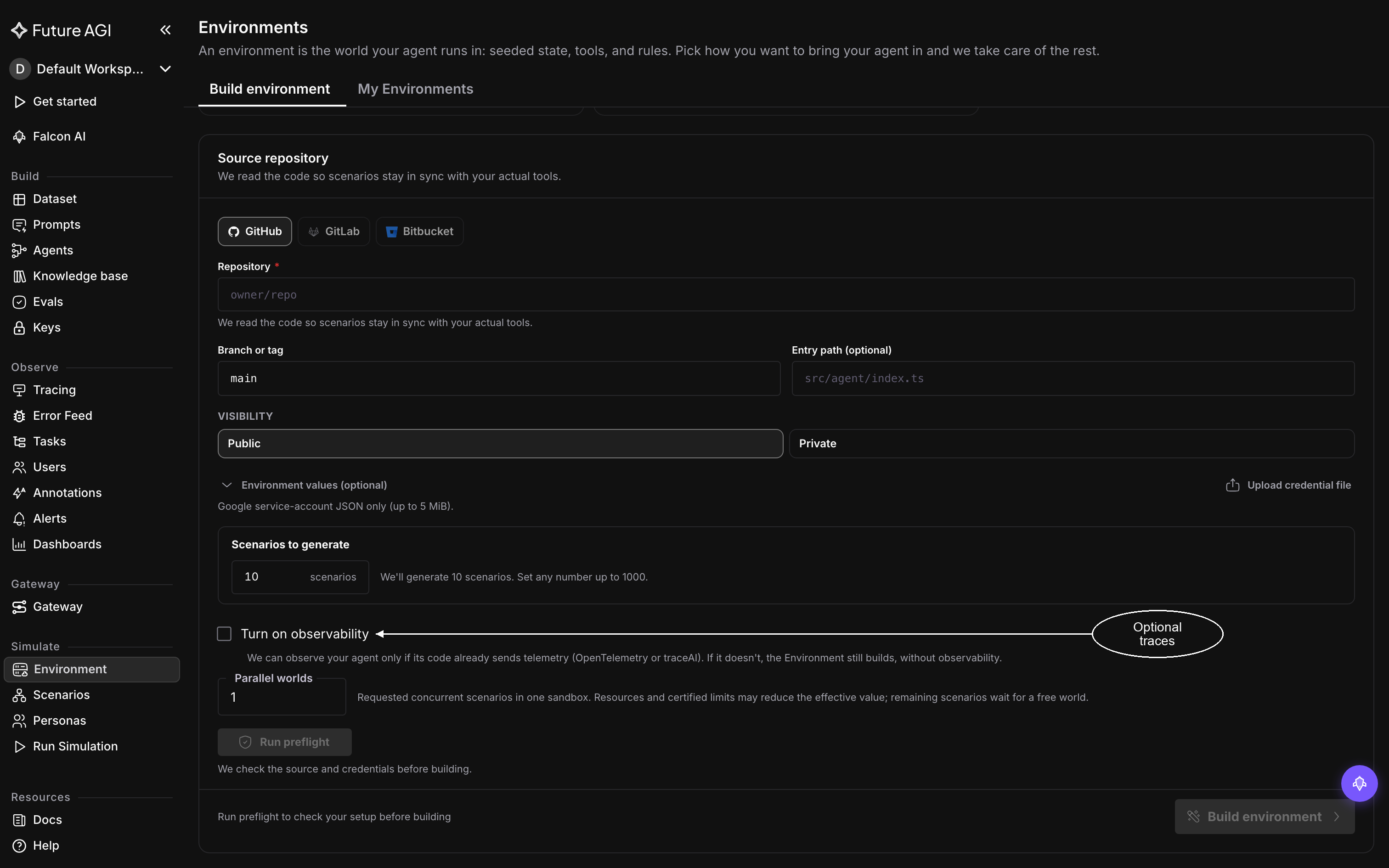
A public GitHub repository needs only its owner/repo name and a branch
Connect a code upload
On Code upload, click Choose folder under Upload your agent folder and pick the folder that holds your agent. A copy is uploaded, and .env files and generated dependency folders are left behind. Then name the Entry file that defines the agent. Turn on observability is on this form too, and works the same way as on a source repository.
If the folder holds too many files to upload in one go, upload your agent’s own source or a smaller subfolder.
Connect a hosted voice agent
On Hosted platform, set Agent type to Voice and pick the Platform:
- Vapi: the Assistant ID and a Vapi API key
- Retell AI: the Agent ID and a Retell API key
- LiveKit: the Agent name, the LiveKit URL of your LiveKit server, a LiveKit API key and LiveKit API secret, and the agent’s System prompt, since LiveKit doesn’t expose it. The prompt only seeds scenarios and never changes the live agent
- Others: any agent that answers a phone number; paste its System prompt so the builder has its instructions to read. The prompt only seeds scenarios and never changes the live agent
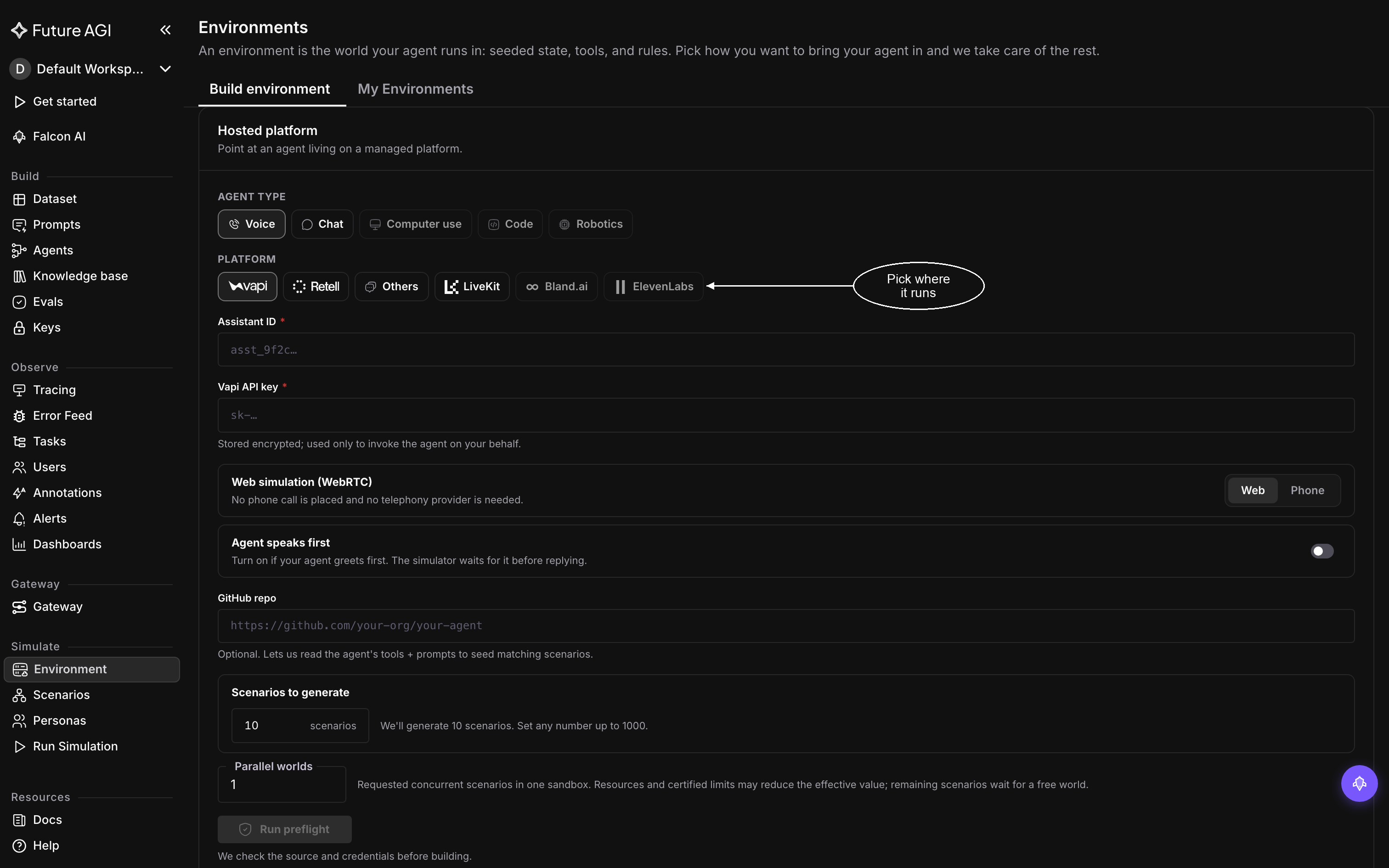
A hosted voice agent is its platform, its ID and an API key
API keys are stored encrypted and used only to call your agent. Then choose how the simulated caller reaches the agent:
- Web: a web call, with no phone call placed and no telephony provider needed
- Phone: a real phone call, which asks for a Country Code and the Contact Number to call
Others is always Phone, since a phone number is all the platform has to reach it, and LiveKit is always Web, so neither shows the choice. In Phone mode, Inbound Calls decides which way the call runs: on, the simulated caller rings your agent; off, your agent places the call. With Others it stays on, because the platform always calls your agent’s number.
Two settings are optional:
- Agent speaks first: turn it on if your agent greets the caller before they say anything, so the caller waits for the greeting
- GitHub repo: when the agent’s code is also on GitHub, the builder reads its tools and prompts from there as well, and writes scenarios that match them more closely
Connect a hosted chat agent
On Hosted platform, set Agent type to Chat. Retell AI is the supported chat platform: give the Chat agent ID and a Retell API key.
Add environment values
Values you add here are set when the environment is built and can’t be added or changed afterwards, so add everything the agent needs now. Expand Environment values (optional):
- Paste .env contents: what your agent reads at startup, one
NAME=valueper line, such as an API key it calls - Additional egress domains: public hostnames your agent must reach, such as an API it calls by name; everything else is blocked
Beside the expander, Upload credential file takes a Google service-account JSON file, up to 5 MiB, if your agent needs one.
The Settings tab lists the values afterwards, with secret values never shown.
Turn on observability
On a source repository or code upload, tick Turn on observability to have the build turn on observability for your agent, with its own Observe project for the traces it sends. It only works if your agent’s code already sends telemetry, through OpenTelemetry or traceAI; nothing is added to your code.
It never blocks a build. If observability can’t be turned on, the environment still builds without it, and the workspace shows a warning that starts Observability was not turned on, followed by the reason.
Choose how many scenarios and worlds
Scenarios to generate is how many scenarios the builder writes, 10 by default and up to 1000. You can add more from the chat orchestration after the build.
Parallel worlds is how many scenarios run at the same time, each in its own copy of the world, from 1 to 4. It is a request: if the agent can’t run in parallel, for example because it listens on a fixed network port, the environment runs fewer at once and says why, and the remaining scenarios wait for a free world.
Run preflight and build
Click Run preflight. It checks the source and the credentials before anything is built, and reports Ready to build or what needs attention. Credentials need attention means an API key, an ID or an installation ID is wrong or can’t reach the agent: correct the field it flags and run preflight again.
Click Build environment. The workspace opens straight away, under Setup: building the environment, and fills in as the build lands each step:
| Step | What it does |
|---|---|
| Understanding agent | Reads tools, prompts, guardrails and data from the source, and writes the contract |
| Generating environment | Derives the world the tools act on |
| Building environment | Wires each tool so a call changes real state |
| Validating environment | Exercises every tool, which has to answer truthfully, including a truthful refusal |
| Generating data | Seeds the awkward rows the use cases actually need |
| Generating scenarios | Drafts scenarios from the real use cases, each with its sub-goals |
| Validating scenarios | Checks every scenario before it is kept |
The contract written by the first step is the record everything after it is built from. For an agent connected only through a hosted platform, the environment steps have little to do: its tools run on its own service, so there is no world to seed. On a large suite, scenario validation is usually where the time goes: every scenario has to pass its checks before it is kept, and one that fails is rewritten rather than dropped.
You can leave and come back; the page fills in as each stage lands. The status beside the environment’s name tells you where it is:
| Status | What it means |
|---|---|
| Building | The build is working through its steps |
| Finalizing | The last step is wrapping up |
| Ready | The environment can run; you can edit it through chat orchestration or inline |
| Failed | The build couldn’t finish; the reason is on the step that failed |
| Cancelling, Cancelled | You stopped the build and its sandbox is being cleaned up, or has been |
When it reads Ready, the next step is to review the contract it was built from. When it reads Failed, Environment FAQ & fixes covers the common causes.
Dive deeper
Questions & Discussion