Import evidence
Turn Observe sessions and calls, dataset rows or transcripts into reviewed scenarios, then run an epoch on them
The conversations that went wrong with real callers make the best tests. Import evidence turns them into scenarios in your environment, and you review each one before it joins the suite. Once they’re in, an epoch can fix the failures they show.
Note
A regression test is a scenario that records something a real customer did. Evidence from production becomes one. A conversation from a Simulator project always becomes a plain test, because no customer was in it. Transcripts and dataset rows become regression tests only if you mark them as production when you import them, and the mark can’t change afterwards.
Import from Observe
Open the Observe project and go to its sessions, or to its voice calls for a voice agent. Tick the ones you want, up to 20 at a time. Tick them one by one: Select all isn’t available for this.
In the bar that appears above the list, open Actions and choose Create environment test. Choose the Environment to add them to, and click Create environment test again. Nothing runs yet, and nothing joins the suite until you add it.
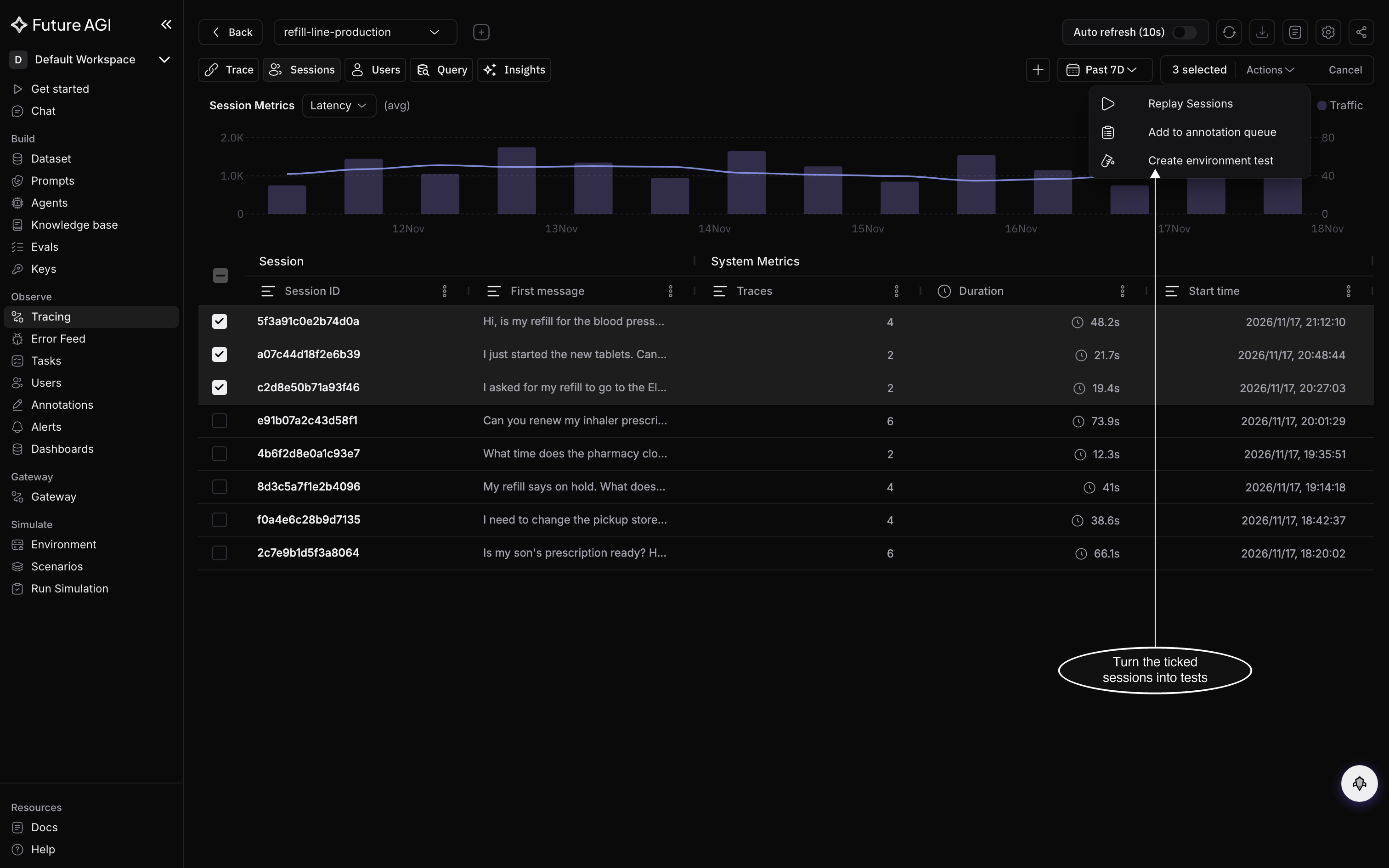
Tick the sessions where your agent went wrong, or where it got something right that it must keep doing
The environment opens on its Scenarios tab, with the import ready to review.
Import dataset rows
Open the dataset, tick the rows, up to 20 at a time, and click Create environment test. Then tell it how to read the rows:
- Conversation column: the column that holds the conversation, as chat messages in JSON or as lines that start
User:orAgent:. Audio-only rows aren’t supported yet - Label columns (optional): up to 10 columns read as context, such as the caller’s intent
- Expected outcome column (optional): what should have happened. The scenario’s expected behavior is written from it, and the environment’s rules win if the two disagree
- These rows come from production: tick it for rows from real conversations, to make regression tests
Choose the Environment and click Create environment test. The rows are read again from the dataset each time you review the import.
Add a transcript
On the environment’s Scenarios tab, click Import evidence, then Add a transcript. Paste a transcript, or click Upload files to add up to 20 files.
Pick the Format: JSON messages, User: / Agent: lines, or CSV with role and text. Name the transcript, tick These transcripts come from production if they do, and click Create environment test.
Emails, phone numbers, and card and ID numbers become placeholders before the text is stored. An import keeps up to 60,000 characters, shared by its files.
Import evidence also has Open Observe and Open a dataset, which take you to the other two starting points.
Review the imported cases
The Review imported evidence drawer opens on the import, such as 3 sessions from Observe. Each source is one case, and the drawer has four steps:
- Evidence: a card for each case, with what the record holds and what it’s missing, and a link back to its source. Under What should this case’s scenario be?, choose what the case becomes, such as Reproduce the failure as a regression test or Keep this success as a regression test; the card then says what the scenario keeps from the evidence and what it adds. Set every waiting case to picks one choice for all of them. A case the environment already holds shows Already imported, with a link to the existing case
- Starting state: the records your agent’s tools read first, such as an earlier refund, aren’t in a conversation. The draft marks them synthetic, so the test isn’t an exact replay
- Drafted scenarios: click the draft button at the bottom of the drawer, such as Draft 3 scenarios. This step shows how the drafting is going
- Add to the suite: click the save button at the bottom of the drawer, such as Save 3 to the suite. If the environment has unsaved changes, it reads Add 3 to unsaved changes instead; press Save in the draft bar to make them live
The drawer also says how many values of personal data become placeholders before anything becomes scenario text.
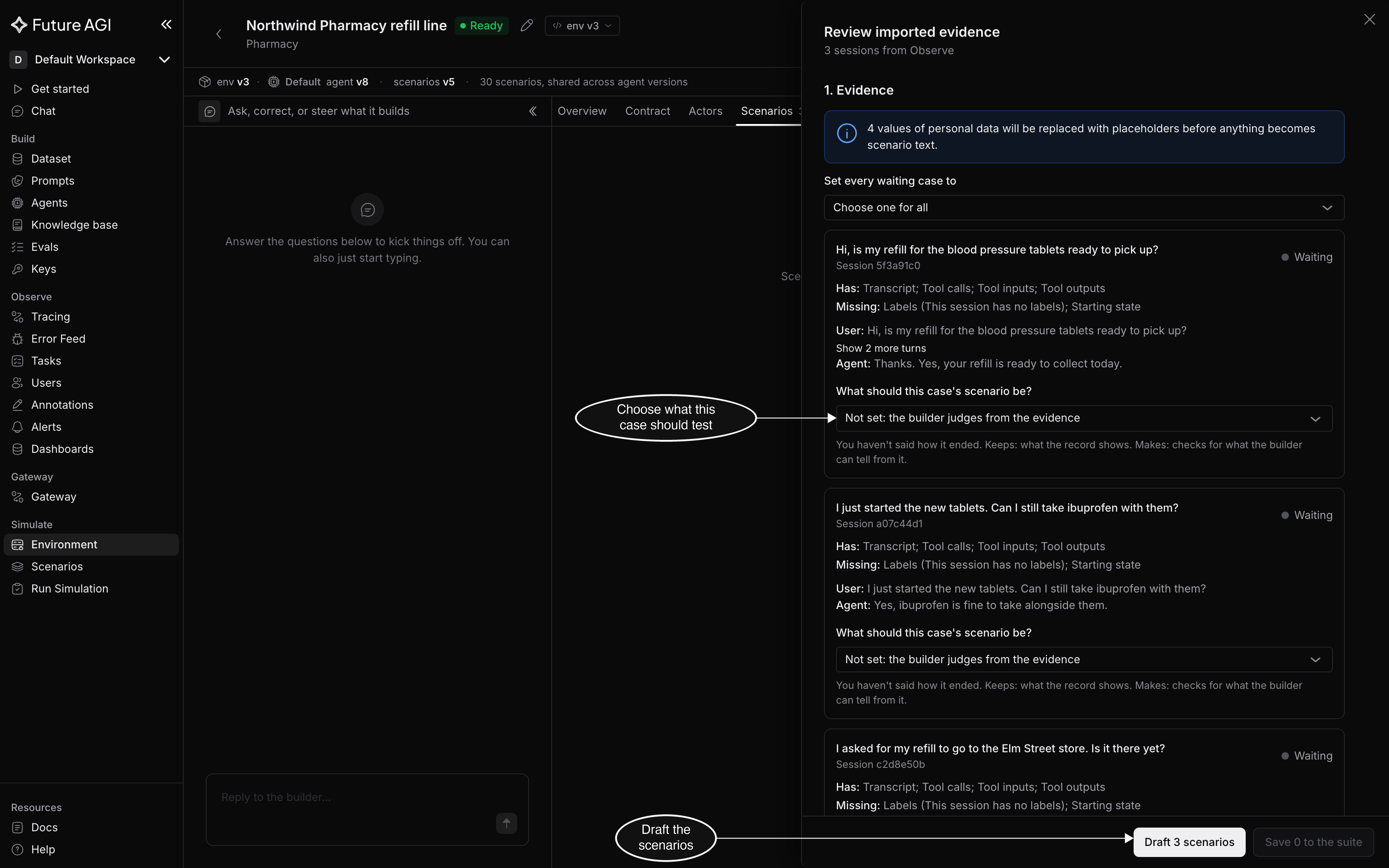
You decide what each case tests; the builder writes the scenario from that
Drafting takes up to 90 minutes, and you can close the drawer while it runs. Don’t edit the environment until it ends: an edit made meanwhile blocks the drafted cases.
Pick up an import later
Imports you haven’t finished stay under Draft imports on the Scenarios tab, each with its source and where it got to, such as drafted, not added or blocked: import again to retry. Click Resume to open its review again, or Discard to drop it. Discarding never removes cases already added to the suite.
A case is blocked when it can’t be drafted or added, for example because the environment changed after it was drafted. Import its source again; the new import replaces the blocked case.
Run Epoch on the imported failures
Once the cases are in the suite, run the environment. When the run finishes and some of its failing scenarios came from imported evidence, Run Epoch shows in the run’s header, next to Debug failures. Hover over it to see how many of the failing scenarios came from imported evidence.
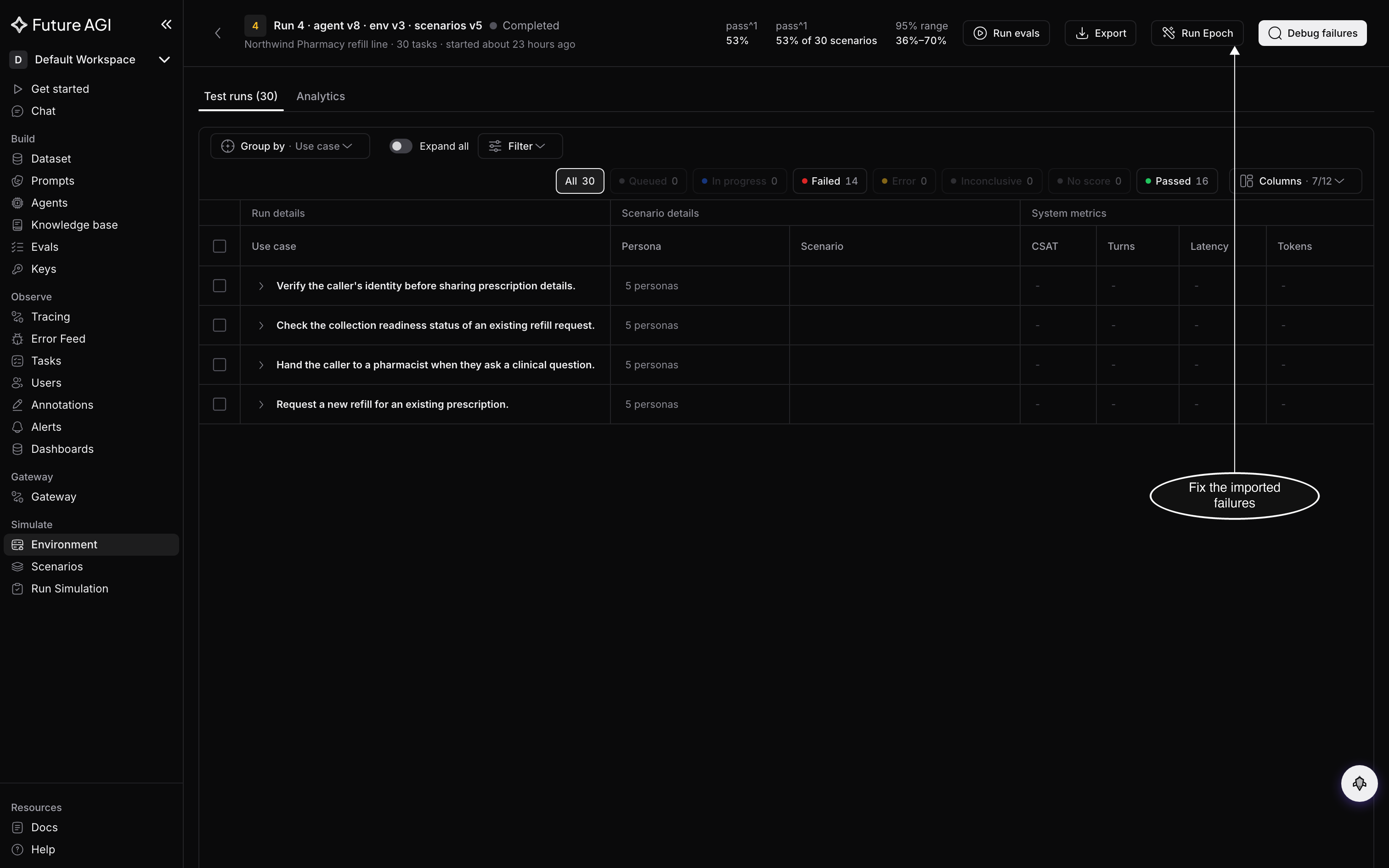
Run Epoch here starts from the failures your imported cases showed
The launch form starts with the imported failing scenarios as the cases to fix. If there are too few, it adds more failing scenarios from the run to reach the minimum, and says how many of each it picked. Run Epoch covers the rest of the form. When you ship the winner as a pull request, its description says where the cases came from.
Dive deeper
Questions & Discussion