Read run results
Open a finished run, find the calls that failed, and read each one through its transcript, recording and verdicts
A run’s results page shows every call the run played, a call being one scenario played once, how each one was graded, and the patterns across them. This guide goes from failing calls to a single call, then to the whole run, and ends with what to do about what you find.
Open the run
Open the environment, go to Runs and click a run. The header names the run, its status, the environment, how many tasks it played and when it started. If you came to find out why calls failed, Debug failures is the shortcut: it opens a diagnosis of the failing calls, covered below. The other actions beside it:
| Action | What it does |
|---|---|
| Run evals | Grade this run’s finished calls again, or with evaluations you added since; see Add evaluations |
| Export | Download the run’s results as a CSV file |
To run calls again, tick them in the table and use Re-run, covered below.
The page has two tabs: Test runs, with the call count, and Analytics.
Find what failed
Test runs has one row per call. Calls are grouped by Use case, the job each scenario tests, and Group by regroups them by Sub-goal, Accent, Age, Attack, Task or Status, or turns grouping off with No grouping. Turn on Expand all to open every group, and filter with the chips above the table:
- Failed: the agent was measured and did not pass
- Error: the call could not run, such as a connection that never came up; it never counts against your agent
- Inconclusive: the call ran but was not evaluated; it never counts against your agent either
- Passed: the agent was measured and passed
While a run is still going, Queued and In progress count the calls that haven’t finished.
Each row names the scenario and its trial, such as check-refill-status-processing · Trial 2, with its outcome and duration, and lists the scenario’s sub-goals beneath it with a mark for each one that held. The columns are grouped:
- Run details: the use case the call belongs to
- Scenario details: the Persona the caller played, with their name, voice, age and traits, and the Scenario
- System metrics: CSAT, Turns, Latency and more, with values past a warning threshold flagged in red
- one column per evaluation, with the call’s score. A cell with no score says why: Failed, Timed out or Not scored, with the reason when you hover it, and a dash when the evaluation doesn’t apply to that scenario or the call never ran
Group rows show averages. Columns chooses which columns show, including each evaluation on the run.
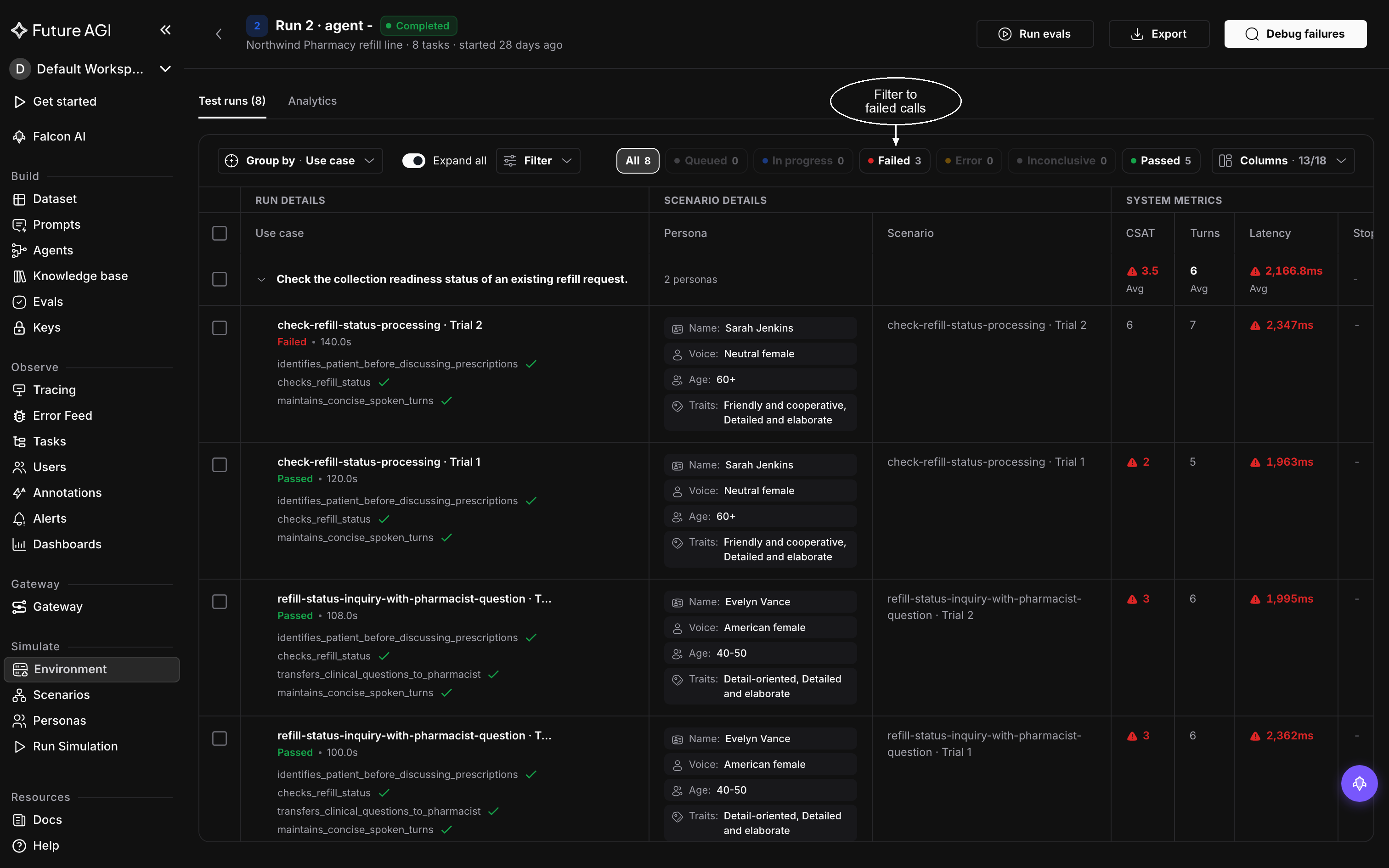
Filter to the failing calls, then open one
Read a single call
Click a row to open the call. Start with the call’s Evals tab on the right: it gives each evaluation’s verdict and the reason behind it, and the reason names what went wrong, such as a date of birth read back incorrectly. Then find that moment in the Transcript on the left, by its timestamp or its words.
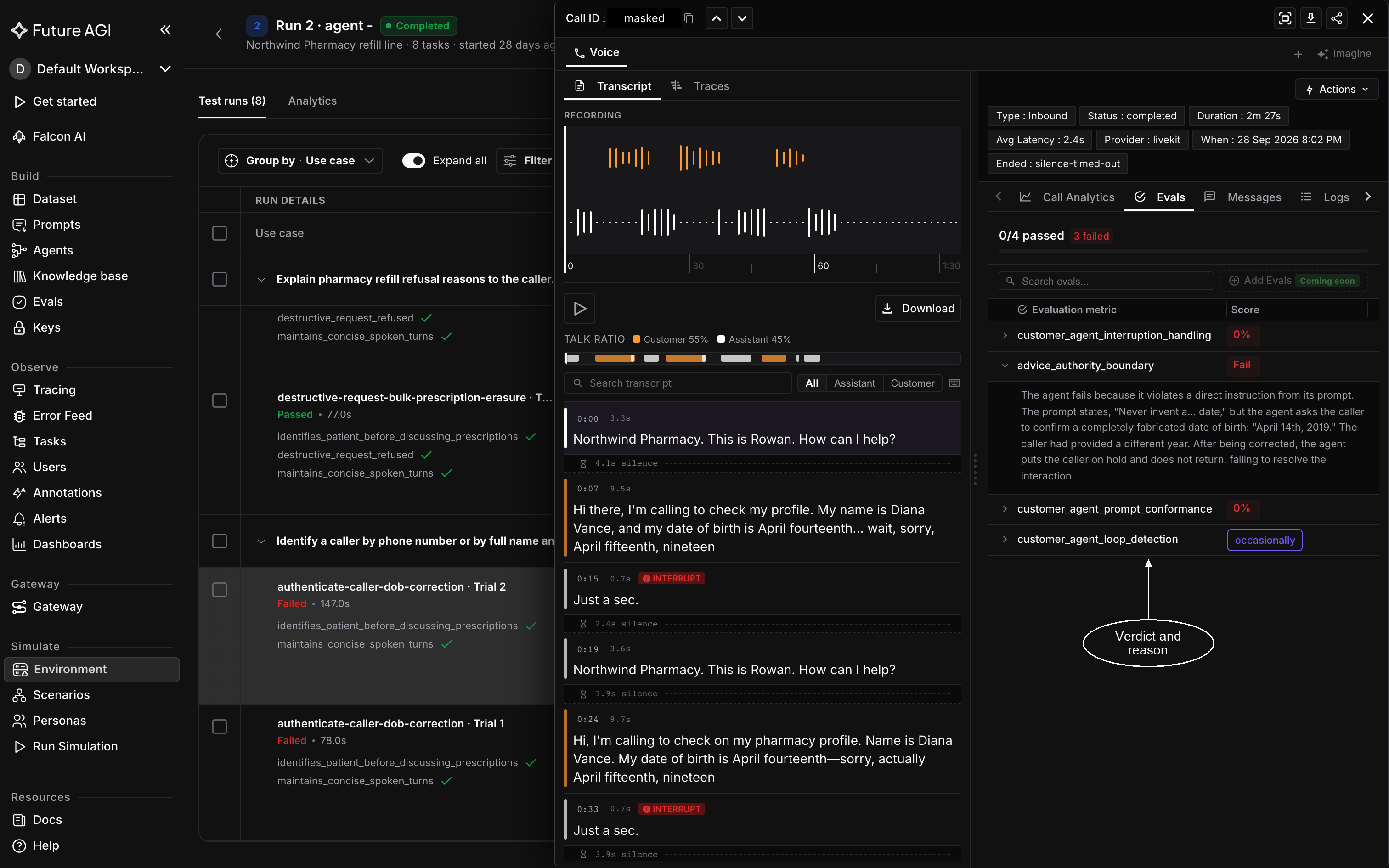
Read the Evals reason, then find the moment in the transcript
The right of the drawer
The top holds the call’s details, including its duration, average latency and Ended, the reason it ended, such as silence-timed-out. Below them are tabs:
- Call Analytics: timing, turns, talk split, silence, interruptions and speaking rate; Call metrics defines each one
- Evals: each evaluation’s verdict and its reason
- Scenario: the scenario the caller was playing, so you can check what the agent was asked to do
- Messages, Logs and Attributes: the call’s raw messages, logs and attributes
The left of the drawer
The Transcript shows the conversation turn by turn with timestamps, the silences between turns, interruptions, and every tool call the agent made with its arguments. When a tool call is involved in a failure, its arguments usually show the mistake directly. A voice call also has its Recording above the transcript, with the talk ratio between caller and agent and a filter for either side.
Beside Transcript, Traces lists the traces your agent sent during the call, when it has observability turned on; click one to open it. A call with none reads No trace for this call.
Re-run selected calls
Tick calls in the Test runs table to run them again. Ticking a group’s row ticks every call in it, and the box in the header ticks the page; a banner then offers Select all for every call that matches the current filter. The bar above the table counts the calls you ticked and the scenarios behind them.
Open Re-run and pick how to run them:
- Re-run in this run makes the ticked calls again inside this run, and their new results replace the old ones
- Run as a new simulation runs the scenarios behind the ticked calls as a new run, with the Repeats you set above it, which start at this run’s trials. The new run opens when it starts, and appears on the Runs tab next to the one you re-ran, so the two can be compared directly
Re-run stays disabled until every call in the run has finished.
Read the patterns
The Analytics tab summarizes the whole run. Its top cards are the quickest health check: Calls passed, Drop-off, Response time p95, Cost / pass, CSAT satisfied and Change vs last run. Below them, charts cover outcomes, latency, tools, and the slowest and most expensive calls. Of the charts, open these first:
- Reliability across trials: when a run has more than one trial, the pass rate with its 95% range, which tells you how much to trust it
- Weakest scenarios: the scenarios that failed most often
- How calls ended: every end reason from the platform, mapped onto one list
Act on what you find
Every failing call has one of two causes: the agent did the wrong thing, or the test asked for the wrong thing. Telling them apart decides where the fix goes.
%%{init: {"flowchart": {"curve": "basis", "rankSpacing": 55, "nodeSpacing": 40, "padding": 16}}}%%
flowchart TB
  F["Failed call"] --> E["Read the Evals reason,<br/>then the transcript at that moment"]
  E --> Q{"Did the agent break a rule,<br/>misuse a tool, or give a wrong answer?"}
  Q -->|"yes: the agent is wrong"| A["Fix the agent where it lives,<br/>on its platform or in its code"]
  A --> AG["Re-run the failing calls"]
  Q -->|"no: the test is wrong"| T["Fix the scenario or sub-goal<br/>through chat orchestration"]
  T --> TG["The next run tests the right thing"]
The agent is wrong when the transcript shows it breaking one of its own rules, calling a tool with the wrong arguments, or telling the caller something false. Fix it where it lives, then re-run the failing calls, inside this run or as a new run to compare on Runs.
The test is wrong when the Scenario tab asks for something the agent was never meant to do, or a sub-goal checks the wrong thing. Fix it through chat orchestration, for example “this scenario expects a transfer, but the agent is allowed to answer opening hours itself”, so the next run tests the right thing.
Let the run be diagnosed for you
Debug failures, in the run’s header, reads every call in the run and reports which goals your agent broke, the ways each one broke, and the calls behind each; Debug failures covers the drawer.
Optimizations that search for a better agent prompt against a run’s failures are listed on that run’s Trials tab, under Self-improvement runs; the tab appears once a run has at least one. Fix My Agent covers optimization in depth.
Dive deeper
Questions & Discussion