Run a simulation
Play an environment's scenarios against your agent, choose how many times each plays, and follow the run to its results
A run plays an environment’s scenarios against your agent and grades each conversation. This guide starts a run for the whole suite or for a selection, follows it until it finishes, and shows how to read the run history it adds to.
Note
A run needs an environment in Ready status with at least one scenario; Build an environment covers getting one. Evaluations are optional, but a run without them records conversations with nothing to say whether the agent was right, so add evaluations first.
What a run plays
A run takes the scenarios you pick and plays each one as many times as you ask, and every play is its own call: a phone call for a voice agent, a conversation for a chat agent. For an agent read from code, each call starts from a clean copy of the world, so one call never sees what another changed. When a call ends it is graded against its scenario’s sub-goals and the environment’s evaluations.
%%{init: {"flowchart": {"curve": "basis", "rankSpacing": 55, "nodeSpacing": 40, "padding": 16}}}%%
flowchart LR
  RUN(["Run 4<br/>2 scenarios × 3 repeats"]) --> S1["Scenario 1"]
  RUN --> S2["Scenario 2"]
  S1 --> C1["3 calls<br/>one per repeat"]
  S2 --> C2["3 calls<br/>one per repeat"]
  C1 --> G["Each call graded<br/>sub-goals + evaluations"]
  C2 --> G
  G --> P(["6 simulations<br/>83% passed"])
That is a real run on a pharmacy refill line: two scenarios, three repeats each, six calls, five of which passed.
Choose how many repeats
Each scenario can play more than once in a run. The control is called Repeats wherever you start a run, and the runs table records the same count as Trials: how many times each scenario plays. A run’s size is scenarios times repeats, so 4 scenarios at 3 repeats is 12 calls.
A conversation with an AI agent is not deterministic, so one pass can succeed by luck. Use 1 repeat to check that an environment works, and 3 or more when you want to trust the result: the same scenario passing three times out of three says much more than once out of once.
Run every scenario
At the top right of the environment workspace, open Repeats and pick 1×, 3×, 5×, 8× or a custom number. Under Repeats per scenario, the menu shows what that adds up to, such as 30 scenarios × 1 repeat = 30 runs. Then click Run simulation: the run starts straight away and appears at the top of the Runs tab.
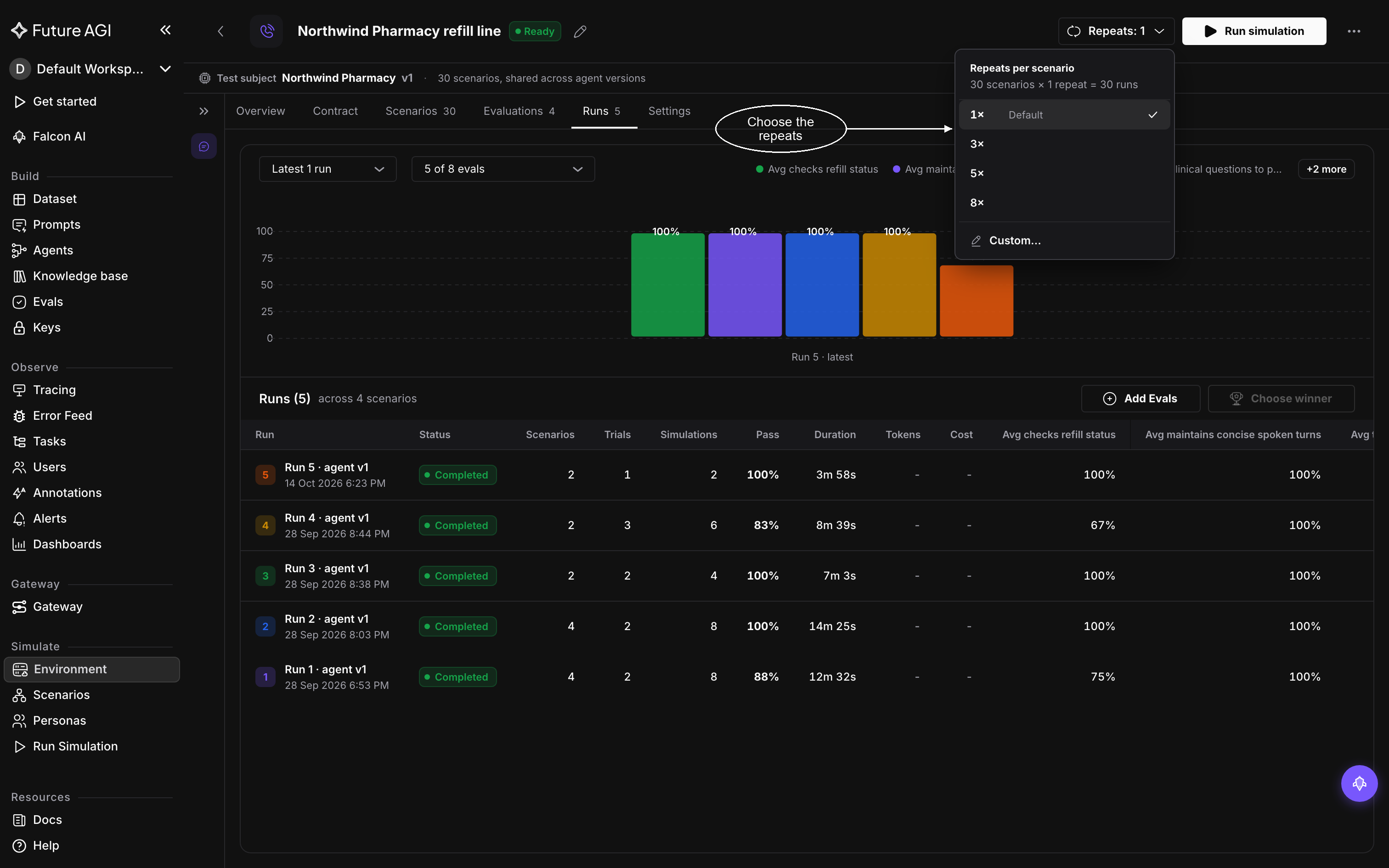
Set the repeats, then Run simulation starts the whole suite
Run selected scenarios
To run part of the suite, open the Scenarios tab and tick the scenarios you want. A bar appears with the number selected, its own Repeats control, and Run simulation labeled with the count, such as Run simulation (4); hover it for the call count and an estimate of how long the run takes. While a selection is active, the bar replaces the header’s run controls. Set the repeats, from 1 to 20, and click it. The run appears on Runs like any other, with its scenarios and trials recorded.
Follow the run
On Runs, the run’s status moves through these:
| Status | What is happening |
|---|---|
| Queued | Waiting to start |
| Provisioning | Preparing a clean copy of the world for each scenario |
| Running | Conversations are in progress |
| Grading | Each conversation is being scored against its scenario’s sub-goals, the checks written for it, and the environment’s evaluations |
| Completed | Every conversation finished and was graded |
| Failed | The run could not finish |
| Cancelled | You stopped the run |
You can leave the page while a run is going. To end it early, open the run and click Stop simulation. If a run fails, open it to see which calls errored and why, then tick the failed calls and use Re-run; Environment FAQ & fixes covers the common causes.
Read the Runs tab
Runs opens on a chart of each evaluation’s average score across your latest runs, so you can see whether a change to your agent moved its scores. The menus above it choose how many of the latest runs to compare, such as Latest 5 runs, and which evaluations to chart, such as 5 of 8 evals.
Below the chart, the Runs (N) strip counts the runs and the scenarios they cover, with Add Evals, which opens the Evaluations tab, beside it. Under the strip, the runs table lists every run:
| Column | What it shows |
|---|---|
| Scenarios, Trials | What the run played |
| Simulations | The total conversations, scenarios times trials |
| Pass | The share of conversations that passed |
| Duration | How long the run took |
| Avg, per evaluation | Each evaluation’s average score across the run |
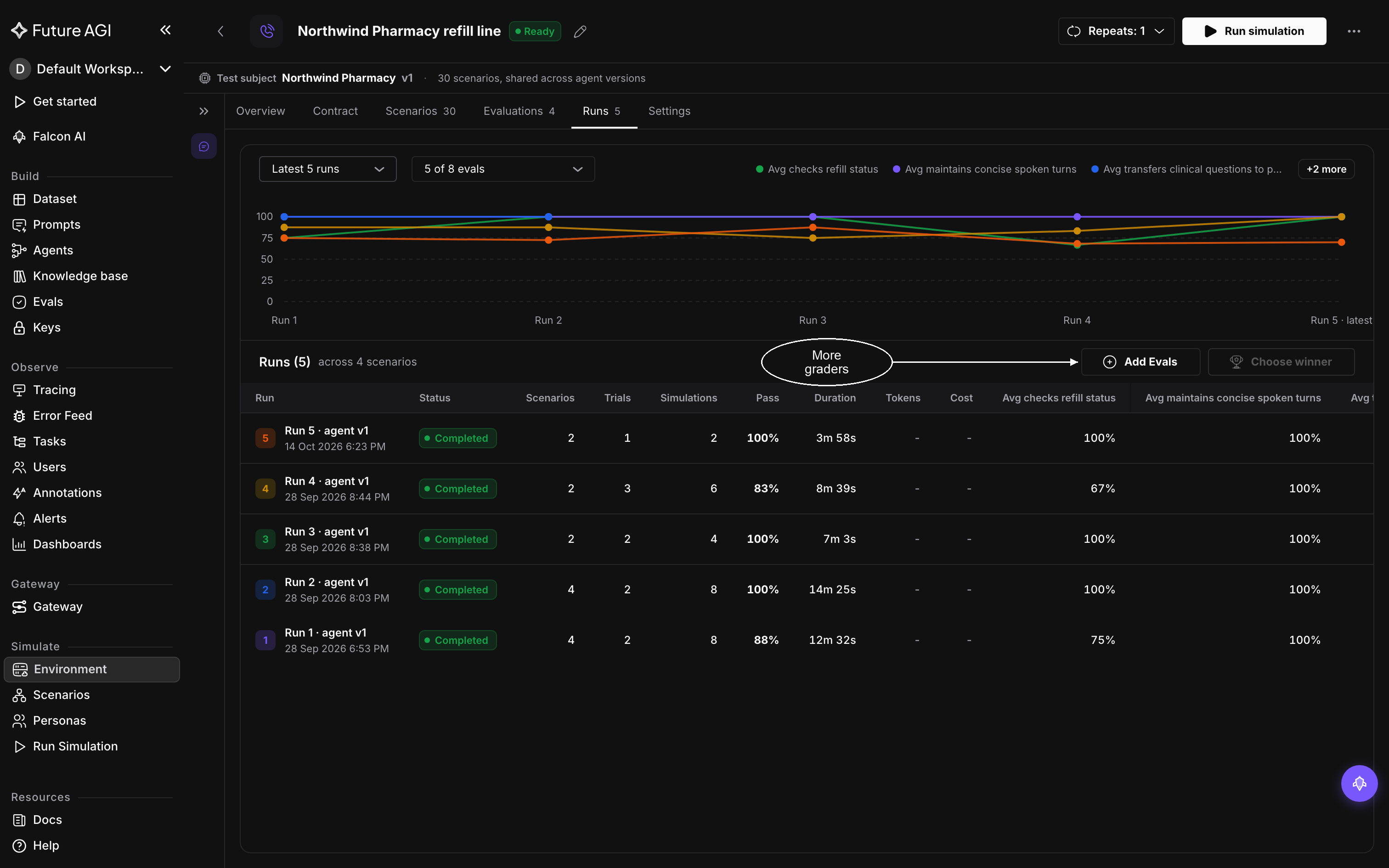
Each evaluation’s average across runs, above the list of every run
Click a run to open its results; Read run results walks through that page.
Runs are comparable
Each run records the agent version it ran against, shown in the run’s name, such as Run 4 · agent v1. Scenarios belong to the environment, so the same suite runs against every version of your agent: change the agent, run again, and the two runs differ only by what you changed, which is what makes the trend on the chart meaningful.
Scenario edits you make between runs, whether by hand or through chat orchestration, are played by the next run. Runs that already finished keep the scenarios they played.
Dive deeper
Questions & Discussion