Debug failures
Get a diagnosis of a finished run: the goals your agent broke, the ways each one broke, and the calls behind them
A run with failing calls leaves you a table to read one call at a time. Debug failures reads every call in the run for you and reports which goals your agent broke, the different ways each one broke, and which calls to open for each.
Note
You need a run that has finished; Run a simulation covers starting one. Debug failures stays disabled while a run is still playing calls.
Open the diagnosis
Open the environment, go to Runs and click a finished run. Then click Debug failures in the run’s header.
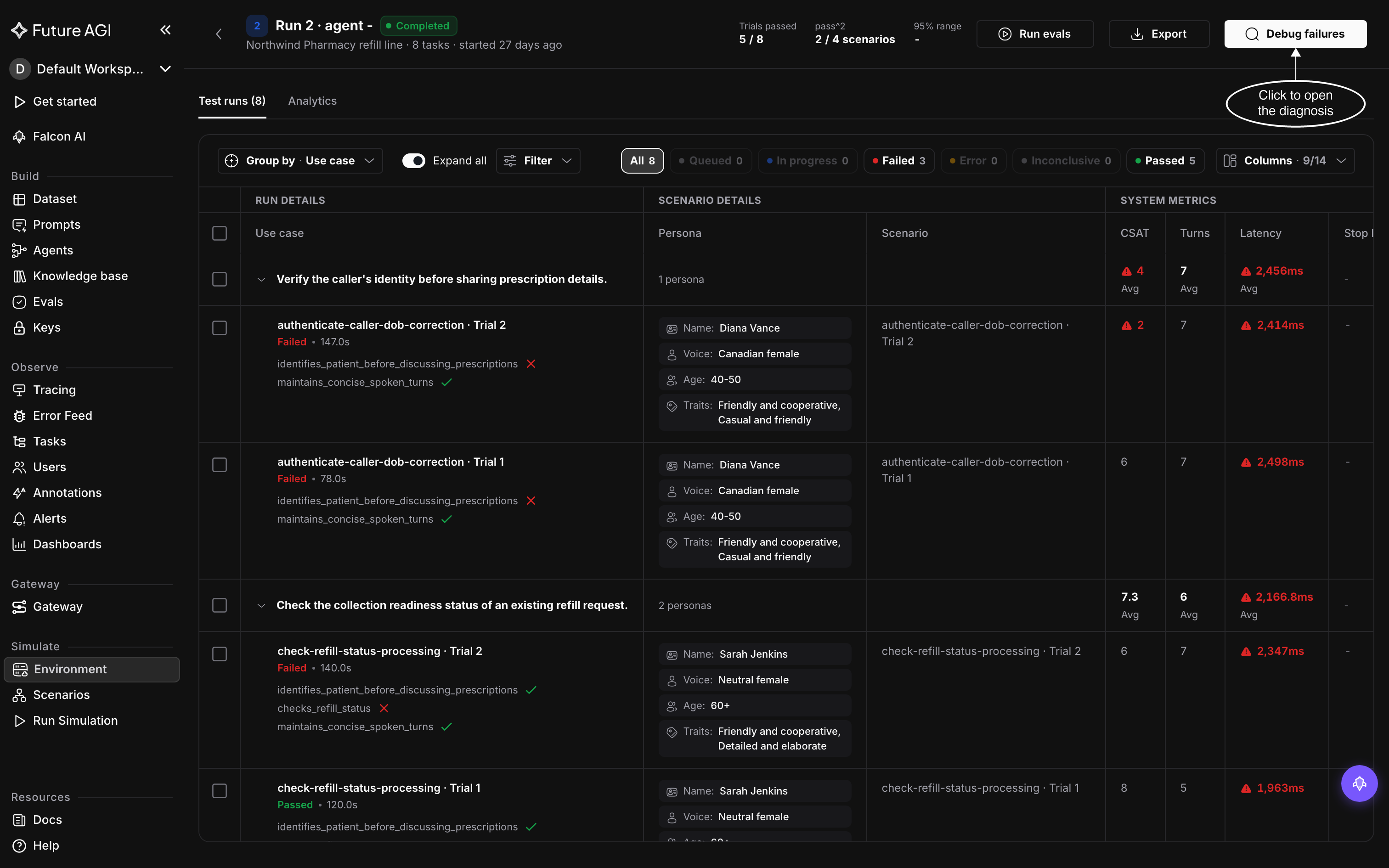
The diagnosis covers the whole run, whatever the table is filtered to
A drawer opens on the right and starts reading the run. While it works it shows a short status, such as Reading transcripts…, and you don’t have to wait in front of it: close the drawer and keep working in the table. The diagnosis stays with the run, so the next time you click Debug failures on this run it opens with the result.
If the reading runs past four minutes, the status changes to This is taking longer than expected. You can close this and check back.
Read the summary
The drawer’s header counts the run, such as 3 failing of 8 measured. Measured leaves out calls that errored before they could be graded, the same calls the Error chip counts on Test runs. Failing is the number of measured calls that broke at least one goal.
Under the tabs, one sentence sums the run up: Your agent broke 2 goals on 3 of 8 calls, plus 1 one-off issue. When nothing broke it reads Your agent held every goal on 8 calls.
A goal in this drawer is a sub-goal: one of the checks a scenario’s calls are graded on, such as checks_refill_status. Each call on Test runs lists its sub-goals under the scenario name, with a tick or a cross.
%%{init: {"flowchart": {"curve": "basis", "rankSpacing": 50, "nodeSpacing": 40, "padding": 16}}}%%
flowchart TD
  accTitle: How a diagnosis is laid out
  accDescr: A diagnosis holds one card for each goal the agent broke, and a list of issues seen on one call each. A card lists the ways the goal broke, one row each with a count of calls. Every row and every one-off issue has a View button that opens its calls on the Test runs tab.
  D["Diagnosis of the run"] --> G["One card per goal your agent broke"]
  D --> O["Also seen, 1 call each<br/>issues outside the broken goals"]
  G --> W["Ways it broke<br/>one row per way, with a count of calls"]
  W --> V["View<br/>opens those calls on Test runs"]
  O --> V
Read a goal card
Each goal your agent broke gets a card, and the card with the most broken calls comes first.
| On the card | What it tells you |
|---|---|
Broke on 2 of 6 calls | The calls that broke the goal, out of the calls that tested it. A sub-goal belongs to some scenarios and not others, so the second number is usually smaller than the run |
Passes when … | The goal’s pass condition, when it has one |
| Ways it broke | One row per way the goal broke, with the number of calls that broke it that way |
The rows under Ways it broke are what save you the reading. Calls that broke the goal the same way share a row, so two rows mean two different problems behind one failed check, and usually two fixes. In the example run, the patient identification goal broke on two calls in two ways: on one the agent Reads back the original date of birth after the caller corrects it, and on the other it Shares the refill date before the caller confirms the date of birth.
Rows are ordered by their count. A card with more than five ways shows the first three and folds the rest into a row such as 3 other ways; click it to list them all. A Not explained yet row counts calls that broke the goal and have no explanation, so open those and read them yourself.
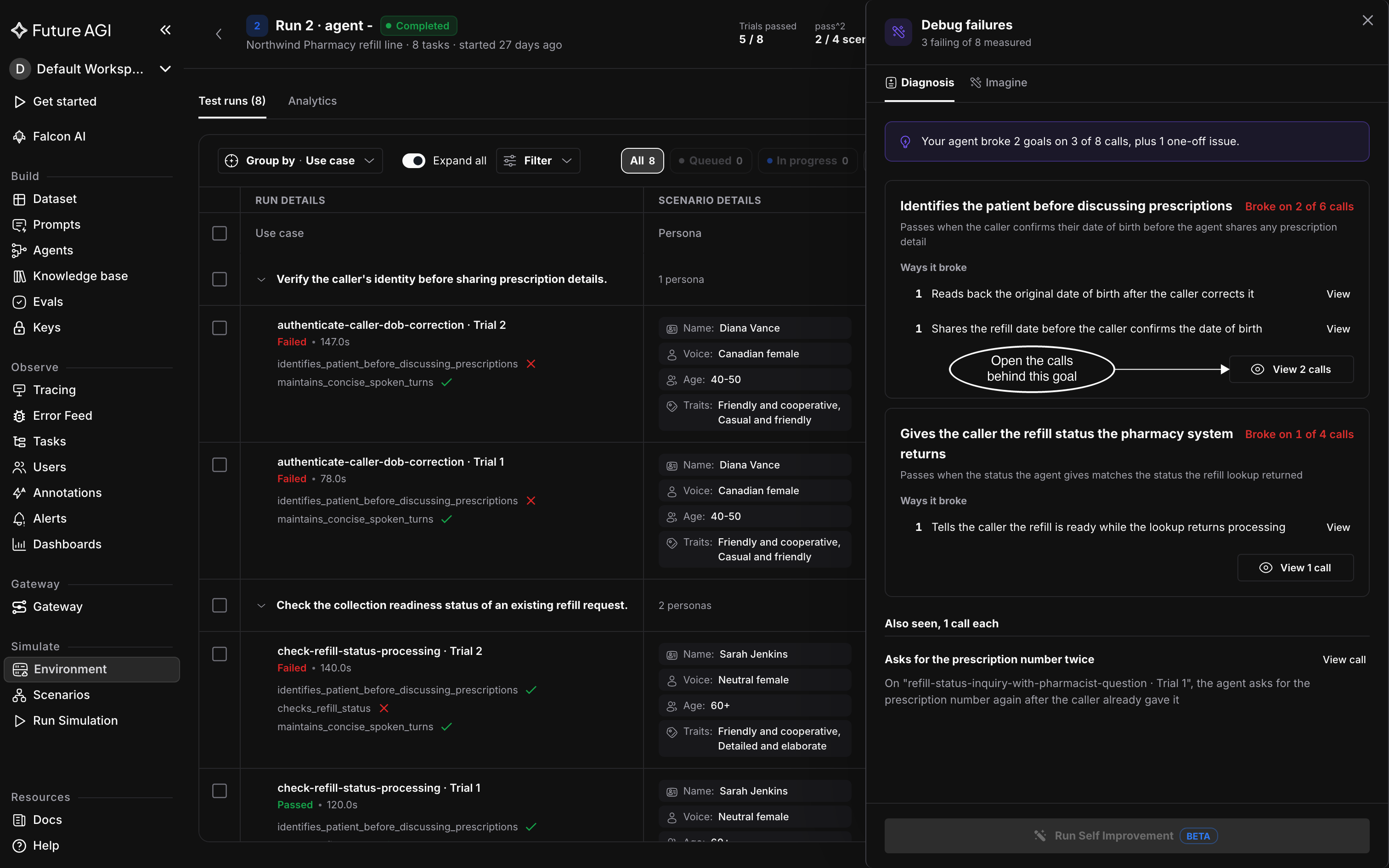
One failed check can hide more than one problem
Issues outside the broken goals
Below the cards, Also seen, 1 call each lists problems the diagnosis noticed that none of the broken goals cover, such as the agent asking for a prescription number the caller already gave. These don’t make a call failing: a call can hold every goal and still appear here.
Open the calls behind a finding
Every count in the drawer is a number of calls, and the button beside it opens exactly those calls: View on a row, View 2 calls on a card, and View call on a one-off issue.
The drawer closes and Test runs shows only those calls, with their groups already open and a chip such as 2 affected calls beside Filter. Click a row to open the call and read its transcript and verdicts. Dismiss the chip to get the whole run back.
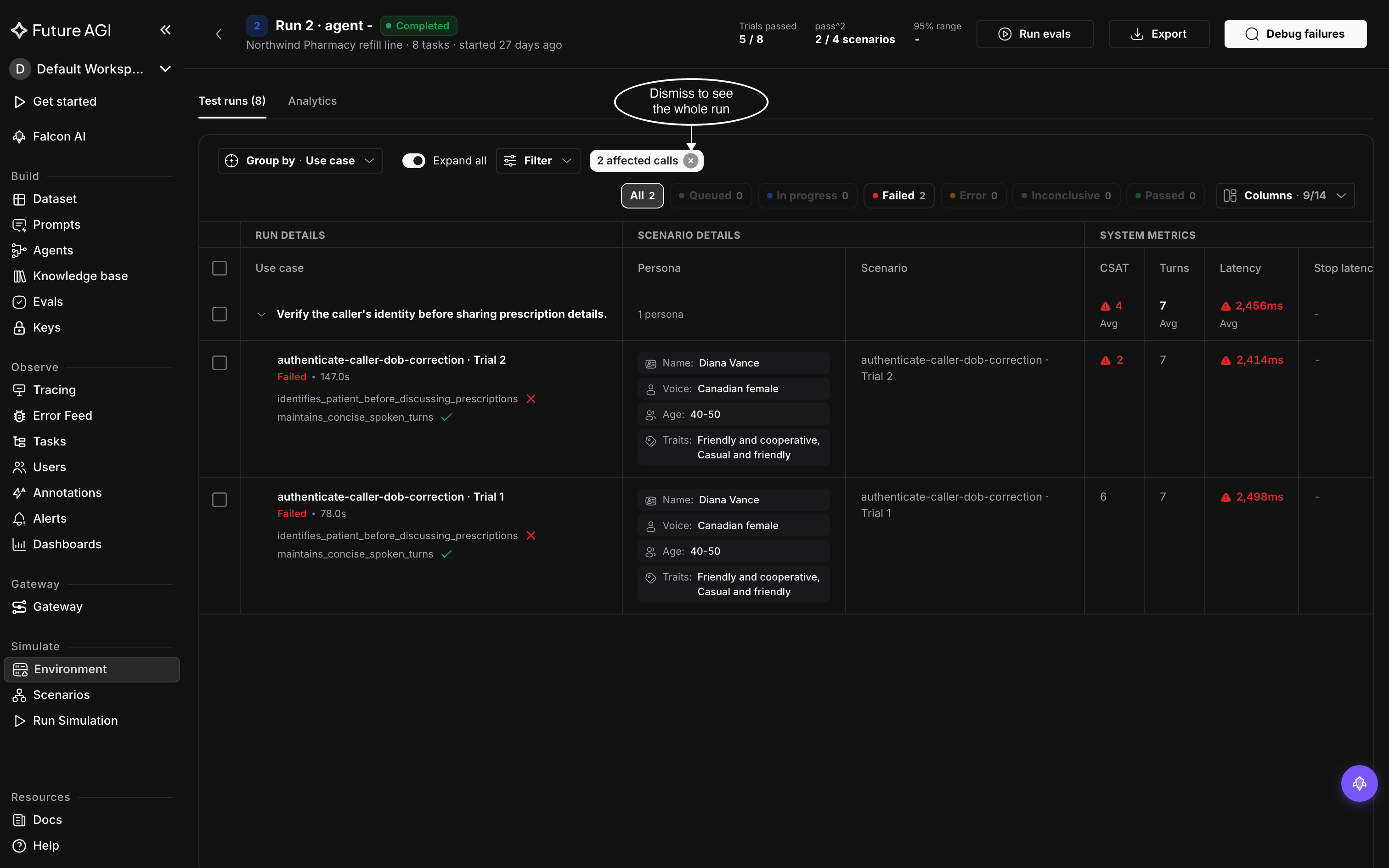
The filters you add on top keep the calls from the diagnosis until you dismiss the chip
When the diagnosis doesn’t finish
A diagnosis that fails shows Couldn't finish the diagnosis, a reason, and a Try again button.
| Reason shown | Why | What to do |
|---|---|---|
Diagnosis is available once every call in this run finishes | Some calls in the run haven’t finished | Wait for the run to finish, then click Try again |
Couldn't read this run. Try again | The run couldn’t be read this time | Click Try again |
A finished diagnosis can also carry the line Still grouping how each goal broke; the breakdown may change. The goals and their counts are in, the rows under Ways it broke can still change, and the drawer updates on its own.
Act on the diagnosis
The diagnosis tells you where to look; the fix happens outside the drawer. For each goal, open a call or two and confirm the problem in the transcript. Then decide whether the agent is wrong or the test is: Read run results covers how to tell the two apart, and a test that checks the wrong thing is fixed through chat orchestration.
After a fix, re-run the calls that broke. Re-run offers two ways:
- Re-run in this run makes the calls again inside the same run, and their new results replace the old ones on Test runs
- Run as a new simulation records a new run with its own diagnosis; open it and click Debug failures there to see whether the goal still breaks
Note
Two parts of the drawer can’t be used yet. The Imagine tab, for asking questions about the run and getting charts back, isn’t connected yet, and Run Self Improvement, at the bottom of a finished diagnosis, is marked BETA and stays disabled.
Dive deeper
Questions & Discussion