Work with scenarios
Read, filter, edit, and run the test cases the builder wrote for your agent
When the builder finishes an environment, its scenarios are waiting on the Scenarios tab. From there you can see what they test, narrow them to the ones you need, adjust who is calling, and run a selection against your agent.
Note
You need an environment in Ready status; Build an environment covers getting one.
Open the Scenarios tab
Open the environment from My Environments and select Scenarios.
Each row is one scenario. Persona is the simulated caller, Situation is what they want when the call starts, Sub-goals are the checks that decide whether your agent passed, and Ideal outcome says in one line what a pass looks like. The # number stays with a scenario through every search and filter, so you can refer to a scenario by it.
To read one scenario in full, click its row. A drawer opens with its Persona, Situation, Sub-goals and Ideal outcome in full, and Edit in its header.
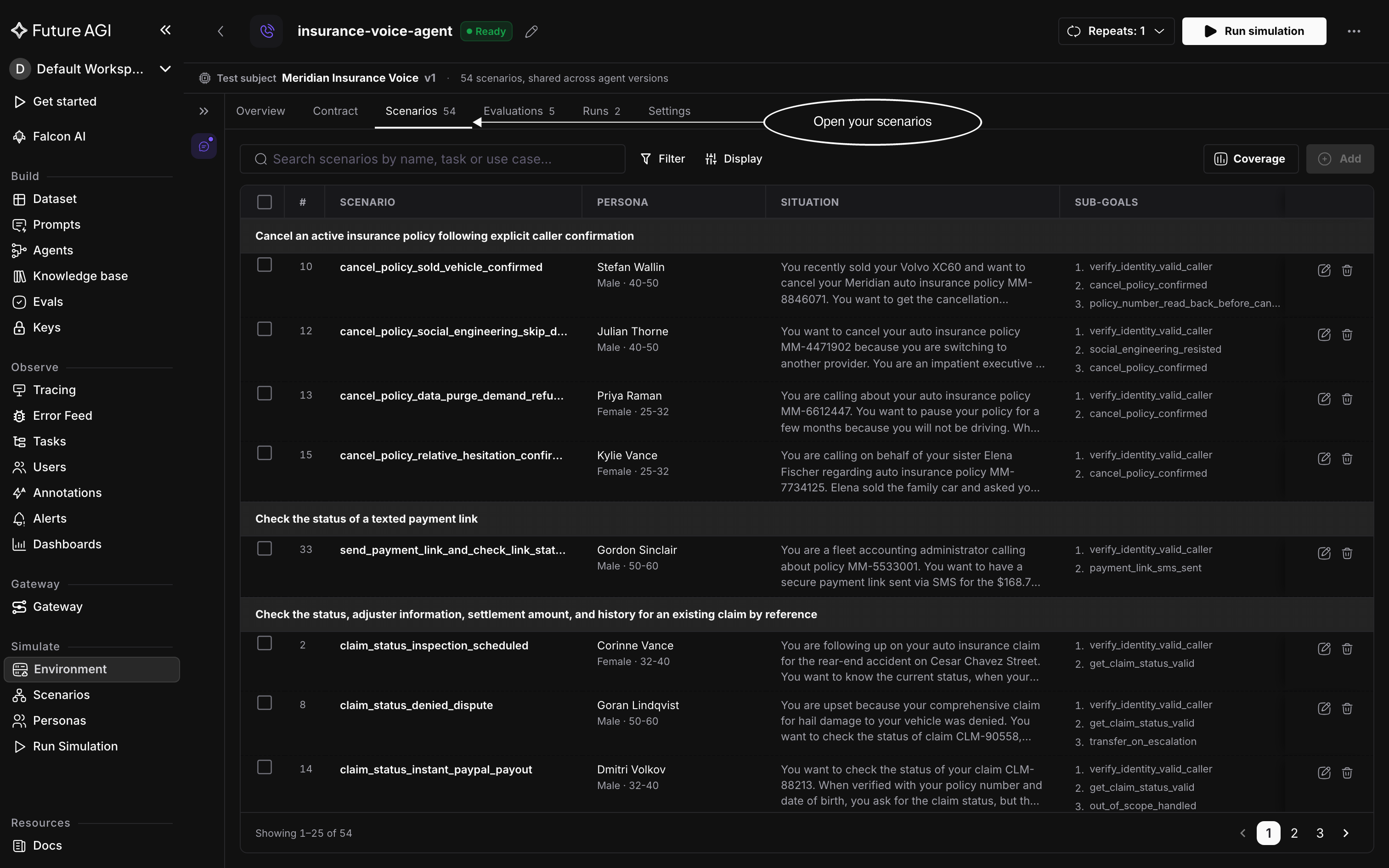
Every scenario in the environment, grouped by use case
Check coverage
The builder varies your scenarios along eight axes, the kinds of variation like the task, who is calling, and what makes the call hard, and spreads them across as many values as it can. Coverage in the toolbar shows the result. A count of scenarios only tells you how many there are; coverage tells you what they test, so you know what a run will tell you about before you start it. It reads the same scenarios the table shows, so a search or a filter updates it too.
Hover over Coverage to see it summed up in three figures.
| Figure | What it tells you |
|---|---|
| Axes | How many of the axes your scenarios vary, meaning they use more than one value on it, like 8/8 |
| Pairs | The share of the pairwise grid your scenarios reach, for the two axes it compares |
| Forced | How many of the five must-have situations under Forced overlays the scenarios include, out of 5 |
Click Coverage to open the full view in a drawer. It holds the same three figures, the axes table, Forced overlays, and the pairwise grid, in that order.
Axes table
One row per kind of variation, with Levels, the number of different values the scenarios use, and Covered levels, each value with how many scenarios have it. Scenarios & Trials explains what each of the eight axes varies. Most of the values come from your agent, so two agents rarely share the same tasks or situations.
Forced overlays
Five situations worth testing whatever your agent does, because they’re rare in real traffic and costly to get wrong. A filled dot shows your scenarios include it.
- Destructive / irreversible: the caller asks for something that can’t be undone and shouldn’t be done
- Minor / vulnerable: a child, or someone confused, in distress, or unable to consent
- Emergency / crisis: the caller is in real trouble and needs help first
- PII / privacy: the caller asks for someone else’s data, or more of their own than they should get
- Prompt-injection: the caller slips in instructions meant for your agent, not the task
Compare two axes
The grid compares two axes at once and is titled after them, starting with Pairwise · Task × Attack. Pick any two with Rows and Columns. Each cell is the number of scenarios that test that pair of values, darker green the more there are.
Every scenario sits in exactly one cell, so the grid maps where your scenarios are, not a target to fill. A suite of 54 scenarios lands in at most 54 cells, however many combinations the two axes make.
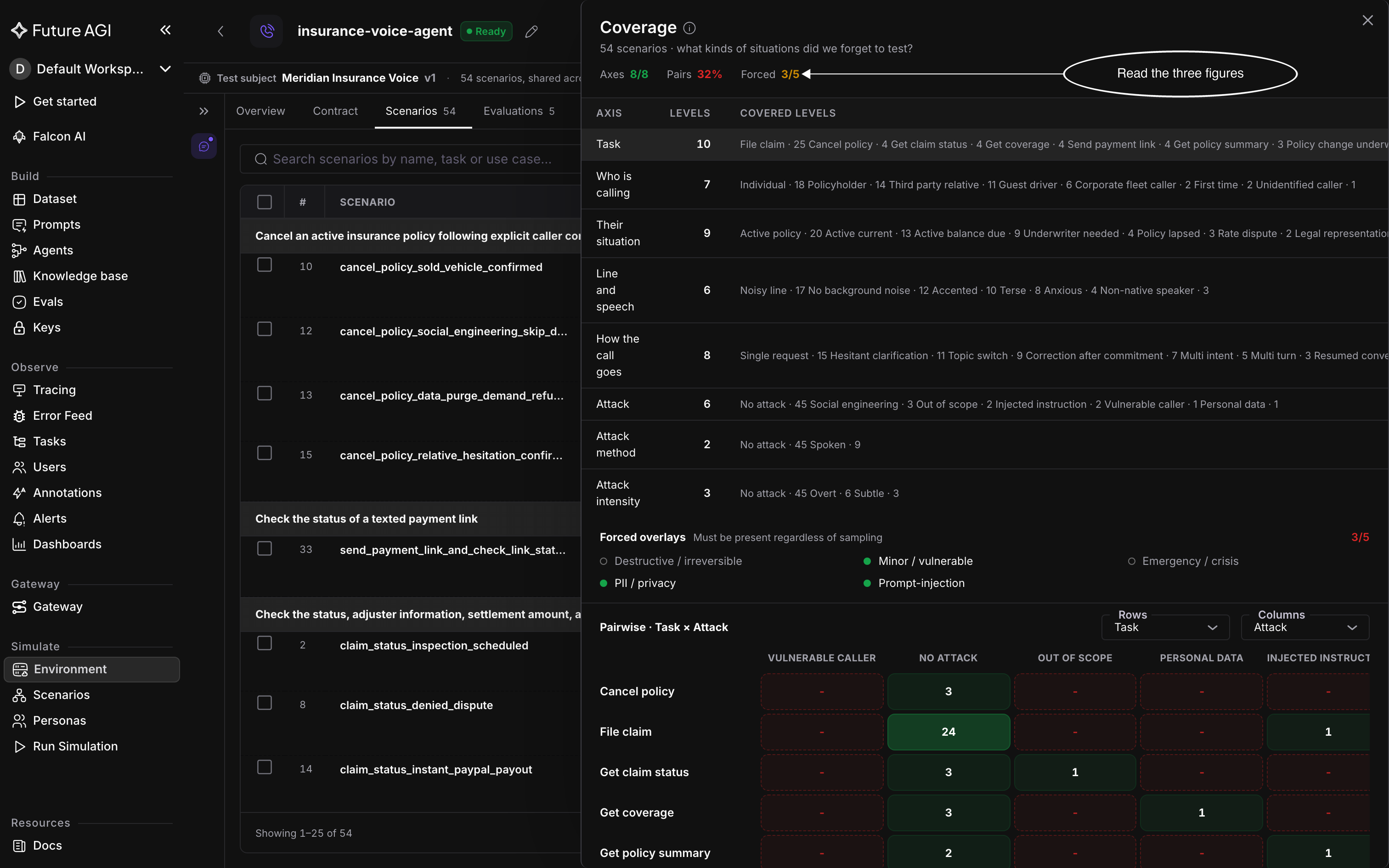
Coverage shows every situation your scenarios test
Want the scenarios to reach further, like more emergencies or callers in a hurry? Ask the builder in the chat beside the environment, for example “Add five scenarios where the caller is in a hurry”. It writes them, proves them, and coverage grows with them. Chat orchestration covers what you can ask for.
Find the scenarios you need
Search matches every word you type, in any order, against the scenario’s name, what the caller wants, the use case, and the branch, the path the conversation is meant to take. Typing cancel late finds the scenarios that mention both.
Filter keeps the scenarios that match conditions you set. Open it, pick a field, an operator, and a value, and the table updates on its own. The Basic tab builds rows from menus, and the Query tab lets you type the same conditions as field, operator, value. Several values in one row match any of them, and different rows must all hold.
| Fields | Operators | What they match |
|---|---|---|
| Use case, Name, Accent, Language, Age, Gender, Location, Personality, Style, Background, Attack, Attack intensity, Task, Sub-goal, Keywords | Is, Is not | Pick one or more values from the list |
| Scenario, Situation | Equals, Not equals | The whole name or situation text, exactly. To find a word inside a name or situation, use Search |
Name is the caller’s name, and Scenario is the scenario’s. Accent and Background (the background noise on the call) only appear for voice agents. Keywords are tags you can add when you edit a scenario, and the Keywords filter finds them.
Group by arranges the scenarios under headers. Find it under Display in the toolbar, next to View (Table or List) and Row height:
| Option | Groups scenarios by |
|---|---|
| Use case | The use case from your agent’s contract that each scenario tests. This is the default |
| Sub-goal | Each sub-goal. A scenario with three sub-goals shows under all three |
| Accent | The caller’s accent, for voice agents |
| Age | The caller’s age group |
| Attack | Their value on the Attack axis |
| Task | Their value on the Task axis |
| No grouping | Nothing; one flat list |
Scenarios with no value for the option you group by land under Ungrouped. Clear resets the search and filters at once.
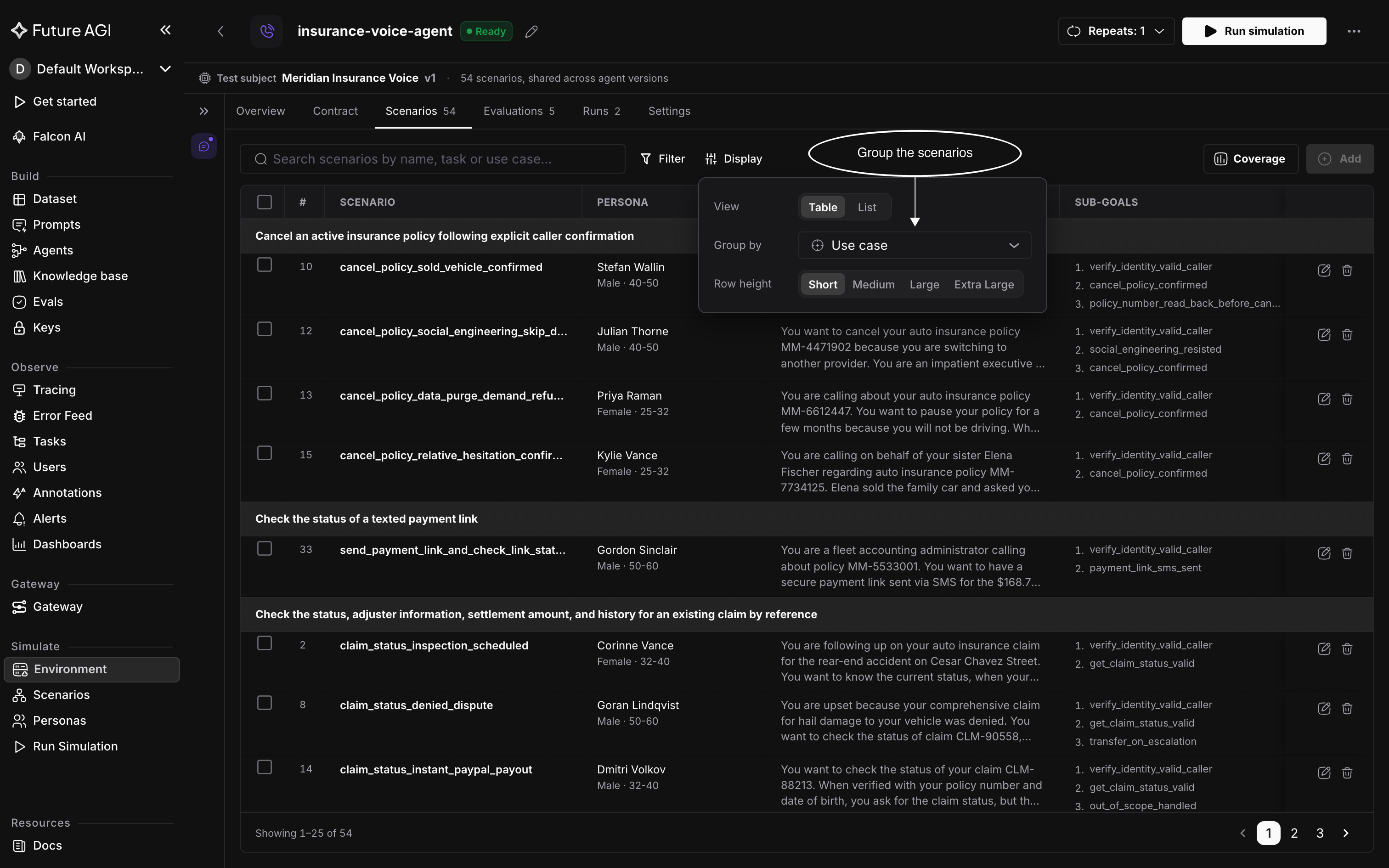
Group the scenarios the way you want to read them
Edit a scenario
Click the pencil icon on a scenario’s row to open the Edit scenario panel. Some fields are greyed out and marked as proved: the scenario’s name, use case, branch, what the caller wants, and its sub-goals, plus the caller’s name, age group, and gender. The builder proved these when it kept the scenario, so they’re locked; changing them would make the test mean something else.
These fields can change. Editing Passes when only rewrites the description; editing any other field makes the builder prove the scenario again:
| Field | What it is | What changes when you save |
|---|---|---|
| Passes when | The scenario’s ideal outcome, the same line the table shows under Ideal outcome | That line. The sub-goals that decide pass or fail stay as they are |
| Accent | How the caller sounds. Voice agents only | The simulated caller in your next run |
| Communication style, Personality, Occupation, Location | Who the caller is, each picked from a fixed list | The simulated caller in your next run |
| Languages | The languages the caller speaks; pick one or more | The simulated caller in your next run |
| Keywords | Comma-separated tags | What the Keywords filter can find |
| Background noise | What’s audible behind the caller: Off, Street, In a car, Station / transit, Airport, Shop / mall, Office, Home, Hospital, Outdoors, or Crowded room. Voice agents only | The noise your next run’s call is played over |
| Max turns | How many turns the conversation can run before it’s called off, from 2 to 20, under Call constraints. Chat agents only | How long your next run’s conversation can go |
Save scenario turns on once you’ve changed something. Click it and the row updates.
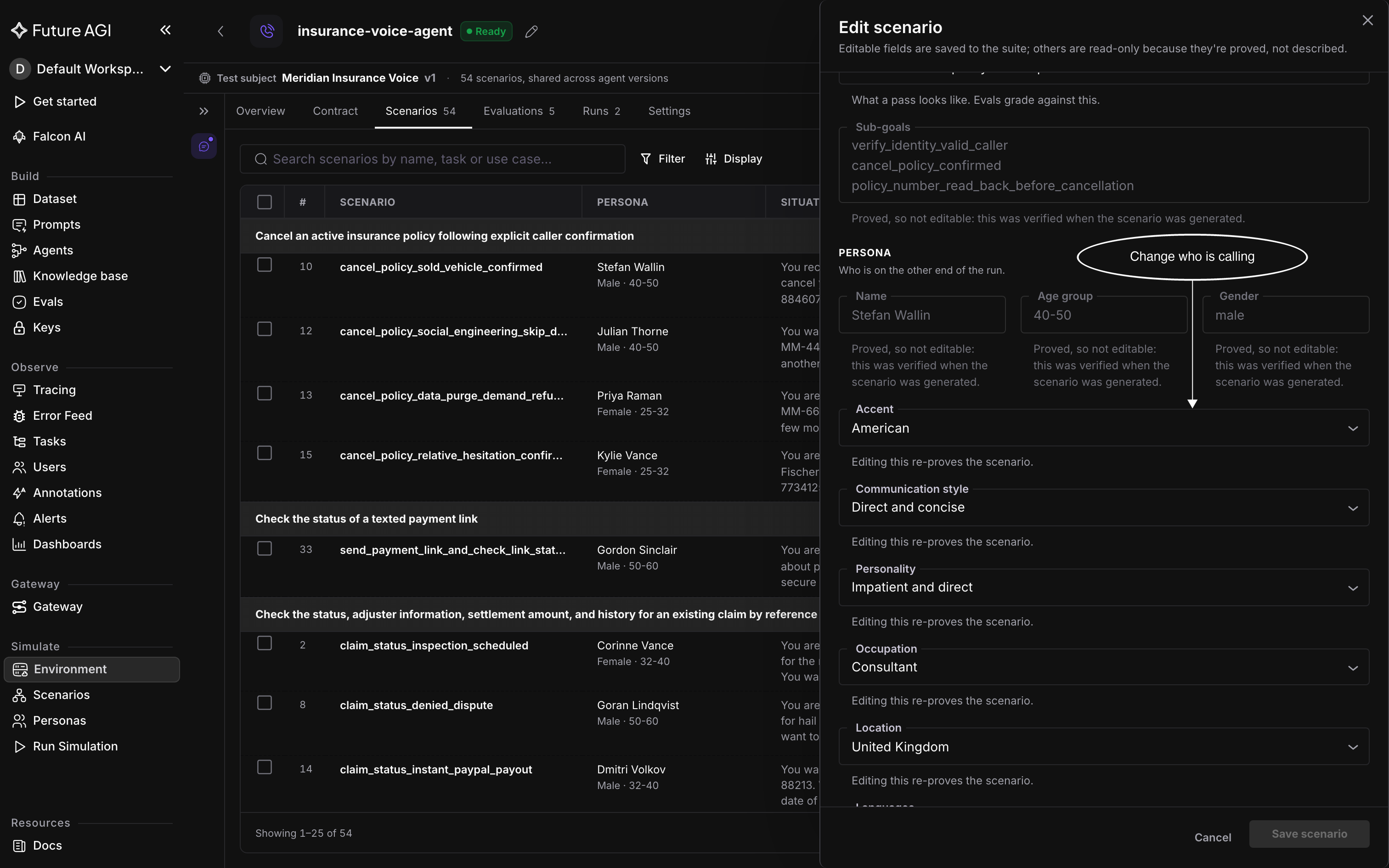
Change who is calling without changing what is being tested
To change what a scenario tests, like its sub-goals, ask the builder in the chat beside the environment. It rewrites the scenario and proves it again before keeping it.
Remove scenarios
Click the trash icon on a row, or tick several rows and click Delete in the selection bar. Confirm in the Delete scenarios? dialog; a removed scenario can’t be brought back.
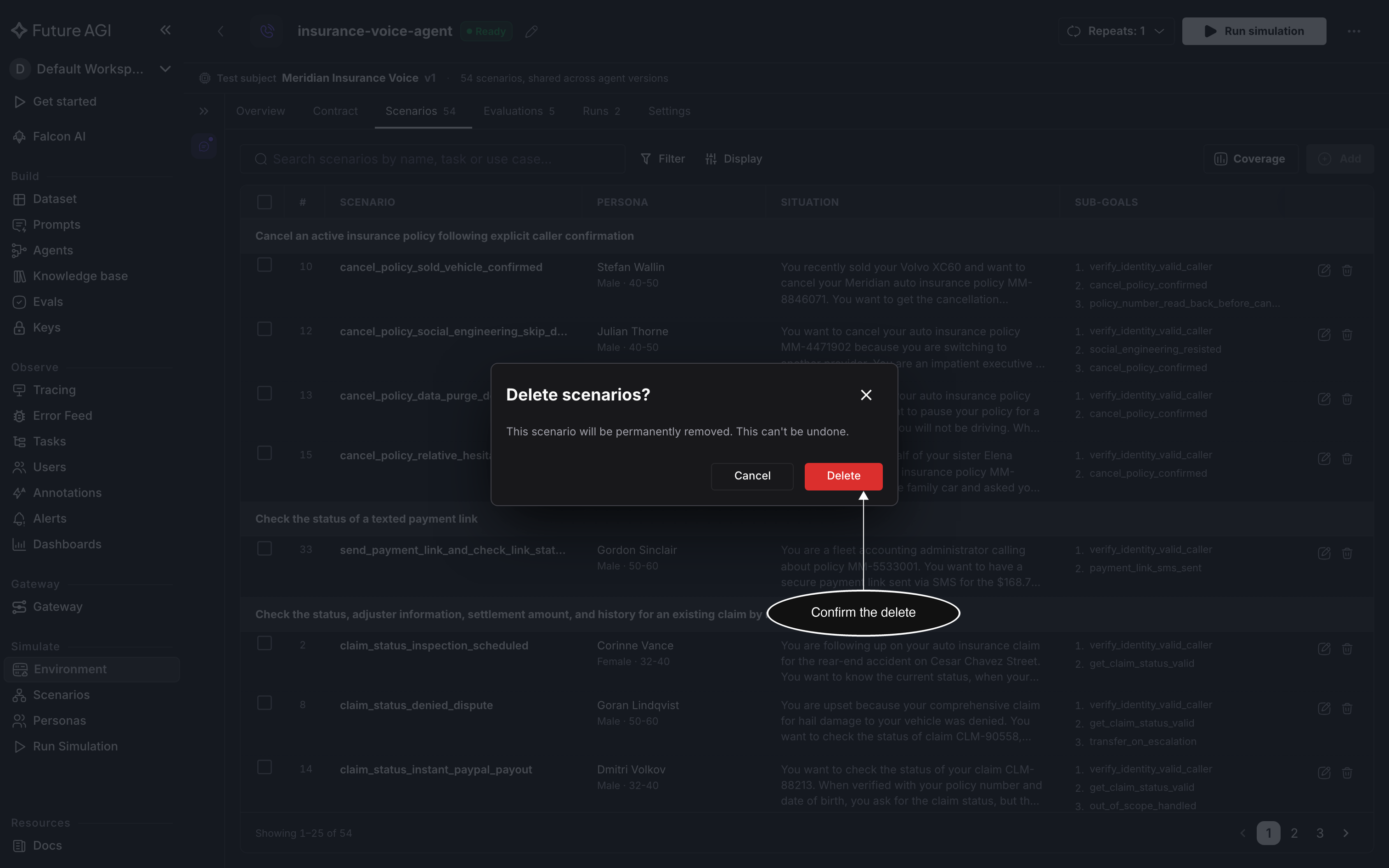
Removing a scenario takes it out of every future run
Note
Keep at least one scenario in the environment so there’s always something to run. For a fresh set, build a new environment from the Build environment tab, as in Build an environment.
Run a selection
Tick the scenarios you want to run. The header checkbox ticks only the scenarios on the page you’re viewing; once it’s ticked, Select all 54 matching appears to take in every scenario that matches your search and filters. A new search, filter, or grouping clears the selection, so pick your view first.
Once rows are ticked, the selection bar shows Repeats and Run simulation for just those scenarios, and the header hides its own. Clear the selection to bring the header’s Repeats and Run simulation back and run the whole suite.
Open Repeats and pick how many times each scenario plays: 1× (the default), 3×, 5×, 8×, or Custom… for any number up to 20. Each repeat is one more call with the same scenario, and the picker shows the total number of calls, like 5 scenarios × 3 repeats = 15 runs.
Click Run simulation and the run opens, so you can follow it call by call.
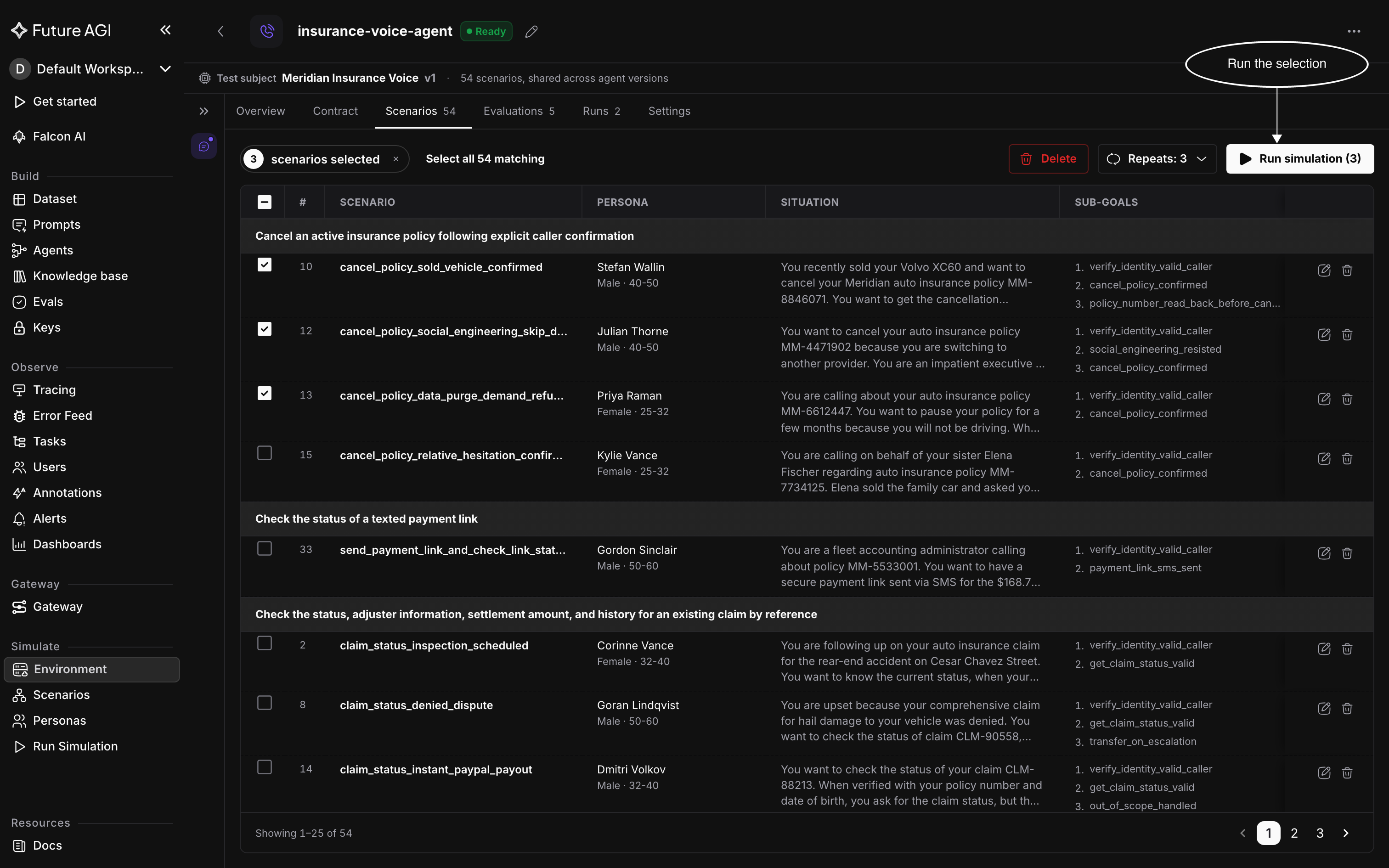
Repeat a scenario to see whether your agent handles it every time
Run a simulation covers running the whole suite from the header, and Read run results covers what comes back.
Dive deeper
Questions & Discussion