Connect your agent
Create an agent definition for your voice or chat agent, and version it as you edit
Simulation can only test an agent it can reach, and the agent definition is where you tell it how. This guide walks the create wizard for a voice agent, covers where the chat path differs, and shows how to freeze the configuration you tested as a version.
Open Agent Definitions
Go to Agent Definition under Simulate in the sidebar. The page lists every definition in your workspace with its type, provider, contact number, and current version. Click Create agent definition at the top right.
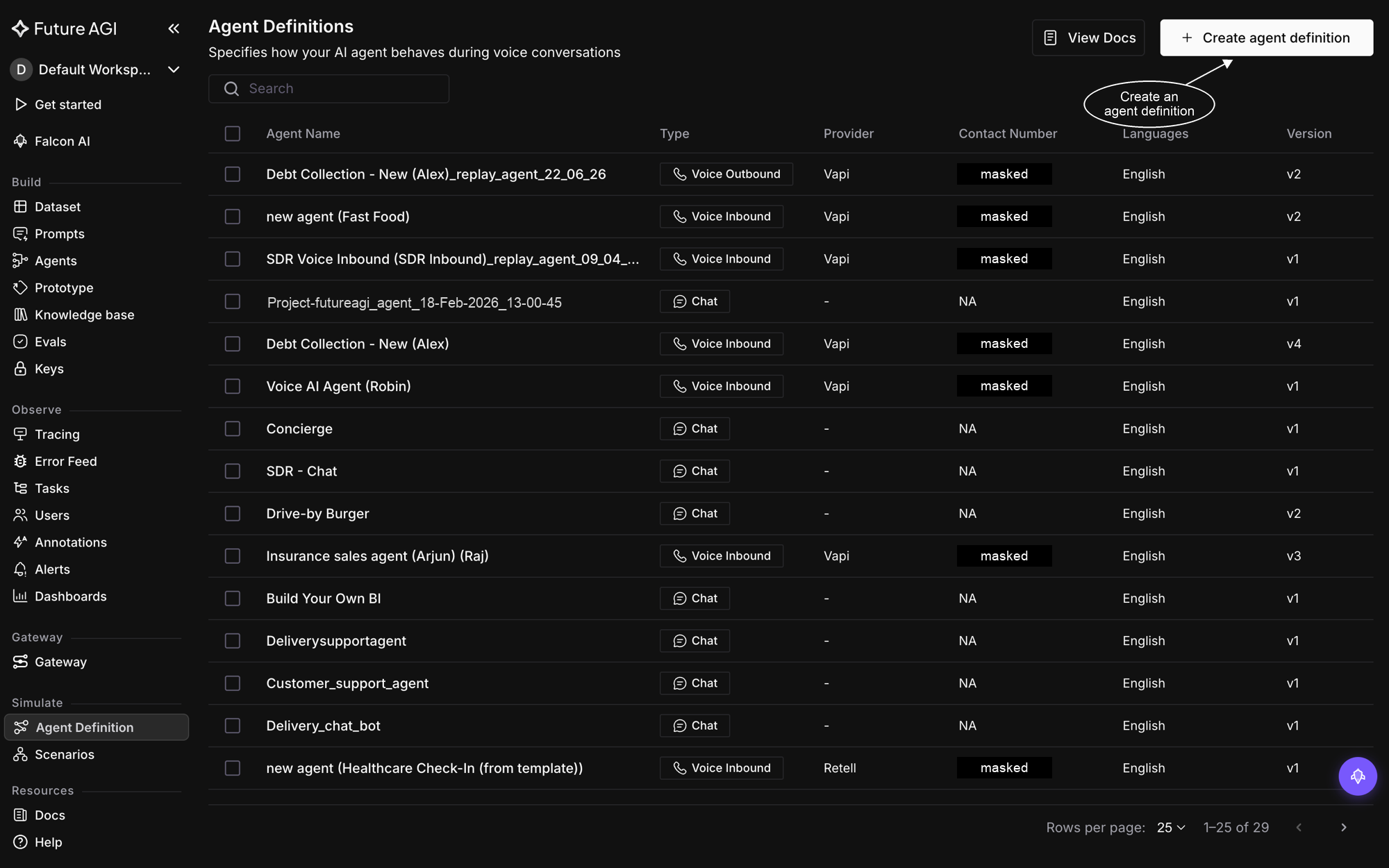
Everything starts from Create agent definition on the Agent Definitions page
Name the agent and pick its type
The Basic Info step asks who this agent is. The Agent type, voice or chat, decides how Simulation reaches the agent, so the rest of the wizard follows from it: a voice agent is dialed over the phone, a chat agent is answered by your own code. Give the agent a clear name and select the languages its conversations run in.
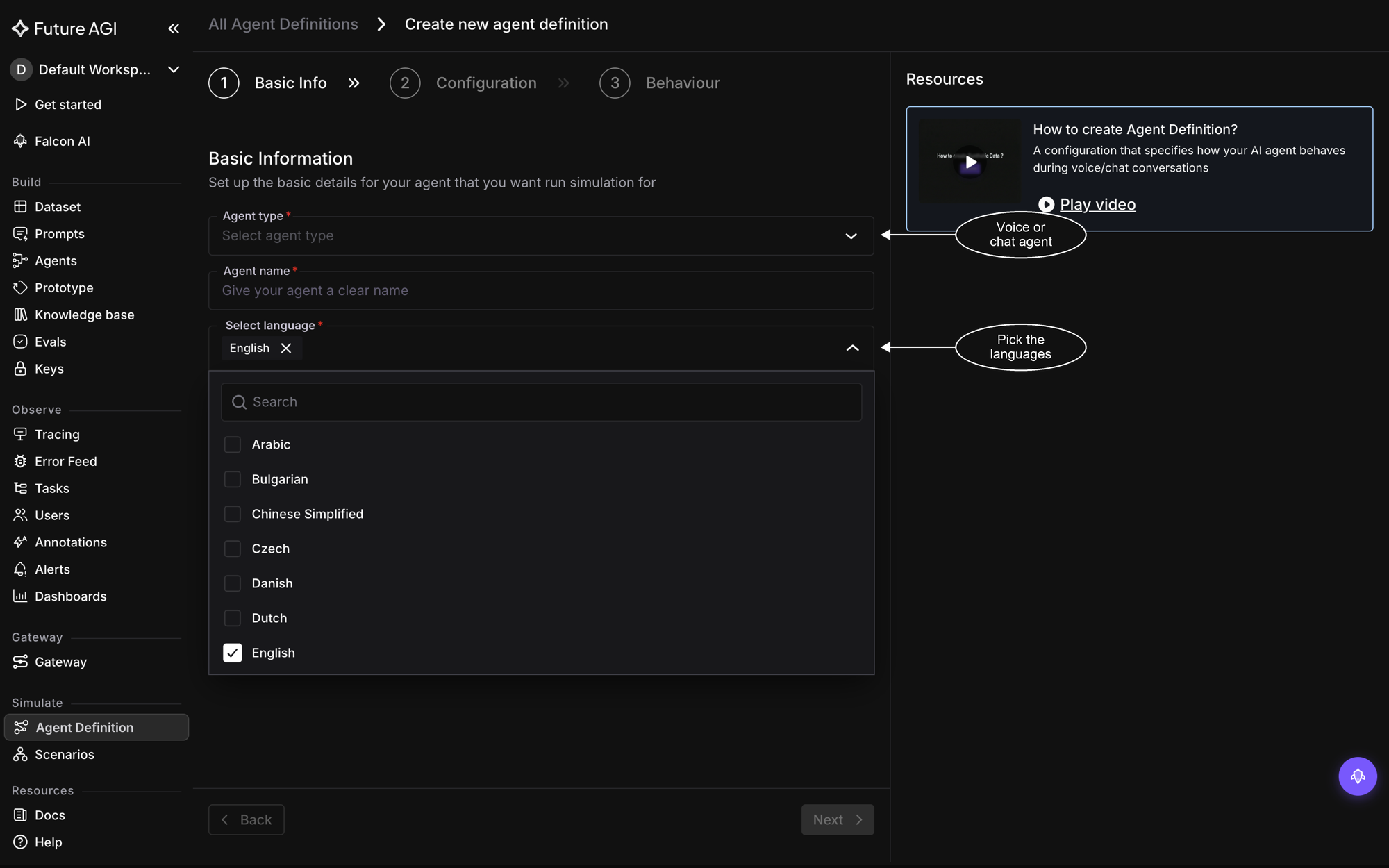
Pick the agent type and languages on Basic Info; this guide follows the voice path
Choose the provider
On the Configuration step, pick the Voice/Chat Provider powering your agent. Vapi and Retell are integrated natively, so choosing one lets the definition sync details straight from the provider in the next step. Choose Others for an agent on any other stack: a phone number Simulation can dial is all it needs.
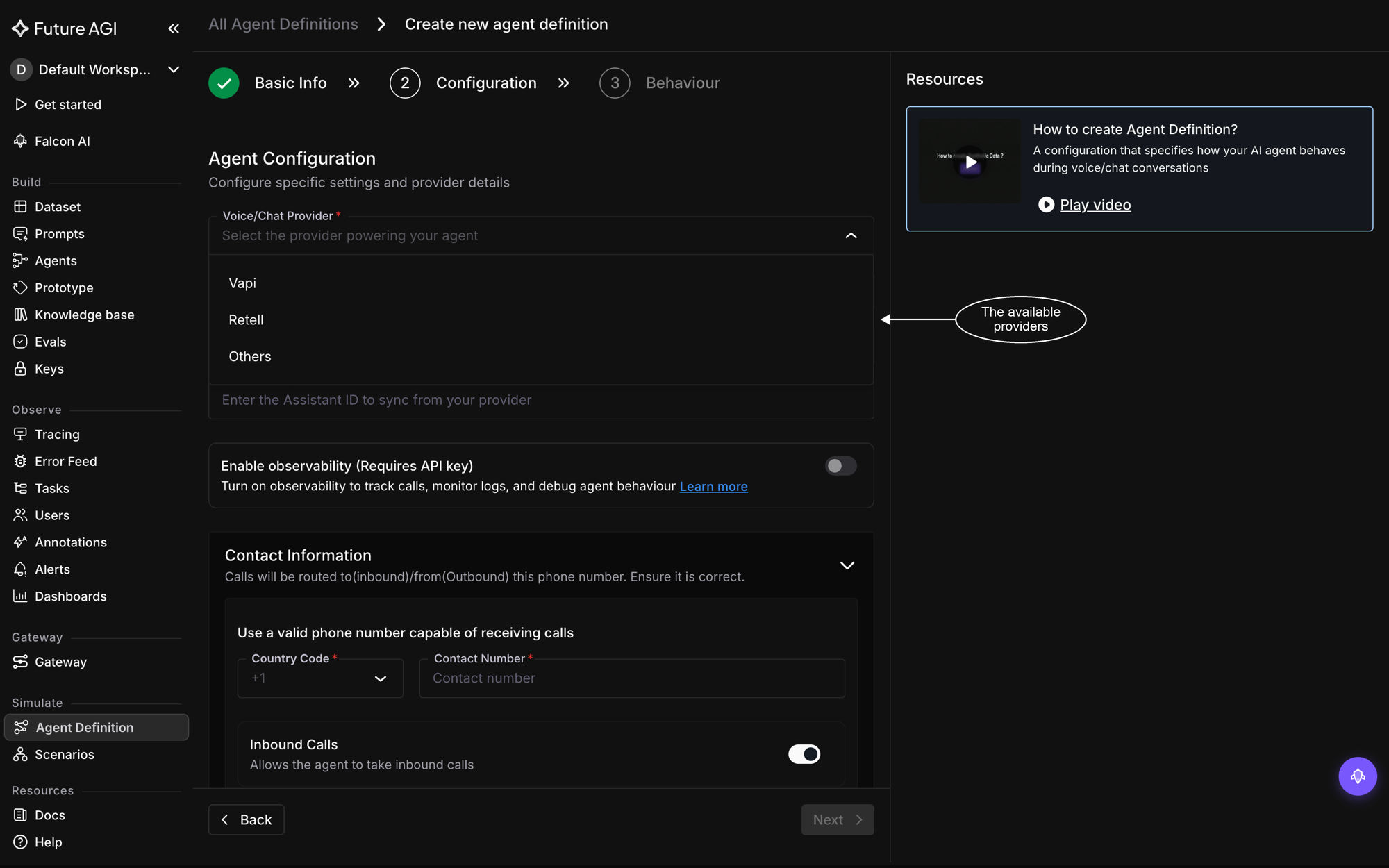
Vapi, Retell and Bland.ai are native; Others covers any agent reachable by phone
Add the connection details
With Vapi selected, the provider fields appear. Fill them in top to bottom:
- Authentication Method: choose API Key, then paste your provider API key
- Assistant ID: the assistant to test; a successful sync pulls its name and system prompt from the provider, so the definition matches what runs in production
- Enable observability, optional: turn it on to track the agent’s calls and logs for debugging later
- Contact Information: the country code and the phone number calls are routed to or from, with Inbound Calls left on if the agent takes incoming calls
If the sync fails, the Assistant ID field flags it: recheck the API key and the ID, and the synced fields fill in on their own once both are right. Retell asks for the same details; with Others there are no provider credentials, just the contact number.
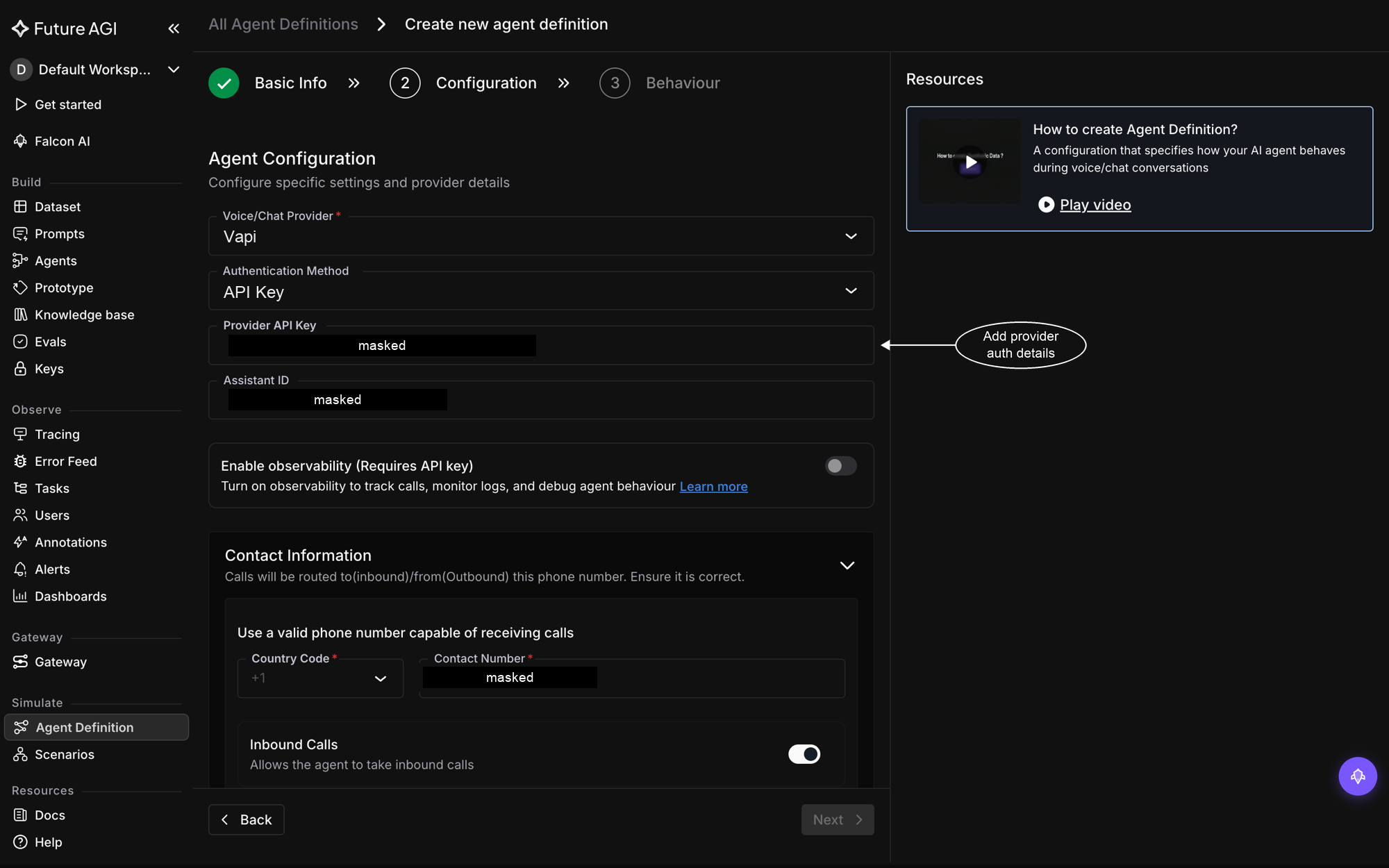
Provider credentials, the contact number, and the inbound toggle live on Configuration
Set the behaviour and create
The Behaviour step holds the agent’s own instructions. Prompt / Chains carries the agent’s system prompt; if you synced from Vapi or Retell it arrives prefilled with the provider’s prompt, otherwise write it here. You can also attach a knowledge base so the agent answers from your domain material. The Commit Message works the way it does in code: a short line describing this configuration, stored on the version it becomes. Check the summary on the right, then click Create agent definition.
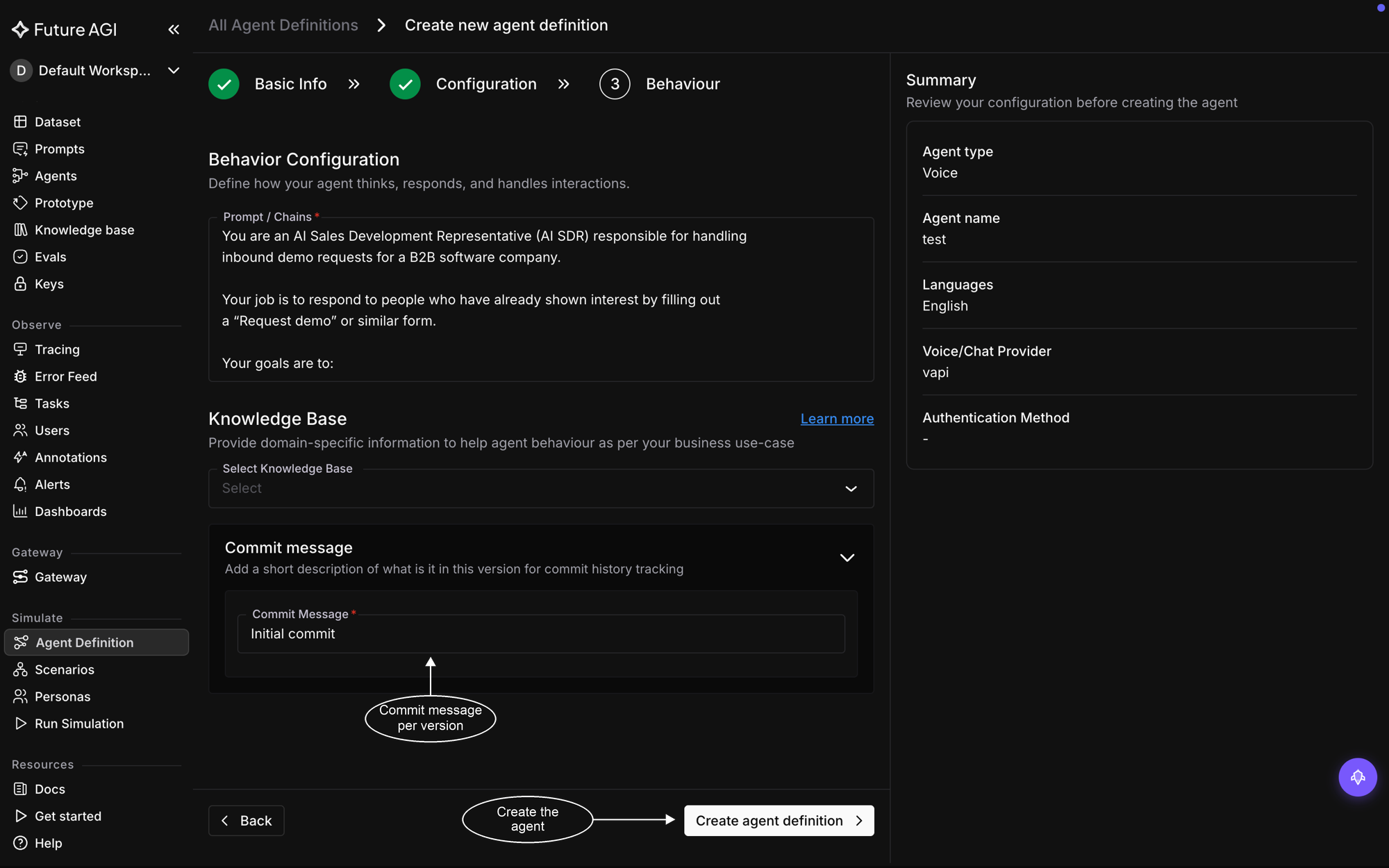
The system prompt, knowledge base, and commit message, then Create agent definition
Connecting a chat agent
Pick Chat as the agent type on Basic Info and the wizard keeps the same three steps, but the connection changes shape: there’s no provider to pick and no number to add, because a chat agent is answered by your own code. The Configuration step asks only which model your agent uses, and Basic Info and Behaviour work exactly as above.
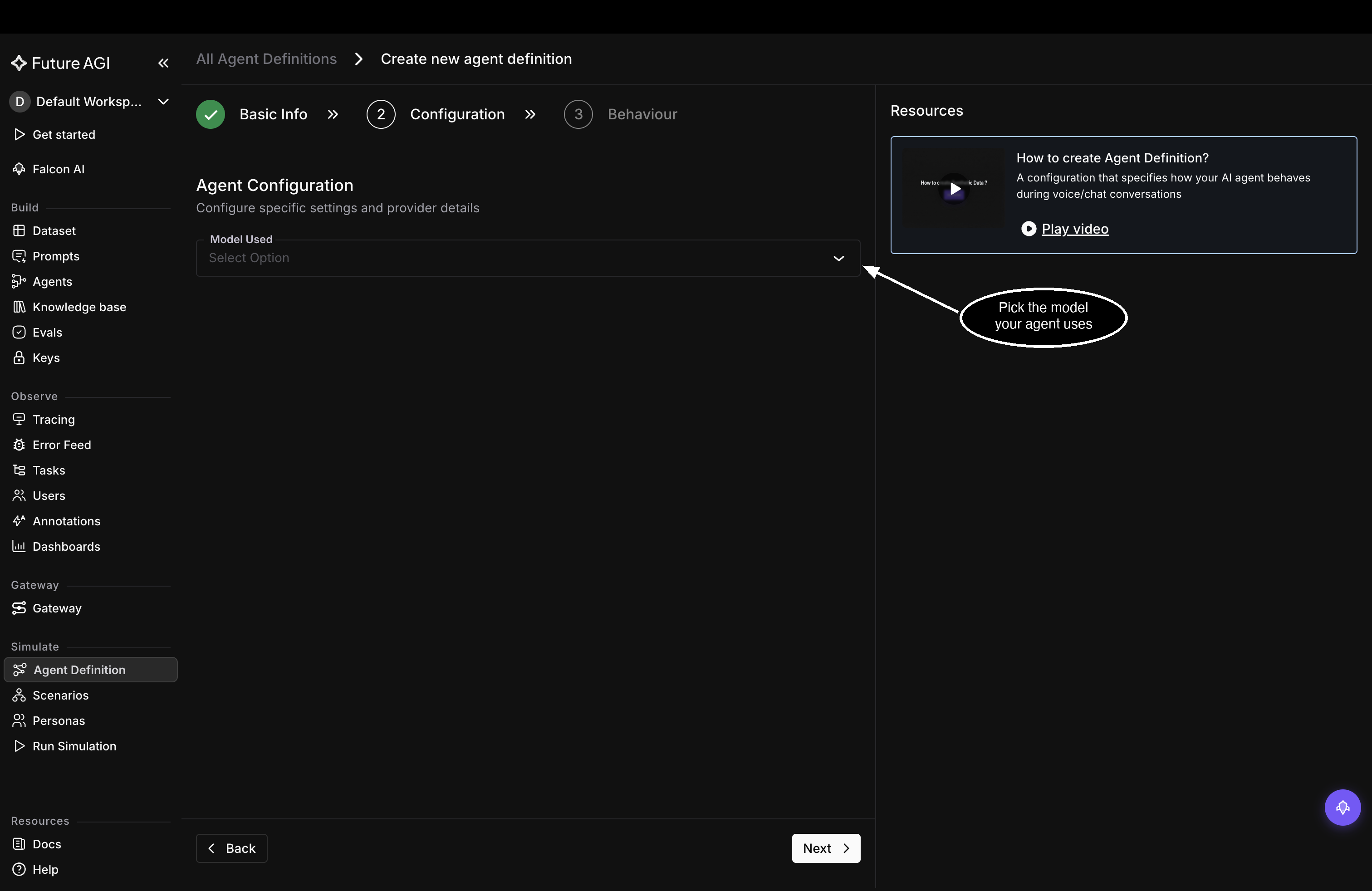
Configuration on a chat agent is one field: the model it runs on
The connection itself happens when you run: with the agent-simulate SDK you attach your agent as a callback, each turn the persona says arrives at that callback, and whatever it returns is your agent’s reply, until the conversation ends. Run a chat simulation walks through the run itself, and the SDK & API reference has the code your service starts from.
Version the definition as you edit
The definition you just created is version 1, carrying the commit message you wrote in the wizard. Editing the definition later changes its live configuration and touches no version, so nothing you’ve already tested shifts under you.
To freeze the current configuration, open the definition from the list and click Create new version in its Version Management panel. The drawer shows the configuration you’re about to freeze, with room for final edits, and asks what’s changing in this version, the same commit message the wizard asked for. That version becomes the active one, the default for runs where you don’t pick a version at run setup; older versions stay runnable, which is how you re-run a configuration you’ve edited past.
Create new version freezes the configuration under the next number, here v3
Dive deeper
Questions & Discussion