Running optimizations
Open the optimization drawer from Fix My Agent, pick an algorithm, and start the run
Starting an optimization run doesn’t happen on its own page. It hangs off a finished simulation’s results, launched from inside Fix My Agent, and this guide walks the drawer that opens from there: picking an algorithm, setting its fields, and starting the run. What each algorithm actually does, and what to do with the trials once they land, are covered elsewhere and linked as you go.
Note
Optimization launches from inside Fix My Agent, so its prerequisites apply first: the run has to be complete, and it needs at least 15 connected calls before Fix My Agent is even clickable.
Open the drawer
On a run’s results page, click Fix My Agent in the tab bar. Inside the panel, under Prompt based suggestions, click Optimize My Agent. That opens a dialog titled Choose optimization type, and this is the drawer the rest of this guide configures.
Pick the algorithm
Choose Optimizer is the first field, a search-select listing every algorithm: Random Search, Bayesian, ProTeGi, Meta-Prompt, PromptWizard, and GEPA. What each one does and when to reach for it is covered on Optimization. For how an algorithm works internally, the Optimization product docs are the deeper reference.
Configure it
Two fields sit above the algorithm-specific ones, the same for every pick:
- Name: required, whatever tells you what this attempt was about
- Language Model: the model this optimization run uses
Below them, the parameter fields change with the algorithm:
| Optimizer | Parameters |
|---|---|
| Random Search | Number Variations |
| Bayesian | Min examples, Max examples, No.of trials |
| ProTeGi | Number of gradients, Errors per gradient, Prompts per gradient, Beam size, Number of Rounds |
| PromptWizard | Mutated Rounds, Refined Iterations, Beam size |
| GEPA | Max Metric Calls |
| Meta-Prompt | Number of Rounds |
Every algorithm ends on the same field, Optimization Objective, multiline: write in your own words what you want this run to fix or improve.
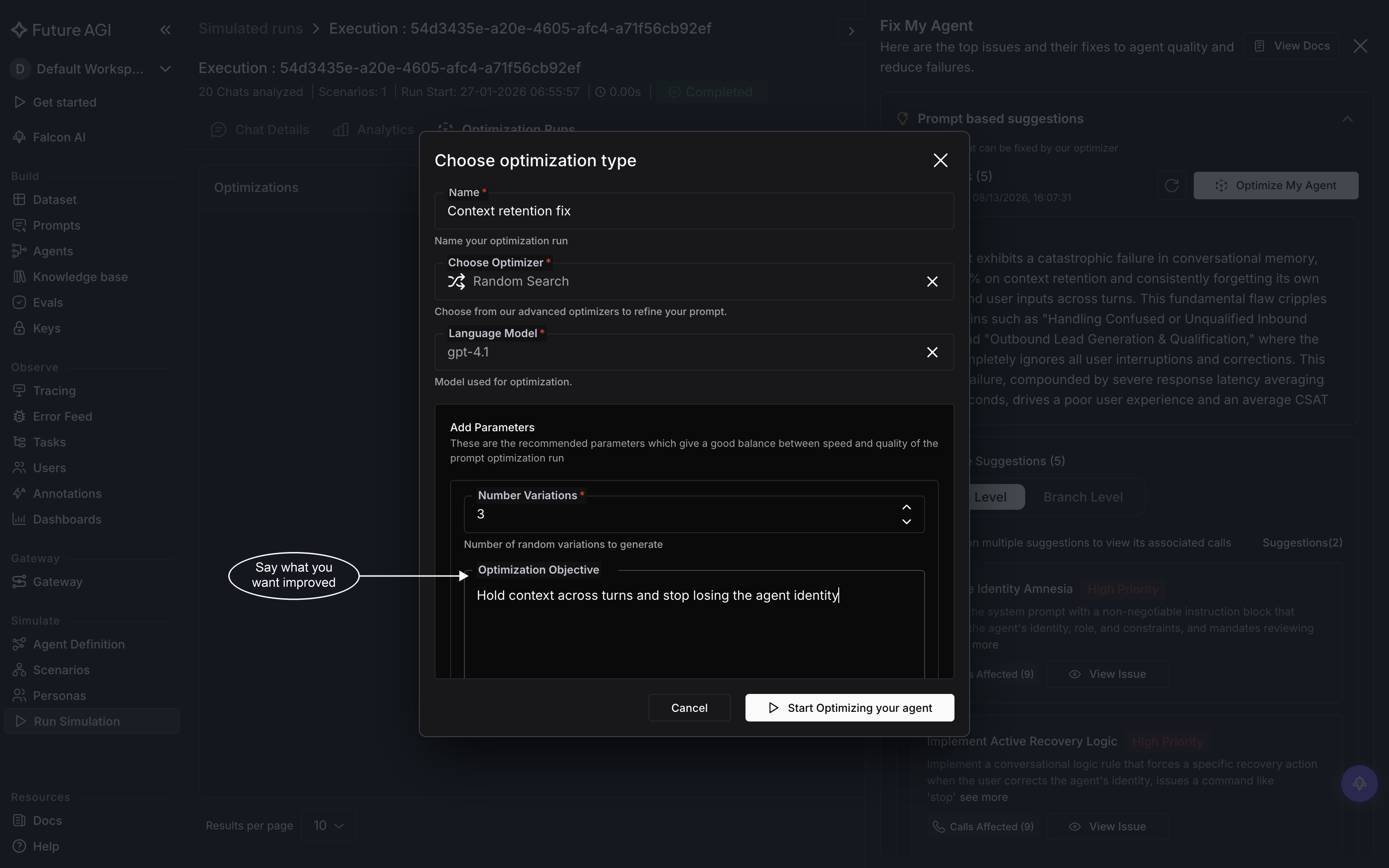
The objective is free text, so it’s worth naming the specific failure rather than asking for better output
Start it
Click Start Optimizing your agent at the bottom of the drawer. A toast confirms it, “Optimization Created Successfully,” and the run appears in the execution’s Optimization Runs tab right away, moving from pending to running as it works through its trials.
Optimization runs picks up from here: reading the trials as they come in and applying the one that wins.
Dive deeper
Questions & Discussion