Explore results
Find your way around a run's results page: the header, its tabs, and where each one leads
Once a run has calls in it, whether it’s still going or long finished, everything it produced collects on one page. This page maps that layout: the header, the tabs, and what each tab is for, so the two guides after it can go straight to the detail without re-explaining where things live. If you don’t have a run to look at yet, Create a simulation builds and starts one first.
What you’re looking at is one execution of a run, not a log of every attempt. A run can be started more than once, and each attempt gets its own copy of this page with its own calls and its own scores.
Open a run’s results
Under Simulate in the sidebar, Run Simulation lists every run in the workspace. Click a row to open it, or land here directly right after creating one, as Create a simulation walks through.
The page at a glance
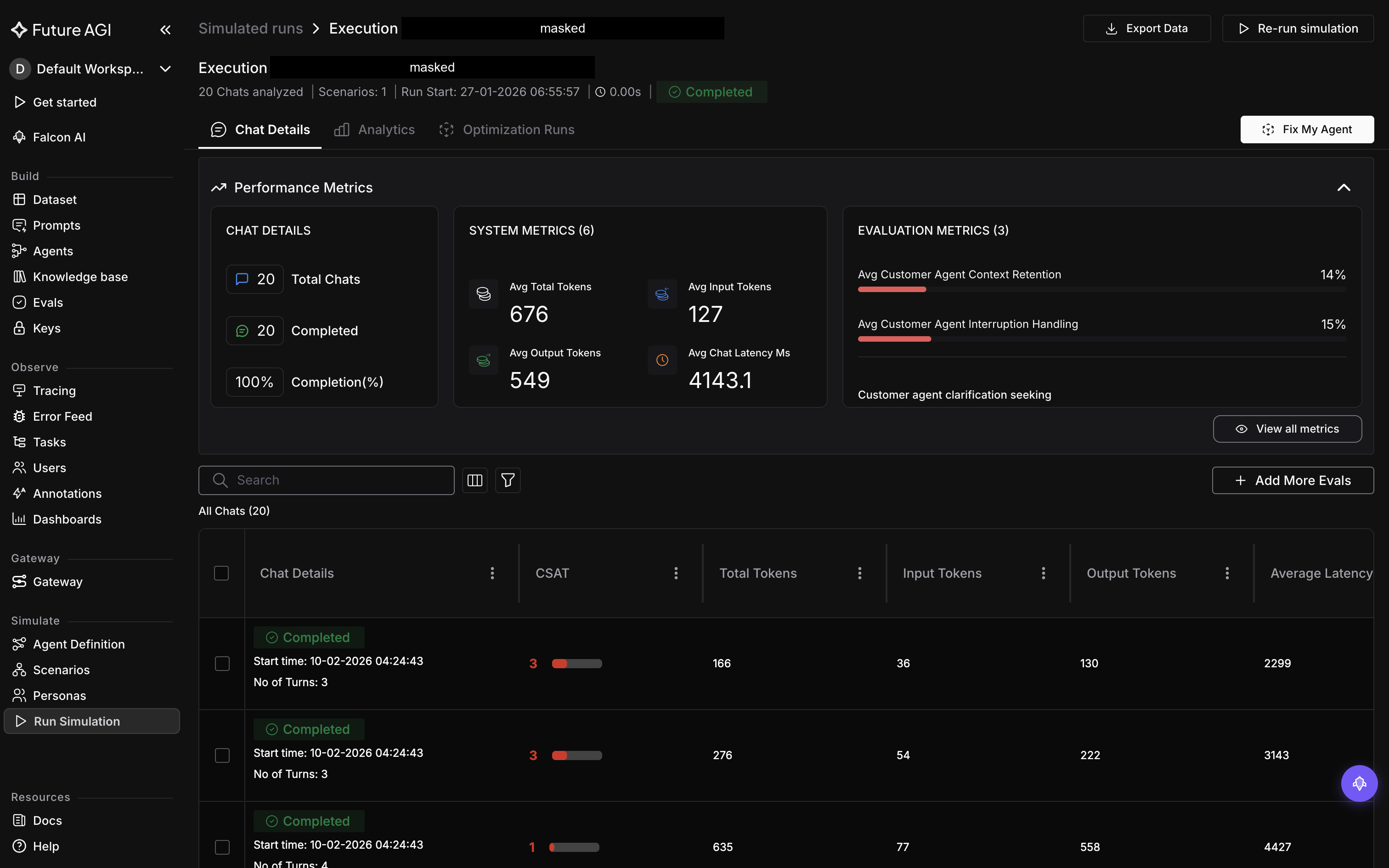
A finished chat execution. A voice one reads the same, with Call Details in place of Chat Details
The header
The header names the run and carries the actions that apply to the whole execution rather than to one call:
- Export Data downloads every call in this execution as a CSV
- Re-run simulation starts the calls again, or just their evals, depending on what you pick. It’s hidden on runs simulated from a prompt rather than an agent definition, and disabled until there’s at least one call to rerun. The same control appears again at the call level, one call at a time
- Stop Running appears only while the execution is active, and asks you to confirm before it cancels the rest of the calls
The header also shows the execution’s status as it moves from pending through running to completed (or failed, or cancelled), which Runs & results covers in full.
The three tabs
Below the header sit three tabs. Two of them route onward to their own guide; the third, optimization, has a lighter guide of its own too.
Call Details / Chat Details
This is the tab you land on, and its title changes with the agent: Call Details for a voice run, Chat Details for a chat run. A row of summary cards sits at the top, then the grid underneath lists every call in this execution, one row each, with its status and its score if the run has evals attached.
Click a row to open that call. That drawer, the transcript inside it, and the evaluation results per call are what Calls and transcripts walks through.
Analytics
Analytics rolls the same calls up into one view: eval scores aggregated across the whole execution, rather than one call at a time. It’s what you’d check to see how the run did overall. Analytics and metrics covers what’s on it.
Optimization Runs
If you’ve sent this execution’s results through Fix My Agent, the attempts show up here with their type, trial count, and status. Optimization runs covers reading one.
Dive deeper
Questions & Discussion