Explore scenario graph
Read and edit the conversation flow your scenario runs, node by node
The conversation graph is the flow every row of a scenario plays out: each node is a step your agent takes, and each edge is the condition that moves the conversation on.
Open a scenario from Scenarios under Simulate and the graph fills the left half of its detail view, laid out for reading: pan and zoom it with the controls at its bottom left, and read any step’s wording straight off the node’s card.
Editing the graph changes what the simulation actually tests, so reach for the builder when the drafted flow doesn’t match the agent you’re testing: a branch it handles that the graph never offers, a conversation that ends before it should, or a step whose wording sends the customer down the wrong path.
This guide works on support-agent-chat_v1, the chat scenario from the Explore scenarios overview.
Open the graph editor
On that detail view, click Edit at the top right of the graph and the full-screen Flow Builder opens: the canvas in the middle, a palette of node types down the left, and Save flow above the palette.
Nothing you do in the builder is stored until you click Save flow, and closing with unsaved edits asks whether to save or discard them first.
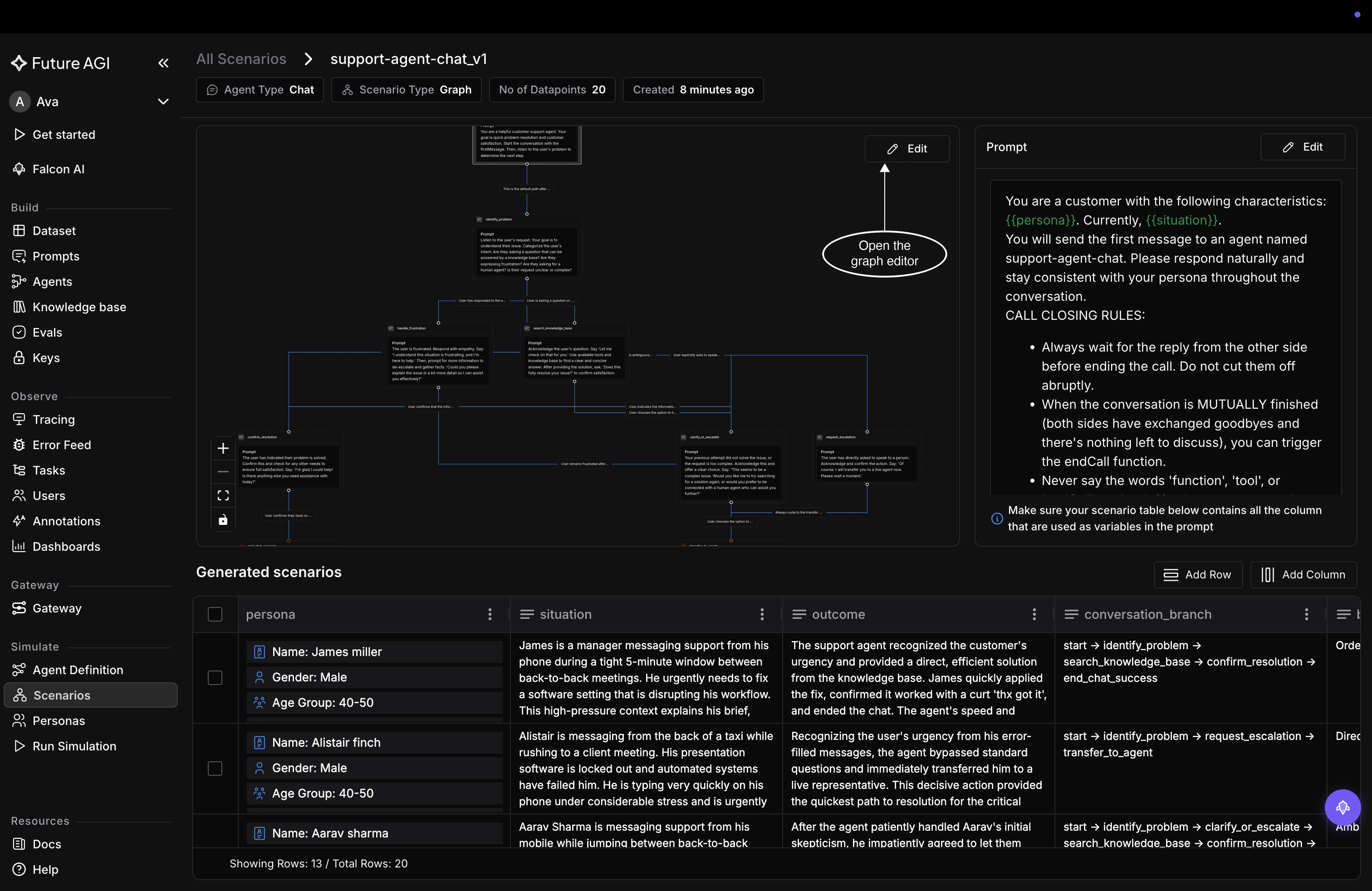
Edit opens the Flow Builder over the whole page
Inspect a node
Each node card on the canvas already shows the essentials: its type, its Prompt, a Start label on the node the conversation begins at, and a Global chip on a node the agent can reach from any point in the flow. Click a node and it becomes the active one, with its detail panel opening on the right under the node’s name.
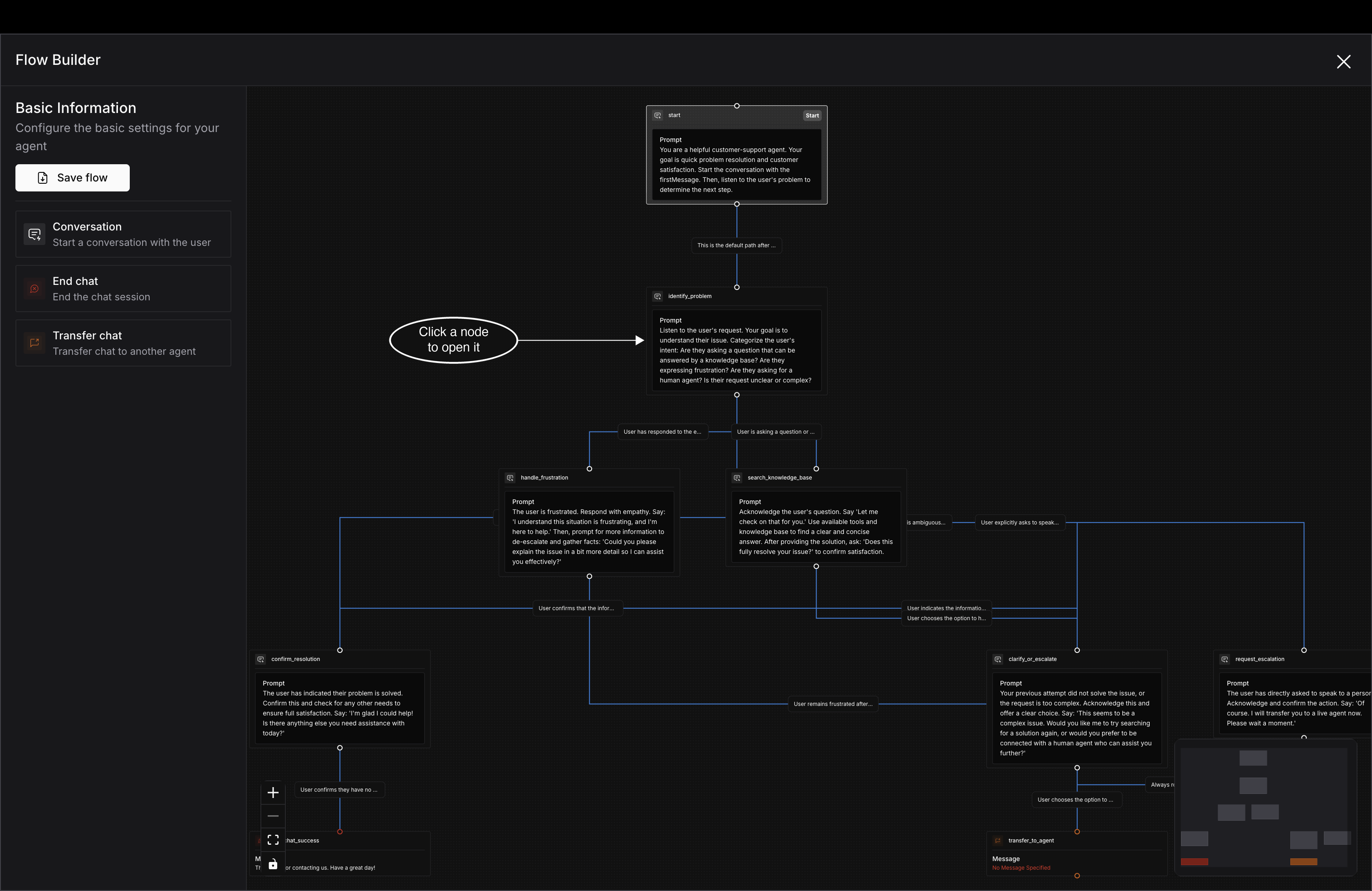
Clicking a node highlights it on the canvas and opens its panel
The panel is where a step’s wording lives. A Conversation node carries Node Type, the Prompt that step runs on, and an Enable Global Node toggle for making it reachable from anywhere. Edit the prompt in place and the node card on the canvas updates as you type; Save flow is still what writes it back.
Note
Leave Node Type alone unless you really mean to change what the step is. Switching it resets the node to the defaults for the new type, and the prompt you wrote goes with it.
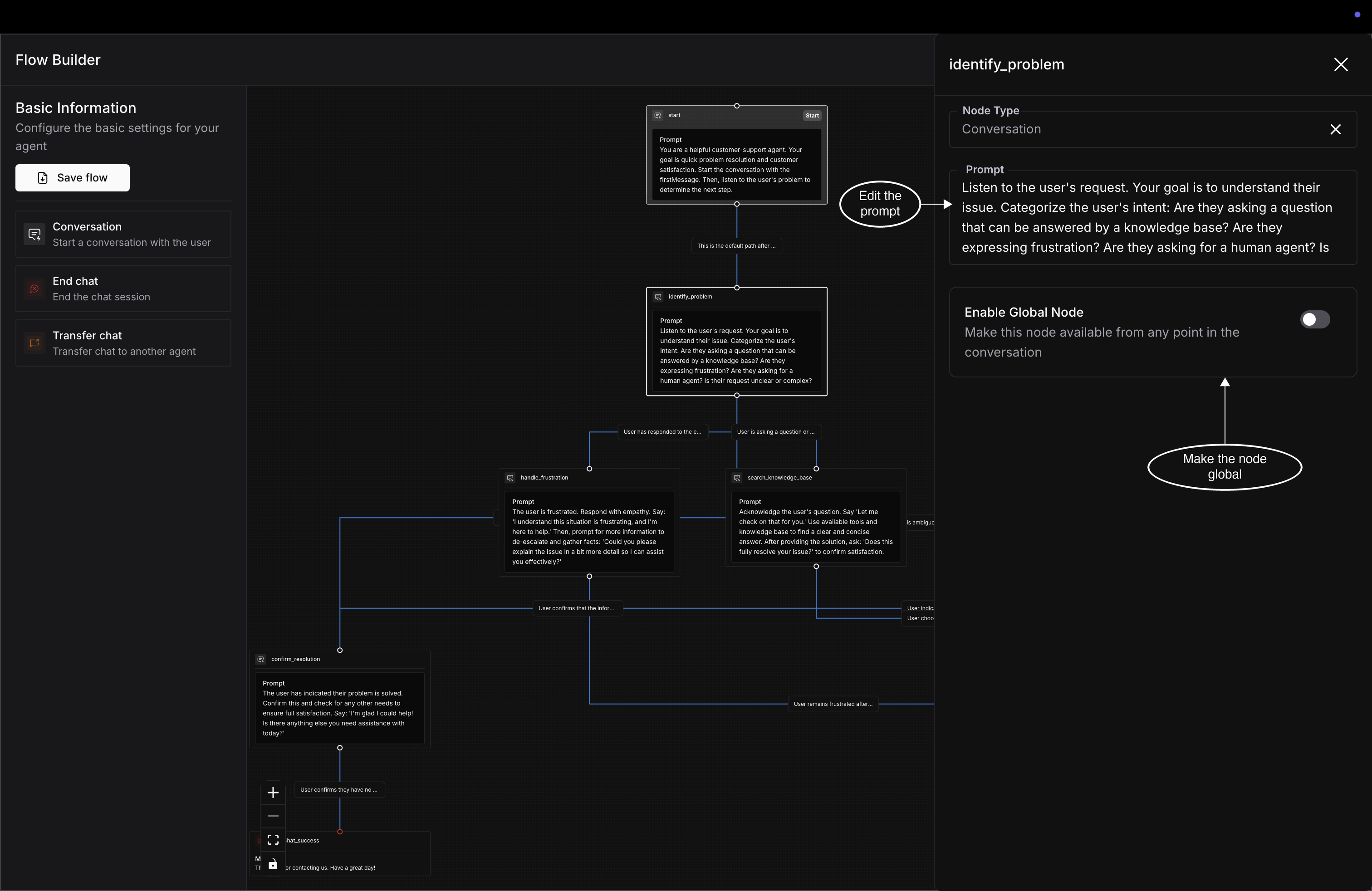
A node’s prompt is edited in the panel, not on the card
Edges work the same way. Click the line between two nodes and a Condition panel opens, holding the condition that sends the conversation down that branch.
Add a node by dragging it in
New nodes come from the palette on the left, and they’re dragged rather than clicked: pick a type up and drop it where you want it on the canvas. The palette follows the agent type, so a chat scenario like support-agent-chat_v1 offers Conversation, End chat, and Transfer chat, while a voice one offers End call and Transfer call in their place.
A dropped node lands with an auto-generated name, no prompt, and no edges. Its card says No Prompt Specified in red until you click it and write one. Connect it by dragging from the handle at the bottom of an existing node to the handle at the top of the new one, then set the condition on that edge.
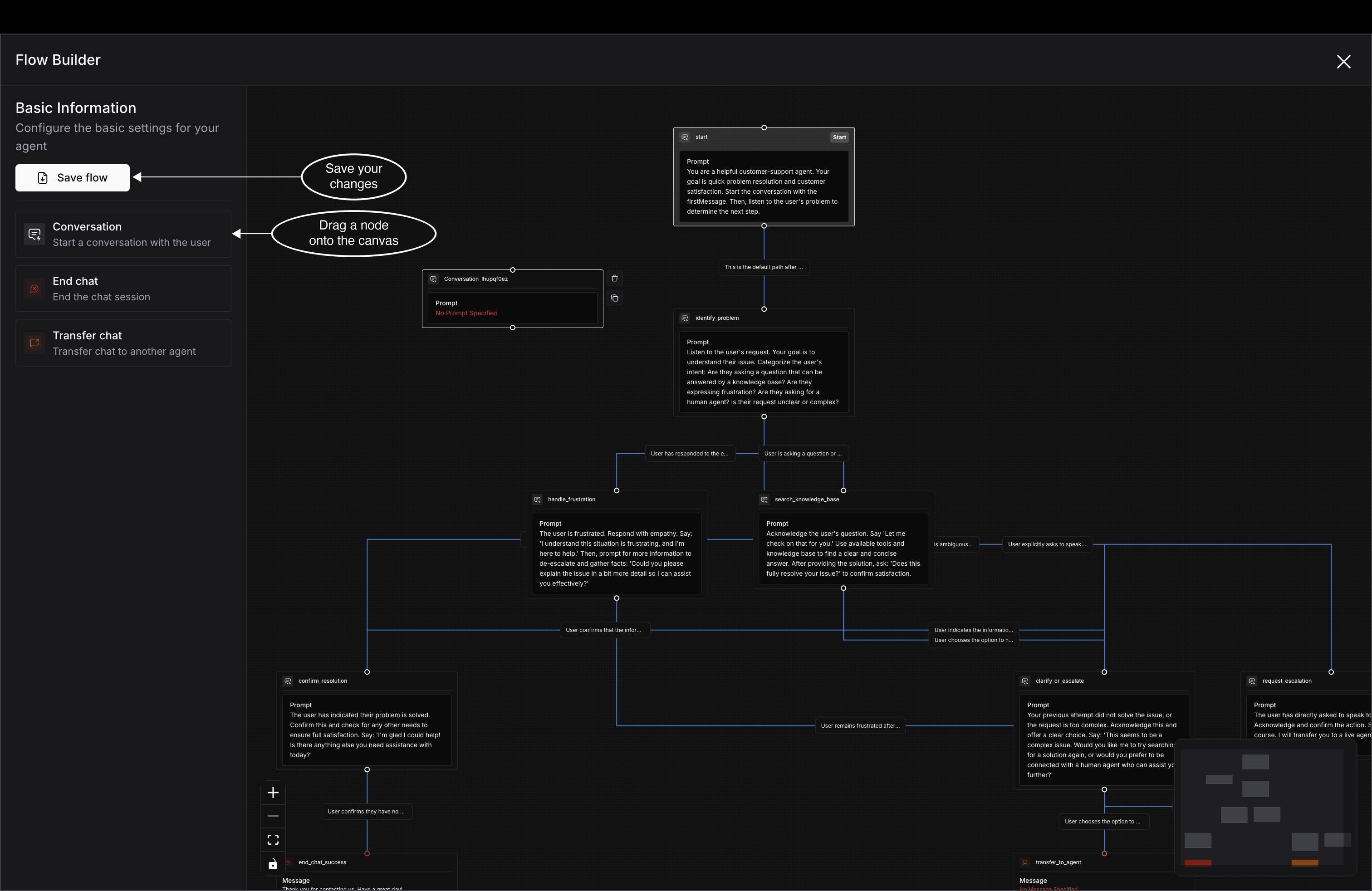
Node types are dragged out of the palette, not clicked in
Remove or copy a node
Hover a node and two controls appear at its edge: a trash icon that removes it and a copy icon that duplicates it, prompt and all. Removing a node takes its edges with it, so the steps that fed into it are left with nowhere to go.
That’s worth knowing because Save flow validates before it writes: a graph with no start node, or with a step that connects to nothing, comes back with an error naming the problem. Close any gap you open, whether you got there by removing a node or by adding one you haven’t wired up yet.
The start node has no trash control, since a flow has to begin somewhere. To change where a conversation starts, edit that node rather than replacing it.
Dive deeper
Questions & Discussion