Edit evals in a simulation
Add, update, remove, or remap the evals scoring a run that already exists
A run’s evals aren’t fixed the way its agent version and scenarios are. Add one you forgot, retune where one reads from, or drop one that isn’t earning its place, all from the run’s own page, long after the run was created.
Note
This page assumes a run test that already exists, from Create a simulation. Picking which eval to add and what it measures is Evaluation’s territory; this page only covers attaching, editing, and rerunning evals already on a run.
Open the run’s evals
Under Simulate in the sidebar, open Run Simulation and click into the run. The Evals chip on its page opens the All Evaluations panel, which lists every eval currently attached, each row carrying its own edit and delete controls. Each row also shows the mapping it’s reading under its name, so you can see what every eval is pointed at without opening any of them.
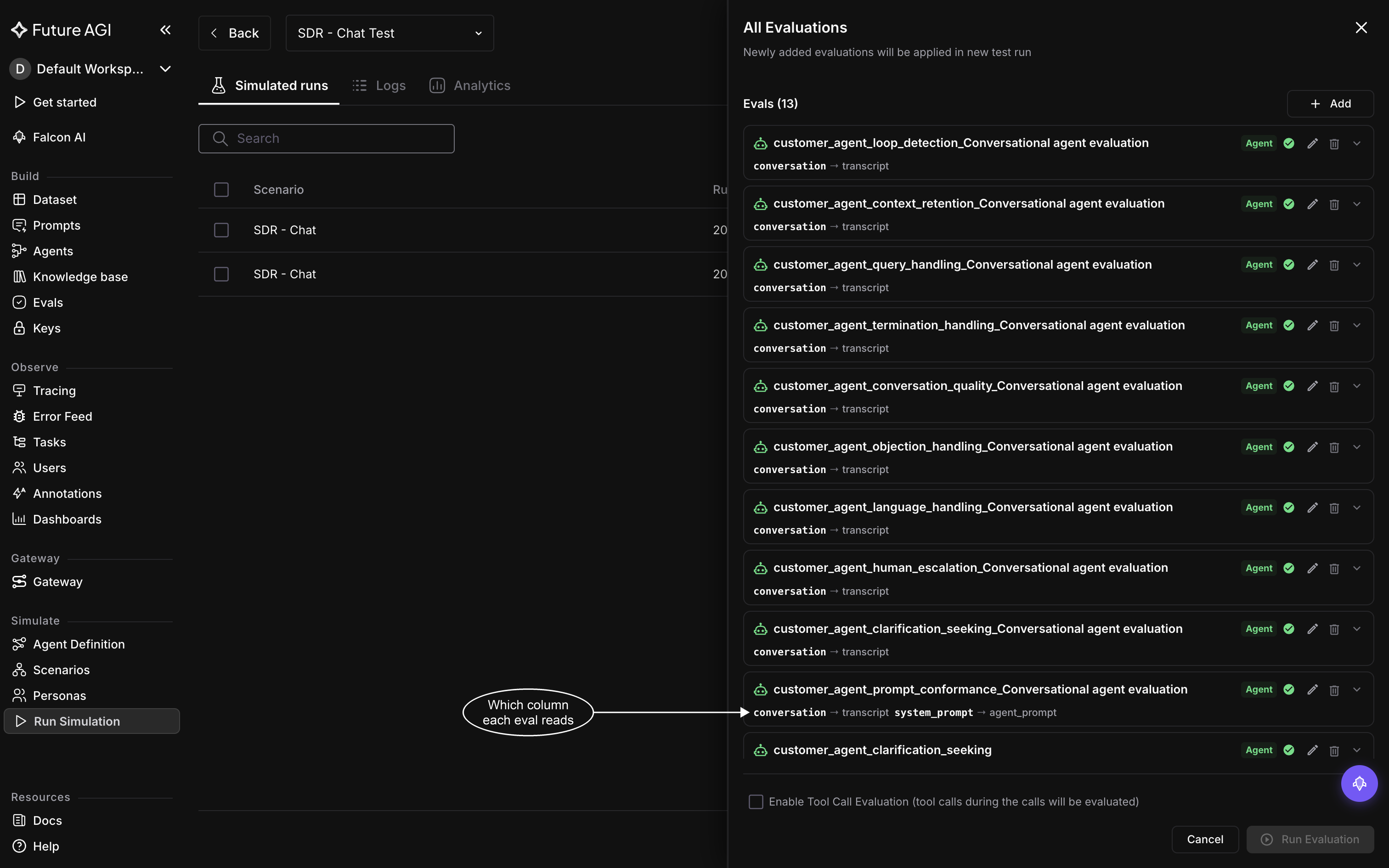
Thirteen evals on one run. Most read the whole conversation; prompt conformance also reads the system prompt
Enable tool call evaluation doesn’t live in this list, it’s a checkbox at the bottom of this same panel. Turn it on or off from there and it saves straight onto the run. Evaluate tool calls covers what it scores.
Add an eval
Click Add Evaluation if the run has no eval attached yet, or Add in the list header if it already does, to open the same library used when the run was created. Pick an eval, then set its Variable Mapping to the column it should read from, the same mapping step covered in Create a simulation. Save and it’s appended to the run’s list, named after the eval and stamped with the date, exactly like the ones added when the run was built.
Update an eval, or remap its variables
Click the edit icon on any eval in the list to reopen the configuration it was added with. What’s editable depends on the eval: a built-in eval only exposes its mapping, since its instructions and output type are fixed, while an eval with its own settings, like a filter or a knowledge base, exposes those too, and you can even swap it for a different eval outright by changing its template.
Remapping is the one edit every eval takes, built-in or not: open Variable Mapping and point any input at a different column than the one it currently reads, then save.
Remove an eval
Click the delete icon on the eval’s row and confirm. It’s gone from the run. A run always needs at least one eval, so removing it is blocked while it’s the only one left; add a replacement first if you’re swapping it out rather than dropping it.
Get updated scores without rerunning calls
None of the edits above touch a call that’s already run: it keeps whatever eval scores it got at the time. To see how the current eval configuration would have scored it instead, rerun evals rather than the whole run.
From the run’s page, click Re-run simulation and choose Run Evals. It’s the only option a chat run offers, since a chat agent’s calls live in your own code and can’t be replayed by the platform, and it’s also the option worth reaching for on a voice run when only the scoring changed: every call’s recording, transcript, and cost stay exactly as they were, only its eval outputs are cleared and recalculated against whatever evals are on the run now. If the rerun fails before it starts, nothing about the calls changes either. Run a voice simulation covers the confirmation step and the alternative, Run test + Evals, which replaces the calls themselves.
Note
Re-run simulation doesn’t appear at all on a run built from a Prompt Workbench prompt, and it’s disabled until the run has at least one completed call.
Dive deeper
Questions & Discussion