Optimization runs
Track an optimization run through its steps and trials, and apply the prompt that wins
An optimization run is what you get after Fix My Agent points the search at a finished run, covered in Running optimizations. This page covers reading one you’ve already started: its steps, its trials, the score behind each trial, and what to do with the one that wins.
Find a run’s optimization history
Open a run’s results page and switch to the Optimization Runs tab, one of the three tabs covered in Explore results. It lists every optimization attempt made against that execution, one row per attempt, with its name, how many trials it ran, which optimizer it used, and its status. A run with none yet shows No optimization runs found.
Click a row to open that attempt.
Watch it move through its steps
The header repeats the run’s name and its status: pending, running, completed, or failed. Alongside it sit when the run started, which optimizer ran (Random Search, Bayesian, ProTeGi, Meta-Prompt, PromptWizard, or GEPA), and which model ran it. A Parameters button opens a popover listing the values you set when you created the run; its Learn more link goes to the Optimization product docs, which cover each optimizer’s parameters in depth.
Below the header, an Optimization Steps section tracks the run through four stages: setting up, scoring your current prompt as a baseline, running the search, and finalizing the result. It keeps itself current while the run is still going, so you can leave the page and come back to see how far it’s got.
Once a run is completed or failed, a Rerun Optimization button appears in the header. It opens a dialog prefilled with this run’s optimizer, model, and parameters, all editable before you submit, and submitting creates a new optimization run rather than restarting this one.
Read the trials and the score per trial
Every optimization run produces trials. The first is always the baseline: it scores your prompt exactly as it stands today, before the search changes anything, and gives every later trial a line to beat. Each trial after it is a candidate the search tried, and carries its own prompt text, its own average score, and how that score moved against the baseline.
The best-performing trial, the one with the highest average score among everything the search actually tried, is flagged with a crown so you don’t have to hunt for it.
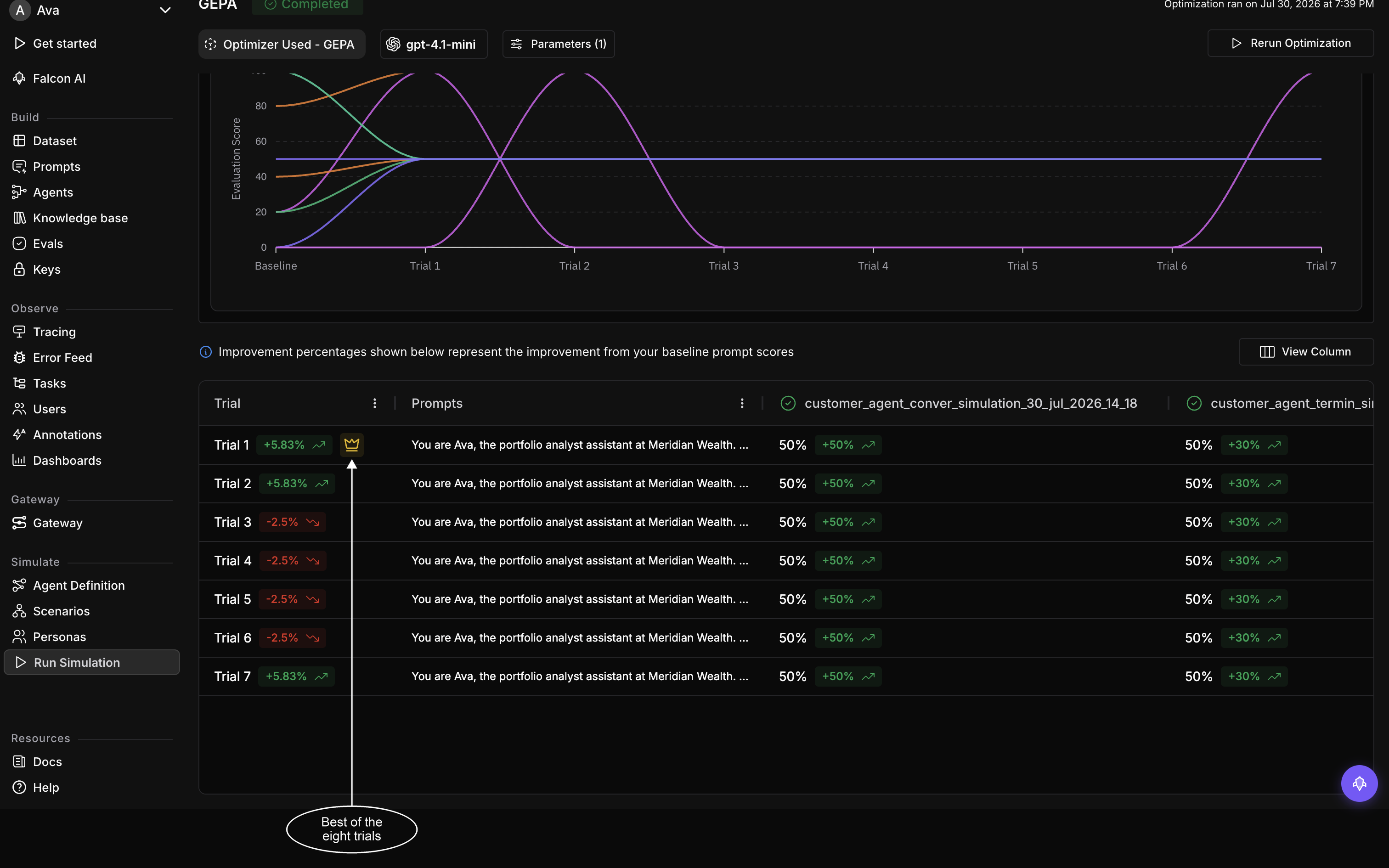
Three trials matched the best score here, and the crown falls on the first of them Open it to read its full prompt text, plus which evals scored it and which scenarios it ran against, the same ones your original run used.
Apply the winning configuration
Note
No button pushes a trial’s prompt back onto your agent for you. Read the winning trial, copy its prompt text, and paste it into a new version of your agent from Connect your agent.
Once that version exists, treat it like any other change: start a new simulation against it and compare the results to the run the optimization started from, rather than trusting the trial’s score on its own to carry over.
Dive deeper
Questions & Discussion