Add rows
Put more test cases in a scenario, generated from a description or typed by hand
Rows are the individual test cases a scenario holds: 20 of them on support-agent-chat_v1, each playing out as its own conversation through the same flow. When the generated set doesn’t cover a case you care about, you add rows to it.
This picks up from a scenario you already have open, so start at Explore scenarios if you need one in front of you first.
Open the Add Rows panel
Add Row sits above the Generated scenarios table on the right, and opens the Add Rows panel.
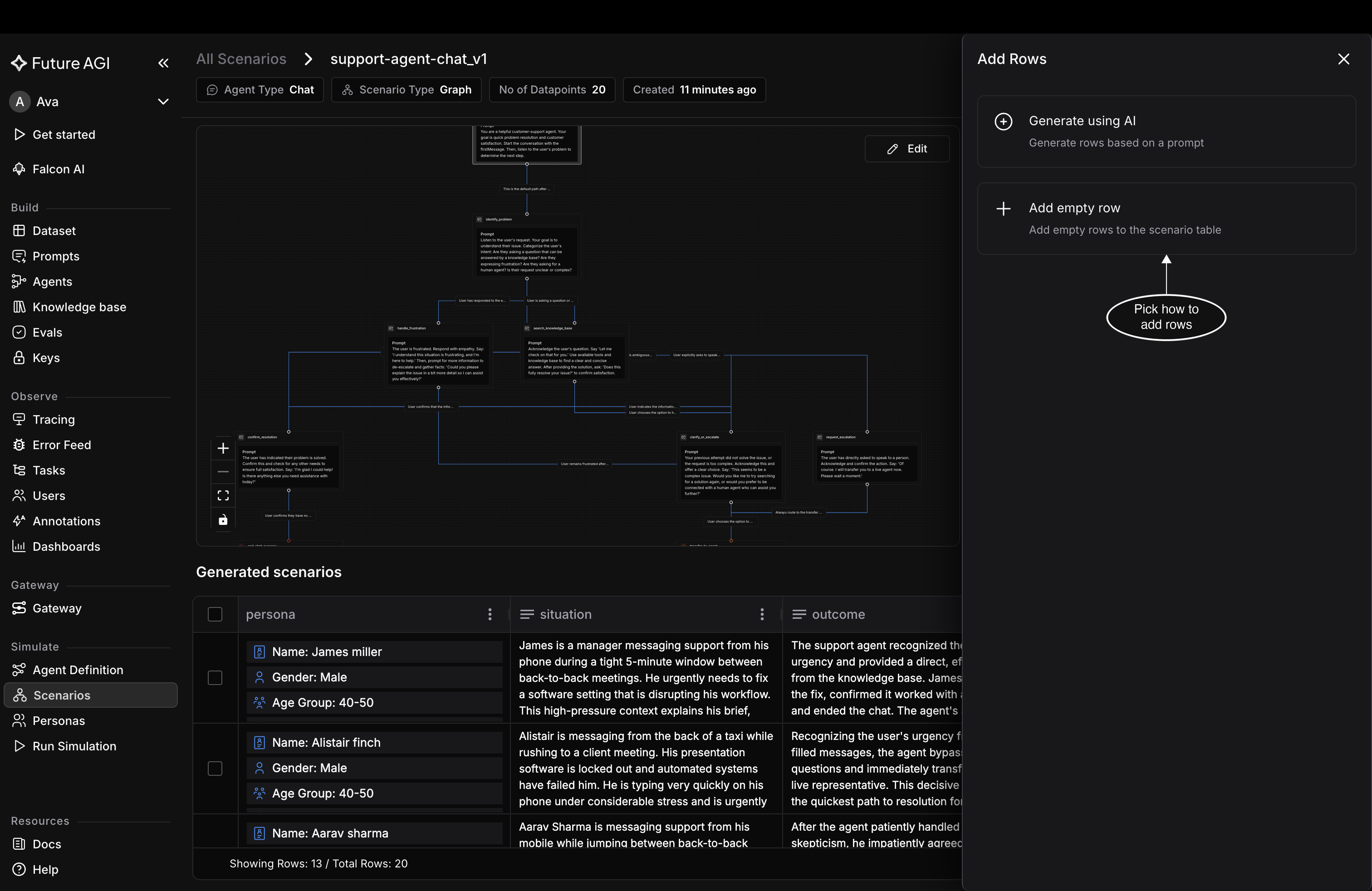
Describe the cases you want, or type them in yourself
Generate rows with AI
Pick this when you can describe the cases but don’t want to write them. No.of rows takes a count between 10 and 20,000, and Description is where you say what the rows should cover, something like customers disputing a charge over $200 who have already contacted support twice. Click Add and the new rows arrive with their columns filled in, ready to edit like the generated ones.
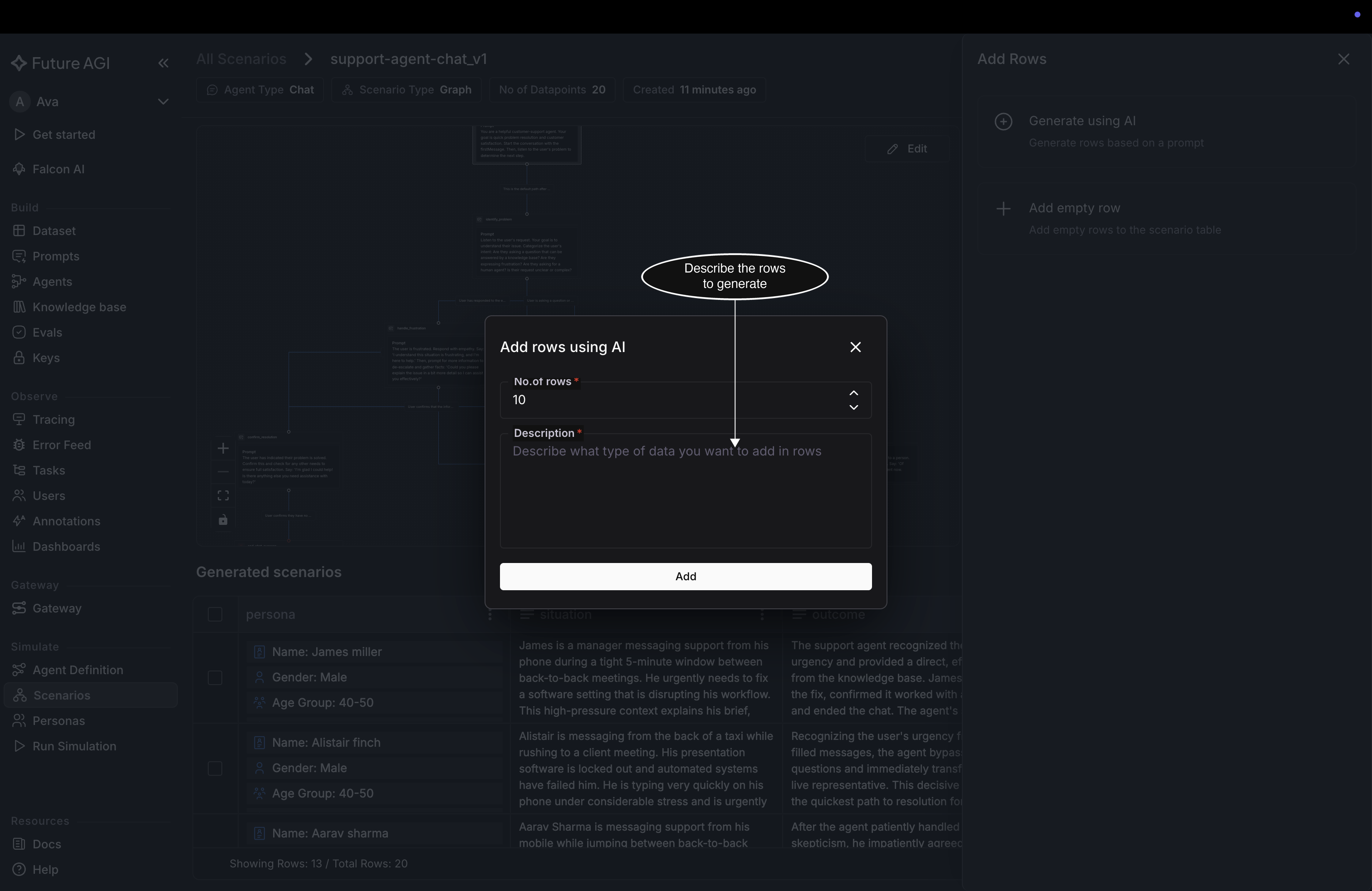
Describe the cases and the generator writes the rows
Add empty rows
Pick this when you already have the cases in mind and just need somewhere to put them. No. of rows to create takes a number from 1 to 10, and Next adds that many blank rows for you to type into.
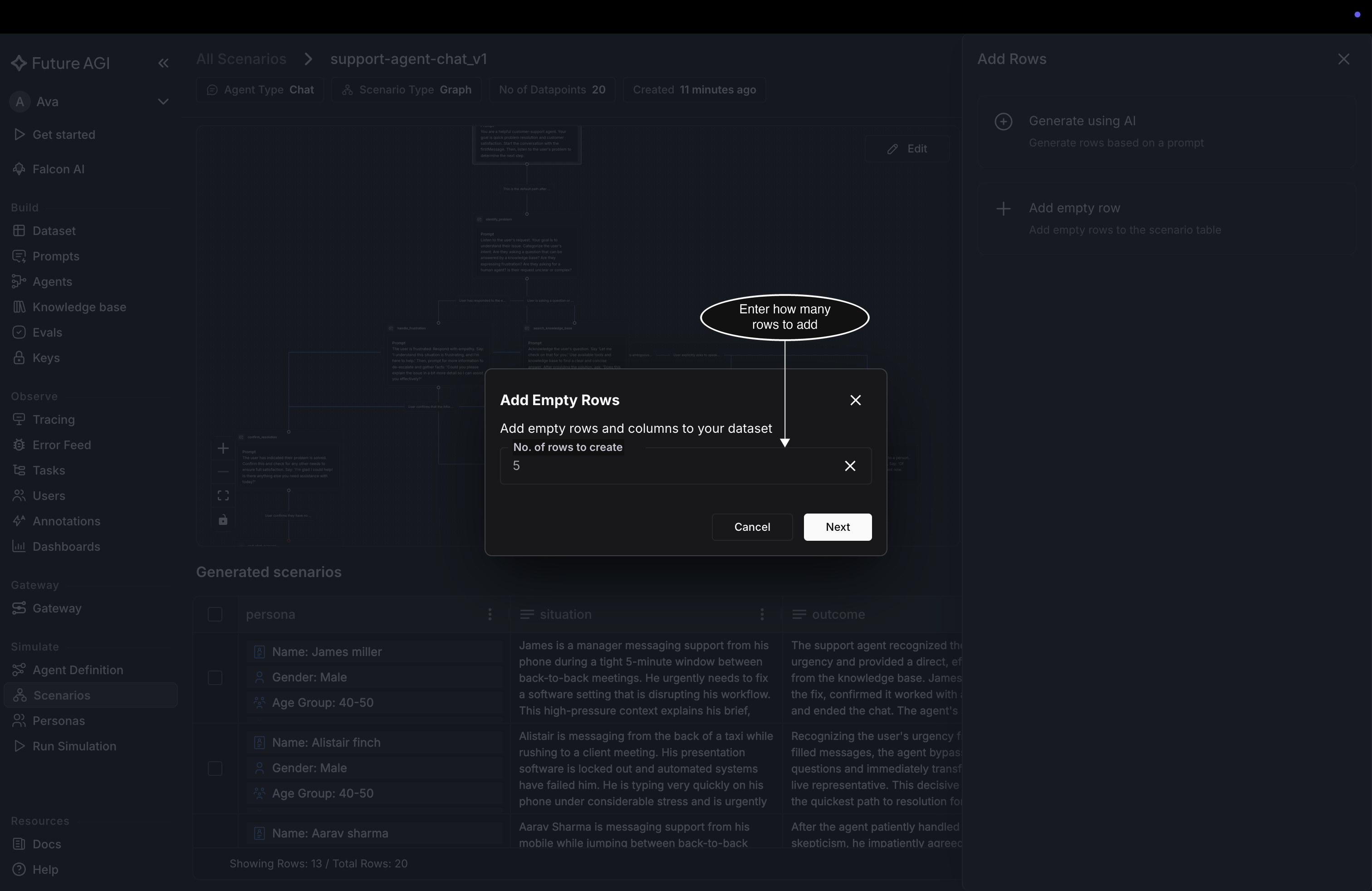
Blank rows are the path for cases you already know
Pull rows from a dataset, when the scenario has one
Scenarios built from a dataset carry one more route, sitting above the other two in the panel: Add from existing model dataset or experiment. Pick it, choose what you want under Choose Datasets or experiments, and click Add to copy those rows into the scenario table. It’s the fastest path when the cases you want to test are already recorded in a dataset you hold. A scenario built any other way doesn’t show this option at all.
Remove rows
Select the rows you don’t want and the buttons above the table swap for a selection bar carrying the count and a Delete action.
Dive deeper
Questions & Discussion