Calls & transcripts
Open one call and read its transcript, evals, cost, and recording
A run test fans out into calls, one per scenario row, and each call is the full record of one conversation. This guide opens a single call and reads through everything it carries: the transcript, the recording, the evals it scored, and what it cost.
Open a call
Every call is a row in the run’s Call Details tab (Chat Details for a chat run). Click a row and its detail drawer opens over the grid.
The drawer is headed by the call’s own ID, with arrows beside it that step to the previous or next call without going back to the grid. A row of chips underneath carries the call’s type and status, how long it ran, its average latency, the number it dialled, the voice provider that placed it, when it started, and how it ended.
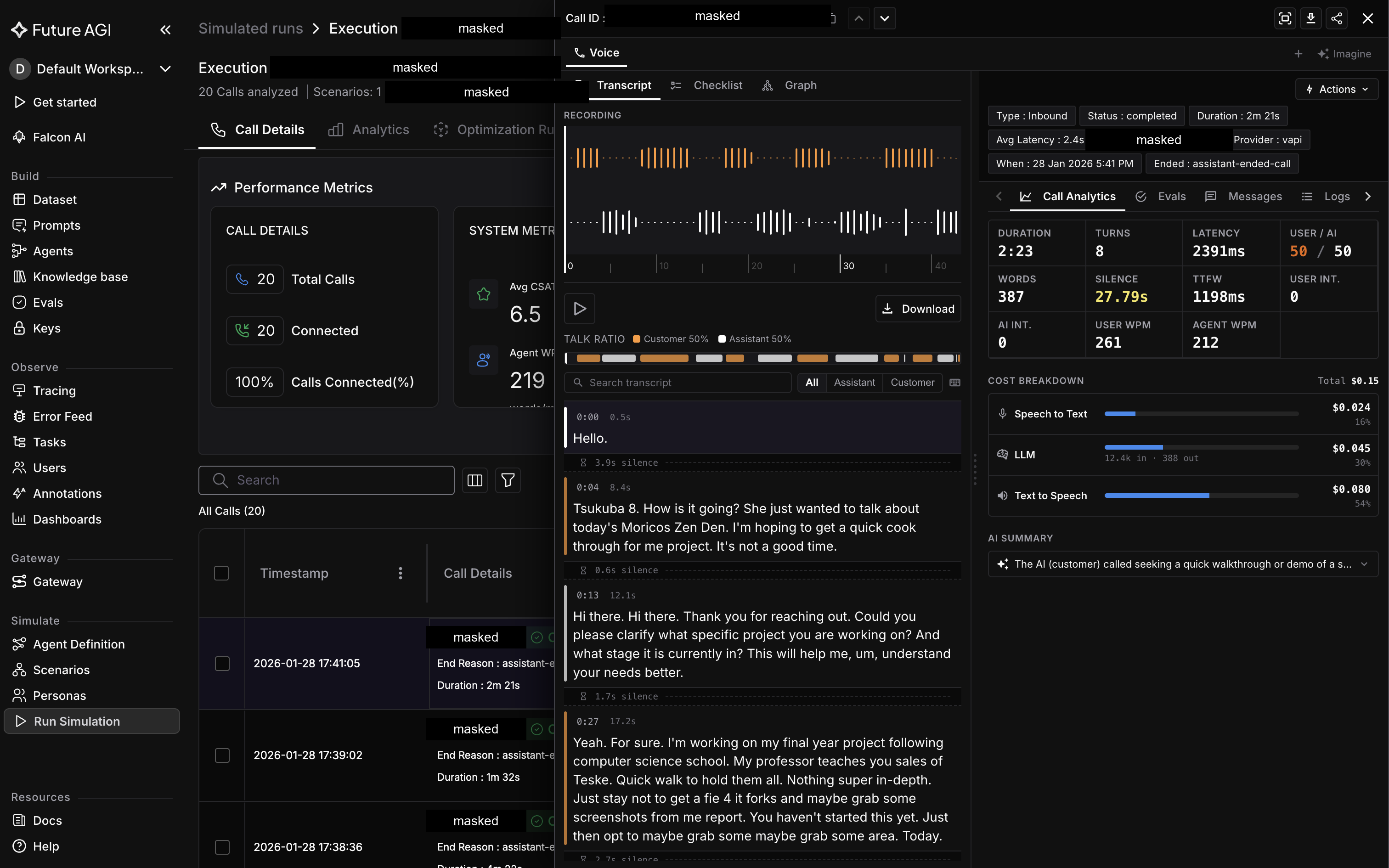
One inbound voice call end to end: the recording, the transcript beside it, and what the call cost
Follow the transcript
The transcript runs turn by turn, and each turn carries a speaker role. Three of them show up in the transcript you read: USER is the simulated persona’s turn, ASSISTANT is your agent’s, and SYSTEM is a turn that came from a system-level instruction rather than either side of the conversation.
If your agent calls tools mid-conversation, those turns exist too, under two further roles kept out of the transcript view: one holds the name of the tool that was called, the other the result it returned. They aren’t something you’d otherwise see here; Evaluate tool calls covers scoring them directly.
Play back the recording
A voice call’s drawer docks a recording player next to the transcript, so you can listen to the call while you follow what was transcribed from it. Chat calls carry no audio: the transcript is the whole record.
Check the evals scored on this call
Every eval attached to the run test scores each call independently, and the drawer lists all of them with the score this specific call got. This is the per-call view; the run-wide totals live on Analytics & metrics instead, and every field a call can carry, evals included, is defined exhaustively in the Call metrics reference.
The same drawer can rerun this one call: a voice call offers Run Evals or Run test + Evals, a chat call offers Run Evals only.
See what it cost
The Cost section totals what this call cost and, where there’s something to break down, splits the total into categories such as speech-to-text, the language model, text-to-speech, and recording storage. A call with nothing to show here reads as “No additional details available” rather than a zero.
Note
The drawer also carries Compare with baseline, which opens the original-versus-replay comparison. Replay covers how that comparison works.
Dive deeper
Questions & Discussion