Create a simulation
Bundle an agent version, scenarios, and evals into a run, then start it
A simulation pairs one agent version with the scenarios it has to face and the evals that score what comes back. The dashboard calls it a simulation; the docs and the SDK call the same object a run test.
Building one is a four-step wizard, and the four steps are identical whether your agent talks or types. Only what happens after you create it splits by channel: a voice run places its own calls, while a chat run waits for you to drive it from your own code.
Note
Two things have to exist first: an agent definition with at least one version, from Connect your agent, and a scenario built against it, from Create scenarios. Personas need nothing here: they ride along inside the scenario, which is why the wizard never asks you to pick one. A chat run needs one more thing, an API key pair, but only at the end, when you run it from your own code.
Name the run and pick the agent
Under Simulate in the sidebar, open Run Simulation. The list holds every run in the workspace, with the agent it targets, the scenarios and evals attached to it, and when it last ran. Click Create a Simulation to open the wizard.
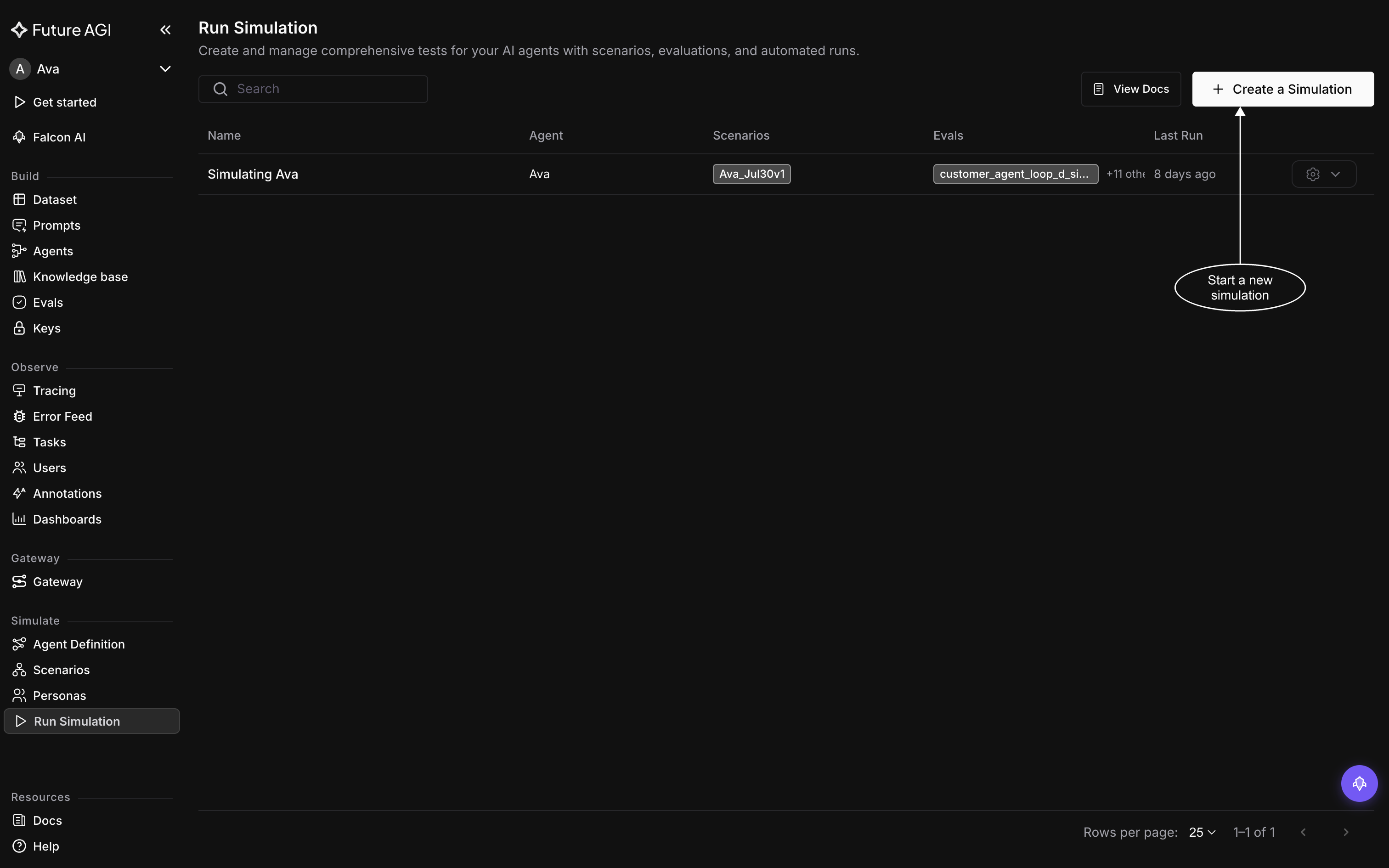
A run’s row carries its scenarios and evals, so the list doubles as a record of what was tested
The first step, Add simulation details, asks for four things:
- Simulation name: required, and you type it yourself. Nothing generates it for you. Pick something you’ll still recognise in a list six weeks from now, because a chat run’s code references this name exactly
- Choose Agent definition: required, and the choice that shapes the rest of the wizard. It sets the channel, which decides both the scenarios you can pick and how the run starts
- Choose version: required, and disabled until a definition is chosen. It defaults to the newest version, so choose an older one deliberately, when you’re re-running a configuration you’ve since edited past
- Description: optional. Worth a line anyway, since it’s what tells you months later why this run existed
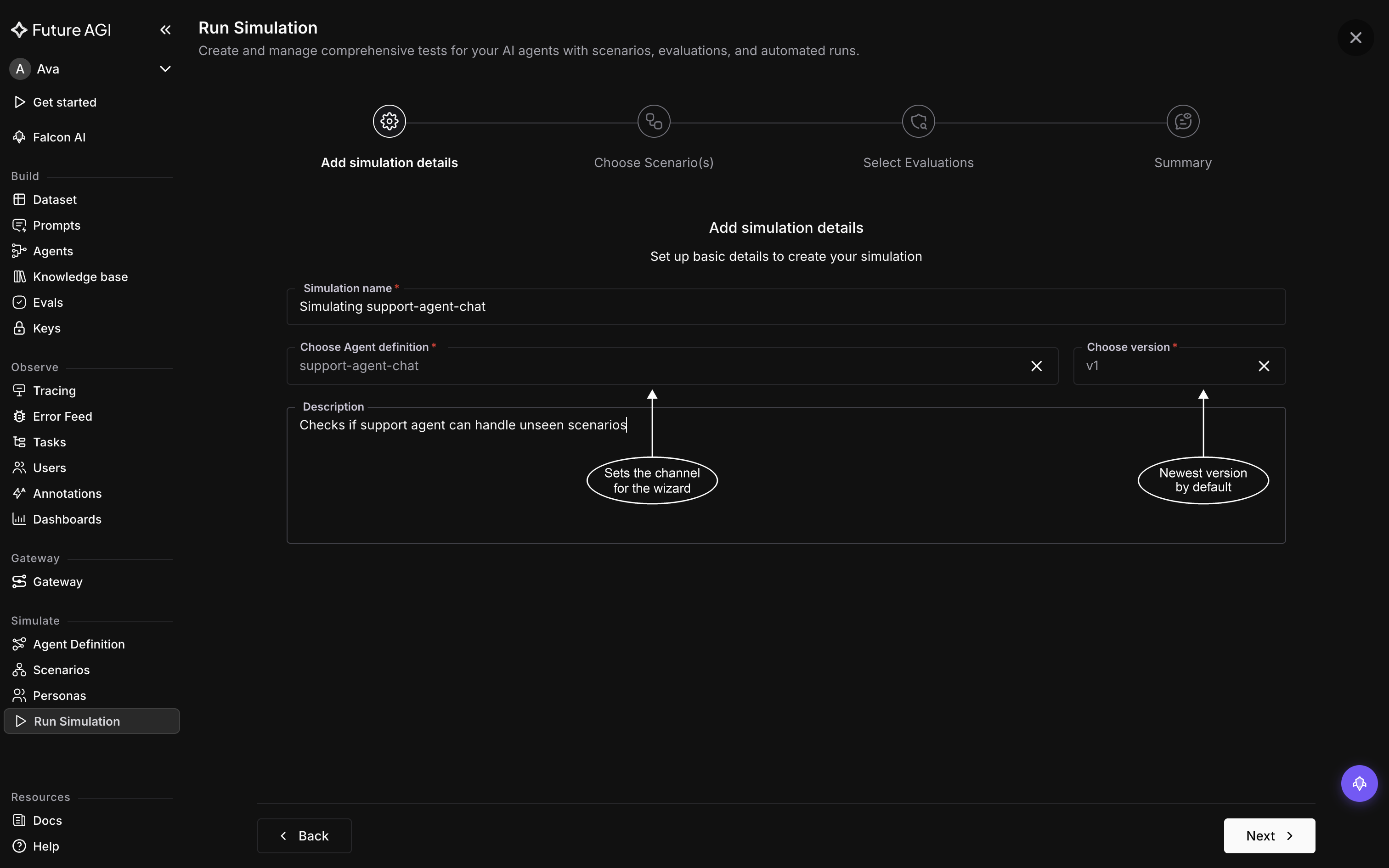
Choose version stays disabled until a definition is picked, since versions belong to one
The definition and version are worth a second look before moving on: neither can be changed once the run is created.
Choose the scenarios
The second step lists the scenarios in the workspace that match your agent’s channel: pick a chat agent and only chat scenarios appear. Tick as many as you want, and at least one is required to move on. Like the agent version, the set you tick here is fixed once the run exists.
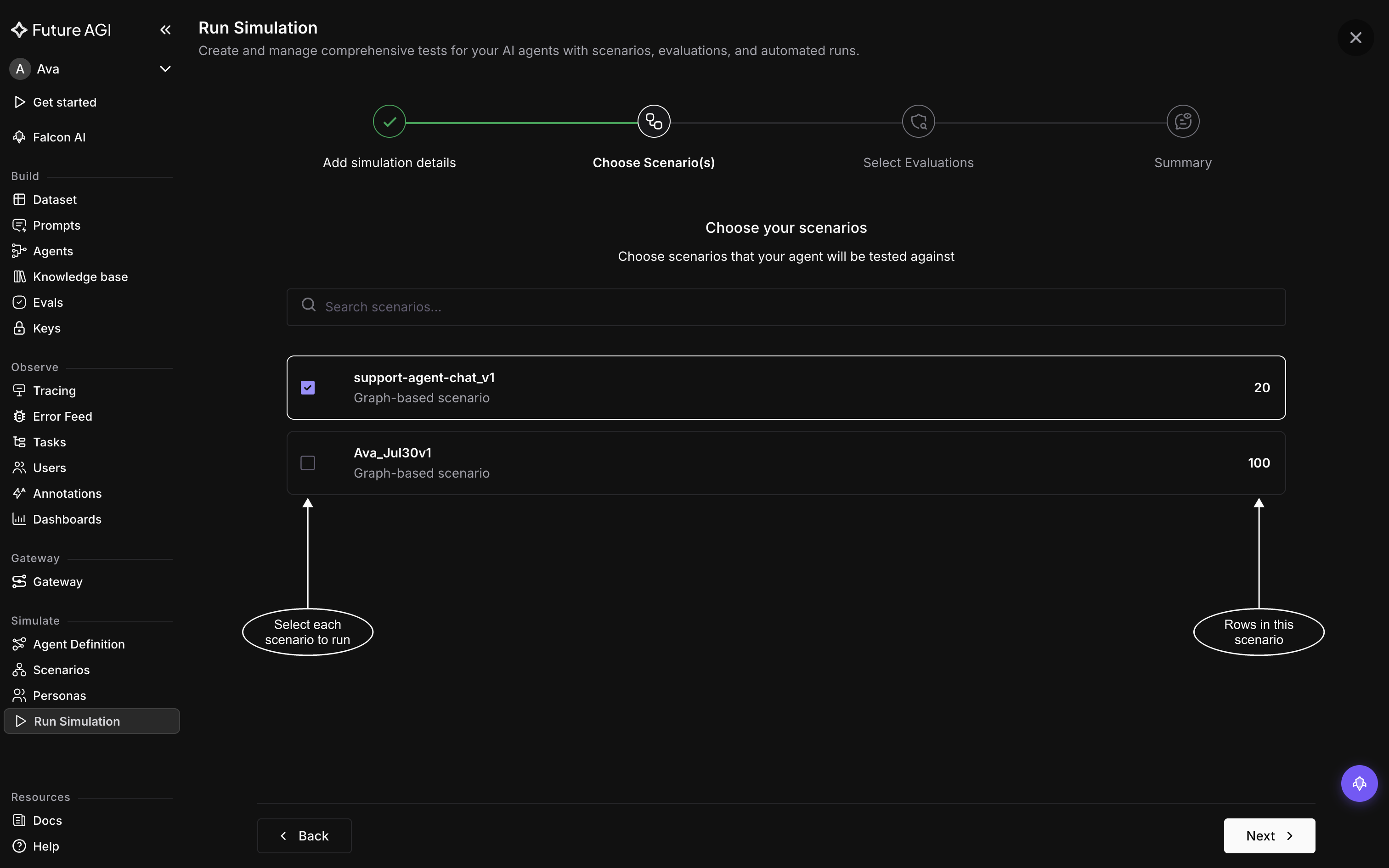
A scenario with no rows is greyed out and can’t be ticked
The number on the right is the scenario’s row count, and it’s what sets the size of the run. A run against a 20-row scenario plays 20 conversations, one per row. Tick two scenarios and it plays both sets.
A scenario showing 0 has no rows to run against. Open it from Scenarios and add rows first.
Add the evals
The third step is where you decide what counts as good. Nothing is scored by default, and the step won’t let you past until at least one eval is on the run.
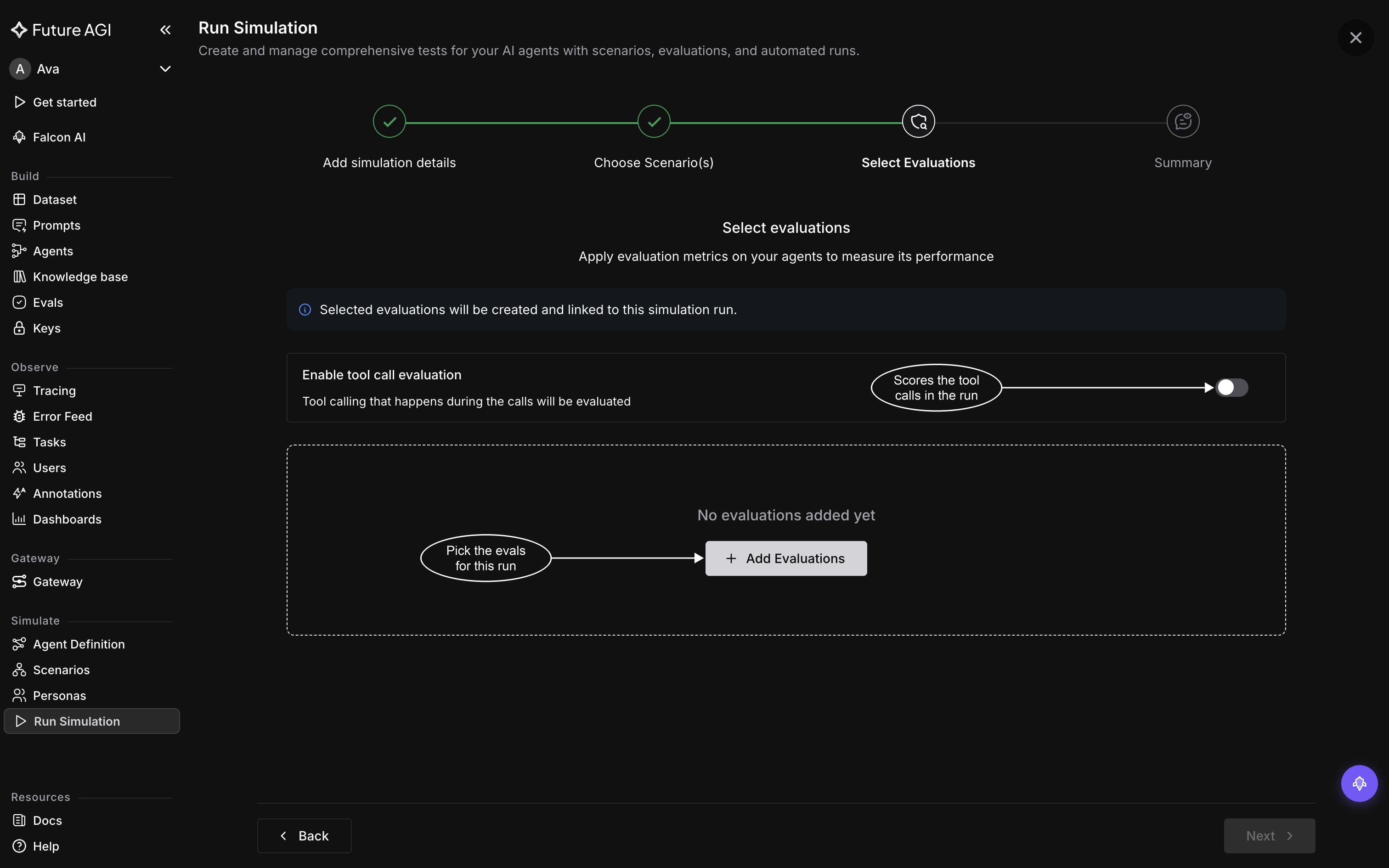
The tool call switch sits outside the eval list and is off until you turn it on
Click Add Evaluations to open the library.
Enable tool call evaluation, above it, is a separate switch and optional. Turn it on when your agent calls tools and you want the calls themselves checked, not only what the agent said. Evaluate tool calls covers what that scores.
Pick one from the library
The drawer lists the eval library. Search by name, or narrow a long list with the category chips, then click Add on the one you want.
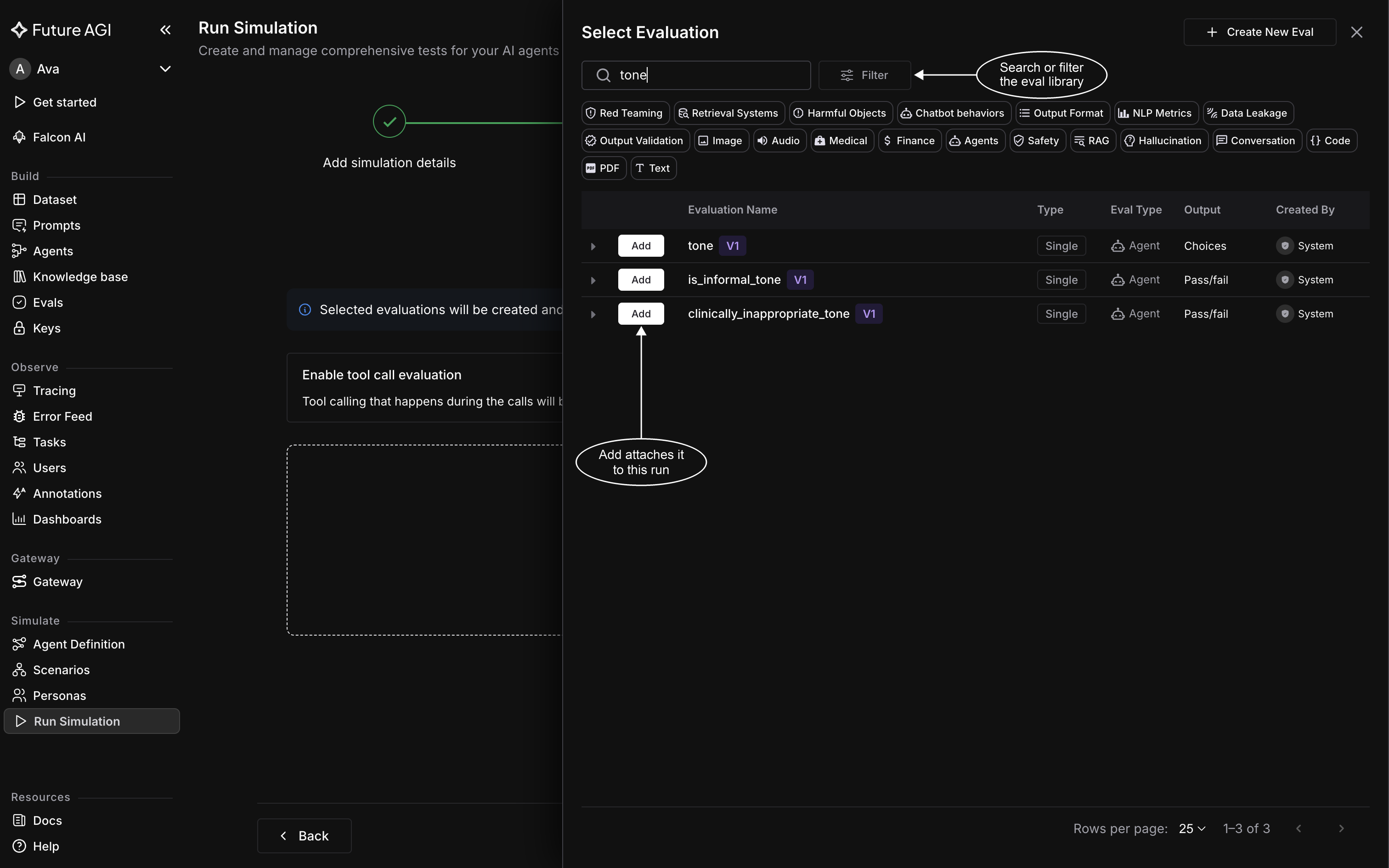
Add opens the eval’s configuration rather than attaching it straight away
Point it at the right field
An eval already knows how to judge. What it doesn’t know is which part of the conversation to read, and Variable Mapping at the bottom of its configuration is where you tell it: each of the eval’s inputs gets a dropdown, and you pick the column that feeds it.
Most evals want call.transcript, the whole conversation, and that’s the sensible default. Reach for something narrower when the eval only makes sense against one side, like scoring your agent’s tone from call.assistant_chat_transcript, or when it needs audio rather than text.
The full set of columns is listed above the mapping:
- The call:
call.transcript, pluscall.agent_prompt,call.duration_seconds,call.status, andcall.overall_score - Chat only:
call.user_chat_transcriptandcall.assistant_chat_transcript, which hold one side of the conversation each - Voice only:
call.summary, and the recordingscall.voice_recording,call.assistant_recording,call.customer_recording, andcall.stereo_recording, for evals that listen rather than read - Context:
scenario,persona,simulation, andagentfields describing what the call was set up to do
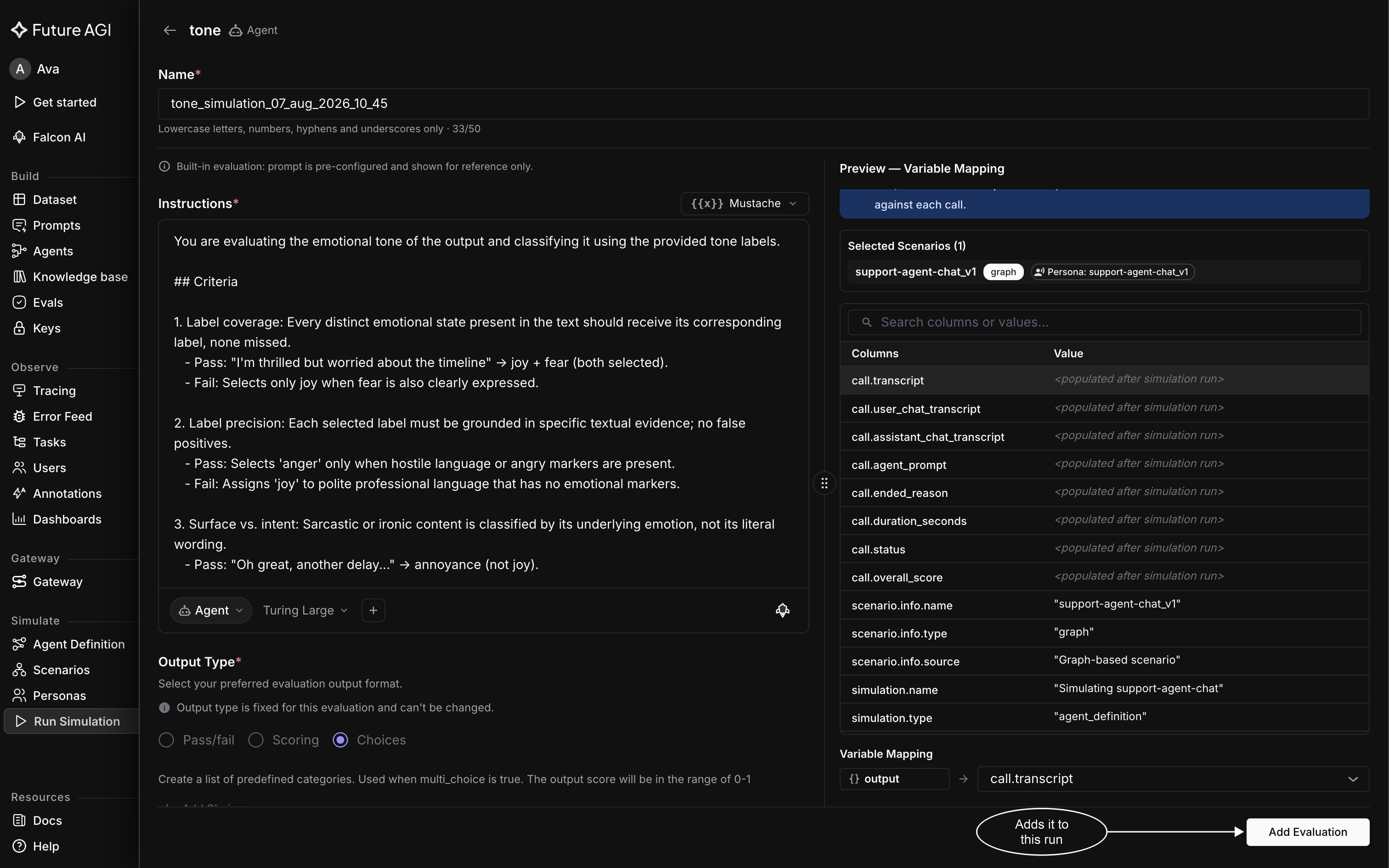
Values stay <populated after simulation run> until a run has produced them
Built-in evals arrive pre-configured, so their instructions and output type are shown for reference and can’t be changed. The mapping is the part you set. Click Add Evaluation and you land back on the step.
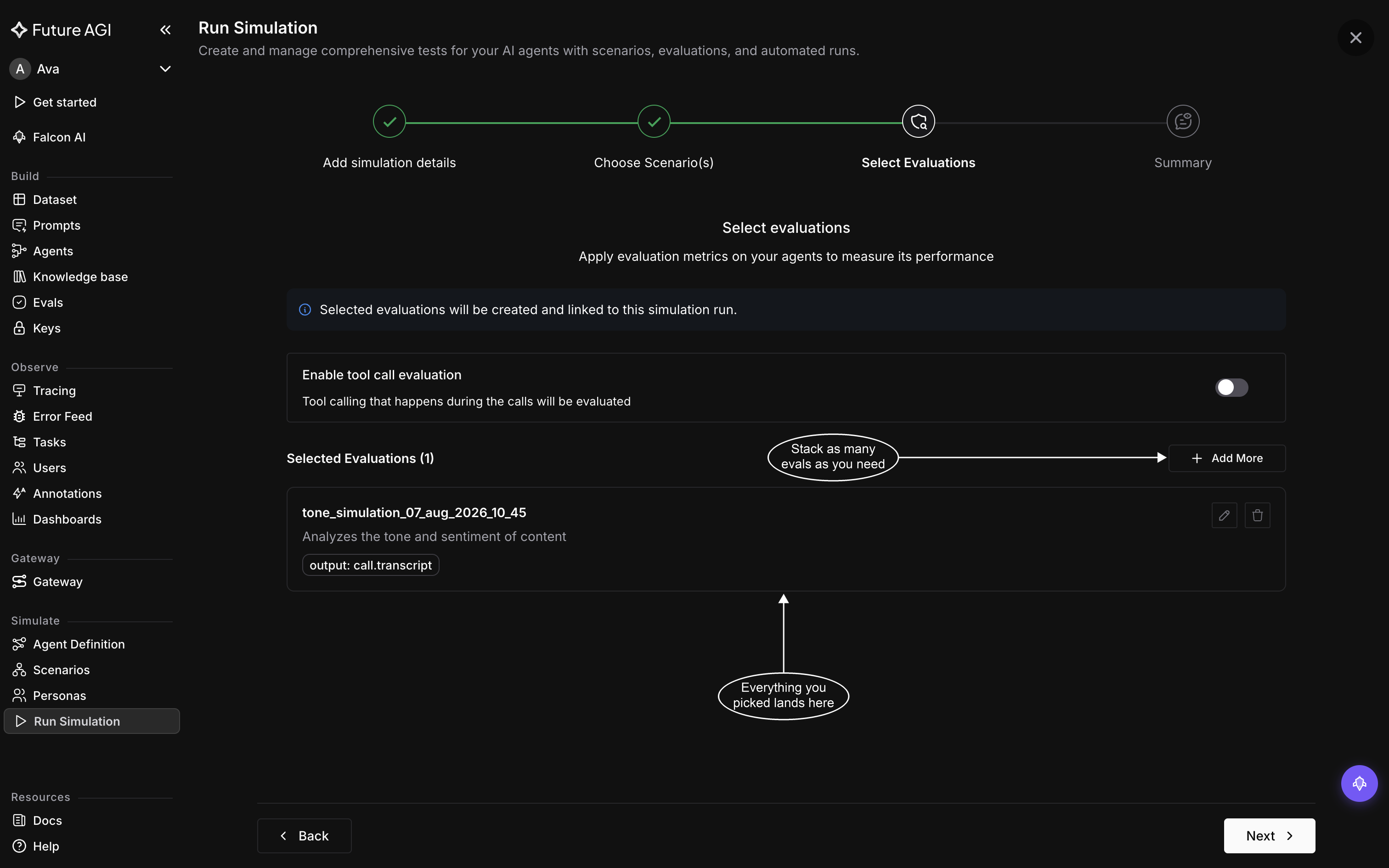
Add More stacks another eval onto the same run
The name is the giveaway. tone_simulation_07_aug_2026_10_45 is not the library’s tone eval, it’s a copy stamped with the date and bound to this run, which is what the step’s banner means by “Selected evaluations will be created and linked to this simulation run”. Retune its mapping and nothing changes for anyone else using tone.
Review and create
The last step lays the bundle out in one scroll: name and description, agent definition and version, every scenario with its row count, and every eval with its mapping.
The Summary step is the whole bundle in one place
This is the last chance to change the two choices that are one-way. A created run has no edit, only View and Delete in its row menu, so a different agent version or a different set of scenarios means building another run. Evals are the exception: the Evals chip on the run’s own page adds and removes them afterwards, which is what Edit evals in a simulation covers.
Click Run Simulation to create it. Despite the label, whether anything actually runs now depends on the channel.
Start the run
Read the half that matches your agent; the other doesn’t apply.
Voice runs start on their own
A voice run begins the moment it’s created. Future AGI places the calls itself, so there’s nothing to install and nothing to run on your machine. You land on the run’s Simulated runs tab, and the run appears there as an execution that reports its own progress, moving through pending, running, and evaluating before it settles on completed, or on failed if it stopped early. Calls fill in underneath as they finish, so a run mid-flight shows some of its rows rather than none.
Run New Simulation plays the same bundle again as a fresh execution, which is how you compare two attempts at identical settings.
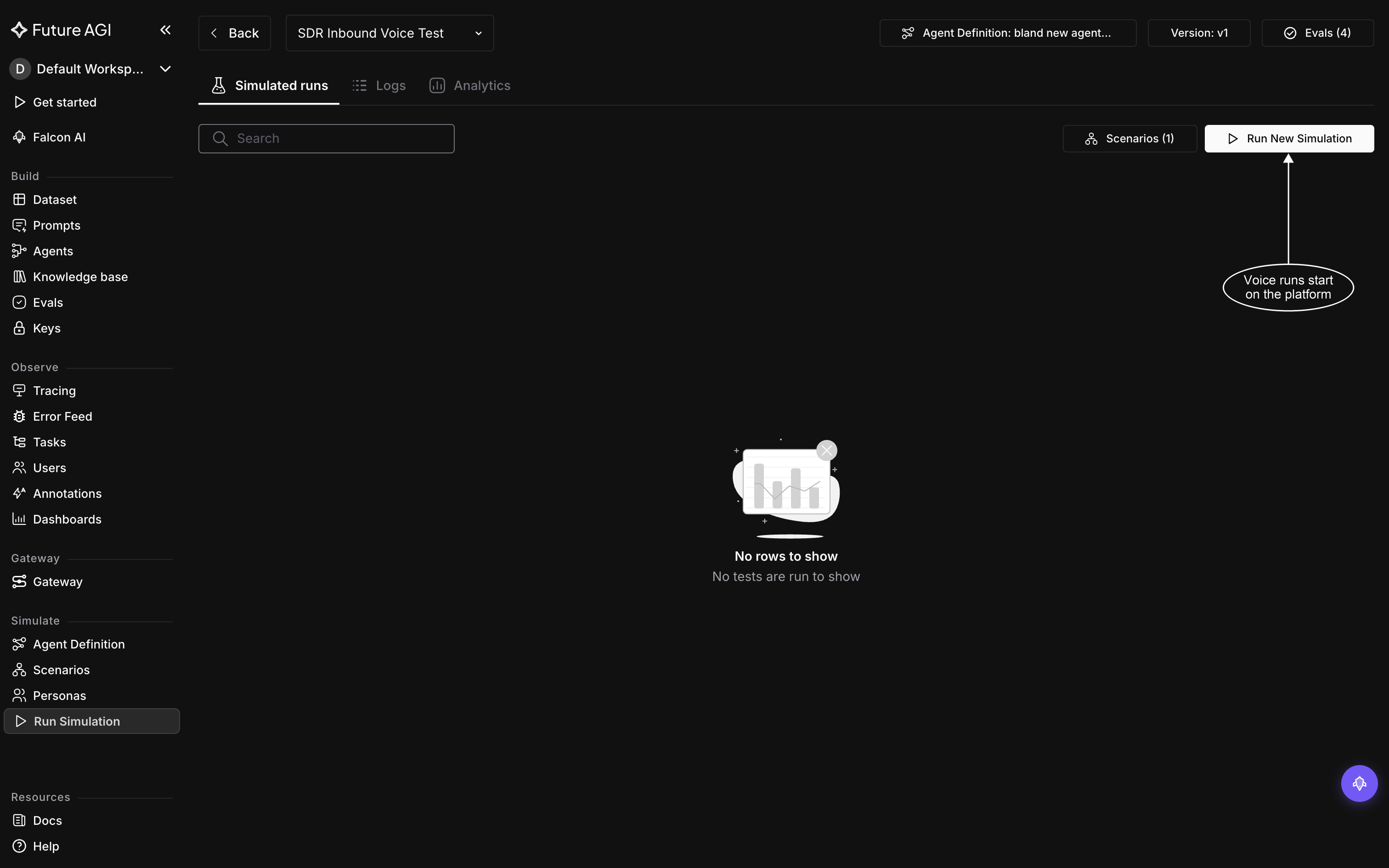
A voice run executes on the platform; this tab fills in as calls complete
Chat runs wait for your code
A chat agent lives in your code, where Future AGI can’t reach it, so creating the run starts nothing. The Simulated runs tab hands you the boilerplate to drive it yourself, already carrying this run’s name.
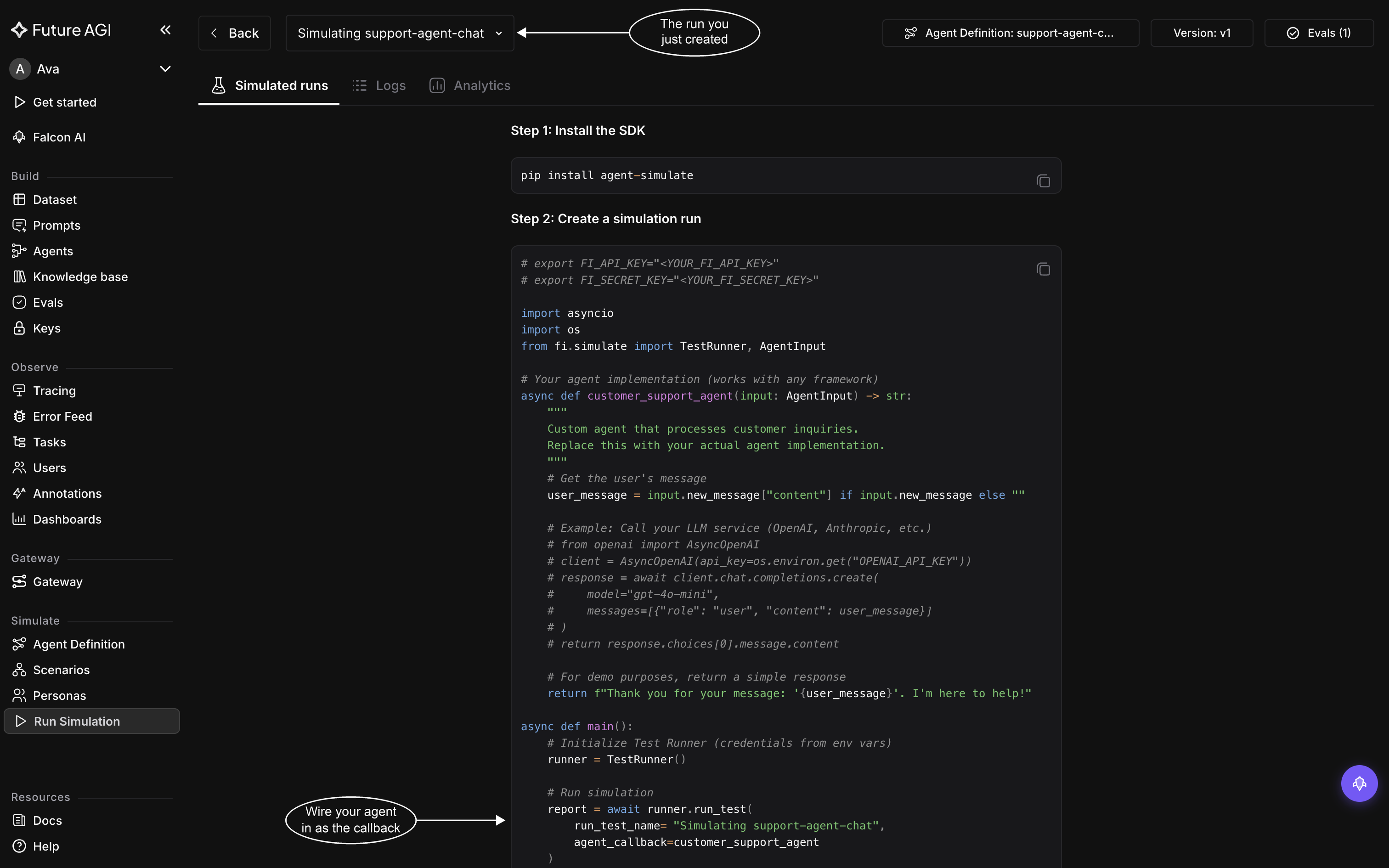
Copy from this panel rather than from the page below: its run_test_name is already your run’s
Install the SDK:
pip install agent-simulateTestRunner reads your API key pair from FI_API_KEY and FI_SECRET_KEY, so set both in your environment. Then point run_test at the function that answers a message in your app:
import asyncio
from fi.simulate import TestRunner, AgentInput

async def customer_support_agent(input: AgentInput) -> str:
    user_message = input.new_message["content"] if input.new_message else ""
    # Call your own agent here and return what it says
    return await my_agent.respond(user_message)

async def main():
    runner = TestRunner()
    report = await runner.run_test(
        run_test_name="Simulating support-agent-chat",  # your run's name, exactly
        agent_callback=customer_support_agent,
    )
    print(f"Processed {len(report.results)} test cases")

asyncio.run(main())
Two things have to be right. run_test_name must match the run’s name character for character, which is why copying from the dashboard’s panel is safer than retyping. And the callback runs once per turn, receiving new_message for the turn to answer, messages for the conversation so far, and thread_id identifying the conversation; return the reply as a string.
Run the script. Future AGI plays each scenario row as a customer, your callback answers each turn, and the transcripts come back to the run. Run a chat simulation goes through the callback in full, including returning an AgentResponse instead of a string when you want your agent’s tool calls reported alongside the reply.
A chat run that’s never driven simply stays empty; it isn’t queued anywhere and it won’t time out, so an untouched Simulated runs tab means the script hasn’t run, not that the run failed. The boilerplate stops showing once the run has its first execution, and Run New Simulation brings it back when you need it again.
Read the results
Once calls exist, the two tabs beside Simulated runs are where they land. Call Details, titled Chat Details on a chat run, holds one row per call, so a 20-row scenario leaves 20 rows, each with its status and its transcript. Analytics aggregates the same calls into eval scores across the run, which is what you compare when you run the bundle a second time. Explore results covers both.
Dive deeper
Questions & Discussion